02. SYM‐Helper.app
Jump-start your users’ on-boarding experience with SYM-Helper, a stand-alone macOS app to help MacAdmins more easily deploy Setup Your Mac.
The latest version of SYM-Helper.app is available on GitHub.
Pro Tip: Run SYM-Helper.app on an enrolled, fully configured Mac
When you first launch SYM-Helper.app, you’ll be prompted to establish a connection to your Jamf Pro server.

- Display Name: User-friendly name for the Jamf Pro server (i.e., “Stage”, “Production”)
-
Server URL: The Jamf Pro URL for this server, including
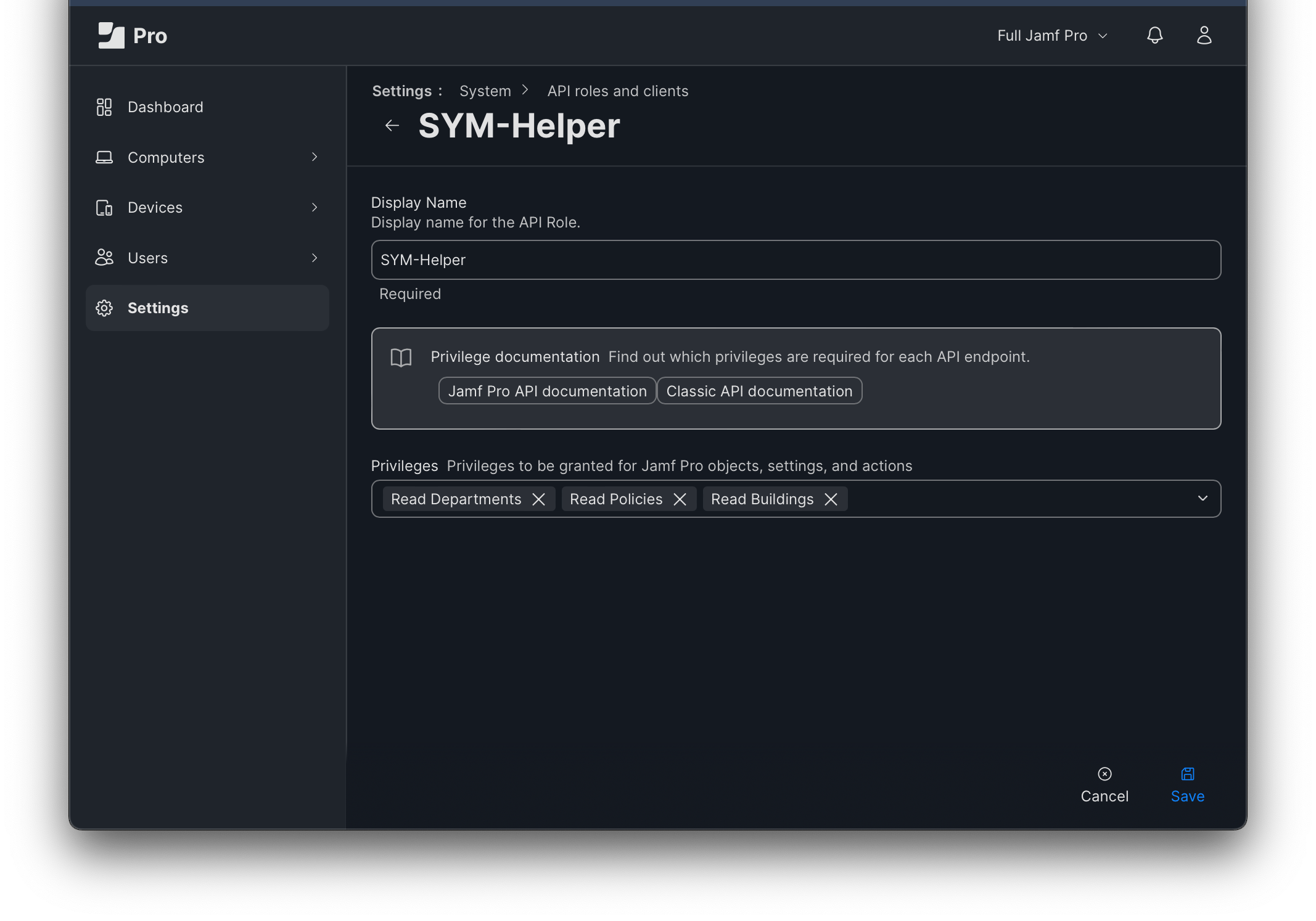
https:// - For Jamf Pro 10.49.0 (and later), the recommended approach is to leverage the new API Roles and Clients, granting:
- Read Buildings
- Read Departments
- Read Policies

Pro Tip: The list of configured servers is shared among Leslie’s apps and is available at the following location:
~/Library/Group Containers/group.PS2F6S478M.jamfie.SharedJPMA/Library/Preferences/group.PS2F6S478M.jamfie.SharedJPMA.plist
 |
|---|
| SYM-Helper: Script Source (01:15); Music: Bensound.com/royalty-free-music (License code: SL9XDAB28DEXQSON) |
As just one example of how Leslie outdid himself with SYM-Helper, one of my favorite features is the ability to specify a script source.
Click the Settings icon in the bottom, left-hand corner to quickly access the default source, which is the “main” branch.
Leslie recently added an icon to both easily see which script version you’re using and to display the raw script in your default browser with a single click.

Let’s change to a different branch, in this case, “1.15.1”. (See branches for a current list; If you have your own fork of Setup Your Mac, you may wish to try specifying it in SYM-Helper.)
 |
|---|
| SYM-Helper: Settings screencast (00:41) • Music: Bensound.com/royalty-free-music (License code: SL9XDAB28DEXQSON) |

Click the Settings icon in the bottom, left-hand corner and populating your customized list of Buildings and Departments is just a click away.
- SYM-Helper
- Settings
- Script Source
- Branding
- Banner Image
- Banner Display Text
- Light Icon
- Dark Icon
- Support
- Team Name
- Team Phone
- Team Email
- KB
- Error KB
- Team Website
- Prompt For …
- Username
- Prefill
- RealName
- Prefill
- Computer Name
- Prefill
- Email
- Prefill
- Domain Name
- Asset Tag
- Disable regex
- Room
- Building
- Department
- Position
- Configuration
- Movable in Production
- Username
- Buildings
- Departments
- Settings
 |
|---|
| SYM-Helper: Default Configuration screencast (05:09) • Music: Bensound.com/royalty-free-music (License code: SL9XDAB28DEXQSON) |
A default Configuration is required before being able to generate a customized script with SYM-Helper.
We’ve already completed our Jamf Pro policy pre-work and have dedicated enrollment policies, so let’s filter on “enrollment.”
You can easily add policies from the left column to the selected configuration by double-clicking.
Click the plus button to add a validation.
Multiple triggers can be displayed to the user as a single item by first selecting them, then clicking “group.”
Next, we’ll add a Local validation of filevault.
While the validation for FileVault is built-in to Setup Your Mac, you’ll still need to actually enable FileVault via Jamf Pro; we’re using a Configuration Profile as part of our PreStage.
{
    "listitem": "FileVault Disk Encryption",
    "subtitle": "FileVault provides full-disk encryption",
    "icon": "https://ics.services.jamfcloud.com/icon/hash_f9ba35bd55488783456d64ec73372f029560531ca10dfa0e8154a46d7732b913",
    "progresstext": "FileVault is built-in to macOS and provides full-disk encryption to help prevent unauthorized access to your Mac.",
    "trigger_list": [
        {
            "trigger": "filevault",
            "validation": "Local"
        }
    ]
},
You’ll always want to end with a Local Validation of recon and also specify the command of recon to update your Jamf Pro server for the newly enrolled Mac.
{
    "listitem": "Computer Inventory",
    "subtitle": "The listing of your Mac’s apps and settings",
    "icon": "https://ics.services.jamfcloud.com/icon/hash_ff2147a6c09f5ef73d1c4406d00346811a9c64c0b6b7f36eb52fcb44943d26f9",
    "progresstext": "A listing of your Mac’s apps and settings — its inventory — is sent automatically to the Jamf Pro server daily.",
    "trigger_list": [
        {
            "trigger": "recon",
            "validation": "recon"
        }
    ]
}
Let’s copy-pasta data from our Self Service Update Inventory policy.
We’ll click “Generate Script,” save the file to the desktop and in a previously elevated Terminal window on an enrolled Mac, we’ll execute the script.
The so-called “Welcome” screen looks good …
… Deep, Cleansing Breath …
… but I don’t want to continue filling out all these fields for the rest of the demos, so let’s turn off most of the fields in SYM-Helper.
We’ll toggle off most of the prompts and then click “Generate Script” and replace our previous script, save and re-run the script.
Nice! Now we only have to enter Asset Tag.
OK, this is working, but it isn’t doing too much; let’s add some more policies in SYM-Helper.
Add policies from the left column to the selected configuration by double-clicking; Drag-and-drop to reorder.
New in version 1.13.1, you can specify an app or a complete filepath.
We’re using a Remote Validation to confirm the Sophos Endpoint services are running, so we’ll manually enter Remote for the Validation.
We’ll group these two list items so that they’re displayed as a single item to the user.
We’ll repeat for GlobalProtect.
After double-checking our work, we’ll click “Generate Script,” save the file to the desktop and in a previously elevated Terminal window on an enrolled Mac, we’ll execute the script.
Hey! This is looking good!
 |
|---|
| ### Setup Your Mac with SYM-Helper screencast (22:49) • Music: Bensound.com/royalty-free-music (License code: SL9XDAB28DEXQSON) |
- Configuration Guide - Complete guide to all script parameters that SYM-Helper can configure, from basic setup to advanced organizational integration
- Setup Your Mac Validation - Comprehensive guide to Local vs Remote validation methods configurable through SYM-Helper
- Developer Reference - Technical details of script functions that SYM-Helper policy configurations interact with, plus troubleshooting procedures
- Best Practices - Security considerations, testing procedures, and deployment strategies for SYM-Helper configurations
- Setup Your Mac Overview - Main Setup Your Mac documentation with comprehensive architecture overview and technical implementation details