Simple PowerShell script to force the option of running MSFS2020 in Safe Mode or Normal Mode by either adding or removing the running.lock file in the sim's active directory.
This "tool", whatever have you, assumes you are comfortable with basic navigation of Command Prompt and/or PowerShell, and that you have PowerShell installed. If you don't have PowerShell installed, install it from here.
Make sure you update the $storePath and/or $steamPath variable(s) in the script as needed!
Like most of us, I have a ton of things in my Community folder. 442GB, in fact. On occasion, the sim will CTD and prompt to open in Safe Mode or Normal Mode on the next launch as a result. Being that my PC gets relatively good frame rates in Safe Mode (or in any of the Activities in Normal Mode, specifically), I've learned to not have any inhibitions or reservations about doing flights in Safe Mode here and there. Especially if I have very little patience for my PC's tendencies to be a bit dramatic in terms of impact from the sim on that particular day.
That said, I did some research to understand how MSFS2020's Safe Mode worked, and as it turns out, the sim will place a running.lock file to the game's running directory (which, for me, is C:\XboxGames\Microsoft Flight Simulator\Content).
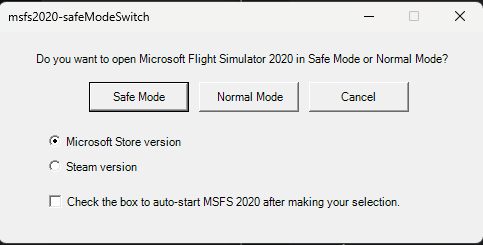
On the next launch of the sim with this .lock file in place, the user will be presented with the following dialog box:

Per the documentation, Safe Mode in Microsoft Flight Simulator disables temporarily: third-party content from the Marketplace and mods from the community folder. This can allow for an optimal experience with the base sim; minimal lagging or frame drops, screen tearing, and so on.
Aside from missing custom/third-party scenery, aircraft, and other random add-ons (P42 simFX, RealTurb CAT, to name a few) there really is no downside to running the sim in Safe Mode, and all fellow simmers deserve an easily-accessible option for choosing how to launch the sim. On the bright side, anyway, the following still work (for me) in Safe Mode with no observed limitations, whatsoever:
- SimConnect
- FBW's flyPad and Remote MCDU server
- VATSIM
- FSLTL
- LittleNavMap (all features, including real-time aircraft position tracking)
- Volanta
- Navigraph Simlink
- Navigraph Charts (all features except the in-game Charts panel, with real-time aircraft position tracking)
- Though unconfirmed if the JustFlight models will work as I do not have them and use only the FSLTL models.
- Navigraph Charts (all features except the in-game Charts panel, with real-time aircraft position tracking)
- MSFS 2020 Map Enhancement, by derekhe on GitHub (which works WONDERFULLY in ALL instances!!!)
- FSUIPC
- NVIDIA Freestyle/Game Filters
- Reshade
- Other things, probably, but this is pretty much all of my "necessities" for a flight.
- Download the script (.ps1 file) and save it somewhere like your Desktop or a dedicated script/junk folder for MSFS.
- On an empty spot on your Desktop, right-click and select New > Shortcut.
- In "Type the location of the item:", copy and paste the path to the script you downloaded. The path should end with .ps1.
- Give the shortcut a name. "Flight Simulator Launcher (2020)" will suffice, but this particular specification is not mission-critical.
- Open the shortcut.
- Et voilà! Such a beautiful, well-constructed interface worth millions of dollars appears. Make any selections you like!
- Keep calm, and keep the blue side up. Happy flying in whatever mode you choose!
I plan on making a batch script version for everyone's convenience, along with an executable of some sort. But its easier for you to see what is actually happening with a script, so you know I'm not running any nonsense on your PC. That said, there is no ETA on a non-PowerShell version at this time.