Added docs fo User & Organization Settings #877
There are no files selected for viewing
This file contains hidden or bidirectional Unicode text that may be interpreted or compiled differently than what appears below. To review, open the file in an editor that reveals hidden Unicode characters.
Learn more about bidirectional Unicode characters
This file contains hidden or bidirectional Unicode text that may be interpreted or compiled differently than what appears below. To review, open the file in an editor that reveals hidden Unicode characters.
Learn more about bidirectional Unicode characters
This file contains hidden or bidirectional Unicode text that may be interpreted or compiled differently than what appears below. To review, open the file in an editor that reveals hidden Unicode characters.
Learn more about bidirectional Unicode characters
This file contains hidden or bidirectional Unicode text that may be interpreted or compiled differently than what appears below. To review, open the file in an editor that reveals hidden Unicode characters.
Learn more about bidirectional Unicode characters
This file contains hidden or bidirectional Unicode text that may be interpreted or compiled differently than what appears below. To review, open the file in an editor that reveals hidden Unicode characters.
Learn more about bidirectional Unicode characters
| Original file line number | Diff line number | Diff line change |
|---|---|---|
| @@ -0,0 +1,63 @@ | ||
| --- | ||
| title: "Configure Organization Settings" | ||
| metadesc: "Organization Settings allow administrators to manage authentication and security configurations for the organization | Learn how to configure organization settings in Testsigma" | ||
| noindex: false | ||
| order: 19.22 | ||
| page_id: "organization-settings" | ||
| search_keyword: "" | ||
| warning: false | ||
| contextual_links: | ||
| - type: section | ||
| name: "Contents" | ||
| - type: link | ||
| name: "Prerequisites" | ||
| url: "#prerequisites" | ||
| - type: link | ||
| name: "Password Policy" | ||
| url: "#password-policy" | ||
| - type: link | ||
| name: "Single Sign-On (SSO)" | ||
| url: "#single-sign-on-sso" | ||
| - type: link | ||
| name: "Supported SSO Providers" | ||
| url: "#supported-sso-providers" | ||
| --- | ||
|
|
||
| --- | ||
|
|
||
| Organization Settings allow administrators to manage authentication and security configurations for the organization. These settings define how users access Testsigma and help enforce consistent security standards across the organization. | ||
|
|
||
| This article discusses an overview of organization-level security settings, including Password Policy and Single Sign-On (SSO). | ||
|
|
||
| --- | ||
|
|
||
| > <p id="prerequisites">Prerequisites</p> | ||
| > Before you begin, ensure that: | ||
| > - You have an active Testsigma account with administrator access. | ||
| > - You have access to the Single Sign-On (SSO) identity provider you plan to use. | ||
|
|
||
| --- | ||
|
|
||
| ## **Password Policy** | ||
|
|
||
| Password Policy allows organization administrators to configure password-related security controls for user accounts. | ||
|
|
||
| To learn how to configure password policies, see [Configure Password Policy](https://testsigma.com/docs/configuration/security/password-policy/). | ||
|
|
||
| --- | ||
|
|
||
| ## **Single Sign-On (SSO)** | ||
|
|
||
| Single Sign-On (SSO) allows users to authenticate using an external identity provider and enforces SSO-based access to the organization. | ||
|
|
||
| --- | ||
|
|
||
| ## **Supported SSO Providers** | ||
| Testsigma supports the following Single Sign-On (SSO) providers: | ||
| - [Google Single Sign-On](https://testsigma.com/docs/configuration/security/google-sso/) | ||
| - [SAML-based Single Sign-On (Okta)](https://testsigma.com/docs/configuration/security/okta-sso/) | ||
| - [SAML-based Single Sign-On (Azure)](https://testsigma.com/docs/configuration/security/azure-sso/) | ||
| - **SAML-based Single Sign-On (OneLogin)** | ||
| - **SAML-based Single Sign-On (Google Workspace)** | ||
|
|
||
| --- |
This file contains hidden or bidirectional Unicode text that may be interpreted or compiled differently than what appears below. To review, open the file in an editor that reveals hidden Unicode characters.
Learn more about bidirectional Unicode characters
This file contains hidden or bidirectional Unicode text that may be interpreted or compiled differently than what appears below. To review, open the file in an editor that reveals hidden Unicode characters.
Learn more about bidirectional Unicode characters
| Original file line number | Diff line number | Diff line change | ||||||||||||||
|---|---|---|---|---|---|---|---|---|---|---|---|---|---|---|---|---|
| @@ -0,0 +1,52 @@ | ||||||||||||||||
| --- | ||||||||||||||||
| title: "Configure Password Policy" | ||||||||||||||||
| metadesc: "Password Policy allows organization administrators to configure password-related security controls for user accounts. | Learn how to configure password policy in Testsigma" | ||||||||||||||||
| noindex: false | ||||||||||||||||
| order: 19.24 | ||||||||||||||||
| page_id: "password-policy" | ||||||||||||||||
| search_keyword: "" | ||||||||||||||||
| warning: false | ||||||||||||||||
| contextual_links: | ||||||||||||||||
| - type: section | ||||||||||||||||
| name: "Contents" | ||||||||||||||||
| - type: link | ||||||||||||||||
| name: "Prerequisites" | ||||||||||||||||
| url: "#prerequisites" | ||||||||||||||||
| - type: link | ||||||||||||||||
| name: "Configure Password Policy" | ||||||||||||||||
| url: "#configure-password-policy" | ||||||||||||||||
| --- | ||||||||||||||||
|
|
||||||||||||||||
| --- | ||||||||||||||||
|
|
||||||||||||||||
| Password Policy allows organization administrators to configure password-related security controls for user accounts. These settings manage session behavior, limit failed login attempts, and enforce periodic password changes across the organization. This article discusses configuring the password policy settings in Testsigma. | ||||||||||||||||
|
|
||||||||||||||||
| --- | ||||||||||||||||
|
|
||||||||||||||||
| > <p id="prerequisites">Prerequisites</p> | ||||||||||||||||
| > | ||||||||||||||||
| > Before you begin, ensure that you have an active Testsigma account. | ||||||||||||||||
|
Comment on lines
+26
to
+28
Contributor
There was a problem hiding this comment. Consider enhancing prerequisites to reflect administrator-only access. The prerequisite currently only requires an active account. However, password policy configuration is an administrative function. The related > <p id="prerequisites">Prerequisites</p>
>
-> Before you begin, ensure that you have an active Testsigma account.
+> Before you begin, ensure that:
+> 1. You have an active Testsigma account with administrator access.📝 Committable suggestion
Suggested change
🤖 Prompt for AI Agents |
||||||||||||||||
|
|
||||||||||||||||
| --- | ||||||||||||||||
|
|
||||||||||||||||
| ## **Configure Password Policy** | ||||||||||||||||
|
|
||||||||||||||||
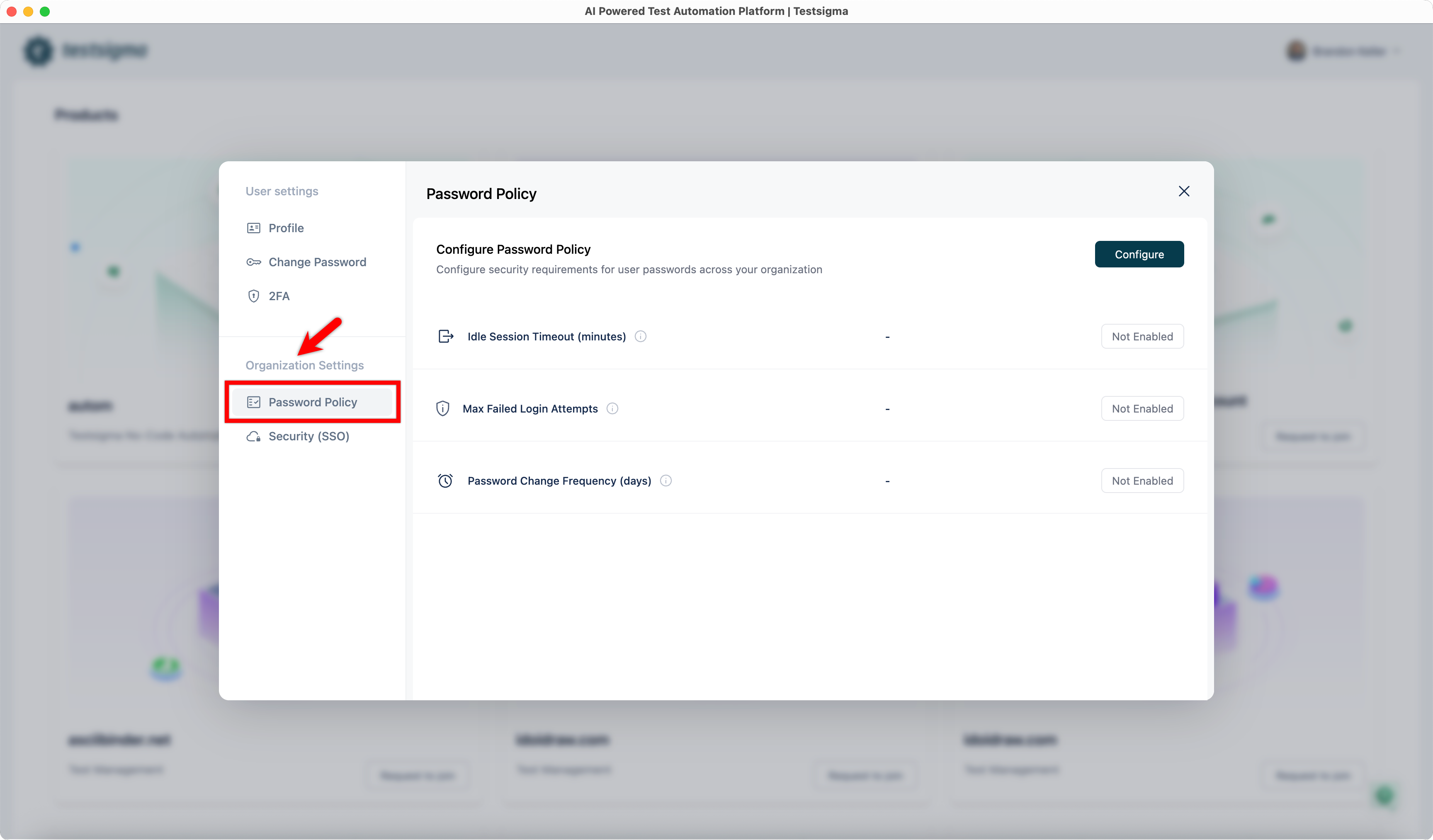
| 1. Under **Organization Settings**, click **Password Policy**. | ||||||||||||||||
|  | ||||||||||||||||
|
|
||||||||||||||||
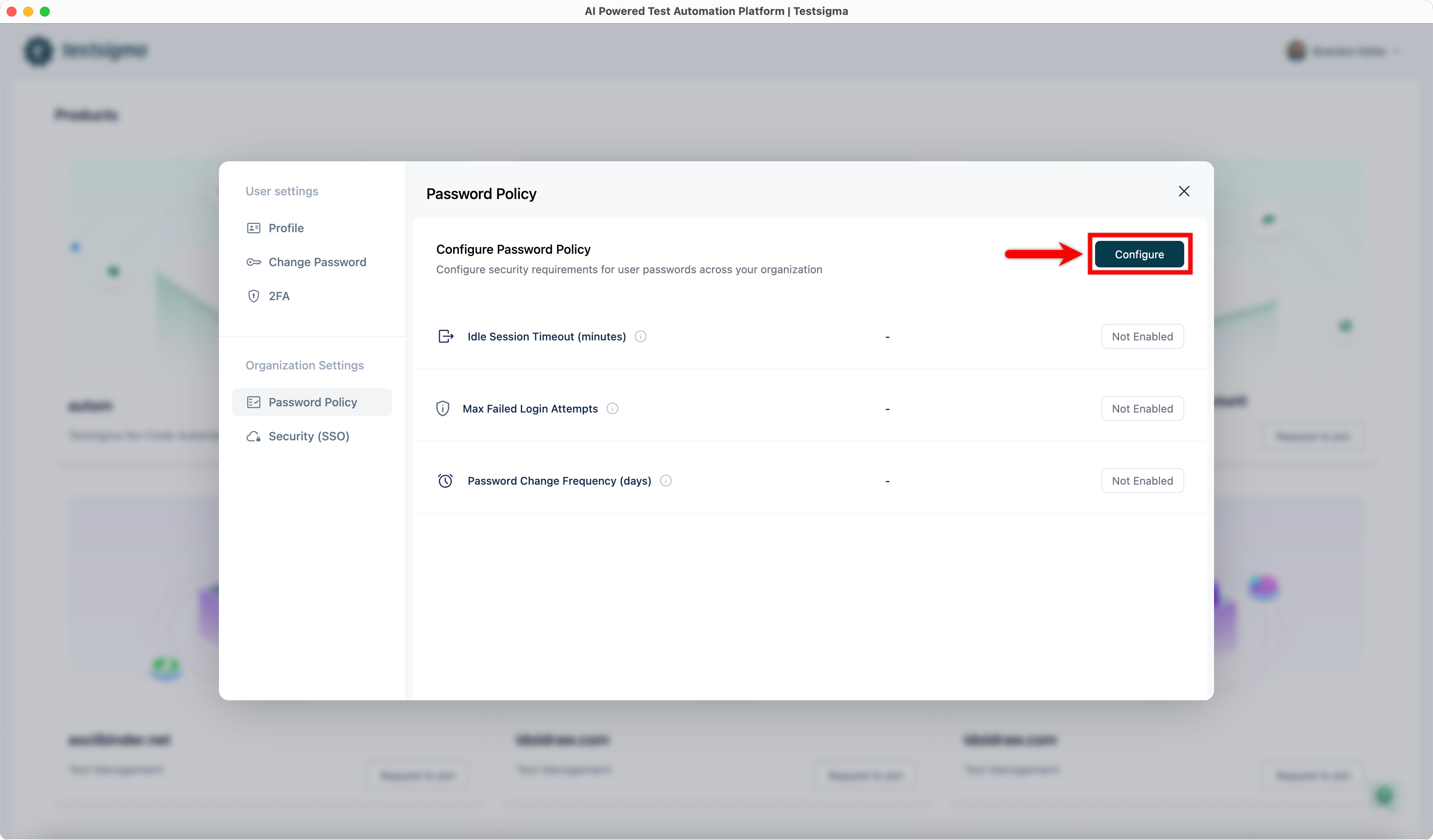
| 2. Click **Configure**. This will open the **Configure Password Policy** dialog. | ||||||||||||||||
|  | ||||||||||||||||
|
|
||||||||||||||||
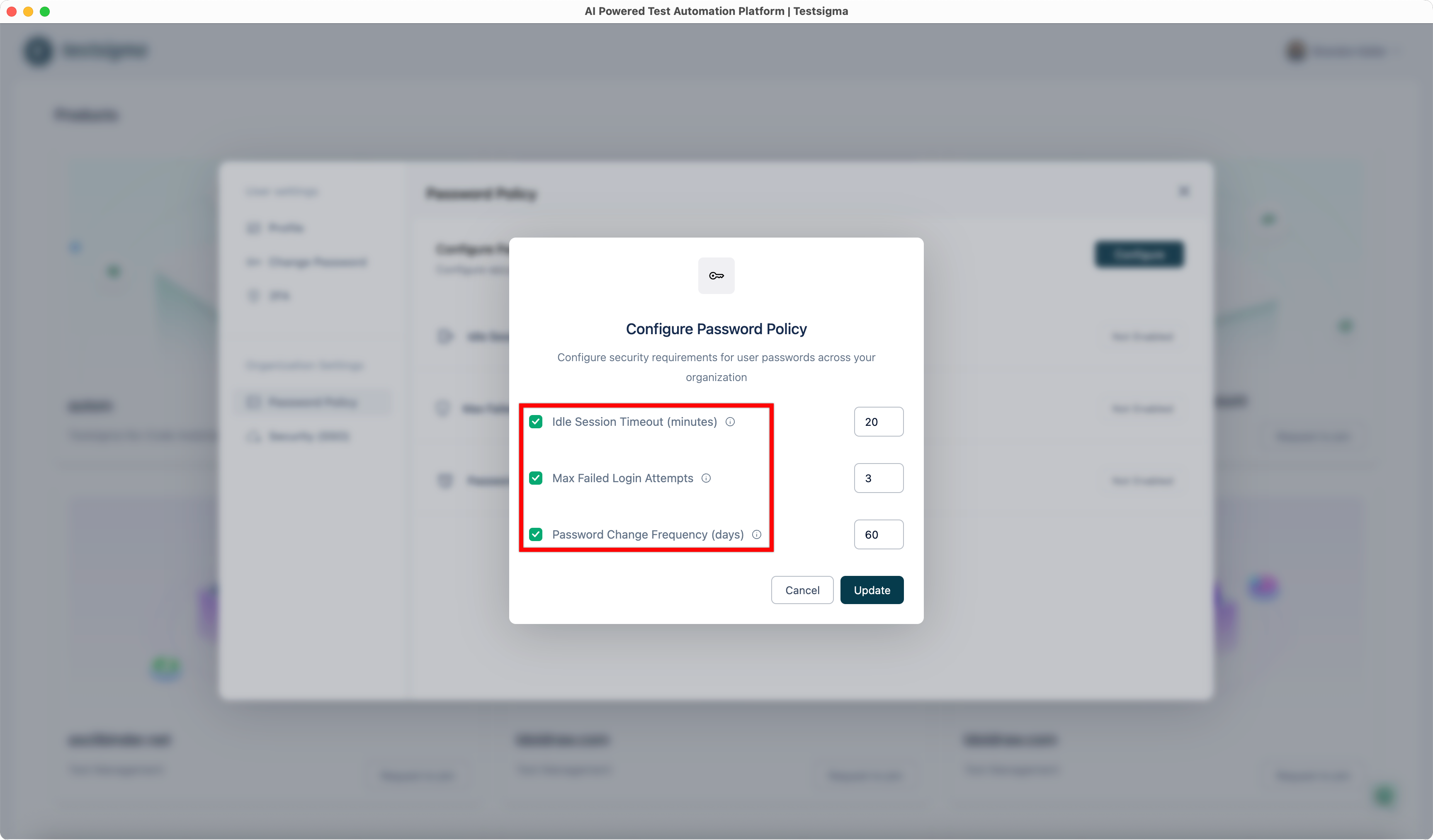
| 3. In the **Configure Password Policy** dialog, select each setting you want to enable. | ||||||||||||||||
|  | ||||||||||||||||
|
|
||||||||||||||||
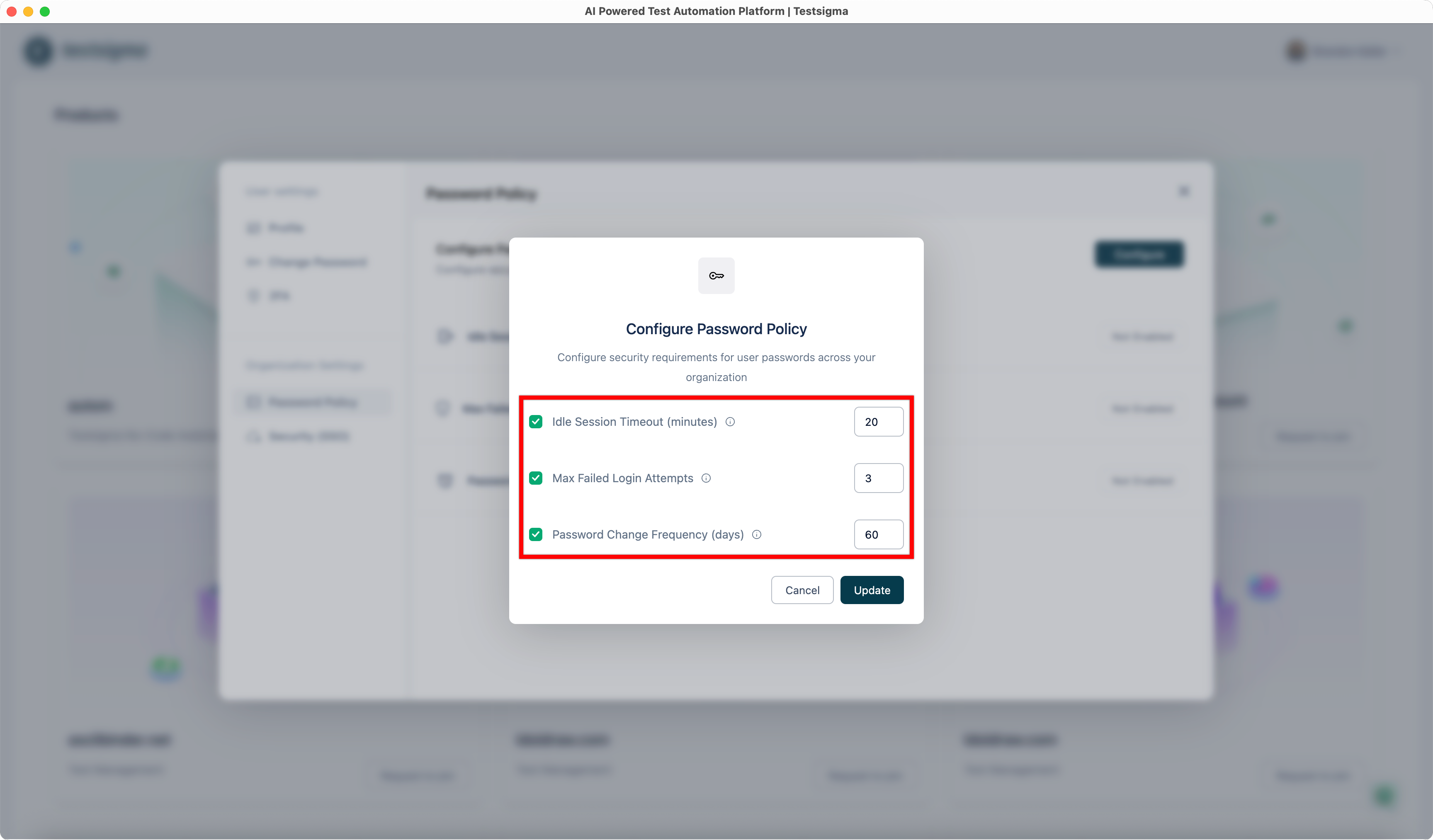
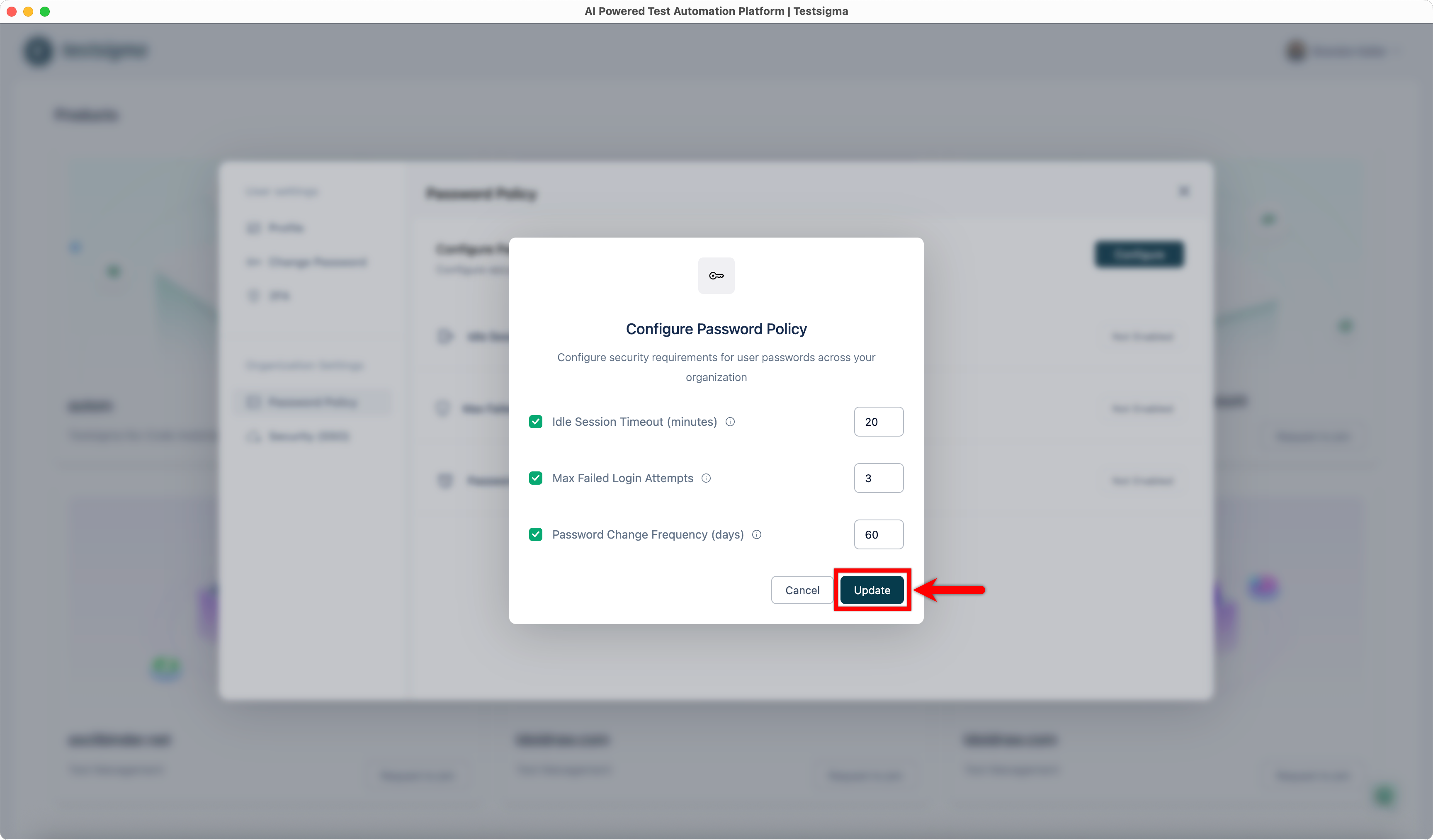
| 4. For each selected setting, enter the required value in the corresponding field: | ||||||||||||||||
| - **Idle Session Timeout (minutes)**: Enter the number of minutes after which inactive users are automatically signed out. | ||||||||||||||||
| - **Max Failed Login Attempts**: Enter the maximum number of consecutive failed login attempts allowed before the account is locked. | ||||||||||||||||
| - **Password Change Frequency (days)**: Enter how often users must change their passwords. | ||||||||||||||||
|  | ||||||||||||||||
|
|
||||||||||||||||
| 5. Click **Update** to save your changes. | ||||||||||||||||
|  | ||||||||||||||||
|
|
||||||||||||||||
| --- | ||||||||||||||||

This file contains hidden or bidirectional Unicode text that may be interpreted or compiled differently than what appears below. To review, open the file in an editor that reveals hidden Unicode characters.
Learn more about bidirectional Unicode characters
| Original file line number | Diff line number | Diff line change |
|---|---|---|
| @@ -0,0 +1,59 @@ | ||
| --- | ||
| title: "Two-Factor Authentication (2FA)" | ||
| metadesc: "Two-Factor Authentication (2FA) is a security feature that requires two forms of verification to access your Testsigma account | Learn how to configure 2FA for Testsigma account" | ||
| noindex: false | ||
| order: 19.23 | ||
| page_id: "two-factor-authentication" | ||
| search_keyword: "" | ||
| warning: false | ||
| contextual_links: | ||
| - type: section | ||
| name: "Contents" | ||
| - type: link | ||
| name: "Prerequisites" | ||
| url: "#prerequisites" | ||
| - type: link | ||
| name: "Single Sign-on Options Available" | ||
| url: "#single-sign-on-options-available" | ||
| - type: link | ||
| name: "Enable SSO in Testsigma" | ||
| url: "#enable-sso-in-testsigma" | ||
| --- | ||
|
|
||
| --- | ||
|
|
||
| Two-Factor Authentication (2FA) is a security feature that requires two forms of verification to access your Testsigma account. When 2FA is enabled, users must enter a one-time authentication code in addition to their username and password. This provides an added layer of protection for your account. This article discusses setting up Two-Factor Authentication for your Testsigma account. | ||
|
|
||
| --- | ||
|
|
||
| > <p id="prerequisites">Prerequisites</p> | ||
| > | ||
| > Before you begin, ensure that you have an authenticator app for your organization. | ||
|
|
||
| --- | ||
|
|
||
| ## **Enable Two-Factor Authentication** | ||
|
|
||
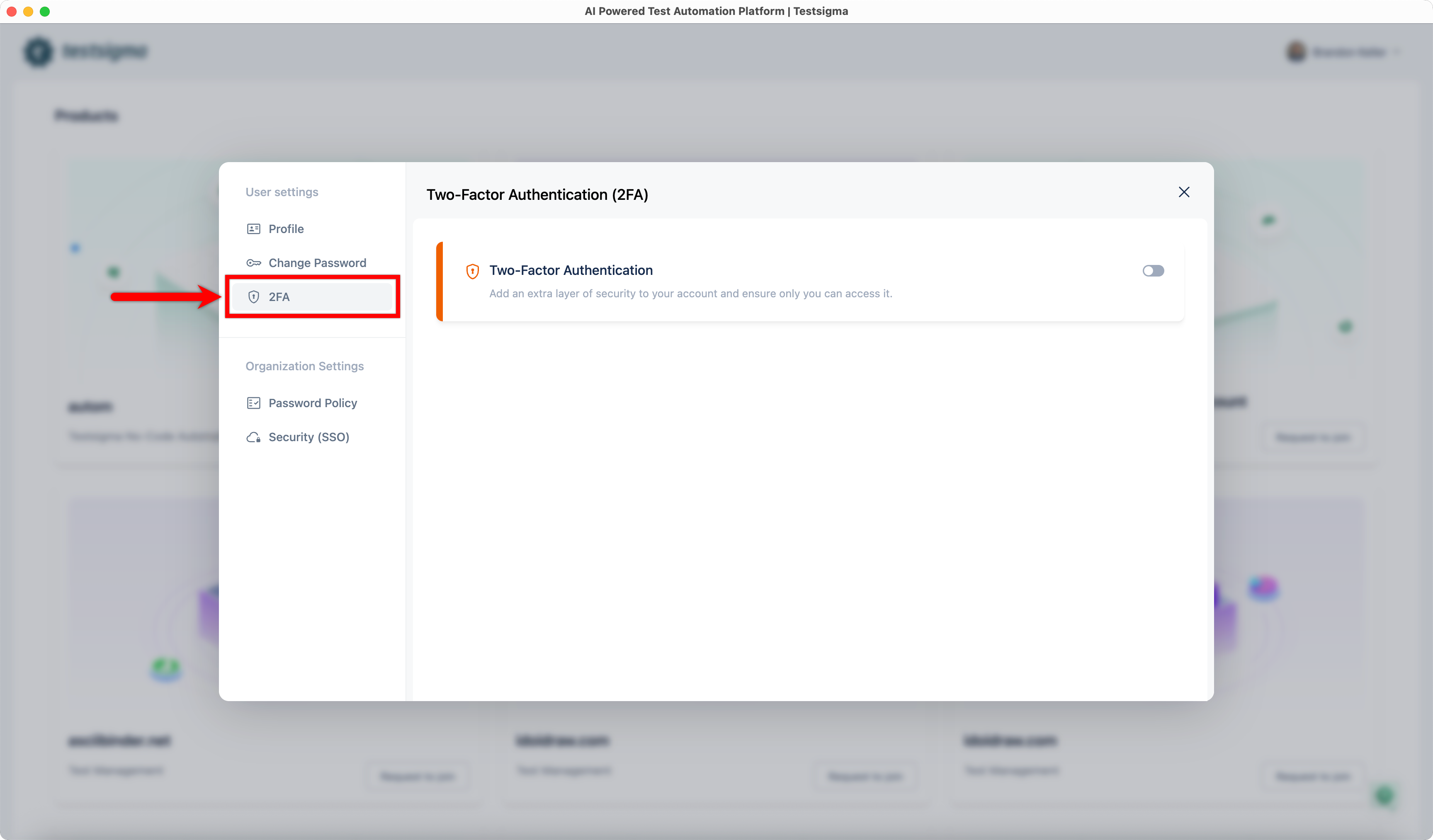
| 1. Click **2FA** under **User Settings**. | ||
|  | ||
|
|
||
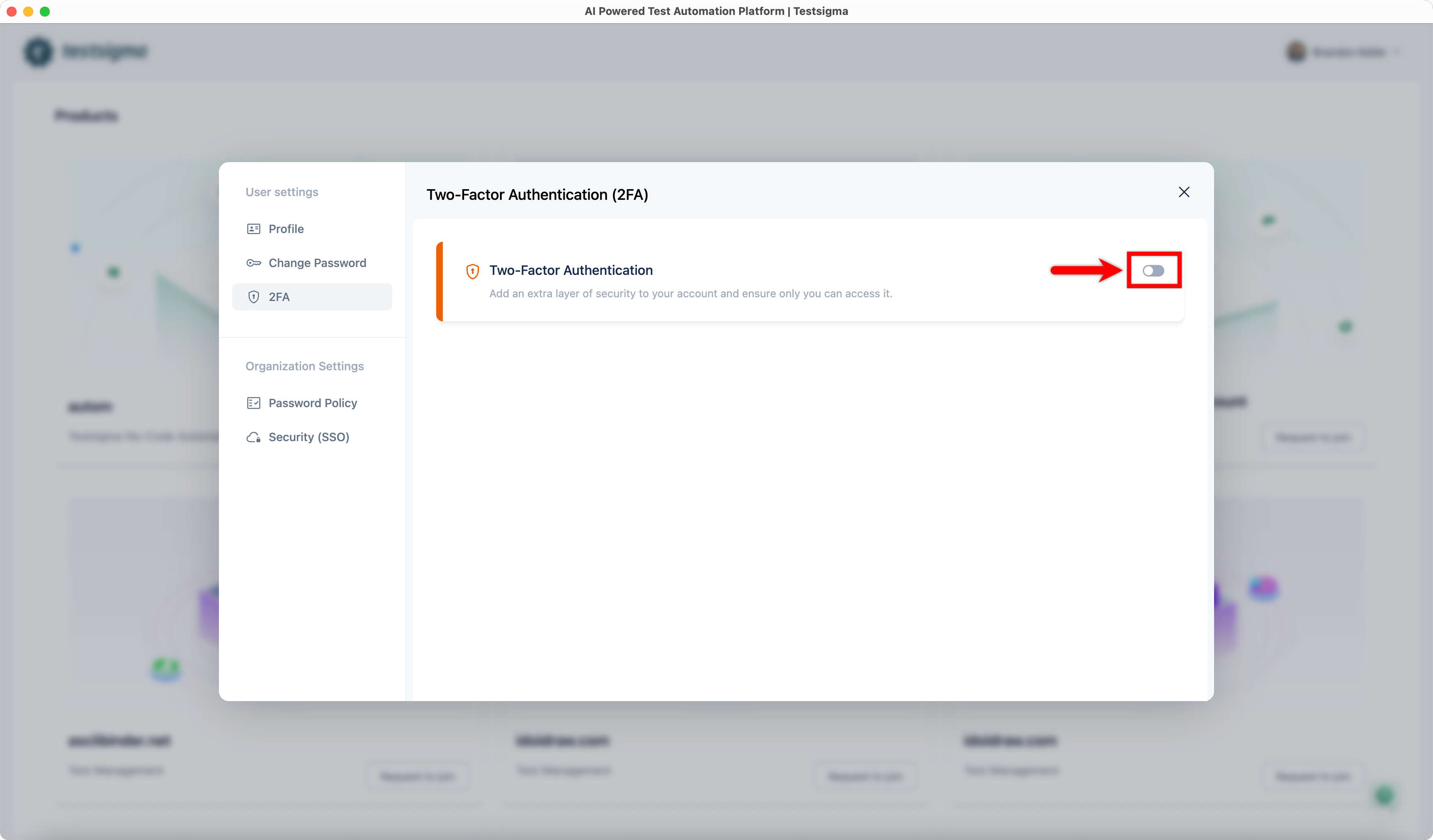
| 2. Turn on the **Two-Factor Authentication** toggle. This will open the **Confirm Your Password** dialog. | ||
|  | ||
|
|
||
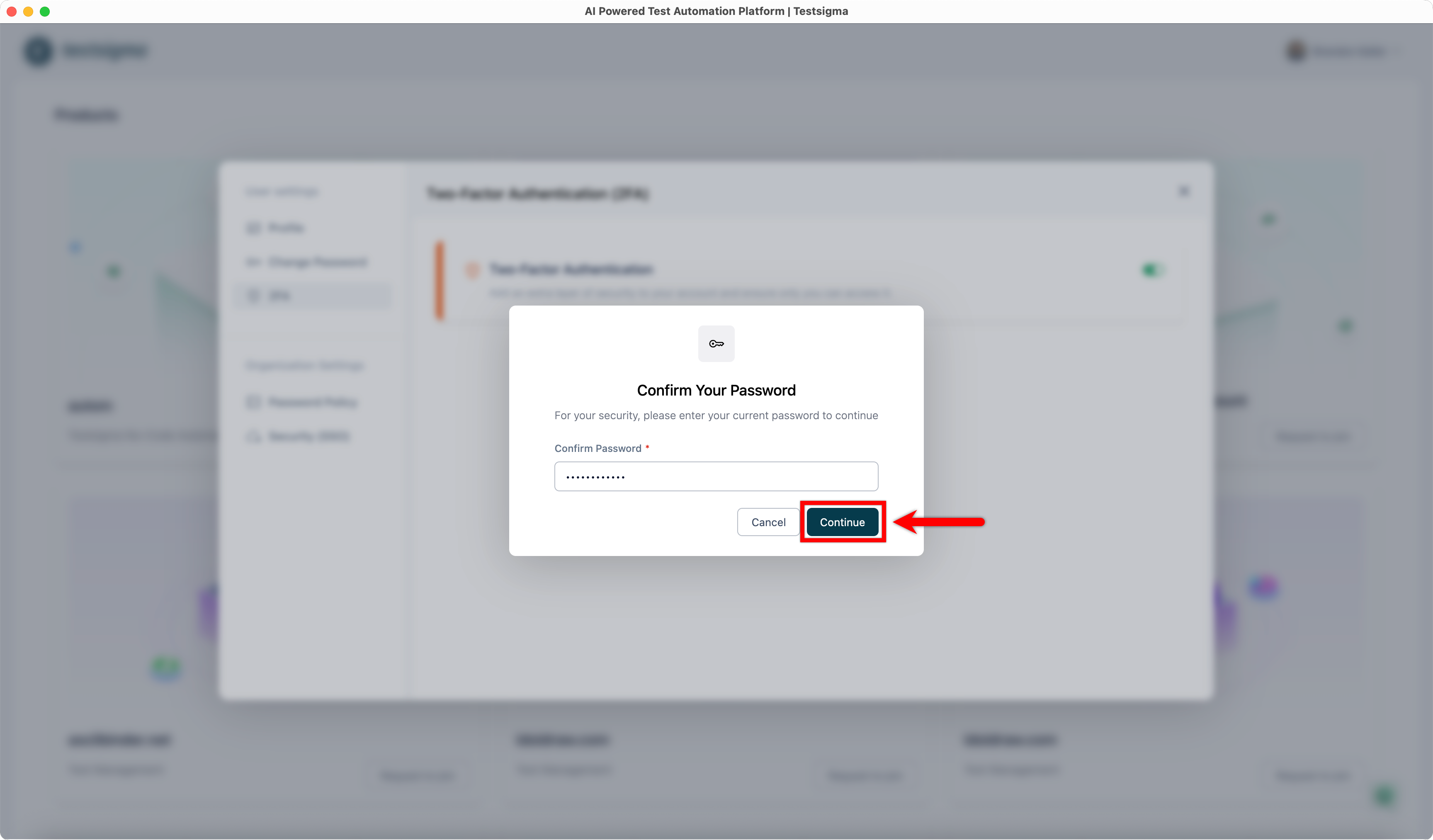
| 3. In the **Confirm Your Password** dialog, enter your password, and click **Continue**. This will open the **Set Up Authenticator App** dialog. | ||
|  | ||
|
|
||
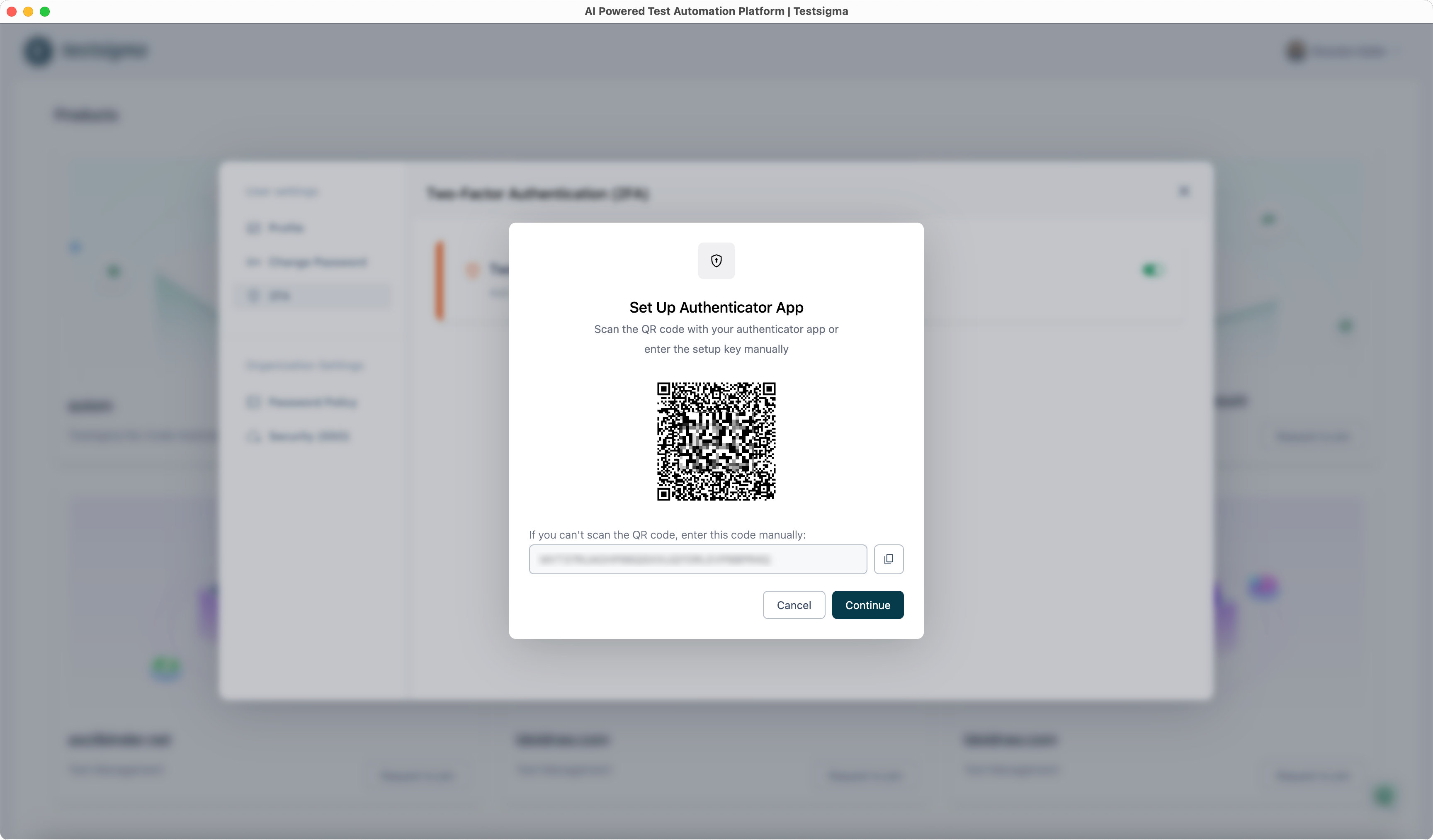
| 4. In the **Set Up Authenticator App** dialog, scan the QR code or enter the setup key in your authenticator app. | ||
|  | ||
|
|
||
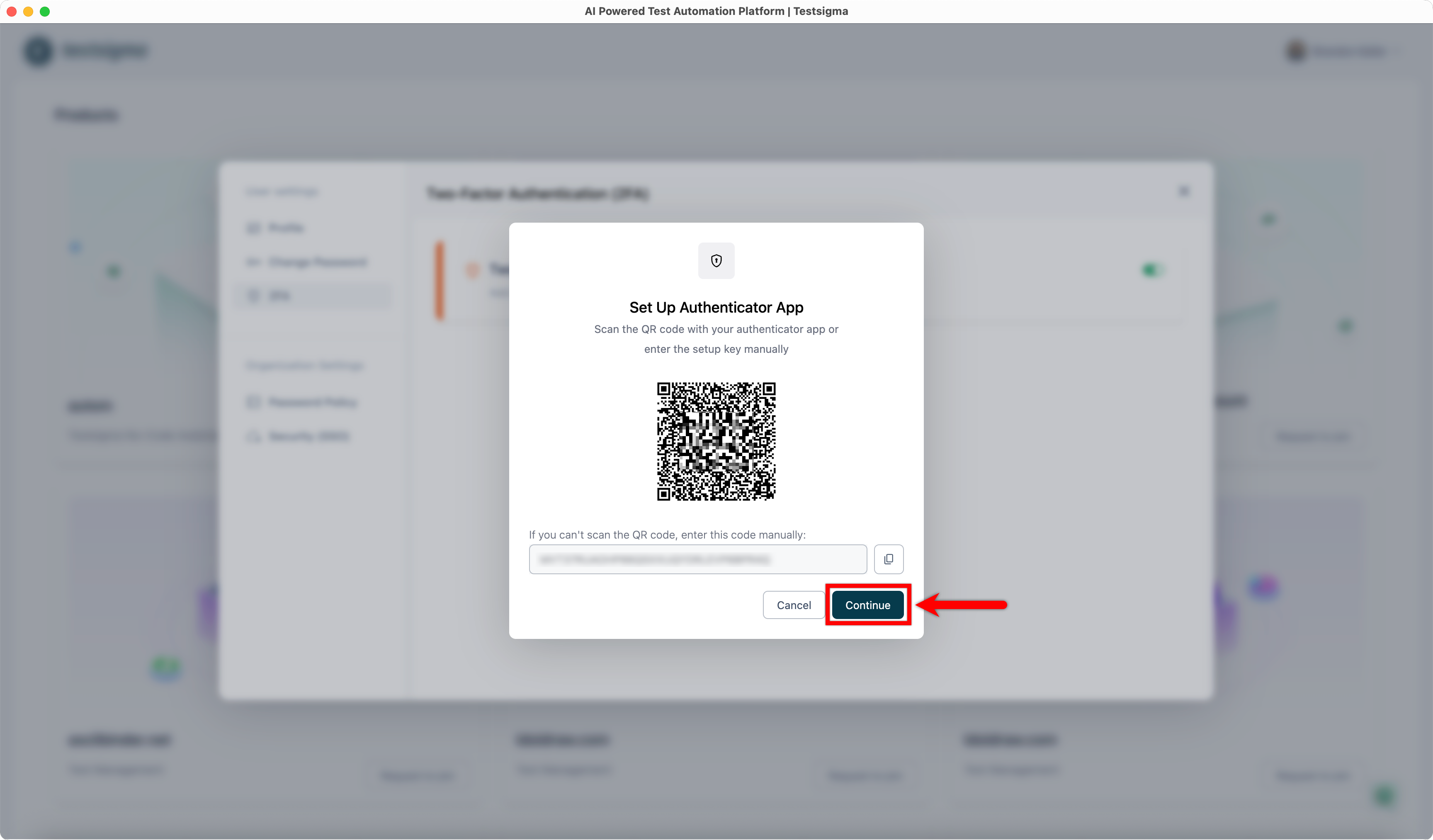
| 5. Click **Continue**. This will open the **Verify Authenticator App** dialog. | ||
|  | ||
|
|
||
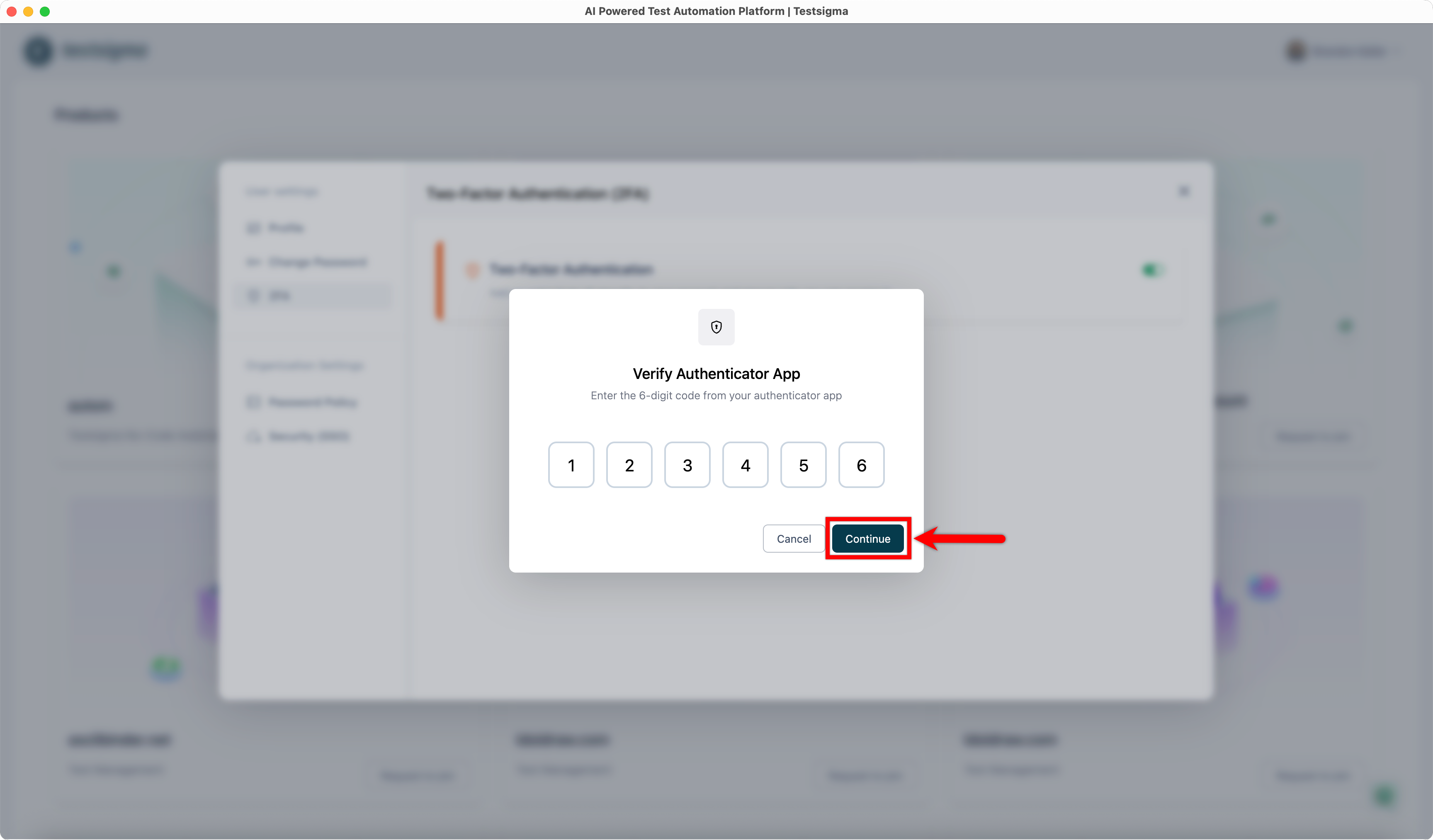
| 6. In the **Verify Authenticator App** dialog: | ||
| - Enter the 6-digit code from your authenticator app. | ||
| - Click **Continue**. | ||
|  | ||
|
|
||
| 7. You have now successfully enabled **Two-Factor Authentication** for your Testsigma account. | ||
|
|
||
| --- |
Oops, something went wrong.
Add this suggestion to a batch that can be applied as a single commit.
This suggestion is invalid because no changes were made to the code.
Suggestions cannot be applied while the pull request is closed.
Suggestions cannot be applied while viewing a subset of changes.
Only one suggestion per line can be applied in a batch.
Add this suggestion to a batch that can be applied as a single commit.
Applying suggestions on deleted lines is not supported.
You must change the existing code in this line in order to create a valid suggestion.
Outdated suggestions cannot be applied.
This suggestion has been applied or marked resolved.
Suggestions cannot be applied from pending reviews.
Suggestions cannot be applied on multi-line comments.
Suggestions cannot be applied while the pull request is queued to merge.
Suggestion cannot be applied right now. Please check back later.
There was a problem hiding this comment.
Choose a reason for hiding this comment
The reason will be displayed to describe this comment to others. Learn more.
Duplicate key causes navigation mapping loss.
The key
"qtest"is already defined at lines 700, 732, and 753. JSON does not allow duplicate keys at the root level—most parsers will only retain the last occurrence, causing earlier navigation entries to become unreachable.Consolidate all
qtestpaths under a single key:Apply the same consolidation for lines 732 and 753, then remove the duplicate entry at line 758.
🤖 Prompt for AI Agents