Added two new FAQs #894
There are no files selected for viewing
| Original file line number | Diff line number | Diff line change |
|---|---|---|
| @@ -0,0 +1,64 @@ | ||
| --- | ||
| title: "How Do I Retrieve the OTP When it’s Embedded within HTML Tags?" | ||
| metadesc: "Extract OTPs embedded in HTML emails by removing HTML tags using an addon, ensuring only the numeric OTP is captured for test execution." | ||
| order: 24.43 | ||
| page_id: "how-do-i-retrieve-the-otp-when-its-embedded-within-html-tags" | ||
| warning: false | ||
| contextual_links: | ||
| - type: section | ||
| name: "Contents" | ||
| - type: link | ||
| name: "Prerequisites" | ||
| url: "#prerequisites" | ||
| - type: link | ||
| name: "Steps to Install the Addon" | ||
| url: "#steps-to-install-the-addon" | ||
| - type: link | ||
| name: "Steps to Remove the HTML tag symbols from the OTP" | ||
| url: "#steps-to-remove-the-html-tag-symbols-from-the-otp" | ||
| --- | ||
|
|
||
| --- | ||
|
|
||
| When an OTP is embedded within HTML tags in an email, extracting it using a regex pattern also captures the surrounding HTML symbols. To use the OTP in test execution, an addon is used to remove these extra characters and extract only the numeric value. | ||
|
|
||
| This article discusses how to remove the HTML tag symbols from the OTP. | ||
|
|
||
| --- | ||
|
|
||
| > ## **Prerequisites** | ||
| > | ||
| > Before you begin, ensure that you have referred to the [documentation on MailboxFunctions Function Type](https://testsigma.com/docs/test-data/data-generators/mailboxfunctions-function-type/). | ||
|
|
||
| --- | ||
|
|
||
| ## **Steps to Install the Addon** | ||
|
|
||
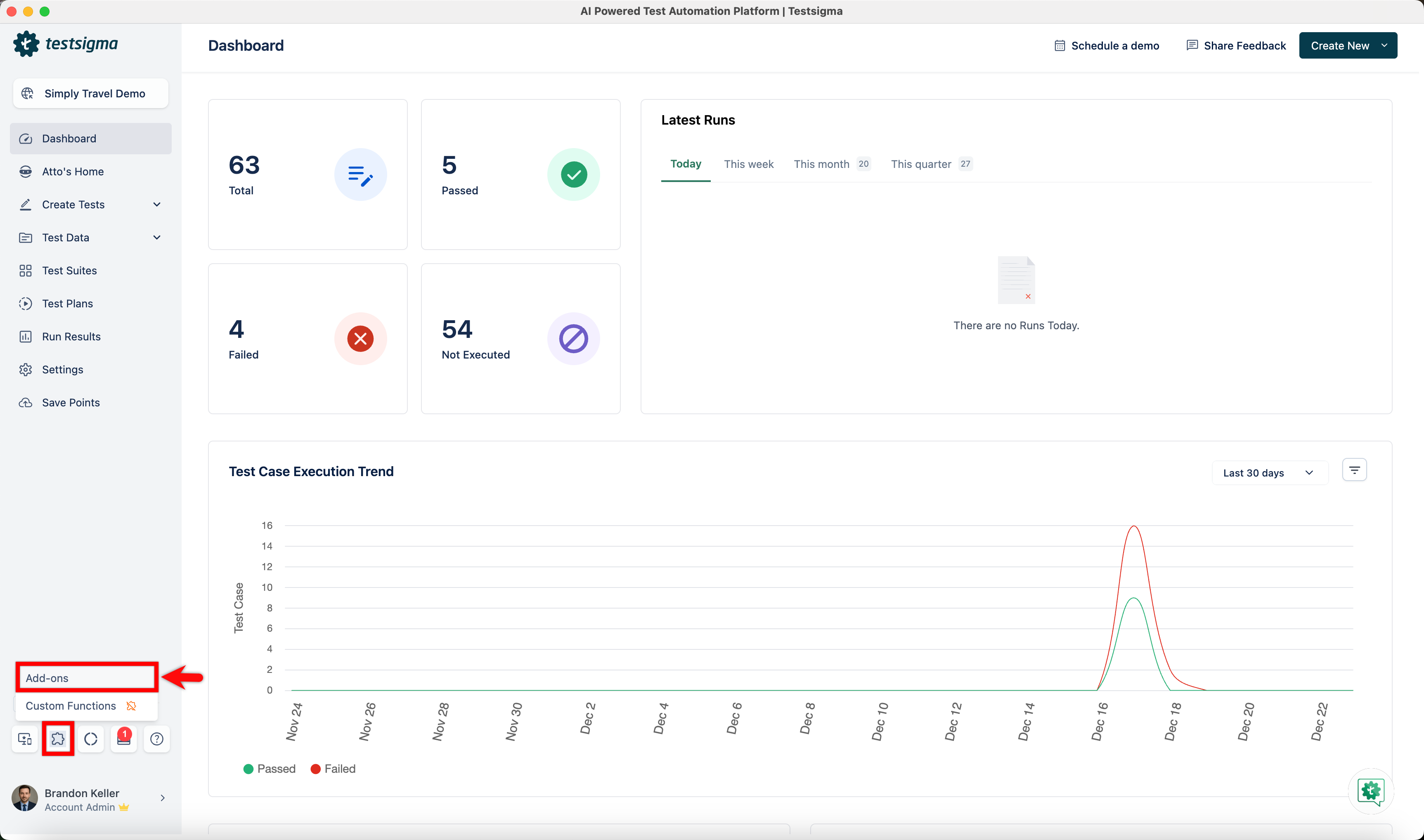
| 1. From the left navigation bar, go to **Addons** and click **Add-ons**. | ||
|  | ||
|
|
||
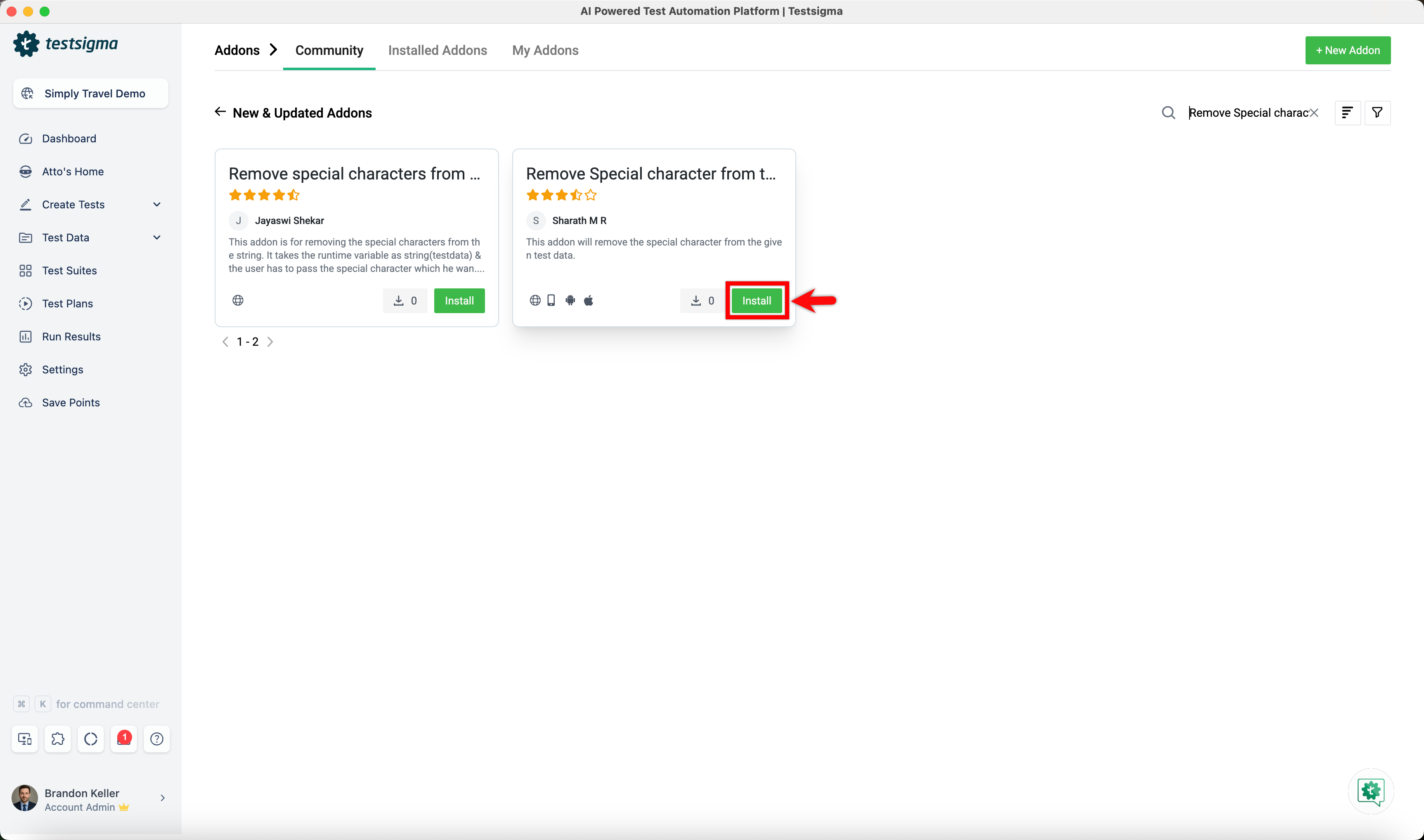
| 2. Under the **New & Updated Addons** section, search for the **Remove Special character from testdata** addon and click **Install**. | ||
|  | ||
|
|
||
| --- | ||
|
|
||
| ## **Steps to Remove the HTML tag symbols from the OTP** | ||
|
|
||
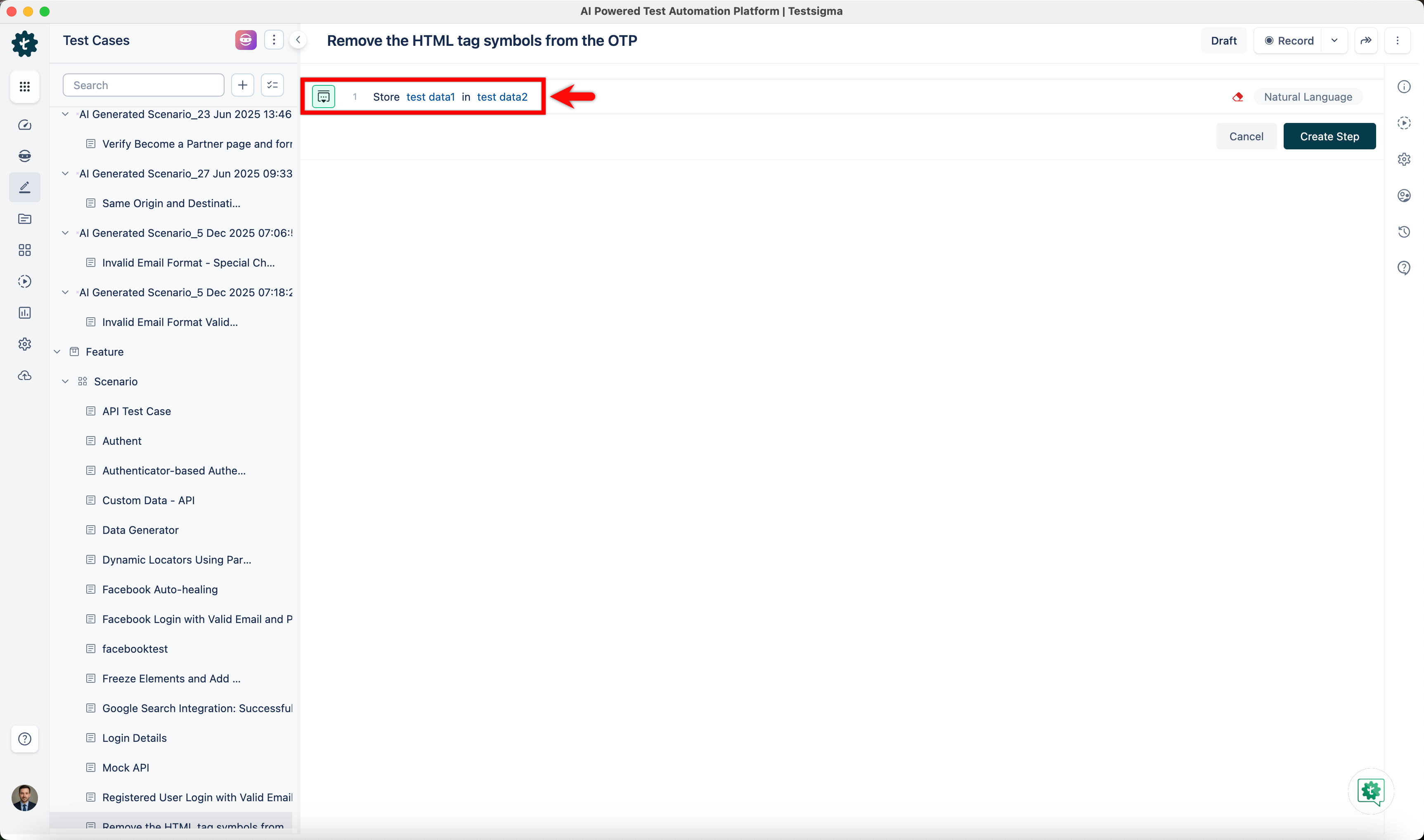
| 1. In your test case, first, use the **Store test data1 in test data2** NLP to store the extracted OTP in a runtime variable. | ||
|  | ||
|
|
||
| - Click the **test data1** placeholder and replace it by selecting **Data Generator** from the **Test Data Types** dropdown. 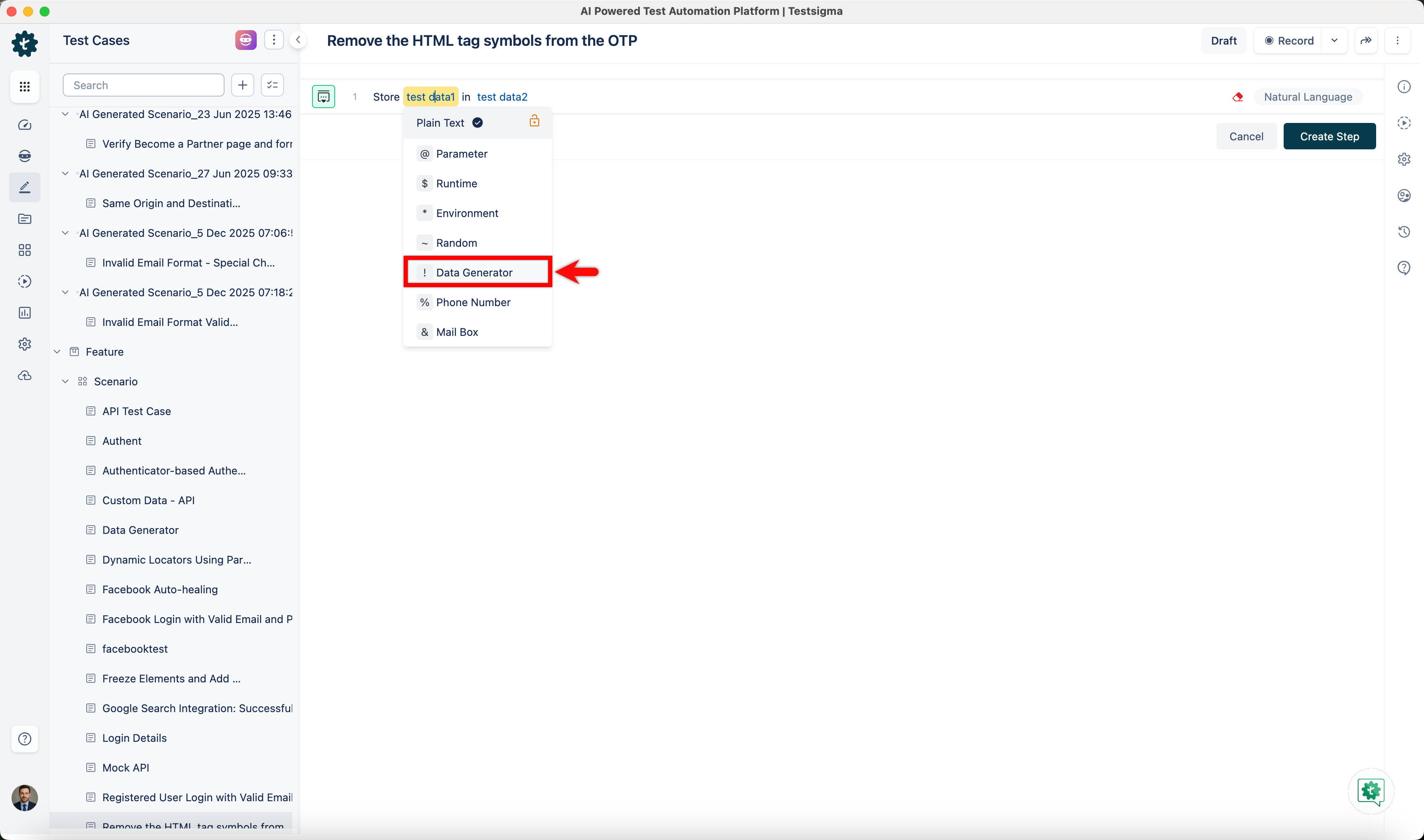 | ||
| - In the **Data Generator** overlay, configure the **Get Email OTP** function by selecting **Default** as the type, **MailBoxFunctions** as the function type, entering the regex pattern (for example, **>\d{6}<**), choosing the mailbox, setting the timeout, and clicking **Save**. 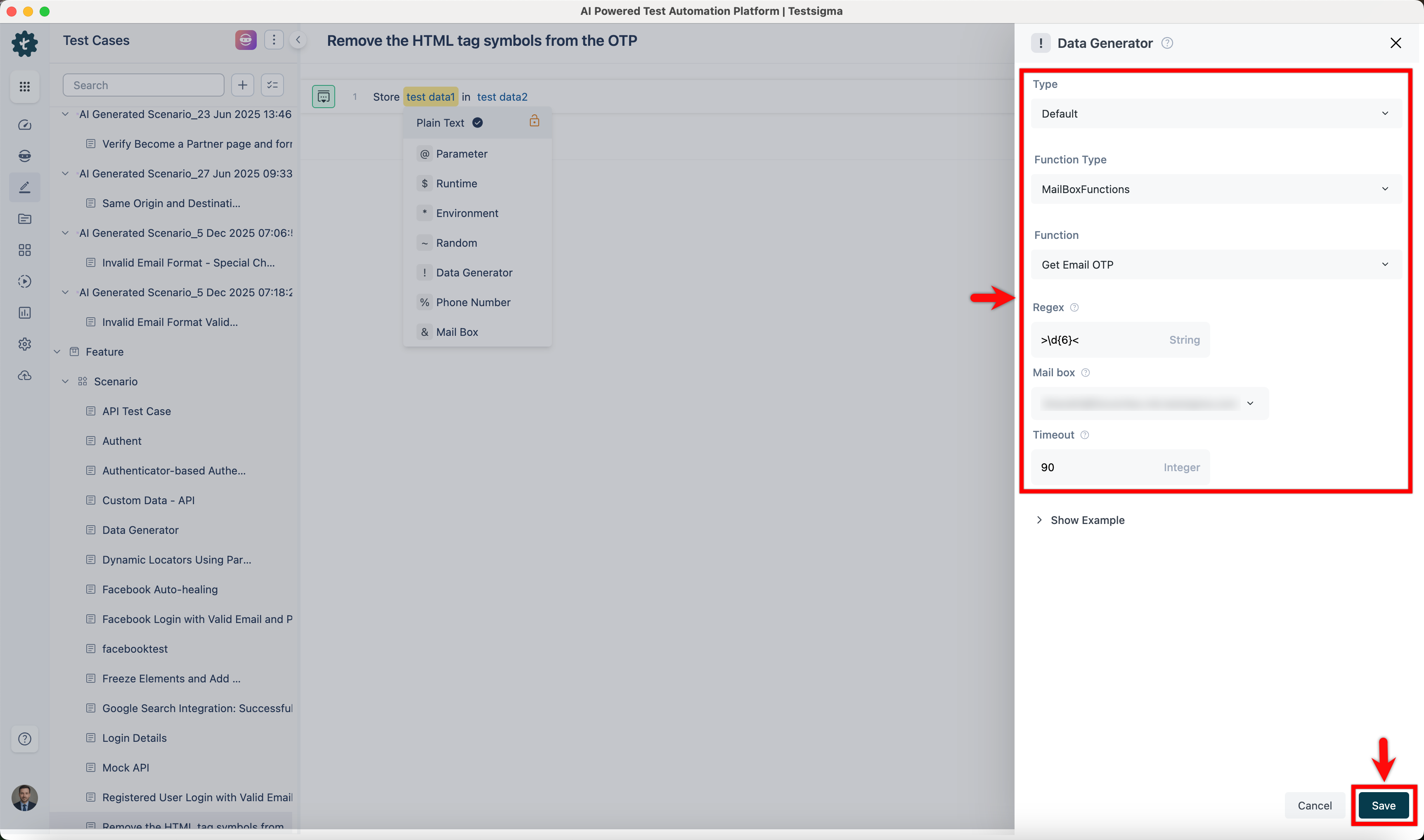 | ||
| - Enter a variable name in the **test data2** placeholder. 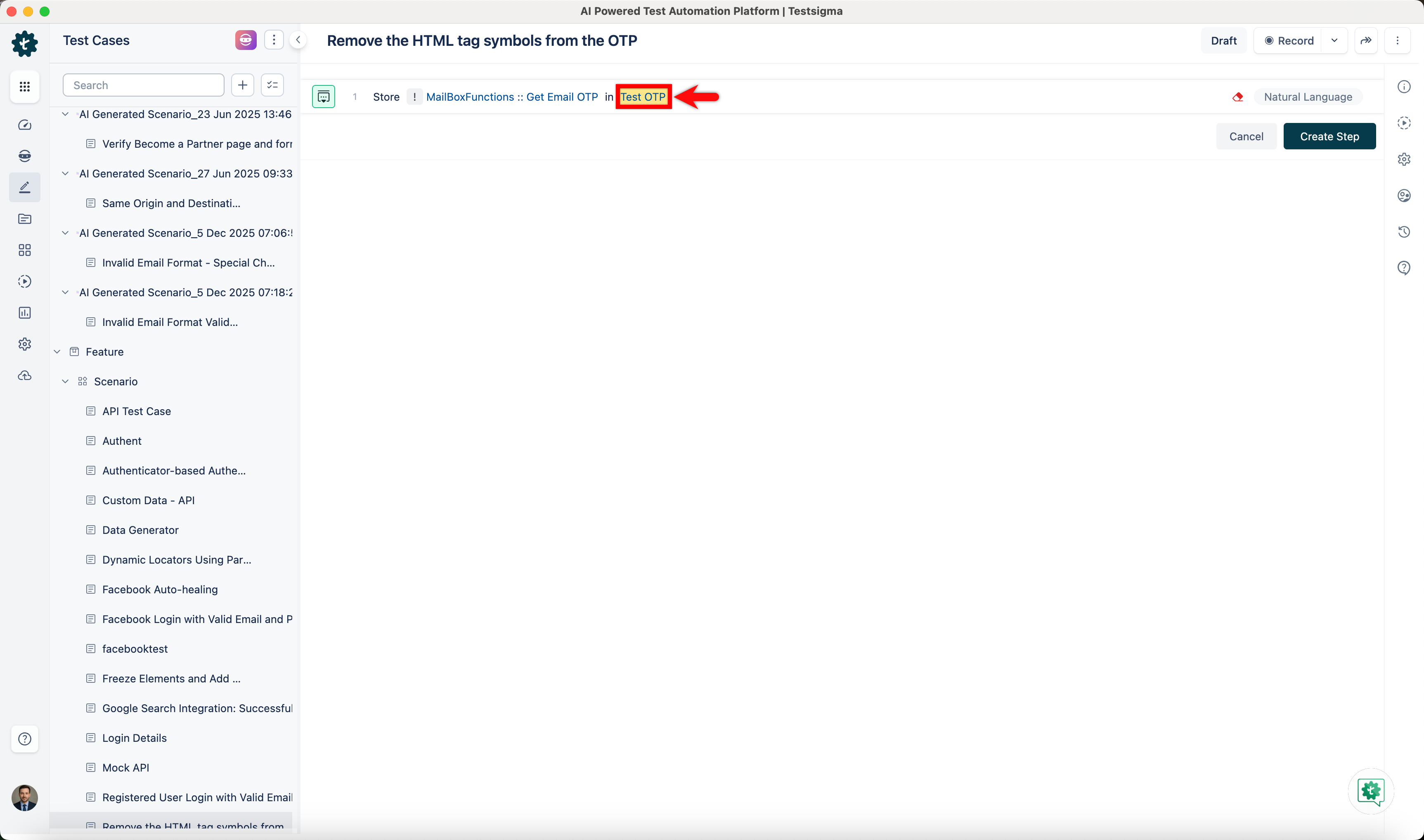 | ||
| - Click **Create Step**. 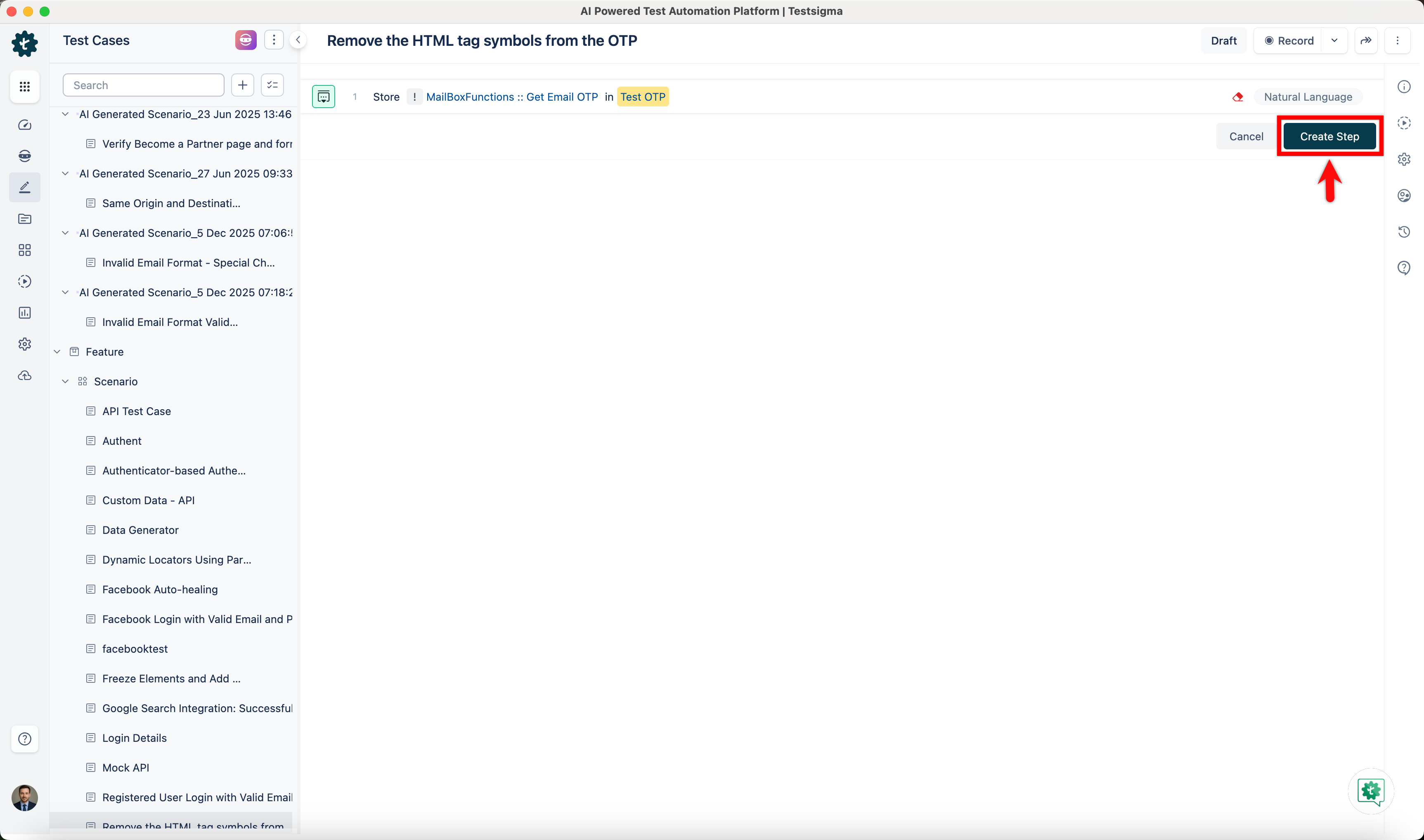 | ||
|
|
||
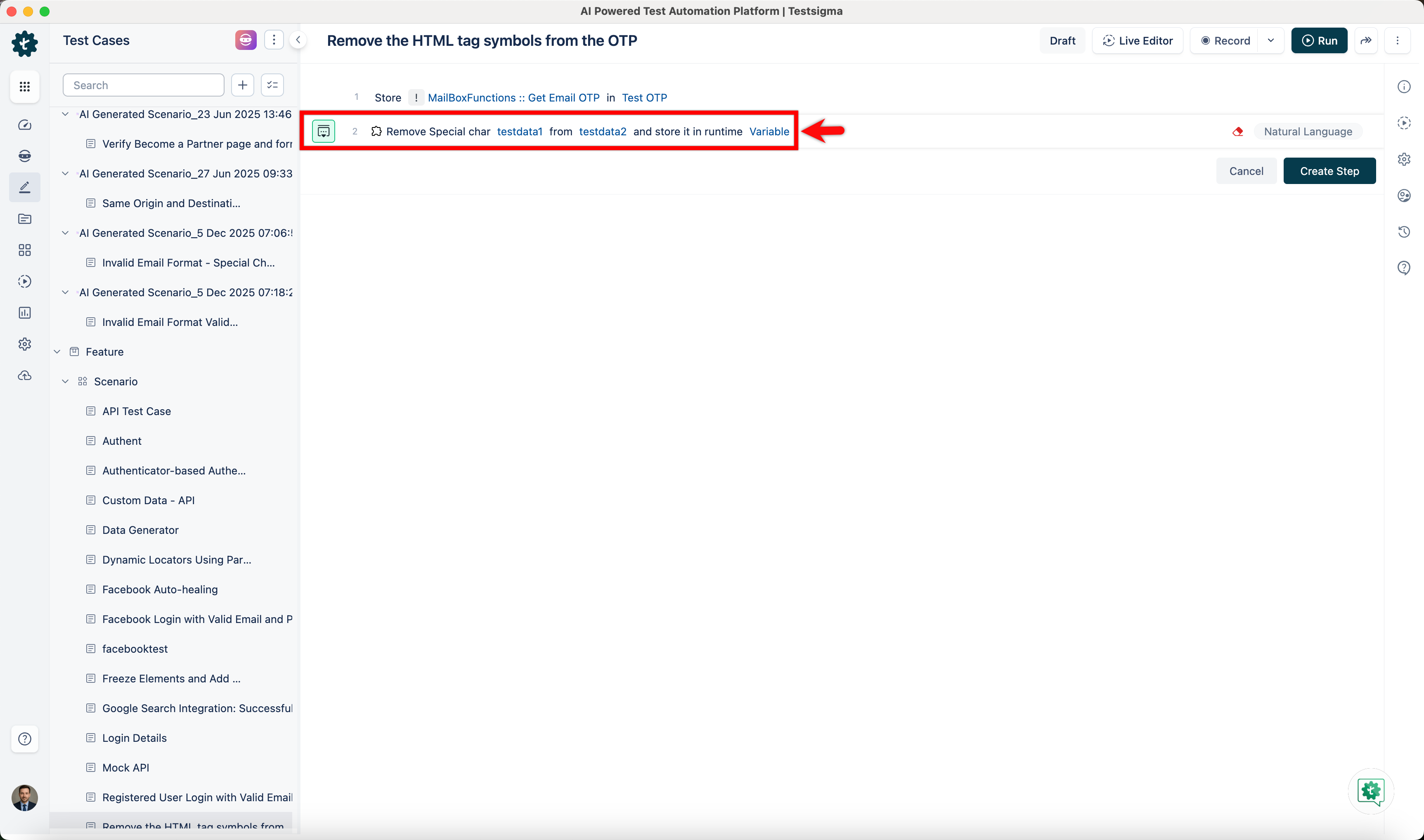
| 2. Secondly, use the **Remove Special char testdata1 from testdata2 and store it in runtime variable** NLP to remove the special character from the OTP. | ||
|  | ||
|
|
||
| - Click the **testdata1** placeholder and enter ><. 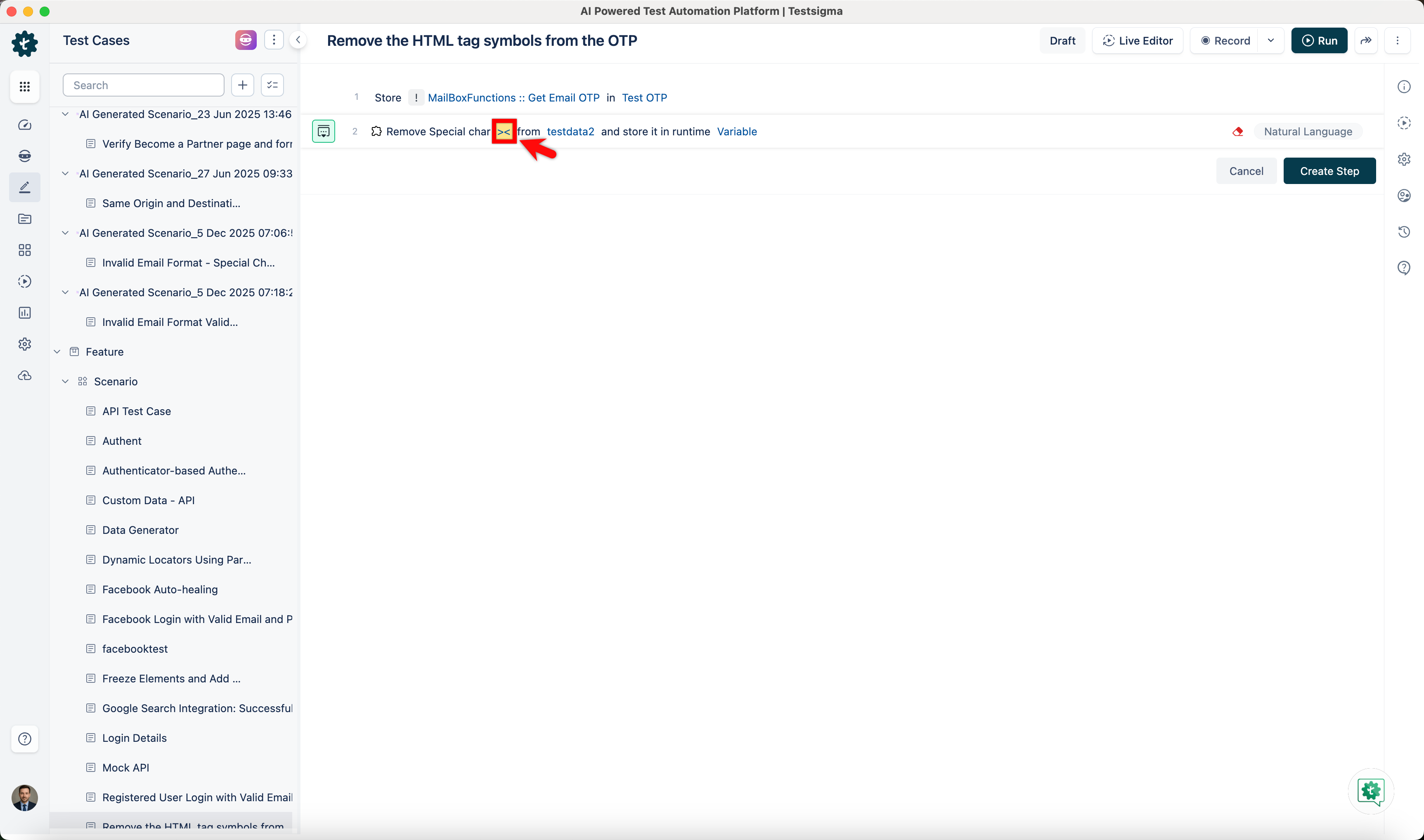 | ||
| - Click the **testdata2** placeholder and replace it by selecting **Runtime** from the **Test Data Types** dropdown. 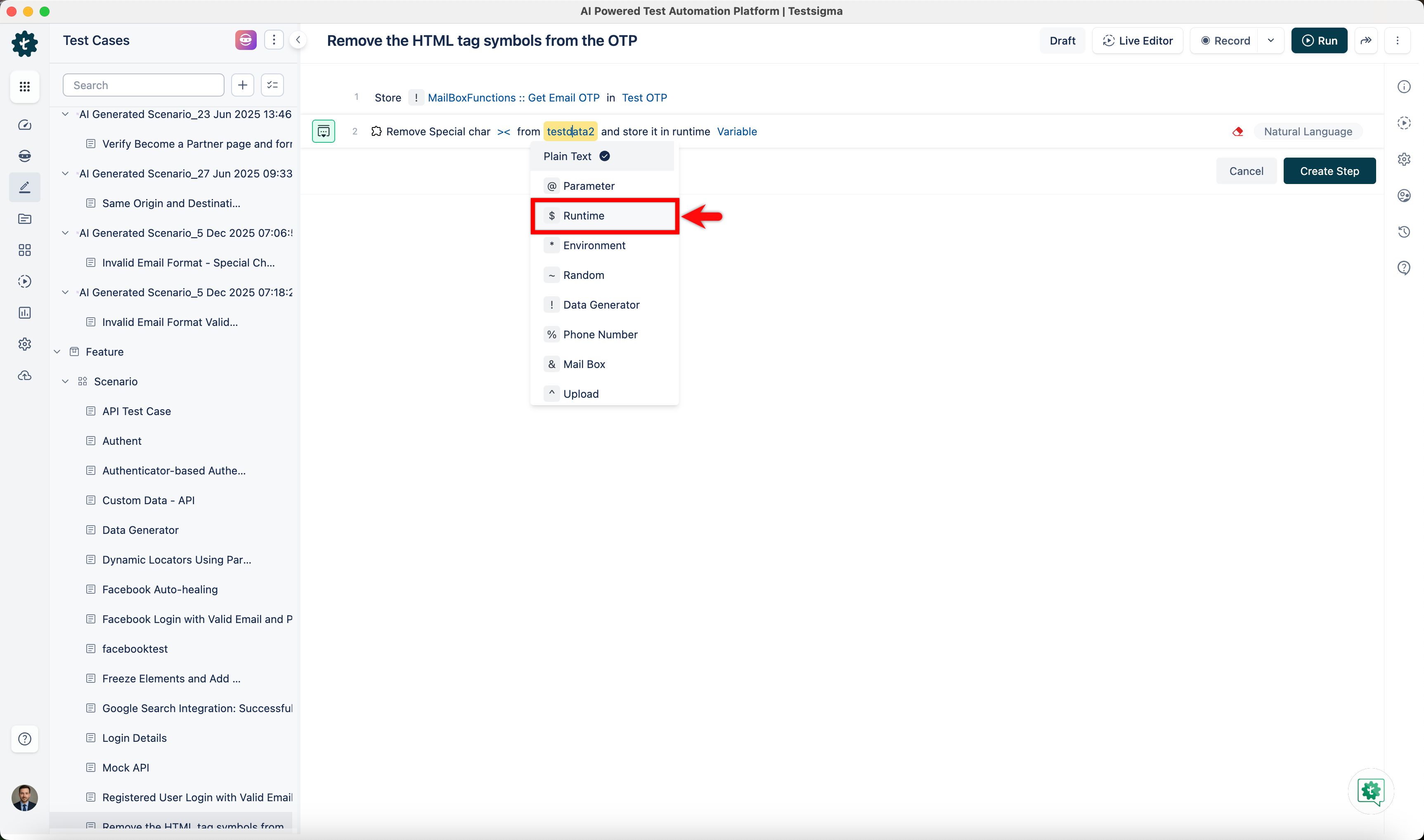 | ||
| - In the **Runtime Variable** overlay, select the runtime variable you created in the previous step. 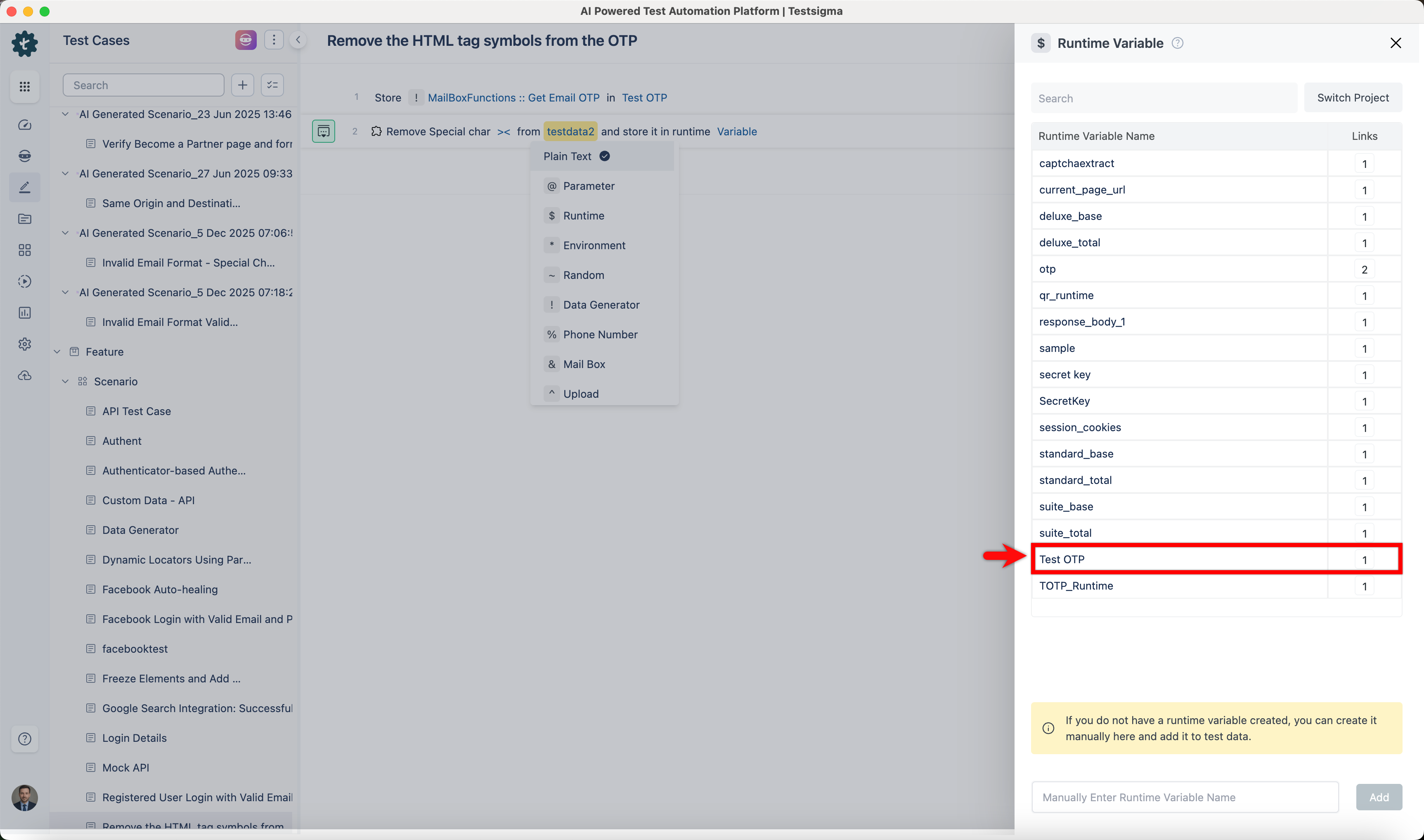 | ||
| - Enter a variable name in the **variable** placeholder. 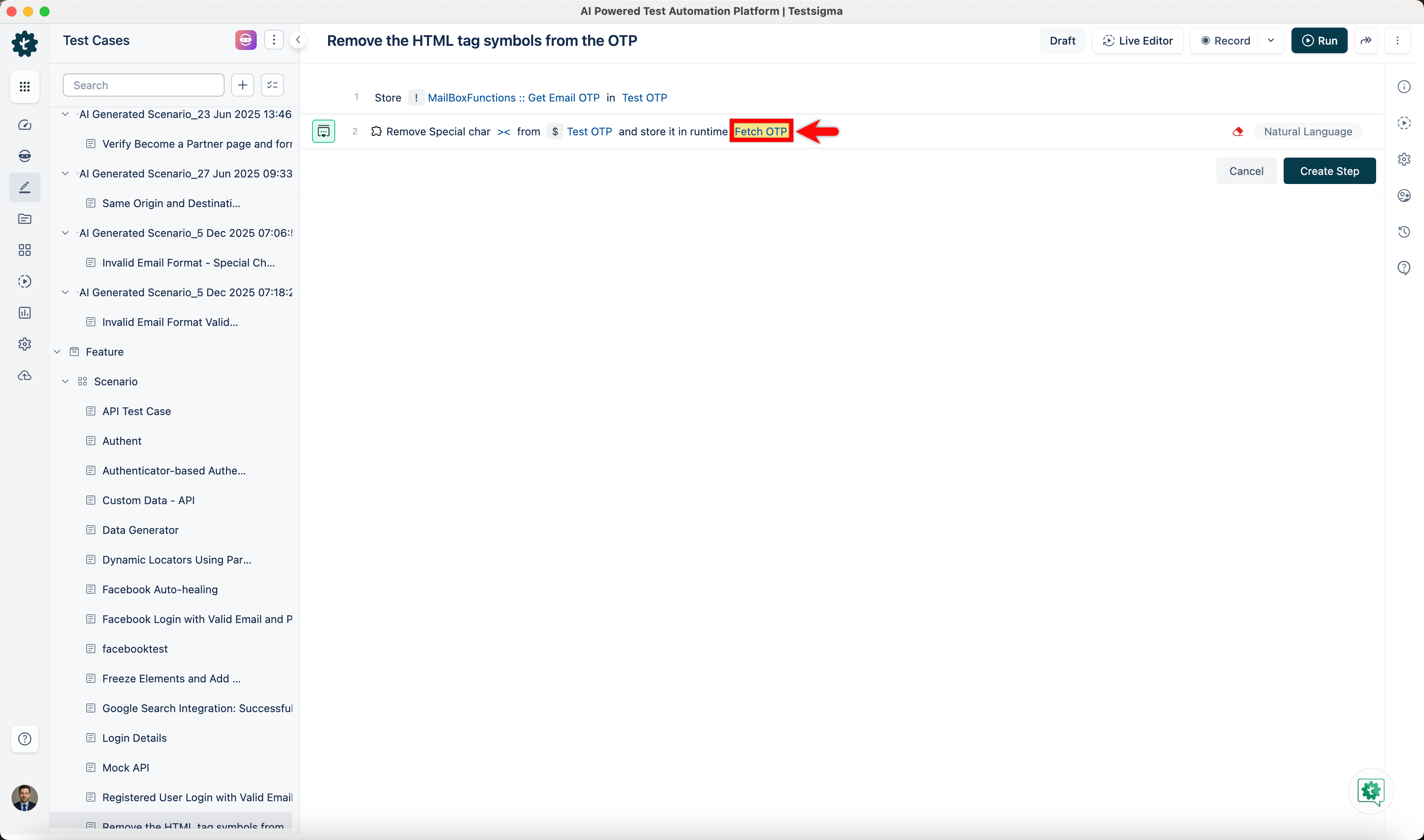 | ||
| - Click **Create Step**. 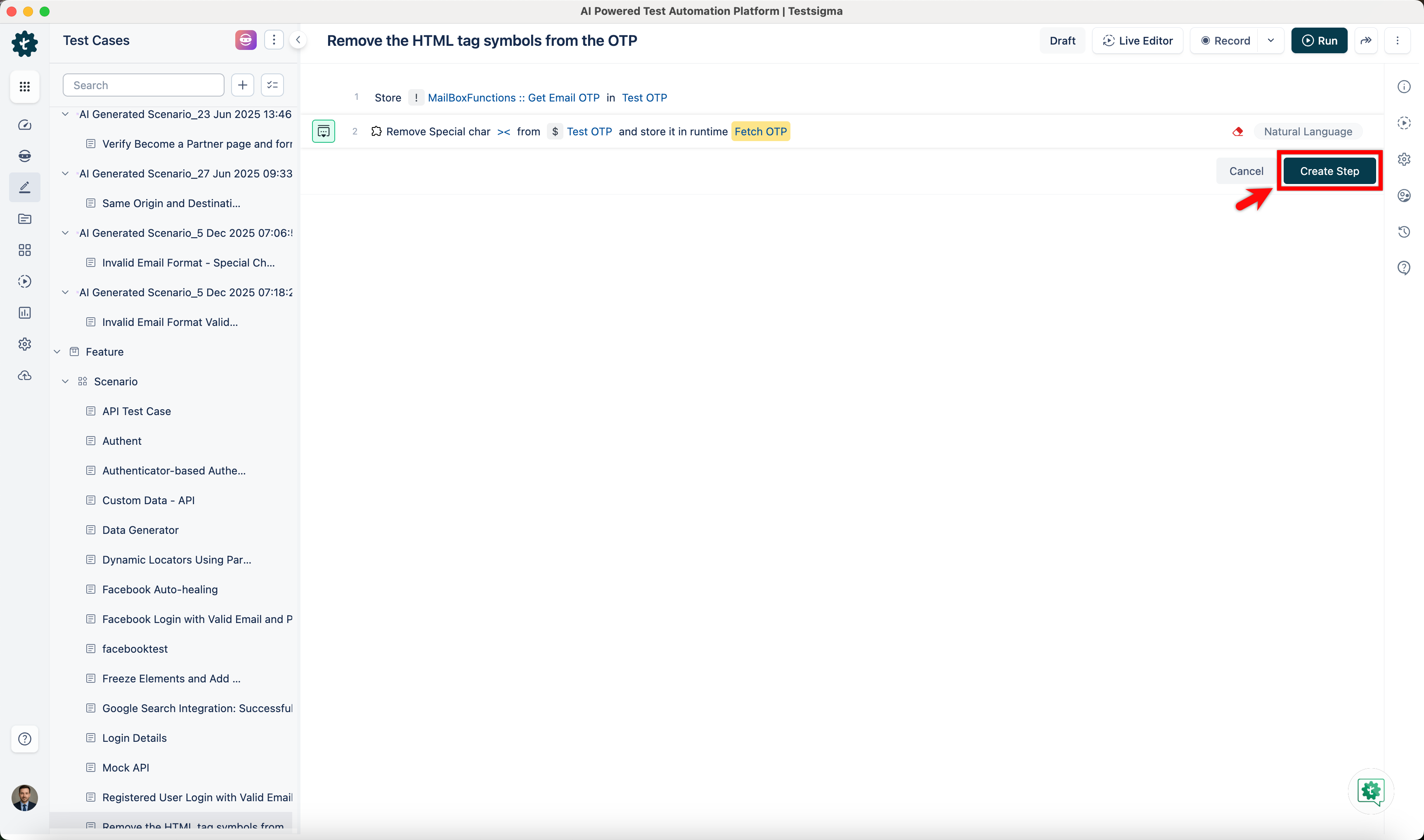 | ||
|
|
||
| --- | ||
| Original file line number | Diff line number | Diff line change | ||||||||||||||||||||||||
|---|---|---|---|---|---|---|---|---|---|---|---|---|---|---|---|---|---|---|---|---|---|---|---|---|---|---|
| @@ -0,0 +1,73 @@ | ||||||||||||||||||||||||||
| --- | ||||||||||||||||||||||||||
| title: "How to Configure the OracleDB Add-on in Testsigma?" | ||||||||||||||||||||||||||
| metadesc: "Learn how to configure the Oracle Database add-on in Testsigma with the required connection details for successful database integration." | ||||||||||||||||||||||||||
| order: 24.44 | ||||||||||||||||||||||||||
| page_id: "how-to-configure-the-oracledb-add-on-in-testsigma" | ||||||||||||||||||||||||||
| warning: false | ||||||||||||||||||||||||||
| contextual_links: | ||||||||||||||||||||||||||
| - type: section | ||||||||||||||||||||||||||
| name: "Contents" | ||||||||||||||||||||||||||
| - type: link | ||||||||||||||||||||||||||
| name: "Steps to Install the Addon" | ||||||||||||||||||||||||||
| url: "#steps-to-install-the-addon" | ||||||||||||||||||||||||||
| - type: link | ||||||||||||||||||||||||||
| name: "Steps to Set Up the Database Connection" | ||||||||||||||||||||||||||
| url: "#steps-to-set-up-the-database-connection" | ||||||||||||||||||||||||||
| --- | ||||||||||||||||||||||||||
|
|
||||||||||||||||||||||||||
| --- | ||||||||||||||||||||||||||
|
|
||||||||||||||||||||||||||
| In Testsigma, the configuration of the Oracle Database add-on requires specific database connection details to ensure successful communication between the application and the Oracle database. This article discusses how to install the add-on and set up the database connection. | ||||||||||||||||||||||||||
|
|
||||||||||||||||||||||||||
| --- | ||||||||||||||||||||||||||
|
|
||||||||||||||||||||||||||
| ## **Steps to Install the Addon** | ||||||||||||||||||||||||||
|
|
||||||||||||||||||||||||||
| 1. From the left navigation bar, go to **Addons** and click **Add-ons**. | ||||||||||||||||||||||||||
|  | ||||||||||||||||||||||||||
|
|
||||||||||||||||||||||||||
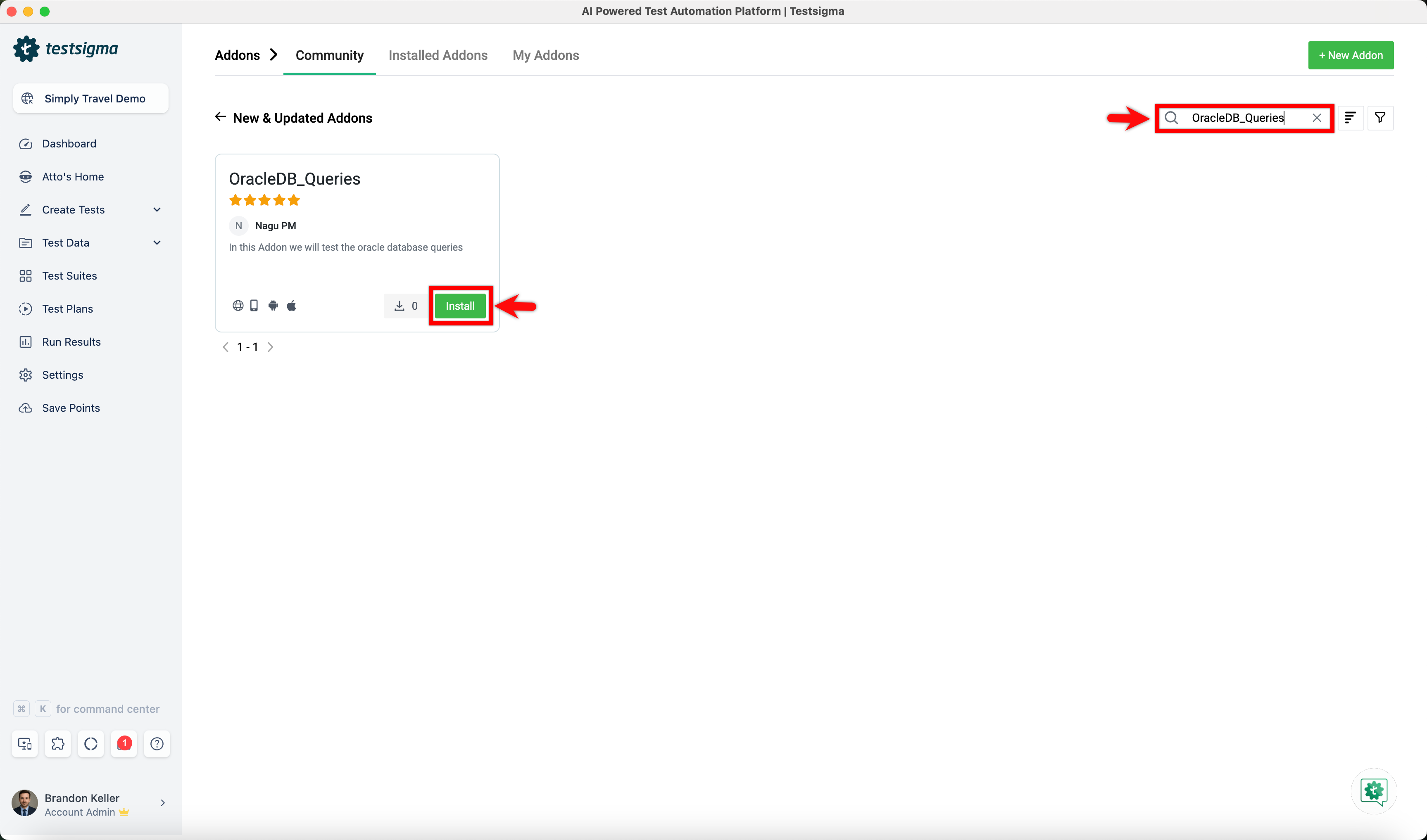
| 2. Under the **New & Updated Addons** section, search for the **OracleDB_Queries** addon and click **Install**. | ||||||||||||||||||||||||||
|
Comment on lines
+24
to
+29
Contributor
There was a problem hiding this comment. 🛠️ Refactor suggestion | 🟠 Major Standardize terminology: "Add-on" vs "Addon" vs "Add-ons". The document mixes terminology inconsistently. Line 2 (title) uses "Add-on" (hyphenated), but line 24 uses "Addon" (no hyphen), and line 26 uses both "Addons" and "Add-ons" in the same sentence. Standardize on one form throughout—preferably "Add-on" (hyphenated, singular) and "Add-ons" (hyphenated, plural) to match the title and maintain professional consistency. ♻️ Proposed fix for terminology consistency-## **Steps to Install the Addon**
+## **Steps to Install the Add-on**
-1. From the left navigation bar, go to **Addons** and click **Add-ons**.
+1. From the left navigation bar, go to **Add-ons** and click **Add-ons**.
-2. Under the **New & Updated Addons** section, search for the **OracleDB_Queries** addon and click **Install**.
+2. Under the **New & Updated Add-ons** section, search for the **OracleDB_Queries** add-on and click **Install**.📝 Committable suggestion
Suggested change
🧰 Tools🪛 LanguageTool[grammar] ~24-~24: Ensure spelling is correct (QB_NEW_EN_ORTHOGRAPHY_ERROR_IDS_1) 🤖 Prompt for AI Agents |
||||||||||||||||||||||||||
|  | ||||||||||||||||||||||||||
|
|
||||||||||||||||||||||||||
| --- | ||||||||||||||||||||||||||
|
|
||||||||||||||||||||||||||
| ## **Steps to Set Up the Database Connection** | ||||||||||||||||||||||||||
|
|
||||||||||||||||||||||||||
| 1. In your test case, use the **Execute OracleDB Query on the Connection DB_Connection_URL and verify affected rows count is Row-Count** NLP to execute the query and fetch the required database details. | ||||||||||||||||||||||||||
|
|
||||||||||||||||||||||||||
| 2. Click the **Query** placeholder and enter the SQL query to be executed on the Oracle database. | ||||||||||||||||||||||||||
|
|
||||||||||||||||||||||||||
| **Example query:** | ||||||||||||||||||||||||||
|
|
||||||||||||||||||||||||||
| SELECT * FROM employees WHERE employee_id = 103; | ||||||||||||||||||||||||||
|
|
||||||||||||||||||||||||||
| This query fetches all details of the employee whose ID is 103 from the employees table. Use this example as a reference and replace it with the required query based on your test scenario. | ||||||||||||||||||||||||||
|
|
||||||||||||||||||||||||||
| 3. Click the **DB_Connection_URL** placeholder and use the following syntax to enter the URL: | ||||||||||||||||||||||||||
|
|
||||||||||||||||||||||||||
| **jdbc:oracle:thin:@//<host>:<port>/<service_name>?user=<username>&password=<password>&internal_logon=<role>** | ||||||||||||||||||||||||||
|
Contributor
There was a problem hiding this comment. HTML entity encoding still present in JDBC URL template. This issue was flagged in the previous review but remains unresolved. The template uses 🔧 Proposed fix- **jdbc:oracle:thin:@//<host>:<port>/<service_name>?user=<username>&password=<password>&internal_logon=<role>**
+ **jdbc:oracle:thin:@//<host>:<port>/<service_name>?user=<username>&password=<password>&internal_logon=<role>**📝 Committable suggestion
Suggested change
🤖 Prompt for AI Agents |
||||||||||||||||||||||||||
|
|
||||||||||||||||||||||||||
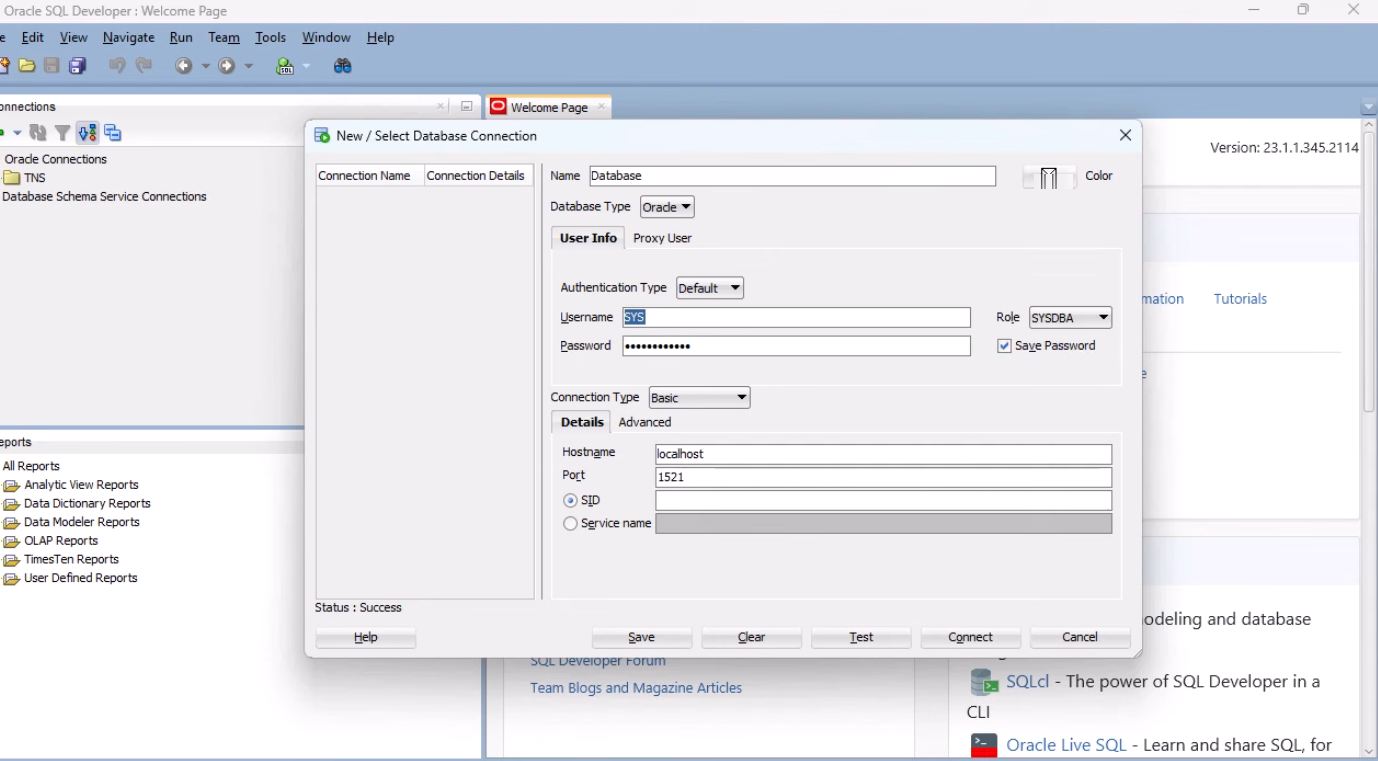
| Now, replace the placeholders with your Oracle database details: | ||||||||||||||||||||||||||
| - **Host Name** – The hostname of your database server (e.g., localhost). | ||||||||||||||||||||||||||
| - **Port** – The port on which the database is running (e.g., 1521). | ||||||||||||||||||||||||||
| - **Service Name** – The service name of the database (or select SID if service name is unavailable). | ||||||||||||||||||||||||||
| - **Username** – Your database username (e.g., SYS). | ||||||||||||||||||||||||||
| - **Password** – Your database password. | ||||||||||||||||||||||||||
| - **Role** – Database role (e.g., SYSDBA). | ||||||||||||||||||||||||||
|
|
||||||||||||||||||||||||||
|  | ||||||||||||||||||||||||||
|
|
||||||||||||||||||||||||||
| Example URL using the screenshot details: | ||||||||||||||||||||||||||
|
|
||||||||||||||||||||||||||
| **jdbc:oracle:thin:@localhost:1521:ORCL?user=SYS&password=<123456789012>&internal_logon=SYSDBA** | ||||||||||||||||||||||||||
|
Contributor
There was a problem hiding this comment. Clarify placeholder notation in example URL. This issue was flagged in the previous review. The example shows 🔧 Proposed fix- **jdbc:oracle:thin:@localhost:1521:ORCL?user=SYS&password=<123456789012>&internal_logon=SYSDBA**
+ **jdbc:oracle:thin:@localhost:1521:ORCL?user=SYS&password=123456789012&internal_logon=SYSDBA**📝 Committable suggestion
Suggested change
🤖 Prompt for AI Agents |
||||||||||||||||||||||||||
|
|
||||||||||||||||||||||||||
| [[info | **NOTE**:]] | ||||||||||||||||||||||||||
| | In the **Service Name** field: | ||||||||||||||||||||||||||
| | - If you select **SID**, enter FREE (the default service). | ||||||||||||||||||||||||||
| | - If you select **Service Name**, enter your actual service name. | ||||||||||||||||||||||||||
|
|
||||||||||||||||||||||||||
| 4. Click the **Row-Count** placeholder and specify the expected number of affected rows for validation. | ||||||||||||||||||||||||||
|
|
||||||||||||||||||||||||||
| 5. Click **Create Step**. | ||||||||||||||||||||||||||
|
|
||||||||||||||||||||||||||
| --- | ||||||||||||||||||||||||||

There was a problem hiding this comment.
Choose a reason for hiding this comment
The reason will be displayed to describe this comment to others. Learn more.
Fix grammar: use plural "characters".
The sentence uses the singular form "character" but the context requires the plural. Line 23 should read "…remove these extra characters and extract only…"
🔧 Proposed fix
📝 Committable suggestion
🧰 Tools
🪛 LanguageTool
[grammar] ~23-~23: Ensure spelling is correct
Context: ...s. To use the OTP in test execution, an addon is used to remove these extra character...
(QB_NEW_EN_ORTHOGRAPHY_ERROR_IDS_1)
🤖 Prompt for AI Agents