- Absolutely. You have neovim on your device
- You can follow a link setup:
- MacOS/Linux: https://github.com/neovim/neovim/wiki/Installing-Neovim#homebrew-on-macos-or-linux
- You can download and install python in here: https://www.python.org/downloads/
- Please open your terminal and check with type:
python -v - If your pc/laptop use python2 and python3. You can alias in your run time bashrc or zshrc =>
alias python=python3
- You can download nodejs in here: https://nodejs.org/en/download/
- Please open your terminal and check with type:
node -vandnpm -v
- Please run 2 scripts:
npm install -g neovimpip3 install pynvim
- Why you need python, nodejs and run script above. Because a lot of plugin for vim and neovim, It's create on python or nodejs. So then run plugin we should install python and nodejs
- You open terminal and type
nvim - After you type
esc :checkhealth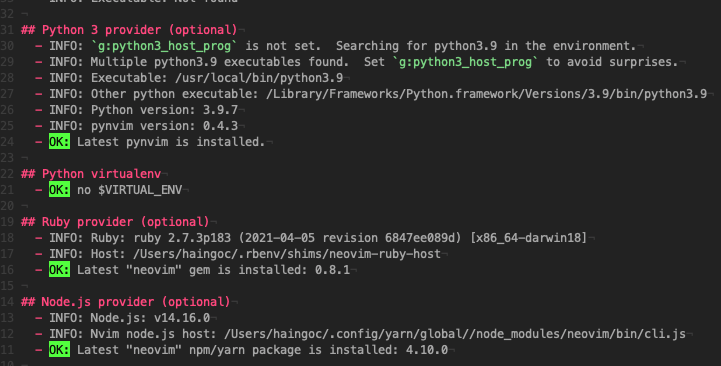
- Like here! it's OK
- SSH: git@github.com:thanhhai45/vim-config.git
- Download manual: https://github.com/thanhhai45/vim-config/archive/refs/heads/master.zip
- Extract with your tool
- Please type:
cd ~/.config/nvim/ - Here neovim config
- You copy init.vim downloaded and extract step 6 to init neovim config
- You can type command:
cp 'folder_download'/init.vim ~/.config/nvim/init.vim - And copy folder settings like above:
cp -r 'folder_download'/settings/ ~/.config/nvim/
- Open terminal and move to
~/.config/nvim - type:
nvim init.vim - And type:
esc :PlugInstall.Then wait run done
- Open terminal and move to
~/.config/nvim - type:
nvim init.vim - You can install coc for your purpose
- Or type like me :D
esc :CocInstall coc-css coc-cssmodules coc-emmet coc-eslint coc-explorer coc-floaterm coc-git coc-html coc-html-css-support coc-htmlhint coc-json coc-solargraph coc-dot-complete coc-css coc-rome coc-tabnine coc-stylelintplus
- Congratulations! You can close terminal. Open terminal and move to your project and type nvim and Funny with them
- You need install solargraph
- gem install solargraph
- Since I want the focus of the vim keymap. So I configure not to use arrow keys, I use h, j, k, l to move the cursor. But it applies to normal mode, insert mode you can use arrow keys.
- This is key usually we use in vim if you apply my config
- Default is key
,on keyboard
- , e => Find file all current folder
- , v => Split vertical screen
- , h => Split horizontal screen
- This upgrade with normal key in my config
- Note: Control key in here apply for Linux and Macbook. Which is mean on macbook you not convert to command key
- Ctrl f => Find file on sidebar
- Ctrl b => Open sidebar
- Ctrl h => Move left screen
- Ctrl j => Move bottom screen
- Ctrl k => Move top screen
- Ctrl l => Move right screen
- Ctrl n => Move next character like cursor here
- Ctrl t => Open terminal
- Ctrl H => Move left character
- Ctrl J => Move bottom line
- Ctrl K => Move top line
- Ctrl L => Move right character
- F12 => Toggle terminal
- gcc => Comment and uncomment code
- gd => Go to define(use for method)
- gy => Go type define(You can see param method)
- shift k => Show document method
- shift > => Tab multiple line
- shift < => Shift Tab multiple line