Comprehensive developer toolkit for Autodesk Revit with code execution, visualization, and logging.


For developers and researchers who need:
- 🐍 Modern Python - CPython 3.13 with full ecosystem (pandas, numpy, scikit-learn, AI/ML libraries)
- 🐛 VSCode Debugging - Set breakpoints, step through code, inspect Revit API objects
- 📦 Zero-friction dependencies - Declare packages inline, auto-install with UV (10-15x faster than pip)
- 🎨 3D Visualization - Render geometry directly in Revit view (no model elements)
- 📊 Real-time logging - Color-coded output with stack traces and JSON formatting
Not another Revit add-in loader. RevitDevTool is a complete development environment focused on rapid prototyping, computational design, and data science workflows.
Set breakpoints, inspect variables, step through Revit API calls in real-time.

Declare packages inline. System auto-installs. No manual pip, no venv setup.

# /// script
# dependencies = ["pandas==2.1.0", "numpy>=1.24"]
# ///

import pandas as pd
from Autodesk.Revit import DB

doc = __revit__.ActiveUIDocument.Document
walls = DB.FilteredElementCollector(doc).OfClass(DB.Wall)

data = [{"Name": w.Name, "Area": w.Area} for w in walls]
df = pd.DataFrame(data)
print(df.groupby("Level").agg({"Area": ["sum", "mean"]}))Monitor output with color coding, JSON formatting, and Python stack traces.
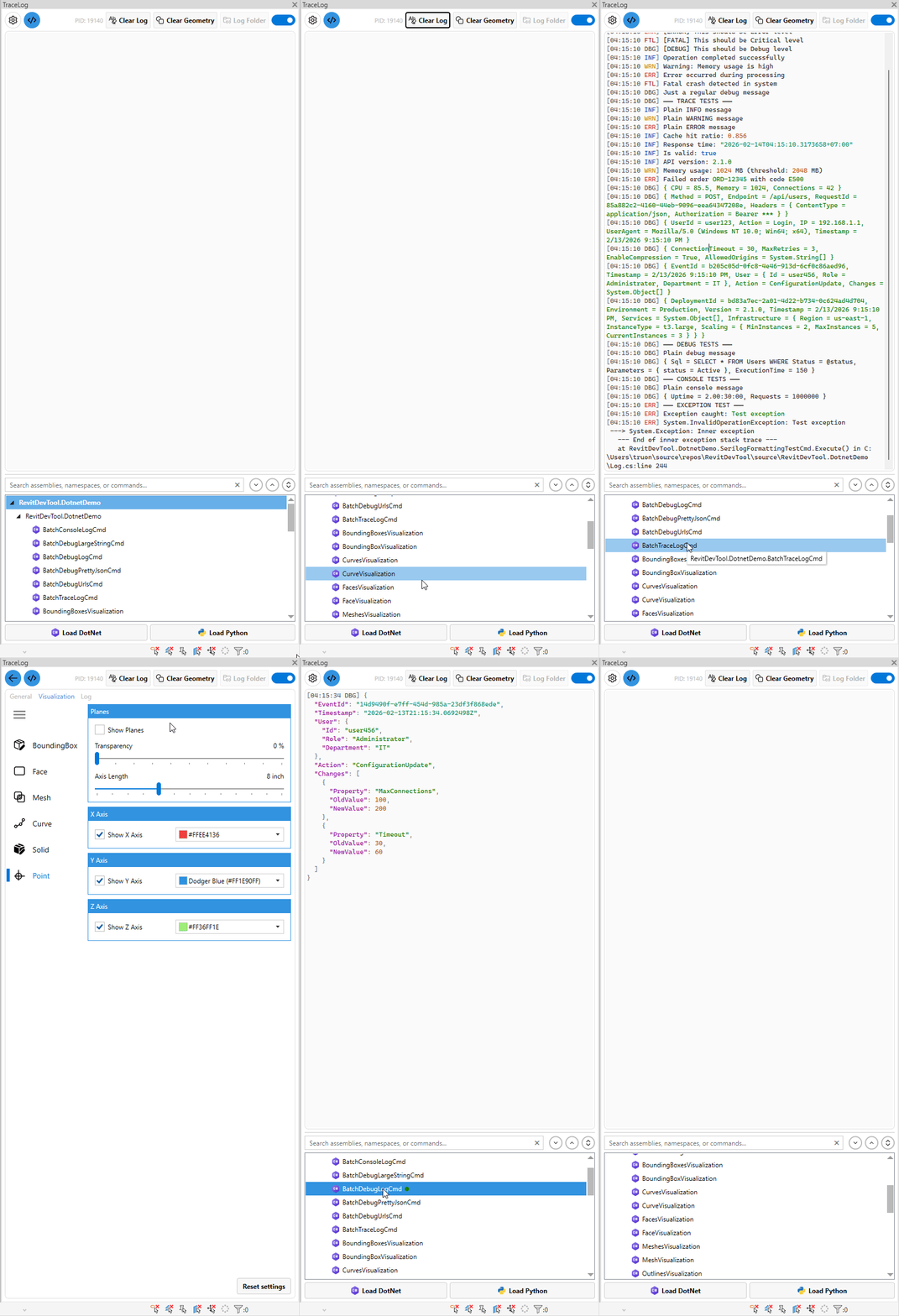

Render curves, faces, solids directly in Revit view without creating model elements.

# Pick edge, visualize automatically
ref = uidoc.Selection.PickObject(ObjectType.Edge)
edge = elem.GetGeometryObjectFromReference(ref)
print(edge) # Renders in 3D viewDownload and run the MSI installer from Releases.
Create hello.script.py:
# /// script
# dependencies = []
# ///

from Autodesk.Revit import DB

doc = __revit__.ActiveUIDocument.Document
walls = DB.FilteredElementCollector(doc).OfClass(DB.Wall)

print(f"Found {walls.GetElementCount()} walls")- Open RevitDevTool panel in Revit
- Load folder containing your script
- Click Execute
- See output in Trace panel
→ Complete Getting Started Guide
- CPython 3.13 - Latest Python with full ecosystem access
- PEP 723 inline dependencies - No separate requirements.txt
- UV resolver - Automatic package installation (10-15x faster than pip)
- VSCode debugger - Full IDE debugging with breakpoints
- Module isolation - Clean cache between runs
- Type stubs - Full Revit API autocomplete in IDE
- IExternalCommand discovery - Automatic command detection
- FileWatcher - Auto-reload on assembly changes
- Dependency loading - All DLLs loaded automatically
- No temp folder - Direct execution for Revit 2024- (.NET 4.8)
- Multi-source capture - Trace, Console, Debug, Python print
- Syntax highlighting - Automatic color coding by keywords
- JSON formatting - Pretty-print with syntax highlighting
- Stack traces - Python exception formatting with file links
- Geometry interception - Auto-visualize printed geometry
- DirectContext3D - Transient rendering (no model elements)
- Multiple geometry types - Curves, faces, solids, meshes, points, bounding boxes
- Thread-safe - Buffered rendering from any thread
- Performance optimized - Caching and batch updates
| Aspect | RevitDevTool | pyRevit |
|---|---|---|
| Target User | Developers & researchers | End users |
| Python | CPython 3.13 | IronPython 2.7 (default) |
| Packages | Full ecosystem (pandas, numpy, AI/ML) | Limited (Revit API only) |
| Dependencies | Automatic (PEP 723 + UV) | Manual pip install |
| Debugging | VSCode (full IDE) | pdb (command-line) |
| Best For | Development, research, data science | Ribbon automation for teams |
| Tool | Python | Auto-dependencies | VSCode Debugger | Best For |
|---|---|---|---|---|
| pyRevit | IronPython 2.7 | ❌ | ❌ | End-user automation |
| Dynamo | CPython 3.9 | ❌ | ❌ | Visual programming |
| RevitDevTool | CPython 3.13 | ✅ UV | ✅ debugpy | Development & research |
- Autodesk Revit 2022-2026
- Windows 10/11
- Download MSI installer from Releases
- Run installer (admin rights required)
- Launch Revit
- Find RevitDevTool in External Tools ribbon
|
source/RevitDevTool.PythonDemo/
|
source/RevitDevTool.DotnetDemo/
|
- .NET 10.0 SDK
git clone https://github.com/trgiangv/RevitDevTool.git
cd RevitDevTool

# Restore and build for Revit 2025
dotnet restore
dotnet build RevitDevTool.sln -c "Release R25"
Available configurations: Release R22, Release R23, Release R24, Release R25, Release R26
Contributions welcome! Here's how to get started:
- Read architecture docs - docs/ for module you're modifying
- Follow design patterns - Provider, Strategy, Composite patterns
- Add tests - Demo scripts or unit tests
- Update docs - Architecture docs + Wiki if user-facing
→ GitHub Discussions for ideas → GitHub Issues for bugs
Built on the shoulders of giants:
- RevitLookup - DirectContext3D implementation reference
- RevitDevTool (Original) - Original project inspiration
- RevitAddinManager - Add-in hot reload patterns
- pyRevit - Python integration inspiration
- Dynamo - Visual programming
- RevitPythonShell - IronPython scripting environment
- UV - Fast Python package resolver
- PythonNet - Python.NET bridge
MIT License - see LICENSE for details.
- 📖 Documentation - GitHub Wiki
- 🐛 Bug Reports - GitHub Issues
- 💡 Feature Requests - GitHub Discussions
- ❓ Questions - GitHub Discussions
Made with ❤️ for the Revit developer community ⭐ Star this repo if you find it useful!