This code pattern is no longer supported. You can find the newly supported Text to Speech Code Pattern here.


✨ Demo: https://text-to-speech-code-pattern.ng.bluemix.net/ ✨

- User supplies some text as input to the application (running locally, in the IBM Cloud or in IBM Cloud Pak for Data).
- The application sends the text to the Watson Text to Speech service.
- As the data is processed, the Text to Speech service returns audio information to the HTML5 audio element for playback.
- Sign up for an IBM Cloud account.
- Download the IBM Cloud CLI.
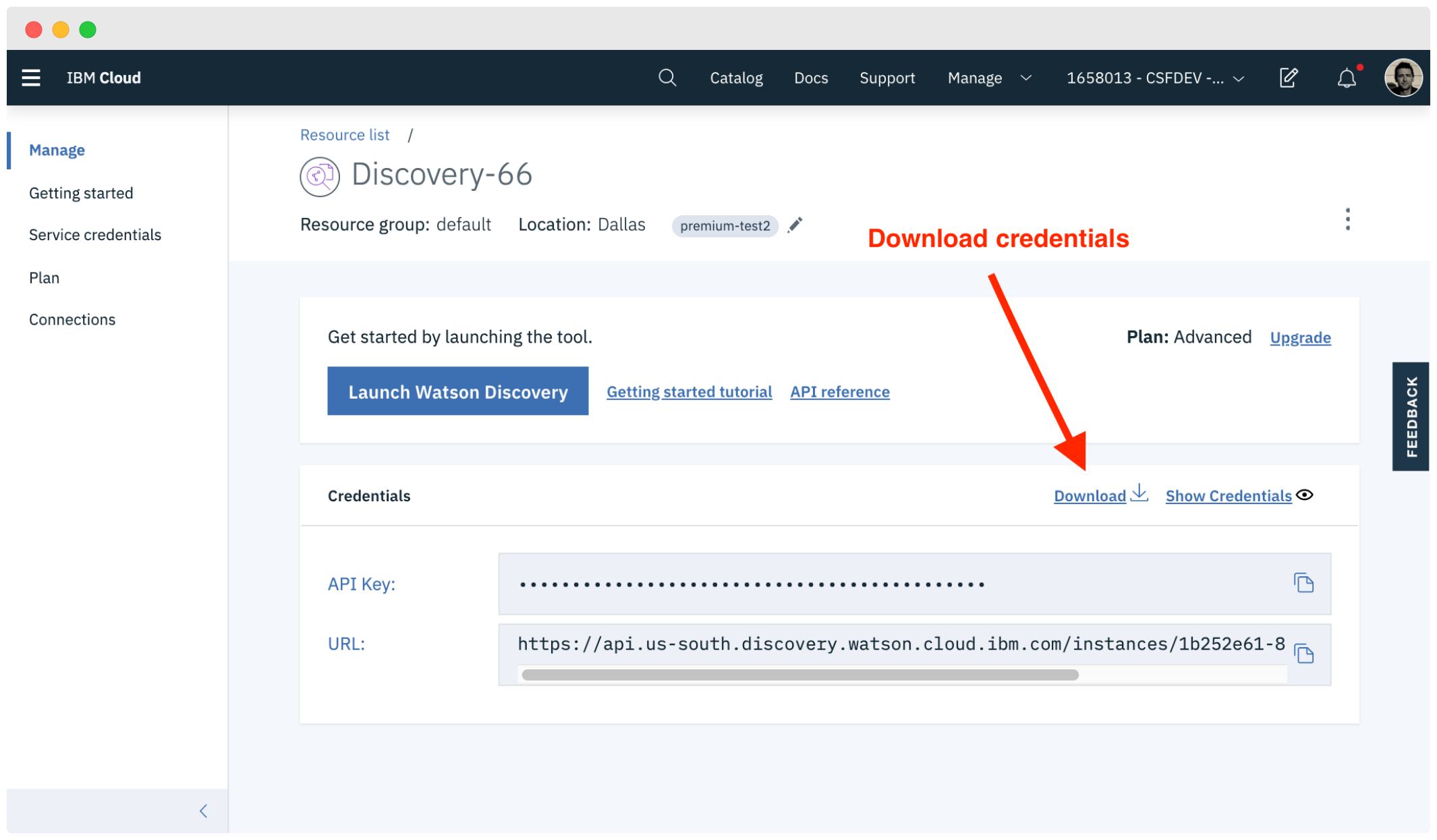
- Create an instance of the Text to Speech service and get your credentials:
- Go to the Text to Speech page in the IBM Cloud Catalog.
- Log in to your IBM Cloud account.
- Click Create.
- Click Show to view the service credentials.
- Copy the
apikeyvalue. - Copy the
urlvalue.
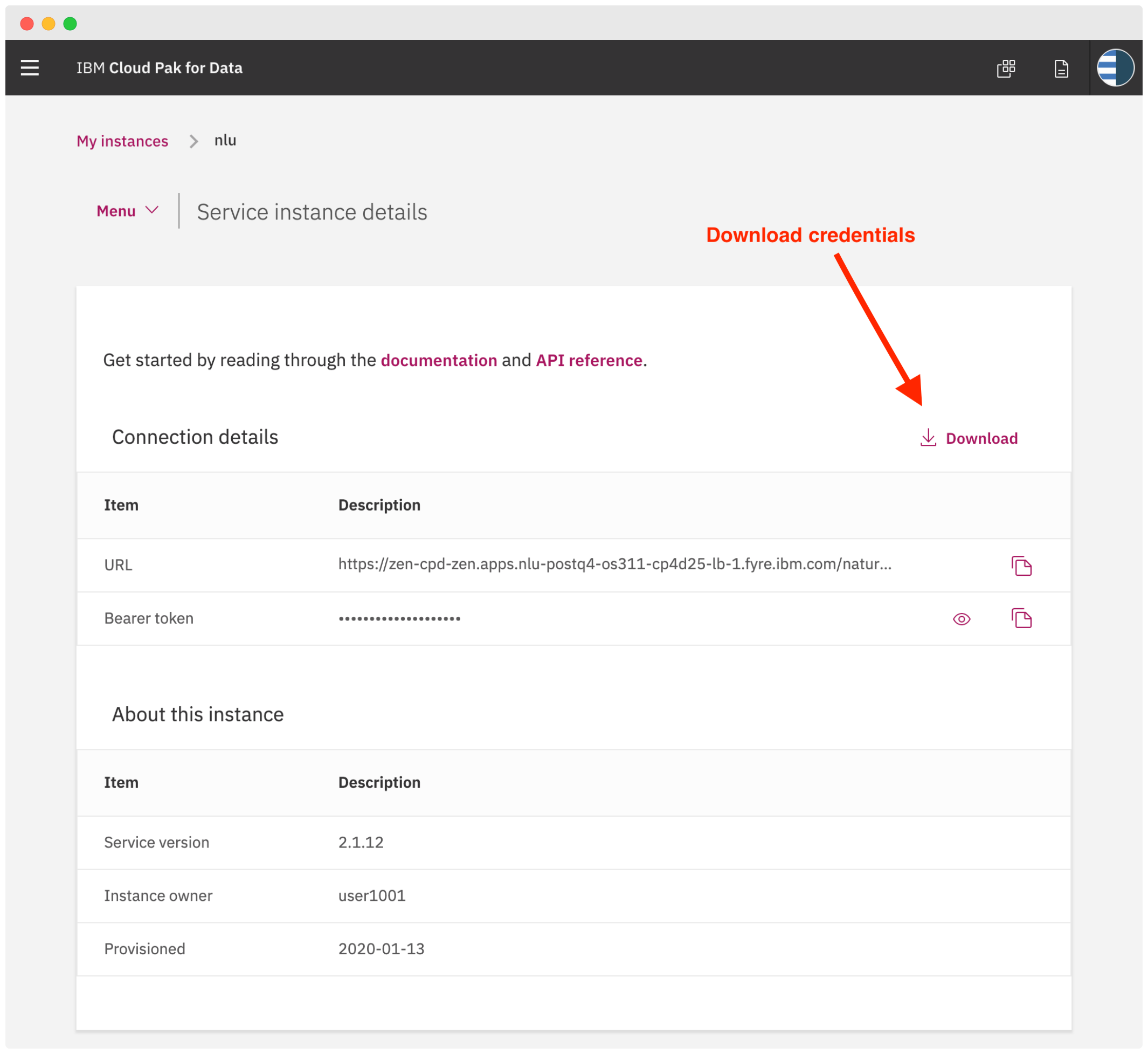
To use this code pattern with a Text to Speech instance provisioned on Cloud Pak for Data, you can use your CPD username and password credentials or an access_token to authenticate your requests. You also need the service url as described here.
Another important thing to note is that this code pattern assumes that you're using a valid SSL certificate for your CPD cluster. If not, you'll receive transcription errors. If you'd still like to use the app with an invalid certificate, you'll need to look up your browser-specific way to ignore these certificate errors. Do note that this is very insecure though!
Depending on where your service instance is you may have different ways to download the credentials file.
Need more information? See the authentication wiki.
Copy the credential file to the application folder.
Cloud Pak for Data
Public Cloud
-
In the application folder, copy the
.env.examplefile and create a file called.env:cp .env.example .env -
Open the
.envfile and add the service credentials depending on your environment.Example
.envfile that configures theapikeyandurlfor a Speech to Text service instance hosted in the US South region:TEXT_TO_SPEECH_APIKEY=12345abcde TEXT_TO_SPEECH_URL=https://stream.watsonplatform.net/text-to-speech/api-
CPD using username and password: If your service instance is running in Cloud Pak for Data and you want to use
usernameandpasswordcredentials, add the following variables to the.envfile.TEXT_TO_SPEECH_USERNAME=admin TEXT_TO_SPEECH_PASSWORD=password TEXT_TO_SPEECH_URL=https://{cpd-url}:{cpd-port}/text-to-speech/api -
CPD using access token: If your service instance is running in Cloud Pak for Data and you want to use the
access_tokenfrom the service instance detail page, add the following:TEXT_TO_SPEECH_BEARER_TOKEN=eyJhbGciOiJSUzI1NiIsInR5cCI6IkpXVCJ9.ey... TEXT_TO_SPEECH_URL=https://{cpd-url}:{cpd-port}/text-to-speech/api
-
-
Install the dependencies
npm install -
Build the application
npm run build -
Run the application
npm run dev -
View the application in a browser at
localhost:3000
Click on the button below to deploy this demo to the IBM Cloud.

-
Build the application
npm run build -
Login to IBM Cloud with the IBM Cloud CLI
ibmcloud login -
Target a Cloud Foundry organization and space.
ibmcloud target --cf -
Edit the
manifest.ymlfile. Change the name field to something unique. For example:- name: my-app-name. -
Deploy the application
ibmcloud app push -
View the application online at the app URL, for example: https://my-app-name.mybluemix.net
Run unit tests with:
npm run test:components
See the output for more info.
First you have to make sure your code is built:
npm run build
Then run integration tests with:
npm run test:integration
.
├── app.js                      // Express routes
├── config                      // Express configuration
│   ├── error-handler.js
│   ├── express.js
│   └── security.js
├── package.json
├── public                      // Static resources
├── server.js                   // Entry point
├── test                        // Tests
└── src                         // React client
    └── index.js                // App entry point
This sample code is licensed under the MIT License.
Find more open source projects on the IBM Github Page