Simple template to quickly set up a React Native Expo mobile application.
- Light and dark themes that match native system display
- Swipeable bottom tab navigation (default)
- Shifting bottom tab navigation
- Stack navigation and modal
- Drawer navigation
- Firebase backend
- Sign up page
- Basic log in and log out
- Input validation
- Success and error messages
Installs all dependencies or devDependencies from package.json file
Runs your app in development mode.
Open it in the Expo Go app on your phone to view it by scanning the displayed QR code upon running. It will reload if you save edits to your files, and you will see build errors and logs in the terminal.
Sometimes you may need to reset or clear the React Native packager's cache. To do so, you can pass the --reset-cache flag to the start script:
npm run start --reset-cache
# or
yarn run start --reset-cache
Runs the jest test runner on your tests.
Like npm start, but also attempts to open your app in the iOS Simulator if you're on a Mac and have it installed.
Like npm start, but also attempts to open your app on a connected Android device or emulator. Requires an installation of Android build tools (see React Native docs for detailed setup). We also recommend installing Genymotion as your Android emulator. Once you've finished setting up the native build environment, there are two options for making the right copy of adb available to Create React Native App:
Use toggles.ts in the src folder to configure customisations such as enabling authentication, and switching between bottom tab configurations.
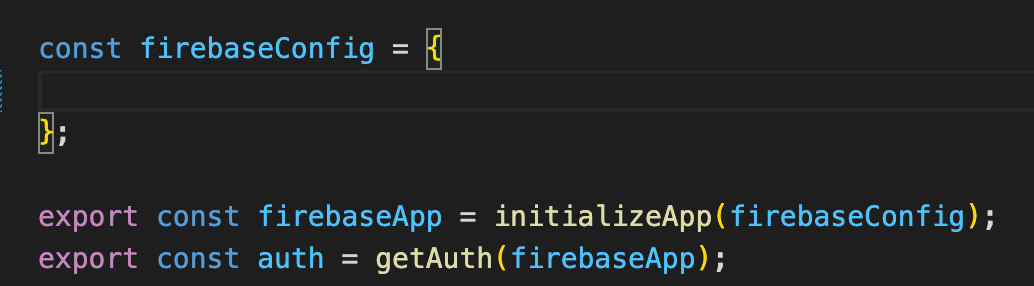
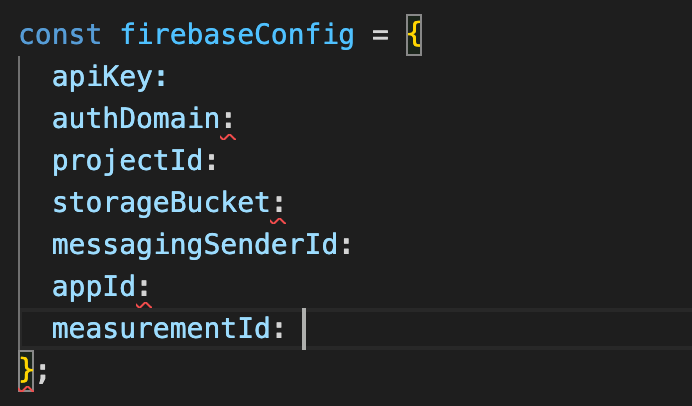
Create a new firebase webapp and add the firebaseConfig details to the file firebase.js in order to use Firebase authentication.
Checks if the user is logged in, and if so, returns the corresponding user information
Checks the color scheme (dark or light) of the user's device