Configuration of my coc-nvim & Vimrc
- Vim Installation
- Neovim Installation(Optional)
- coc-nvim Installation
- Plug.vim Install
- Vim & Neovim configuration: How to use these scripts
- Neovim: Transitioning from Vim (nvim-from-vim)
- Plugin explanation & key mapping

Neovim is a project that seeks to aggressively refactor Vim in order to:
- Simplify maintenance and encourage contributions
- Split the work between multiple developers
- Enable [advanced UIs] without modifications to the core
- Maximize extensibility
See the Introduction wiki page and [Roadmap] for more information.
- First Install coc-nvim
Don't forget to install
nodejsandnpm
sudo apt-get install nodejs npmOR
sudo pacman -S nodejs npmNote: If you are in China,change the npm source(Taobao registry) by following command
npm config set registry https://registry.npm.taobao.orgPlug.vim Install
A minimalist Vim plugin manager.
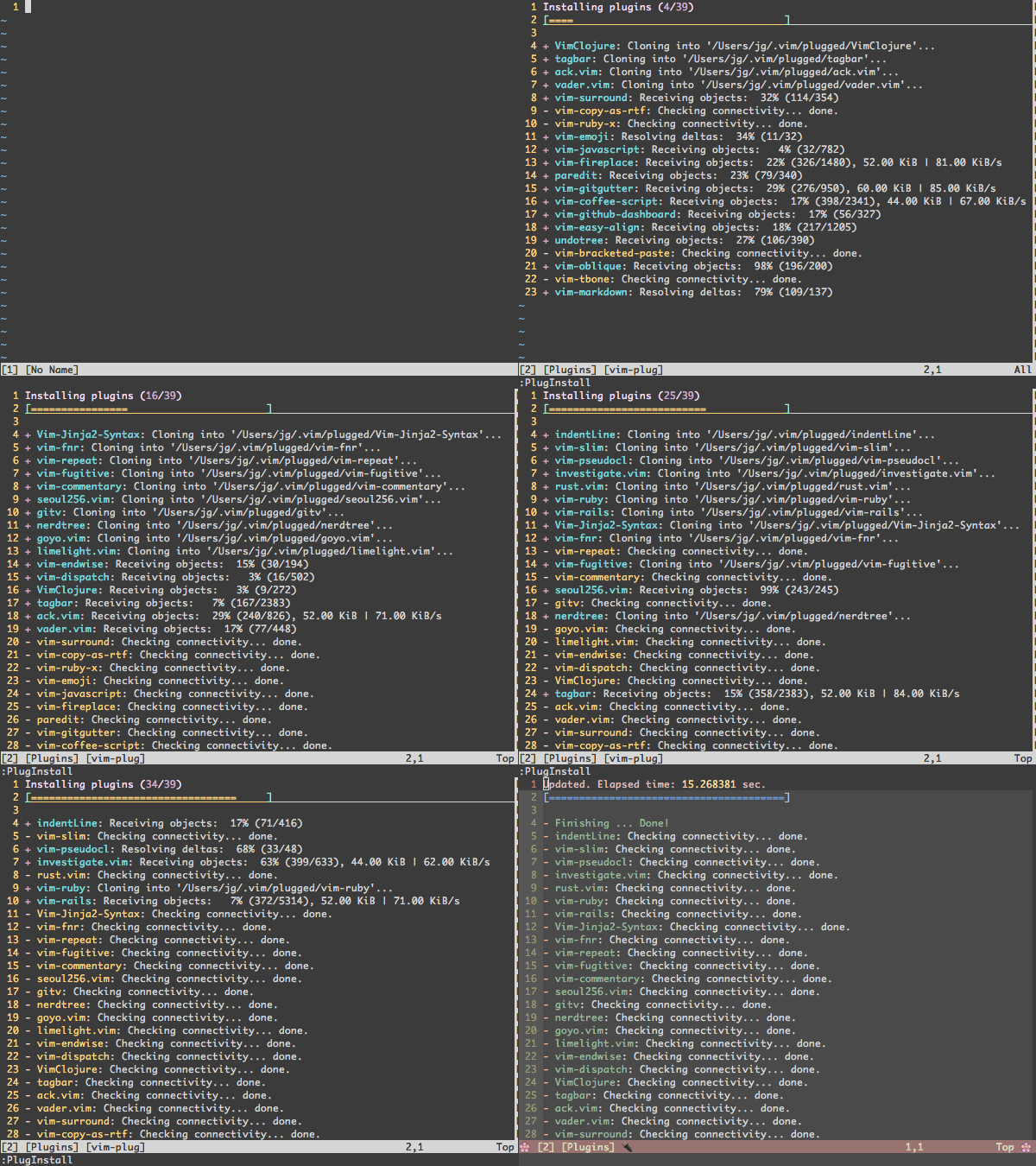
Download plug.vim and put it in the "autoload" directory.
curl -fLo ~/.vim/autoload/plug.vim --create-dirs \
    https://raw.githubusercontent.com/junegunn/vim-plug/master/plug.vim
You can automate the process by putting the command in your Vim configuration file as suggested here.
iwr -useb https://raw.githubusercontent.com/junegunn/vim-plug/master/plug.vim |`
ni $HOME/vimfiles/autoload/plug.vim -Forcesh -c 'curl -fLo "${XDG_DATA_HOME:-$HOME/.local/share}"/nvim/site/autoload/plug.vim --create-dirs \
https://raw.githubusercontent.com/junegunn/vim-plug/master/plug.vim'curl -fLo ~/.var/app/io.neovim.nvim/data/nvim/site/autoload/plug.vim \
https://raw.githubusercontent.com/junegunn/vim-plug/master/plug.vimiwr -useb https://raw.githubusercontent.com/junegunn/vim-plug/master/plug.vim |`
ni "$(@($env:XDG_DATA_HOME, $env:LOCALAPPDATA)[$null -eq $env:XDG_DATA_HOME])/nvim-data/site/autoload/plug.vim" -ForceNotice: These config files suit my own needs,Please DO NOT just copy this configuration folder without really understanding about it! Please, at least, read this README file!
-
After you install
Plug.vim,copy.vimrcandcoc-settings.jsonScripts to$HOME/&$HOME/.vim/ -
Reopen
Vim -
Wait Coc Extension installing finished
-
Execute
:PlugInstallto Finish VIM Plugin install -
Configure the rest components
- After you install
Plug.vim,copyinit.vimto$HOME/.config/nvim/ - Reopen
Neovim
nvim-from-vim
:call mkdir(stdpath('config'), 'p')
:exe 'edit '.stdpath('config').'/init.vim'- Add these contents to the file:
    set runtimepath^=~/.vim runtimepath+=~/.vim/after
    let &packpath = &runtimepath
source ~/.vimrc- Restart Nvim, your existing Vim config will be loaded.
See |provider-python| and |provider-clipboard| for additional software you might need to use some features.
Your Vim configuration might not be entirely Nvim-compatible. See |vim-differences| for the full list of changes.
The |'ttymouse'| option, for example, was removed from Nvim (mouse support should work without it). If you use the same |vimrc| for Vim and Nvim, consider guarding |'ttymouse'| in your configuration like so:
    if !has('nvim')
        set ttymouse=xterm2
    endif
Conversely, if you have Nvim specific configuration items, you could do this:
    if has('nvim')
        tnoremap <Esc> <C-\><C-n>
    endif
For a more granular approach use YXXYexists()|:
    if exists(':tnoremap')
        tnoremap <Esc> <C-\><C-n>
    endif
Now you should be able to explore Nvim more comfortably. Check |nvim-features| for more information.
Follow Installation
| Shortcut | Action |
|---|---|
Ctrl+n |
Select next key (multiple cursors) |
q |
Deselect the current keys (multiple cursors) |
N |
Select the previous key |
n |
Select the next key |
Esc |
Quit mutiple cursors |
To minimize chances for conflicts, a leader that is specific to VM is defined. The default is \\ (two backslashes), but you can change it by setting:
let g:VM_leader = {your VM leader}
- select words with Ctrl-N (like
Ctrl-din Sublime Text/VS Code) - create cursors vertically with Ctrl-Down/Ctrl-Up
- select one character at a time with Shift-Arrows
- press n/N to get next/previous occurrence
- press [/] to select next/previous cursor
- press q to skip current and get next occurrence
- press Q to remove current cursor/selection
- start insert mode with i,a,I,A
Two main modes:
- in cursor mode commands work as they would in normal mode
- in extend mode commands work as they would in visual mode
- press Tab to switch between «cursor» and «extend» mode
Most vim commands work as expected (motions, r to replace characters, ~ to change case, etc). Additionally you can:
- run macros/ex/normal commands at cursors
- align cursors
- transpose selections
- add patterns with regex, or from visual mode
And more... of course, you can enter insert mode and autocomplete will work.
:help visual-multi
For some specific topic it's often:
:help vm-some-topic
The wiki was the first documentation for the plugin, but many pictures are outdated and contain wrong mappings. Still, you can take a look.
You could read at least the Quick Start.
Quick refer the Key mapping
Insert mode with autocomplete, alignment (mappings in pic have changed, don't trust them)

Undo/Redo edits and selections

Alternate cursor/extend mode, motions (even %), reverse direction (as in visual mode) and extend from the back. At any time you can switch from extend to cursor mode and viceversa.

Select inside/around brackets/quotes/etc:

Select operator, here shown with 'wellle/targets.vim' plugin: sib, sia, saa + selection shift

Synched column transposition

Unsynched transposition (cycle all regions, also in different lines)

Shift regions left and right (M-S-<>)

Find words under cursor, add new words (patterns stack), navigate regions, skip them, add regions with regex.


| Shortcut | Action |
|---|---|
:UndotreeToggle OR F5 |
toggle the undo-tree panel. |
:redo OR <ctrl-r> |
restore |
[ number ] |
marks the most recent change |
- Use
:UndotreeToggleto toggle the undo-tree panel. You may want to map this command to whatever hotkey by adding the following line to your vimrc, takeF5for example.
nnoremap <F5> :UndotreeToggle<CR>
- Markers
- Every change has a sequence number and it is displayed before timestamps.
- The current state is marked as
> number <. - The next state which will be restored by
:redo`:redo` or<ctrl-r>is marked as{ number }. - The
[ number ]marks the most recent change. - The undo history is sorted by timestamps.
- Saved changes are marked as
sand the bigSindicates the most recent saved change.
- Press
?in undotree window for quick help. - Persistent undo
- Usually I would like to store the undo files in a seperate place like below.
if has("persistent_undo")
   let target_path = expand('~/.undodir')

    " create the directory and any parent directories
    " if the location does not exist.
    if !isdirectory(target_path)
        call mkdir(target_path, "p", 0700)
    endif

    let &undodir=target_path
    set undofile
endif
A simple, easy-to-use Vim alignment plugin.

ga + symbol in normal or visual mode to align text based on symbol
- with the following lines of text,
apple   =red
grass+=green
sky-=   blue
try these commands:
vipga=visual-selectinnerparagraph- Start EasyAlign command (
ga) - Align around
=
gaip=- Start EasyAlign command (
ga) forinnerparagraph - Align around
=
- Start EasyAlign command (
An alignment rule is a predefined set of options for common alignment tasks,
which is identified by a single character, such as <Space>, =, :, .,
|, &, #, and ,.
=Around the 1st occurrences2=Around the 2nd occurrences*=Around all occurrences**=Left/Right alternating alignment around all occurrences<Enter>Switching between left/right/center alignment modes

<Space>Around the 1st occurrences of whitespaces2<Space>Around the 2nd occurrences-<Space>Around the last occurrences<Enter><Enter>2<Space>Center-alignment around the 2nd occurrences

- The predefined comma-rule places a comma right next to the preceding token
without margin (
{'stick_to_left': 1, 'left_margin': 0}) - You can change it with
<Right>arrow

You can use an arbitrary regular expression by
- pressing
<Ctrl-X>in interactive mode - or using
:EasyAlign /REGEX/command in visual mode or in normal mode with a range (e.g.:%)
Different ways to start

This demo shows how you can start interactive mode with visual selection or use
non-interactive :EasyAlign command.

Check out various alignment options and "live interactive mode".

Delimiters in strings and comments are ignored by default.

A simple, easy-to-use Vim alignment plugin.
ga + symbol in normal or visual mode to align text based on symbol
- with the following lines of text,
apple   =red
grass+=green
sky-=   blue
try these commands:
vipga=visual-selectinnerparagraph- Start EasyAlign command (
ga) - Align around
=
gaip=- Start EasyAlign command (
ga) forinnerparagraph - Align around
=
- Start EasyAlign command (
An alignment rule is a predefined set of options for common alignment tasks,
which is identified by a single character, such as <Space>, =, :, .,
|, &, #, and ,.
=Around the 1st occurrences2=Around the 2nd occurrences*=Around all occurrences**=Left/Right alternating alignment around all occurrences<Enter>Switching between left/right/center alignment modes
<Space>Around the 1st occurrences of whitespaces2<Space>Around the 2nd occurrences-<Space>Around the last occurrences<Enter><Enter>2<Space>Center-alignment around the 2nd occurrences
- The predefined comma-rule places a comma right next to the preceding token
without margin (
{'stick_to_left': 1, 'left_margin': 0}) - You can change it with
<Right>arrow
You can use an arbitrary regular expression by
- pressing
<Ctrl-X>in interactive mode - or using
:EasyAlign /REGEX/command in visual mode or in normal mode with a range (e.g.:%)
Different ways to start
This demo shows how you can start interactive mode with visual selection or use
non-interactive :EasyAlign command.
Check out various alignment options and "live interactive mode".
Delimiters in strings and comments are ignored by default.
You can limit the scope with blockwise-visual mode.

Press E key to view the event list, and T key to view the task list. Also, press ? key to view a quick help.

:Calendar

:Calendar 2000 1 1

:Calendar -view=year

:Calendar -view=year -split=vertical -width=27

:Calendar -view=year -split=horizontal -position=below -height=12

:Calendar -first_day=monday

:Calendar -view=clock

You can switch between views with < and > keys.
For convenience it is recommended that you assign a key for this, like so:
noremap <F3> :Autoformat<CR>Basic usage: :Autoformat OR F3
A Vim plugin which shows a git diff in the sign column. It shows which lines have been added, modified, or removed. You can also preview, stage, and undo individual hunks; and stage partial hunks. The plugin also provides a hunk text object.

In the screenshot above you can see:
- Lines 183-184 are new.
- Lines 186-187 have been modified.
- The preview for the modified lines highlights changed regions within the line.

Press cs"' inside
"Hello world!"
to change it to
'Hello world!'
Now press cs'<q> to change it to
<q>Hello world!</q>
To go full circle, press cst" to get
"Hello world!"
To remove the delimiters entirely, press ds".
Hello world!
Now with the cursor on "Hello", press ysiw] (iw is a text object).
[Hello] world!
Let's make that braces and add some space (use } instead of { for no
space): cs]{
{ Hello } world!
Now wrap the entire line in parentheses with yssb or yss).
({ Hello } world!)
Revert to the original text: ds{ds)
Hello world!
Emphasize hello: ysiw<em>
<em>Hello</em> world!
Finally, let's try out visual mode. Press a capital V (for linewise
visual mode) followed by S<p class="important">.
<p class="important">
  <em>Hello</em> world!
</p>

-
Generate table of contents for Markdown files.
Supported Markdown parsers:
- GFM (GitHub Flavored Markdown)
- GitLab
- Redcarpet
-
Update existing table of contents.
-
Auto update existing table of contents on save.
-
:GenTocGFMGenerate table of contents in GFM link style.
This command is suitable for Markdown files in GitHub repositories, like
README.md, and Markdown files for GitBook. -
:GenTocRedcarpetGenerate table of contents in Redcarpet link style.
This command is suitable for Jekyll or anywhere else use Redcarpet as its Markdown parser.
-
:GenTocGitLabGenerate table of contents in GitLab link style.
This command is suitable for GitLab repository and wiki.
-
:GenTocMarkedGenerate table of contents for iamcco/markdown-preview.vim which use Marked markdown parser.
You can view here to know differences between GFM and Redcarpet style toc links.
Generally you don't need to do this manually, existing table of contents will auto update on save by default.
The :UpdateToc command, which is designed to update toc manually, can only work when g:vmt_auto_update_on_save turned off, and keep insert fence.
:RemoveToc command will do this for you, just remember keep insert fence option by default.
Lean & mean status/tabline for vim that's light as air.

When the plugin is correctly loaded, there will be a nice statusline at the bottom of each vim window.
Automatically displays all buffers when there's only one tab open.

This is disabled by default; add the following to your vimrc to enable the extension:
let g:airline#extensions#tabline#enabled = 1
Indent Guides is a plugin for visually displaying indent levels in Vim.

The default mapping to toggle the plugin is <Leader>ig.
You can also use the following commands inside Vim:
:IndentGuidesEnable
:IndentGuidesDisable
:IndentGuidesToggle
If you would like to have indent guides enabled by default, you can add the following to your ~/.vimrc:
let g:indent_guides_enable_on_vim_startup = 1Preview markdown on your modern browser with synchronised scrolling and flexible configuration
" Start the preview
:MarkdownPreview

" Stop the preview"
:MarkdownPreviewStopcoc.nvim extensions marketplace.
- search
keywords:coc.nvimfrom npmjs.com, display extensions incoc-lists - extension name starts with
√means installed already, with anuninstallaction - extension name starts with
xmeans uninstalled, with aninstallaction - extension name ends with
*is published by @chemzqm, IMO, is official
:CocList marketplacelist all available extensions:CocList marketplace pythonto search extension that name containspython

you can use :Prettier to format current buffer.
your can <leader>f for range format.
Prettier range format only support languageId including: javascript,javascriptreact, typescript, typescriptreact, json and graphql.
Open settings file with:
:CocConfig
Add:
"coc.preferences.formatOnSaveFiletypes": ["css", "markdown"],
to setup the languages which you want to format on save.
| Shortcut | Action |
|---|---|
Insert Mode Ctrl l |
coc-snippets-expand (trigger snippet expand) |
Visual Mode Ctrl j |
coc-snippets-select (select text for visual placeholder of snippet) |
Ctrl j |
coc_snippet_next (jump to next placeholder, it's default of coc.nvim) |
Ctrl k |
coc_snippet_prev (jump to previous placeholder, it's default of coc.nvim) |
xmap <leader> x |
coc-convert-snippet (Use x for convert visual selected code to snippet) |
imap <C-j> <Plug> |
coc-snippets-expand-jump (Use for both expand and jump (make expand higher priority.) |
Make <tab> used for trigger completion, completion confirm, snippet expand and jump like VSCode.
vim-snipmate default snippets (Previously snipmate-snippets)
This repository contains snippets files for various programming languages.
snippets/*: snippets using snipMate formatUltiSnips/*: snippets using UltiSnips format
Explorer extension for coc.nvim

- Open explorer
<space>e
Translation extension for coc.nvim.

| Shortcut | Action |
|---|---|
<Leader> t |
popup |
<Leader> t |
echo |
<Leader> t |
replace |