PSA: You can grab the nightly build
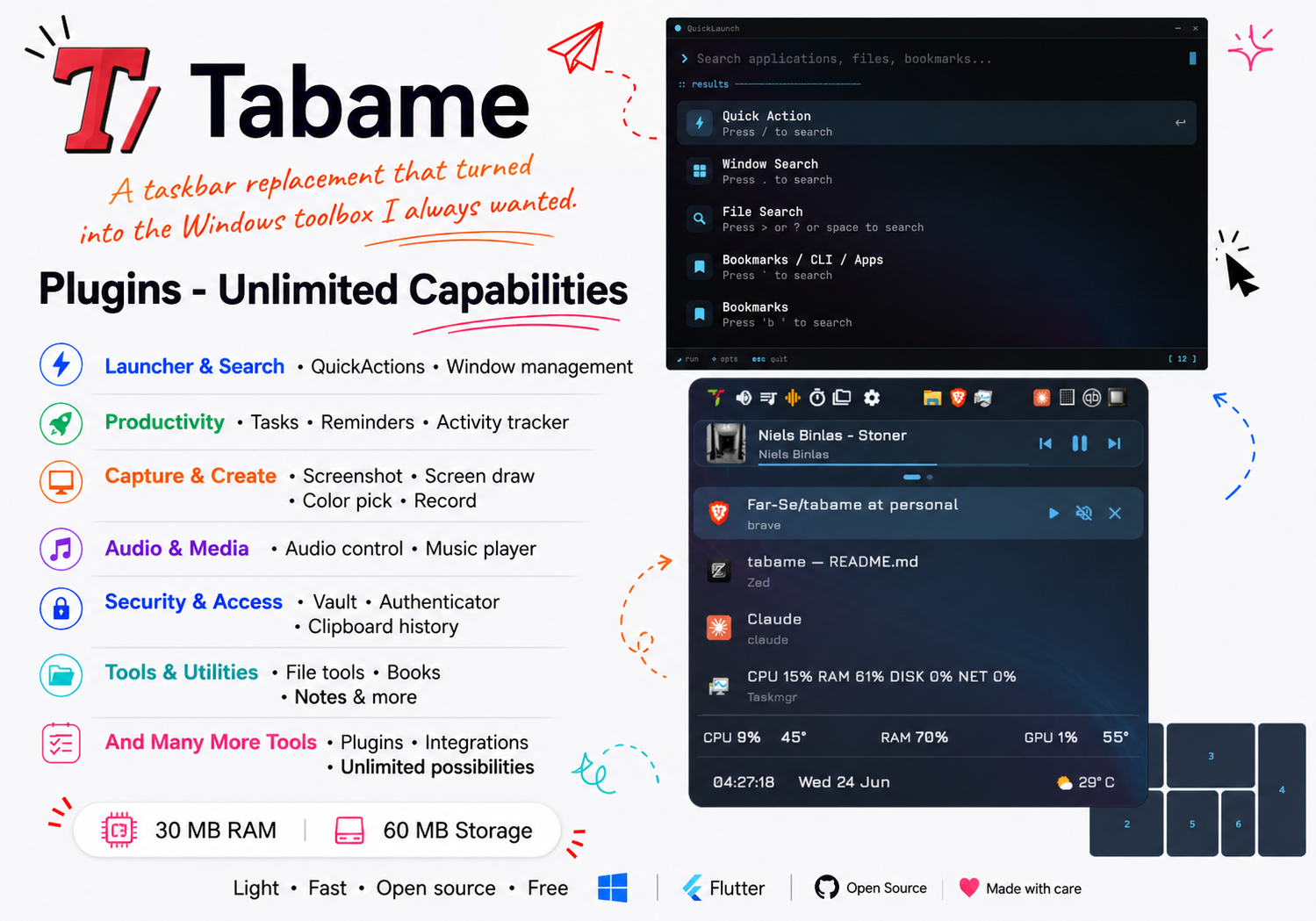
Tabame (Ta-ba-me -> TAskBArMEnu) started as a Windows taskbar replacement. I don't like the flashing icons, the badges, the notifications and all the stuff Microsoft keeps pushing into my face. So I made a little popup menu (the QuickMenu) that shows my open windows, my audio, my pinned apps - and nothing else unless I ask for it.
Then I kept getting ideas. "It'd be nice if I could also..." - and that's how it grew into the thing you see now: a launcher, a media player, screenshot and drawing tools, a password vault, an authenticator, reminders, activity tracking, file utilities, and a pile of small things I use every day.
It's all made by one person (me), for the way I actually use my computer. It's free, it's open source, and it tries to stay out of your way until you press a hotkey.
QuickMenu works best with mouse interaction, so try to use a Mouse Button:
- A mouse side button - most mice have them, and it's the nicest way to summon the menu.
- Any extra mouse button - open your mouse software, bind the button to something like
CTRL+ALT+SHIFT+F9, then set that same combo inside Tabame. - No spare buttons? Use something easy for your fingers like
WIN+SHIFT+Z(orA).
Launcher works best with keyboard, so use a hotkey that is easy to reach:
WIN+SHIFT+AorWIN+SPACEor evenDouble AltorRight Alt
If you want to browse opened windows but do no want to open QuickMenu, setup a hotkey like Win+Shift+D that will have as trigger "Start Launcher with Prefix" and put the windows prefix .
A easy to reach keyboard shortcut, like Right Alt or ALT+,
You will need to use the mouse, so either setup the QuickMenu hotkey with a "move left/right" or hold duration to trigger Fancyshot.
I did not want to create a installer because it's another app that needs signing.
So the easy way to install:
- Download the zip from Releases.
- Extract it wherever you like, in
%localappdata%Or Program Files or any folder you want. - Open
tabame.exe.
Either manually delete the folder, or from Program and Features or Open Tabame -> Settings Button -> Settings Tab -> Scroll down and Uninstall.
Please open an issue - it really helps. It works on my machine, but every PC is a little different.
Please attach your errors.log. You'll find it at %localappdata%/Tabame (paste that into the Explorer address bar).
It's open source, so you can compile your own copy and now with AI, you can customize it however you want.
- Install Flutter for Windows.
- Open the Visual Studio Installer → Individual Components → install ATL Dependencies.
- Open a terminal in the Tabame source code folder and run
flutter run. - To rebuild an existing Windows build tree, run
flutter build windows. - The script reuses Visual Studio's bundled CMake for direct builds, which avoids version mismatches with a newer
cmake.exeon your PATH. - The exe lands in
build\windows\runner\Release. - You can open it in VS Code and debug from there.
That means it's light. It barely touches your CPU when idle and stays low even when you're using it, and RAM usage is small for what it does. It starts fast and doesn't get in the way.
In full idle it sits at around 20 MB or RAM and 0% CPU and in heavy usage around 70 MB with 3% cpu if it's Visible.
Tabame is basically one fast popup with a lot packed into it. Here's the tour.
If the app draws incorrectly, usually when your PC is under stress (cpu 100%) right-click where the Tabame logo should be and the app will redraw completely
- 🎛️ QuickMenu - the main popup
- 🚀 Launcher - type to find anything
- 🧩 Plugins - extend the Launcher with your own integrations
- ⚡ QuickActions - one menu for everything Tabame can do
- 🪟 QuickSnap - snap windows into custom zones
- 🖱️ QuickClick - move the mouse with your keyboard
- 🎶 Audio & Music
- 🖥️ Screen Tools - draw, capture, edit, record, spotlight, color pick
- ⌨️ Hotkeys
- 📚 Books & Notes - bookmarks, apps, CLI, Notion, memos
- 🔐 Vault & Authenticator
- 📋 Clipboard History
- 📅 Tasks - reminders & page watchers
- 📝 Trktivity - local activity tracking
- ✨ Wizardly - file & folder tools
- 🎨 Theme
- 🙃 Outro
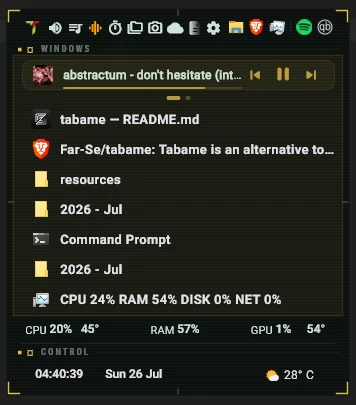 Multiple designs · 18 Different Designs that are fully customizable. |
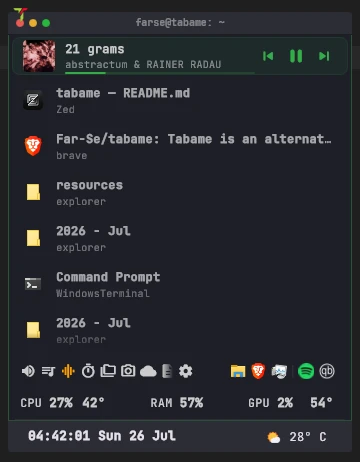 Different Layout · You can rearrange the layout to your liking. |
 Quick Access · Access most important actions directly from the quick menu. |
This is the popup that appears when you press your hotkey. It has three parts.
Audio control, volume control, quick action buttons, pinned apps, a Desktop button and the settings button.
Audio control
- Left click → open the Audio box to manage devices and per-app volume.
- Right click → switch the default output device.
- Middle click → mute / unmute.
- Scroll → change volume.
Media control
- Left click → play / pause.
- Right click → next track.
- Middle click → previous track.
- Scroll → change volume.
The rest of the top bar is filled with QuickAction buttons - you decide which ones live there. See the QuickActions section for the full list.
Your open windows, listed out. Each row shows the icon, whether it's making sound, whether it's pinned, the monitor number, the title, a media control and a close button.
- Right click a window to move it to another desktop, pin it, or force-close it.
- Drag it left or right to send it to a different virtual desktop.
- Middle click to open the QuickSnap zone picker for that window.
You can show the menu at taskbar level or top-bar level, and order windows by monitor, by activity, or show only the current monitor. You can also rewrite window titles with regex if some app's titles annoy you:
The time and the weather, plus:
- Tray icons - a list of your real tray icons. You can hide or pin them, click them, or open their executable directly (some apps ignore simulated clicks, so there's a second option for that).
- Pinned Apps - List of pinned Apps and Files.
- System info - your CPU and RAM usage at a glance, or LibreHardwareMonitor Stats or Taskbar Stats.
If things get crowded you can move pinned apps and tray icons onto the same row. And you can swap the icon or add a splash image above the menu if you want to brand it as your own.
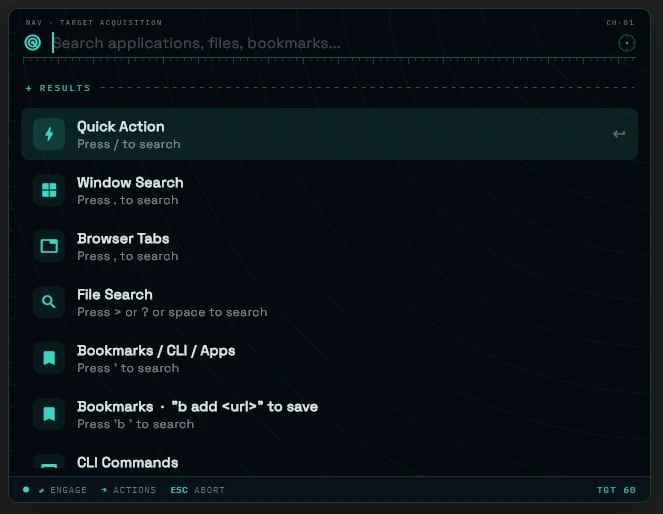 Multiple designs · 12 Different Designs each with a unique look and feel. |
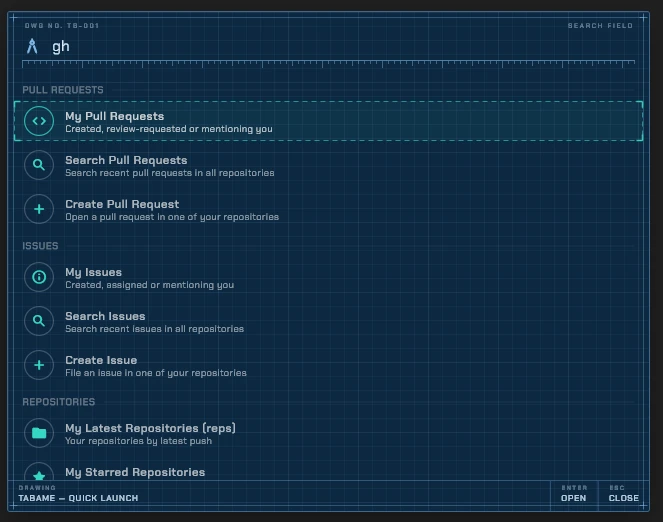 Plugin Access · Unlimited possibilities using plugins |
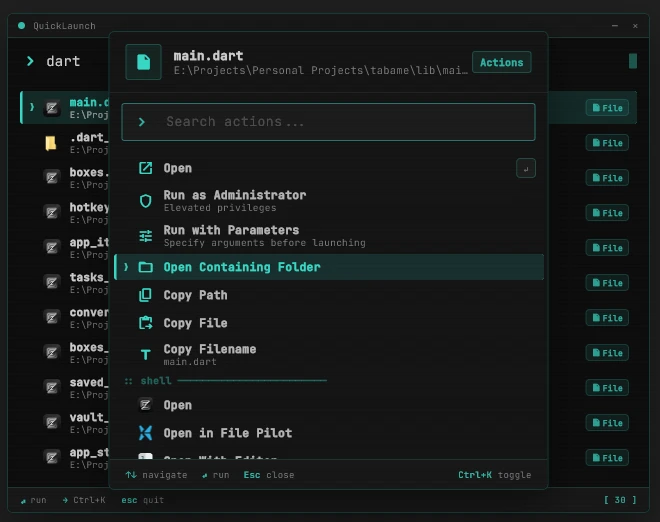 Quick Access · Use the Ctrl+K Menu to access quick actions. |
The Launcher is one text box that searches everything. Open it straight from the QuickMenu (just start typing) or bind it to its own hotkey.
By default it blends results from files, windows and apps. If you want to narrow it down, start your query with a prefix:
| Prefix | What it searches |
|---|---|
| (nothing) | Mixed results: files, windows, apps |
/ |
QuickActions |
. |
Active windows |
, |
Browser tabs |
> ? or a space |
Deep file search (your indexed folders) |
' |
Apps + bookmarks + CLI together |
b |
Bookmarks only |
cli |
Your CLI snippet book |
app |
Apps only |
; |
Desktop files |
n |
Notion documents |
o |
Obsidian notes |
r |
Recent files |
s |
Steam games |
t |
Terminal profiles |
m or m1 –m5 |
Media control (generic or per-app slots) |
sp |
Spotify commands |
$ |
Function commands (see below) |
timer |
Make a timer right away |
Quick one-off tools you can run inline without leaving the box:
$timer- start a quick countdown.$translate(or$t) - translate text on the spot. Supports$t hello,$t hello from en,$t hello from en to ro.$unit- convert units (length, mass, temperature, volume, speed, data, area, energy, and more).$cur- currency conversion using live rates (fawazahmed0/currency-api).$c- a calculator. You can chain equations with|and use variables likex,y,z. Example:$c 75 | x * 20% | x - y.$clear- clear cache folders.$reindex- reindex the launcher's file index.$design- switch the Launcher design on the fly, e.g.$design serene.$sys(or$system,$power) - system power actions like shutdown.
For the deep file search you pick which folders to index. You can set how deep each folder goes (recursion), and filter by file type using preset bundles (Docs, Images, Code) or your own extensions. It re-indexes automatically when things change, and cleans out stale entries so results stay accurate.
The Launcher isn't limited to what ships in the box - you can extend it with your own plugins. A plugin is just a standalone script (Python, Node.js or Bun) that Tabame runs as a small background process and talks to over stdin/stdout. No SDK, no build step, no compiling against Tabame - drop a folder in, reopen the Launcher, and it's live.
- Get a plugin folder (write your own, or grab one someone else made) and drop it into
%localappdata%\Tabame\plugins\<plugin-id>\. - Reopen the Launcher - it rescans the plugins folder every time it opens, so there's no need to restart Tabame.
- Type the plugin's keyword to activate it, then keep typing to query it live.
- Manage installed plugins (enable/disable, browse a gallery) from the PluginManager QuickAction / QuickMenu button.
You don't need to hand-write the protocol plumbing - an AI coding assistant (Claude Code, etc.) can build a plugin for you from a plain description of what you want, because the whole protocol is written down as a spec it can read and follow:
- Point your assistant at
plugins/TABAME_PLUGIN_SKILL.md(orplugins/TABAME_PLUGIN_SKILL.min.md) in this repo - it's the full, authoritative spec: every message type, render-frame field, view type and icon name, plus a matchingplugin.jsontemplate. - Look at
plugins/echo/,plugins/linear/andplugins/caniuse/for working examples to copy the shape of (Python/Node, list/grid/detail views, calling an external API, reading secrets fromconfig.json). - Describe what you want in plain terms - the keyword to type, what each result should show, what Enter should do, what extra actions belong on Ctrl+K - and let the AI scaffold
plugin.json+ the entry script from the spec. - Drop the resulting folder into
%localappdata%\Tabame\plugins\<id>\and reopen the Launcher to try it.
If you're working inside this repo with Claude Code, the tbm-plugin skill wraps this whole workflow for you - just ask it to build, scaffold or debug a plugin.
The protocol itself is simple by design: Tabame sends your script JSON events (init, query, select, action, close) on stdin, one per line, and your script answers with render frames - JSON objects describing what the Launcher should show right now - on stdout. That's the entire contract, which is why an AI assistant (or you) can build one in a single sitting.
Most plugins need nothing but the runtime. If yours needs a library, Tabame installs it automatically the first time you use the plugin (with an "Installing dependencies…" notice), so there's no manual setup:
-
Python - list the packages in a
"pip"array inplugin.json(and/or drop arequirements.txtnext to your script). Tabame installs them into a.pluginlibsfolder inside the plugin and puts it onPYTHONPATH, so you justimportthem. -
Node.js / Bun - ship a
package.json; Tabame runsnpm install(orbun install) in the plugin folder on first run. You can still install by hand, or bundle everything into one dependency-free file so there's nothing to install:esbuild main.js --bundle --platform=node --format=cjs --outfile=main.bundle.jsthen set
"entry": "main.bundle.js"inplugin.json.
Installs are cached and only re-run when your dependency list changes, so normal launches stay instant. Full details (including the "env" key for custom environment variables) are in plugins/TABAME_PLUGIN_SKILL.md, §4.1.
If you made a plugin and want to share it with the community, please make an Issue here and follow the template. I will manually review the code and add it to the official gallery.
QuickActions are the building blocks of Tabame. You can put them on the QuickMenu top bar, bind them to a hotkey, or open them from the QuickActions Menu (a searchable list of everything Tabame can do). Here's the whole catalog, grouped.
- Launcher - open the Launcher.
- QuickActionsMenu - open the searchable list of all actions.
- Apps - your bookmarked apps, grouped into buckets (Apps, Productivity, Editors…).
- Bookmarks - files, commands and websites, grouped by category.
- CliBook - saved CLI commands with custom parameters; copy them, run them, or run them inside a folder.
- DesktopFiles - show your desktop files (handy if you keep the desktop hidden for a clean look).
- Notion - browse and search your Notion workspace.
- Memos - quick notes for later.
- Obsidian - search and open notes from your Obsidian vault.
- Workspaces - save and reload window layouts.
- WindowLayouts - snapshot the position/size of a set of windows and restore that layout later in one click.
- PluginManager - browse, install, enable/disable and configure Launcher plugins.
- Audio - manage output/input devices and per-app volume.
- MediaControl - generic transport: left = play, right = next, middle = previous.
- MusicServer - the local + Subsonic music player (more below).
- AppAudioControl 1–5 - five slots to control a specific app's playback (YouTube Music via a small Chrome extension, MusicBee, Namida, etc.). Left = play/pause, right = next, middle = previous, drag up/down to seek.
- MicMute - one-tap microphone mute.
- ScreenDraw - draw on top of the desktop.
- FancyShot - screen capture, live or frozen.
- FancyShotBrowser - browse and reopen your past FancyShot captures.
- PhotoEditor - open the FancyShot annotation editor on any image file.
- ScreenRecording - record the screen (or a window/region) to
.mp4. - ScreenRuler - an on-screen ruler/protractor for measuring pixels and angles.
- ColorPicker - pixel-accurate color picker.
- ColorPickerInstant - grab the color under your cursor instantly, no picker window.
- EditColor - tweak a color's hue/saturation/brightness and copy the result.
- ImageConverter - convert images between formats.
- PresentMode - a distraction-free presentation overlay (dim the desktop, highlight the cursor).
- Keystrokes - show your keypresses on screen, handy for demos and recordings.
- QuickSnapStandalone - open the QuickSnap zone picker without going through the taskbar.
- Spotlight - dim/blur everything except what you're focused on.
- OCR - grab text off your screen straight into the clipboard.
- Emoji - a searchable emoji picker.
- Vault - store API keys and secrets, optionally encrypted (PBE with AES-CBC). It's one-way encryption, so don't lose your password!
- Authenticator - generate one-time passwords (OTP). Add accounts via backup file or QR scan, with optional encryption.
- ClipboardHistory - browse what you copied; choose how many days to keep.
- BlockKeyboard - block keyboard input so you can clean your keyboard, or make your PC cat-proof while you're away.
- PinWindow - keep the last active window always on top.
- CloseOnFocusLoss - toggle whether the QuickMenu closes when it loses focus.
- TaskManager - open Task Manager.
- VirtualDesktop - left/right click to move between virtual desktops (it cycles).
- ToggleTaskbar - show/hide the Windows taskbar.
- ToggleWallpaperMode - switch between your wallpaper and a black screen.
- ToggleDesktop - minimize everything and show the desktop.
- ToggleWindowsTheme - flip Windows between light and dark (can be scheduled).
- HideDesktopFiles - hide/show desktop icons for a clean desktop.
- ToggleHiddenFiles - show/hide hidden files in Explorer.
- AlwaysAwake - keep the machine awake while you work.
- MouseJiggler - nudge the mouse periodically so the system stays awake/active.
- MouseControl - control the mouse pointer with gestures/keys.
- Brightness - adjust your monitor's brightness.
- MonitorInput - switch a monitor's input source (HDMI/DP/etc.).
- HDR - toggle Windows HDR on/off.
- Bluetooth - manage Bluetooth devices: pair, connect and disconnect.
- FolderIcon - change a folder's icon.
- Adb - quick Android Debug Bridge (
adb) commands for a connected device. - Steam - quick access to your Steam library/friends.
- YtDlp - download video/audio from a URL via
yt-dlp.
- Timers - persistent timers that survive a restart.
- Countdown - a simple countdown.
- Calculator - with variable support.
- TimeZone - compare time zones and plan meetings.
- CurrencyConverter - live rates plus a monthly chart.
- Translator - a Google Translate wrapper.
- Weather - hourly and daily, for multiple locations.
- QrScanner - scan a QR code straight off your screen.
- CustomChars - accents, currency symbols and math characters to copy.
- TextSnippets - saved snippets of text you paste often.
- UniversalConverter - a general-purpose converter (units, bases, encodings and more) in one box.
- DevToolbox - a grab-bag of dev utilities (formatters, encoders/decoders, generators…).
- Wallpapers - browse wallpapers from a folder you pick.
- ChangeTheme - flip the QuickMenu between light and dark.
- QuickMenuDesign - change the QuickMenu layout and colors.
- QuickMenuSettings - jump straight to the QuickMenu settings panel.
- DiskCleanup - check specific folder sizes and clear them.
- ShutDown - schedule a shutdown at a set time or after a delay; can be persistent.
- TrktivityToday - a quick summary of today's Trktivity activity.
- Subscription - track recurring subscriptions and what they cost you.
- ClaudeUsage - keep an eye on your Claude/Anthropic API usage.
My take on PowerToys FancyZones, for when the built-in Windows snapping isn't flexible enough.
- Start dragging a window and right click to pop up preset zones at the top of the screen - drop the window into the one you want.
- Or middle click any window in the QuickMenu taskbar to open the zone picker for it.
You can also hook windows together: focus one and the others come up with it. Right click a window in the QuickMenu to set that up - handy for keeping a chat window glued to whatever you're working in.
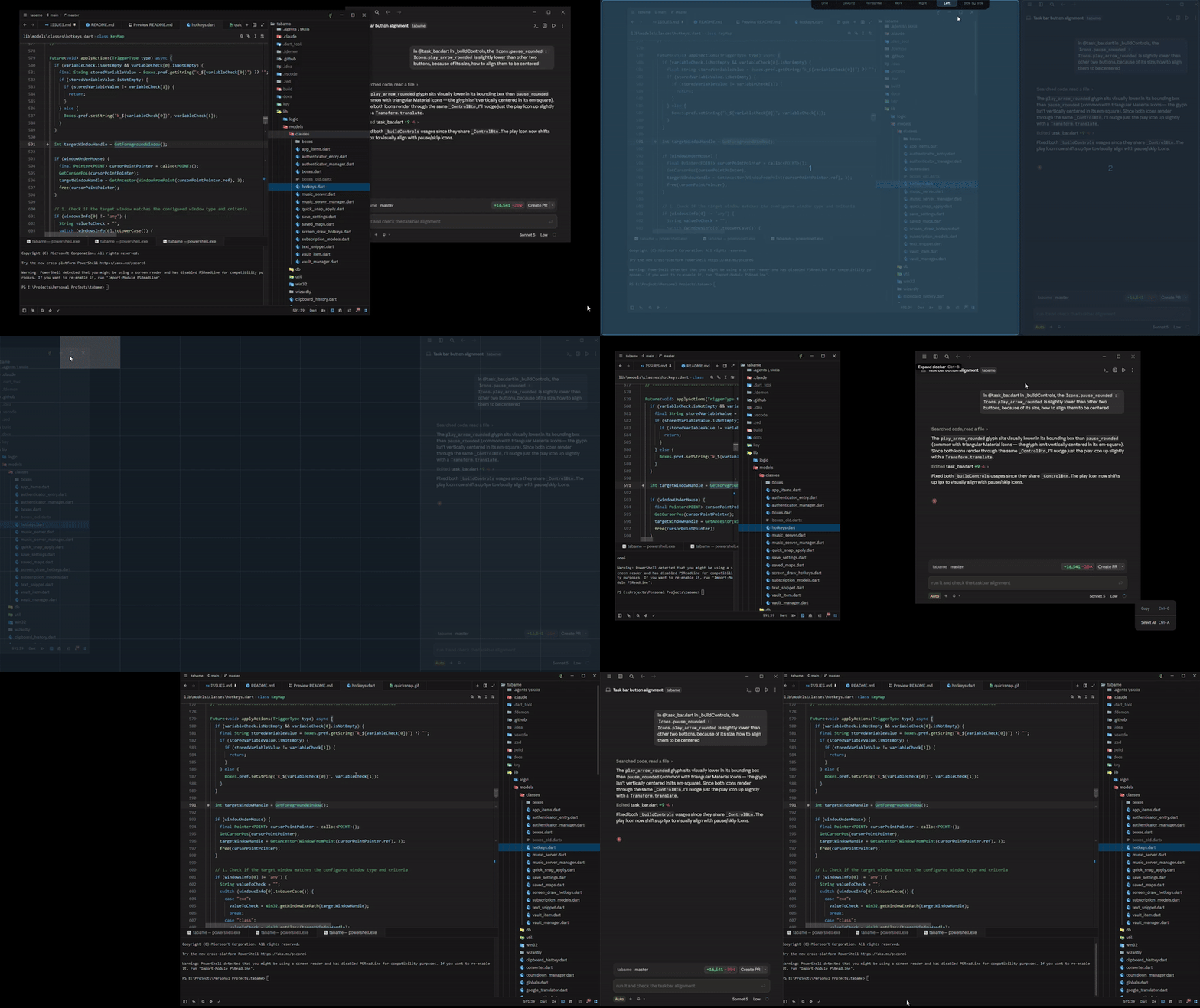
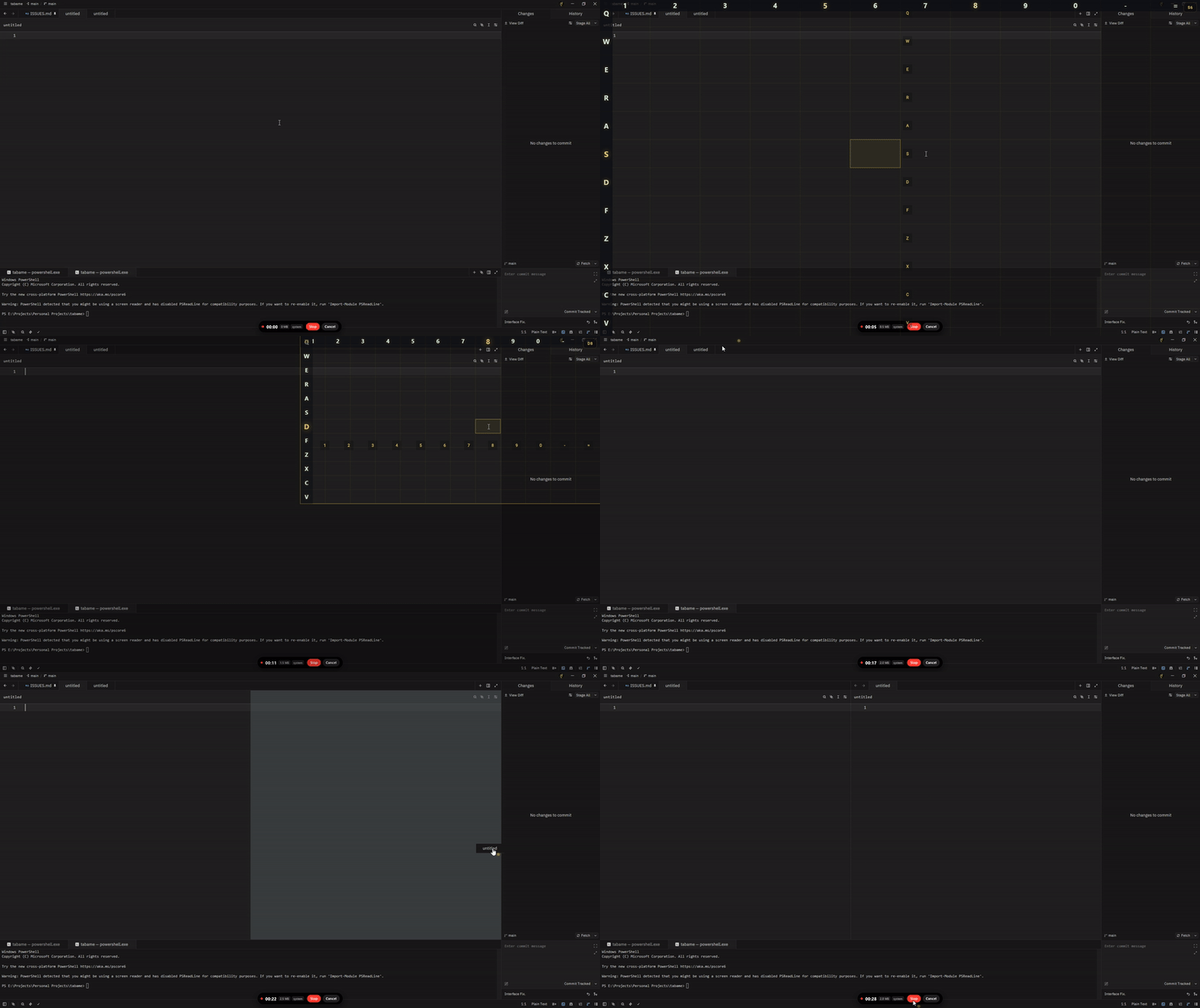
Move the mouse without touching the mouse. QuickClick drops a grid over your screen, each cell labeled with two letters - press the row letter, then the column letter, and the cursor jumps right there. It's great for when your hand's already on the keyboard, or just to give your wrist a break.
- Aim - the grid columns sit across the top and the rows down the left. Type the column key then the row key (or the other way around) and the cursor lands in that cell.
- Click & drag - dedicated keys for left click, right click and drag, so you never reach for the mouse.
- Scroll - keys for scrolling up/down and left/right.
- Nudge - arrow keys (plus your own extra bindings) for tiny pixel-level adjustments after you've landed.
- Zone mode - split the screen into four quadrants, pick one, then get the full grid inside just that quadrant for much finer aim on big monitors.
- Multi-monitor - jump the grid to the next/previous monitor.
- Overlay toggle - hide the grid lines if they're in the way, and pop up a built-in cheat sheet of every key any time you forget one.
All the keys (the grid letters, click/drag/scroll, monitor switching, etc.) are yours to configure.
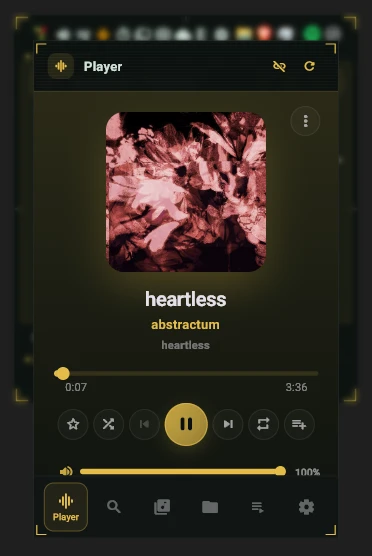
Audio was one of the main reasons I built this. You can switch output devices instantly, change volume by scrolling, and set per-app volumes. Every app that makes sound gets its own little media control, and you can choose which exes always show theirs. You can also slim down the Windows volume OSD, hide its media part, or turn it off completely.
There's a proper little music player built into the menu - not just play/pause buttons, but a library you can actually browse.
- Local + server - one interface for your indexed local folders and Subsonic-compatible remote libraries.
- Browse your way - by Artist, Album, or Folder, with recursive folder playback.
- Session memory - it remembers your queue, playlists and search state, so you pick up where you left off.
- Gesture playback - drag to seek, watch buffering, and see live library stats.
- Hook external players - add quick buttons to control Spotify, YouTube Music and others from the same place.
A set of overlays for drawing on, capturing, focusing and sampling your screen.
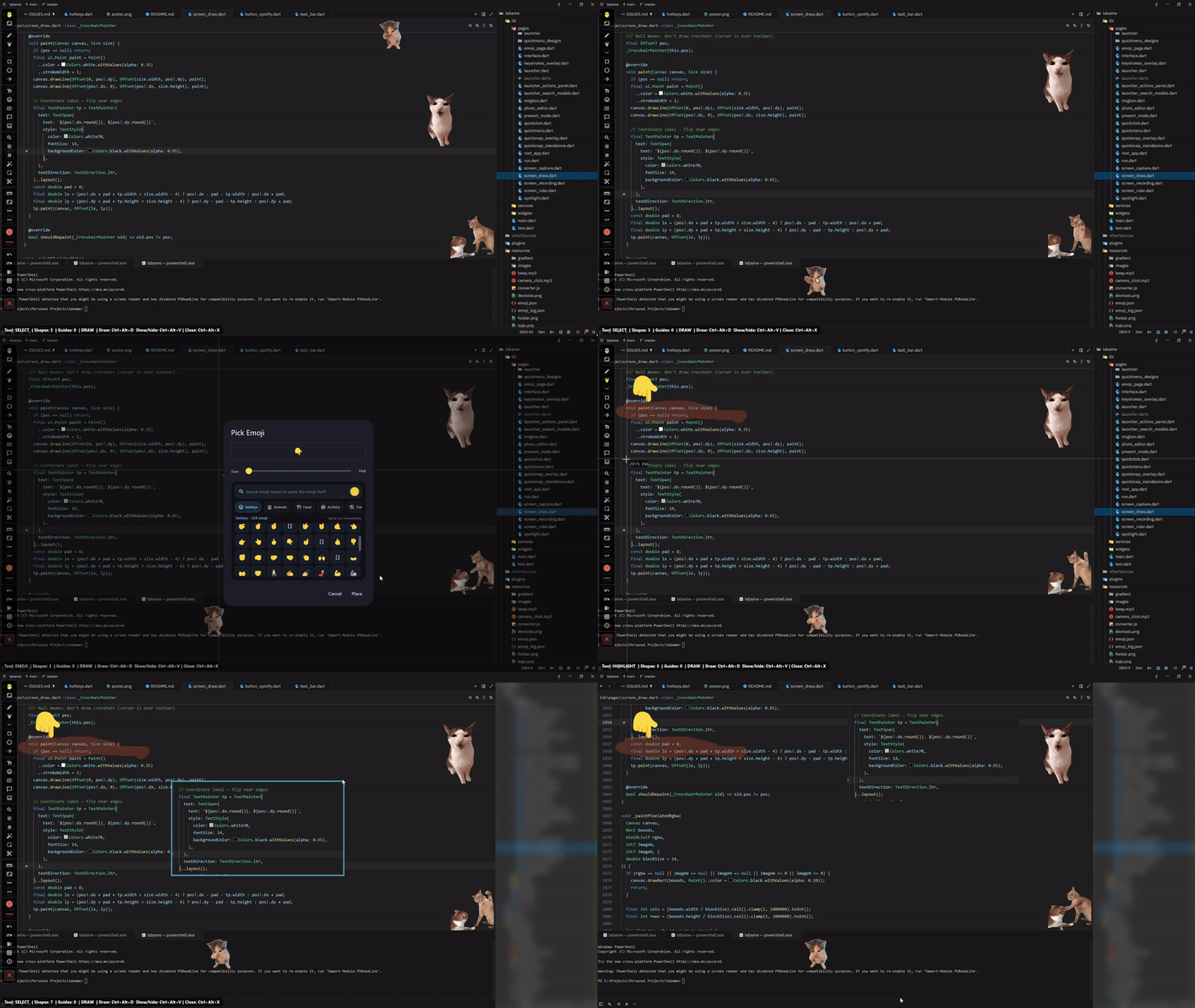
Draw straight on top of the desktop - great for presentations or explaining something.
- Pen, highlighter, lines, rectangles, ellipses, arrows.
- Rulers, guides and sequential step markers (1, 2, 3…).
- Live magnifier, blur and pixelate (good for hiding things on the fly).
- Text with font and background control.
- A toggleable grid and keyboard shortcuts to keep it fast.
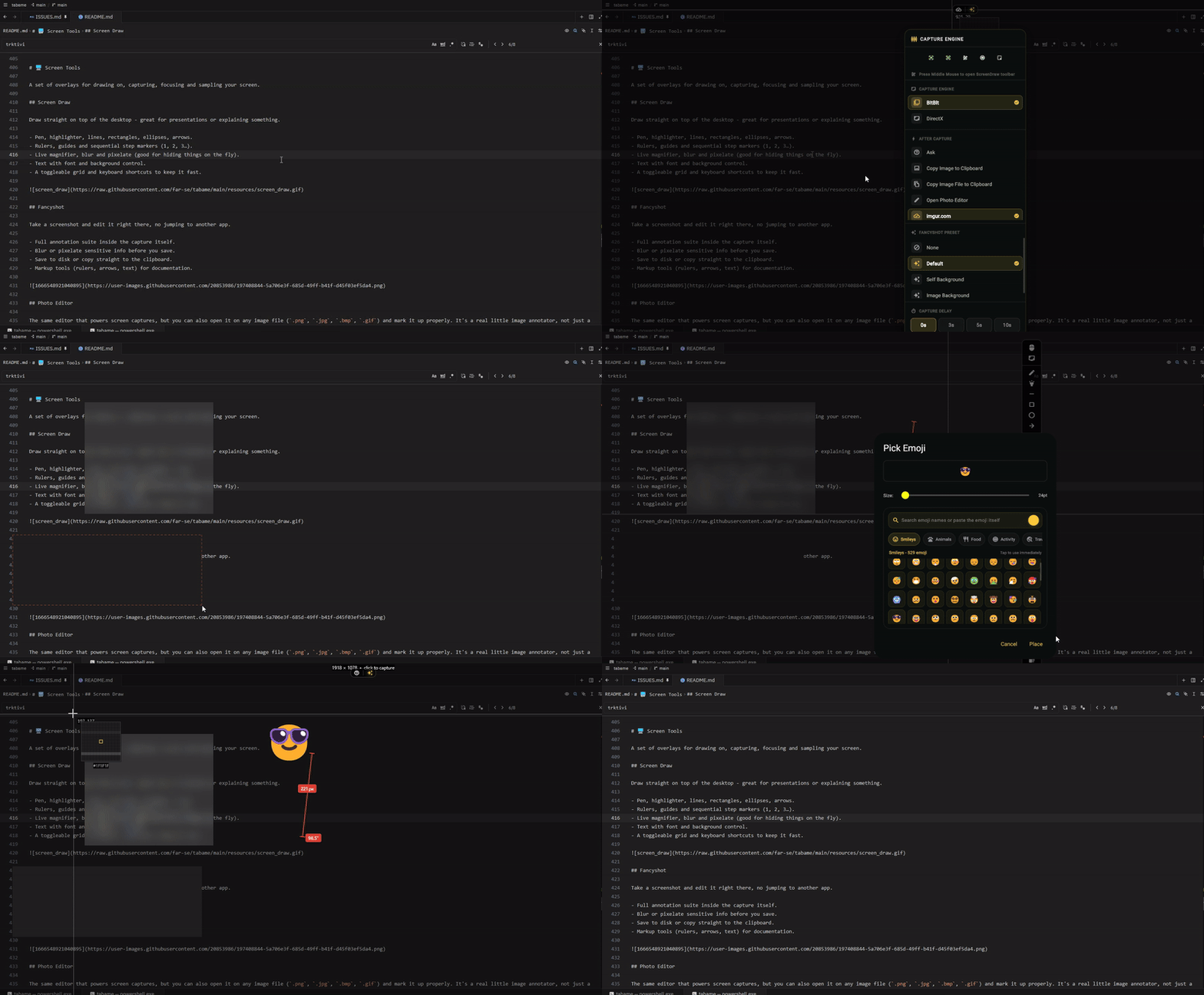
Take a screenshot and edit it right there, no jumping to another app.
- Full annotation suite inside the capture itself.
- Blur or pixelate sensitive info before you save.
- Save to disk or copy straight to the clipboard.
- Markup tools (rulers, arrows, text) for documentation.
The same editor that powers screen captures, but you can also open it on any image file (.png, .jpg, .bmp, .gif) and mark it up properly. It's a real little image annotator, not just a scribble layer.
- Draw - pen, highlighter, lines, rectangles, ellipses and arrows, with a color palette and adjustable stroke.
- Measure & label - rulers, a size box, numbered step counters (1, 2, 3…) and info balloons for callouts.
- Text & emoji - proper text with a font picker and optional background, plus emoji.
- Hide things - blur, pixelate, or smart delete a region (it fills the gap to make stuff disappear).
- Add to it - drop in another image, and use the live magnifier or spotlight to draw attention.
- Polish it - apply a FancyShot preset as a backdrop (stock or custom background, padding, watermark) so a plain screenshot ends up looking presentable.
- Output - save the edited image to disk or copy it straight to the clipboard.
Record your screen to an .mp4 without installing yet another recorder.
- Pick what to record - a region you draw, a whole monitor, or a single window.
- Sound, your way - record nothing, system audio, your mic, or both at once.
- Cursor toggle - show or hide the mouse cursor in the recording.
- Quality control - set the video bitrate so you can balance file size against sharpness.
- Two backends - it uses Windows' built-in Graphics Capture by default, or you can point it at your own
ffmpegcommand if you want full control.
It runs as a small always-on-top overlay so the controls stay out of your way while you record.
Dim and blur the whole screen except the part you care about.
- Isolate the active window, or a region you draw.
- Adjust the blur and dim strength live.
- Dedicated hotkeys to raise/lower visibility.
- Built for presenting and focused explanations.
- A small always-on-top, frameless window for uninterrupted sampling.
- An 11×11 grid so you can land on the exact pixel.
- Hex/RGB copied straight to the clipboard.
- Handy for design work and debugging.
I tried to make hotkeys do a lot with a little. One key press can chain several actions.
Each hotkey has triggers, and each trigger can fire multiple actions.
Triggers can be:
- Press - a normal tap.
- Double press - with adjustable timing.
- Hold - fire after holding for a set duration.
- Mouse movement - based on direction, either while moving or at the end.
- Region - only inside a specific part of a window (in pixels or %, anchored to any corner).
You can also limit a trigger to a specific window (by title, exe or class), check a variable for more complex logic, and even use special bindings like mouse buttons 4/5, double-tapping Alt, modifier-only holds, and chords.
Actions can be: send keys, send a hotkey, run a Tabame function, set a variable, or send a click. You can stack as many as you want.
So with a single hotkey you can: open Tabame, jump to your previous window, toggle the taskbar, open the start menu, open a new Chrome tab, change the volume or switch desktops - all without memorizing a different shortcut for each.
A few "shelves" for the things you keep coming back to. All reachable from the Launcher.
- Bookmarks - save folders, links and commands, organized into groups with an emoji each so you can tell them apart. Open them by typing
bthen the name, e.g.b tabame. I keep a "Tabame" group with the VS Code command, the release folder and the GitHub page -b tabameand arrow keys beats clicking around. - Apps - your bookmarked apps, sorted into categories.
- CLI Book - saved terminal commands, with support for custom parameters (like a file path). Copy, run, or run inside a folder.
- Notion - search and open pages from your Notion workspace.
- Memos - quick notes and snippets you'll want later.
- Vault - a place for your API keys, passwords and secrets. Optionally protect it with a password (PBE with AES-CBC). The encryption is one-way, so if you lose the password the data is gone - there's no backdoor.
- Authenticator - a built-in OTP generator (the 6-digit 2FA codes). Add accounts by scanning a QR code or importing a backup file, and encrypt the file if you want.
Everything you copy, kept around so you can paste it again later. You decide how many days of history to keep, and you can browse it from the QuickMenu or the Launcher.
Reminders can repeat or fire once a day. Choose which weekdays they're active, and for repeating ones set the interval window. You can get a toast notification or an audio one.
- Persistent reminders stick around until you click them off - there's a warning sign in the QuickActions menu when one is waiting. Good for medication.
- Interval reminders fire every X days. Set "every 5 days starting Monday" and it'll hit Saturday, then Thursday, then Tuesday, and so on.

Trktivity tracks how you use your computer 🧐 - keystrokes, mouse pings every few seconds, and which app/window you had focused (if you set filters for it).
- It's off by default. Everything stays on your machine and is never sent anywhere - it's just normalized JSON files in a local folder you can open straight from the UI.
- It tells idle time apart from active time, and can merge mouse events to keep logs small.
- Use regex to normalize noisy window titles per app, and flip a single global switch to kill all tracking.
For viewing, you get heat maps of daily intensity, activity charts in half-hour buckets, daily stats (totals, idle time, multi-day ranges), focus tables broken down by app and title, a timeline for a chosen range, and pattern spotting for your repeated focus/distraction cycles.
A bunch of file and folder tools. You can add them to the Windows right-click menu for quick access.
- Search Everywhere - search text inside a folder, recursively. Use regex, case-sensitivity, or whole-word matching. The reason I built it: you can exclude files/folders, so
node_modulesand friends never clutter your results (something Notepad++ and VS Code annoyingly can't do). - Project Overview - point it at a codebase and it counts lines of code, splits them into code / non-code / comments / empty, and breaks down the language mix. It even works out how many books you could've written with the same number of characters.
- Batch Rename - rename files in bulk with patterns, sequential numbers and lists. Turn
IMG_20220725_121728.jpginto25 July 2022.jpg. - Folder Size Scan - scan recursively to see what's eating your disk, and delete folders right there.
- Context Menu Cleaner - review the apps that added themselves to your right-click menu and disable the ones you don't want.
- Wallpaper Scheduler - per-monitor wallpaper rotation on a schedule, from a gallery you choose.
- Hosts Editor - edit your system
hostsfile from inside Tabame (needs admin rights).
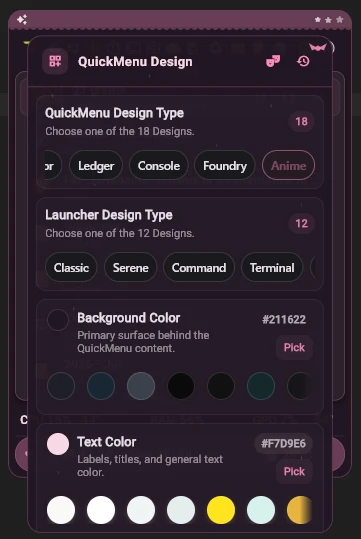
Make it look how you like. Change the background, text and accent colors - pick from presets or set your own. The QuickMenu has a soft gradient down the middle whose opacity you can tweak too, and there's a light/dark switch that can flip on a schedule.
On top of the colors, both the QuickMenu and the Launcher come with several built-in designs (layouts), so you can pick the vibe that fits you instead of being stuck with one look.
QuickMenu designs - Classic, Interface, Modern, Matrix, Serene, Aurora and Terminal. Anything from clean-and-simple to a more terminal/hacker look.
Launcher designs - Classic, Serene, Command, Terminal, Zen and Glass. Same idea for the search box: from a plain list to a glassy, command-palette style.
Switch designs from the QuickMenuDesign action, and brand it as your own with a custom icon and a splash image above the menu if you want.
I started this to learn Dart and Flutter. In my head it was only ever going to be the QuickMenu - but every time I used it I had another idea, and it snowballed into Tabame (a random name I came up with). It's grown a lot, and I'm kind of proud of how much one person managed to cram into it.