Remote Internet Access Guide
This tutorial explains how to configure AionUi for internet access, allowing you to access your AionUi instance from anywhere on the internet.

💡 Turn AionUi into Your 24/7 Remote Assistant
With this tutorial, you can easily configure AionUi's remote access features to achieve:
- 🌐 Access from Anywhere: Access your AionUi instance from anywhere with internet
- 📱 Convenient Login: Support QR code scan for one-click login, no need to remember complex passwords
- ⚡ Quick Setup: Complete configuration and start using in just 3-5 minutes
Whether accessing your home server while traveling or enabling remote collaboration for team members, it's all easy to achieve!
- Access your home server while traveling
- Allow team members to access remotely
- Use AionUi from anywhere with internet
- Deploy on cloud server for multiple users
- Access home server from office computer
- Access from mobile phone using cellular data
AionUi supports three remote connection methods. Choose based on your use case:
| Connection Method | Use Case | Description | Detailed Guide |
|---|---|---|---|
| 1. LAN Connection | Access from devices on same WiFi/LAN | Phone and computer on same WiFi, use --remote parameter |
View Guide → |
| 2. Remote Software (Tailscale) | Cross-network access (e.g., office to home) | Use VPN software like Tailscale, no public IP or server needed | View Guide → |
| 3. Server Deployment | 24/7 operation, public access | Deploy on cloud server, access directly via public IP | View Guide → |
💡 How to Choose?
- Using on same WiFi → Choose LAN Connection
- Access from office to home, or mobile using cellular data → Choose Remote Software (Tailscale)
- Need 24/7 operation or public internet access → Choose Server Deployment
⚠️ Note: WebUI currently supports single user (admin) only. Multiple people can access using the same admin account, but separate user accounts are not supported yet.
| Solution | One-Sentence Description | Who Should Use |
|---|---|---|
| 🔐 Tailscale | Install software, log in, and you're done | People who need cross-network access |
| 🖥️ Server Deployment | Deploy on cloud server for direct internet access | People with cloud server, need 24/7 operation or public access |
| Solution | Difficulty | Requirements | Use Case |
|---|---|---|---|
| Tailscale | ⭐ Very Easy | Install software | Cross-network access, personal use |
| Server Deployment | ⭐⭐ Medium | Cloud server | 24/7 operation, public internet access |
- Want to access AionUi at home from office
- Want to access AionUi at home from phone (using cellular data)
- Need cross-network access
💡 Video Tutorial: The video above demonstrates the complete configuration process. If the video cannot play, please refer to the text steps below.
On the computer running AionUi, open the AionUi application and start the WebUI service from the interface:
- Open the AionUi application
- Click "WebUI" in the left menu
- In the WebUI settings page:
- Toggle on "Enable WebUI" switch
- Toggle on "Allow LAN Access" switch
- After starting successfully, the interface will display:
- Access URL (e.g.,
http://192.168.2.XXX:25808) - Login information (username and password)
- Access URL (e.g.,

💡 Tip: If you prefer using the command line, you can also start with
--webui --remoteparameter (see "Alternative: Command Line Start" below).
- Visit download page: https://tailscale.com/download
- Download and install Tailscale desktop version
- Open Tailscale and log in with your account (register if you don't have an account)

After successful login, Tailscale will assign a virtual IP address to your device (typically in the format 100.x.x.x).
In the Tailscale client interface, you can see the IP address assigned to the current device:
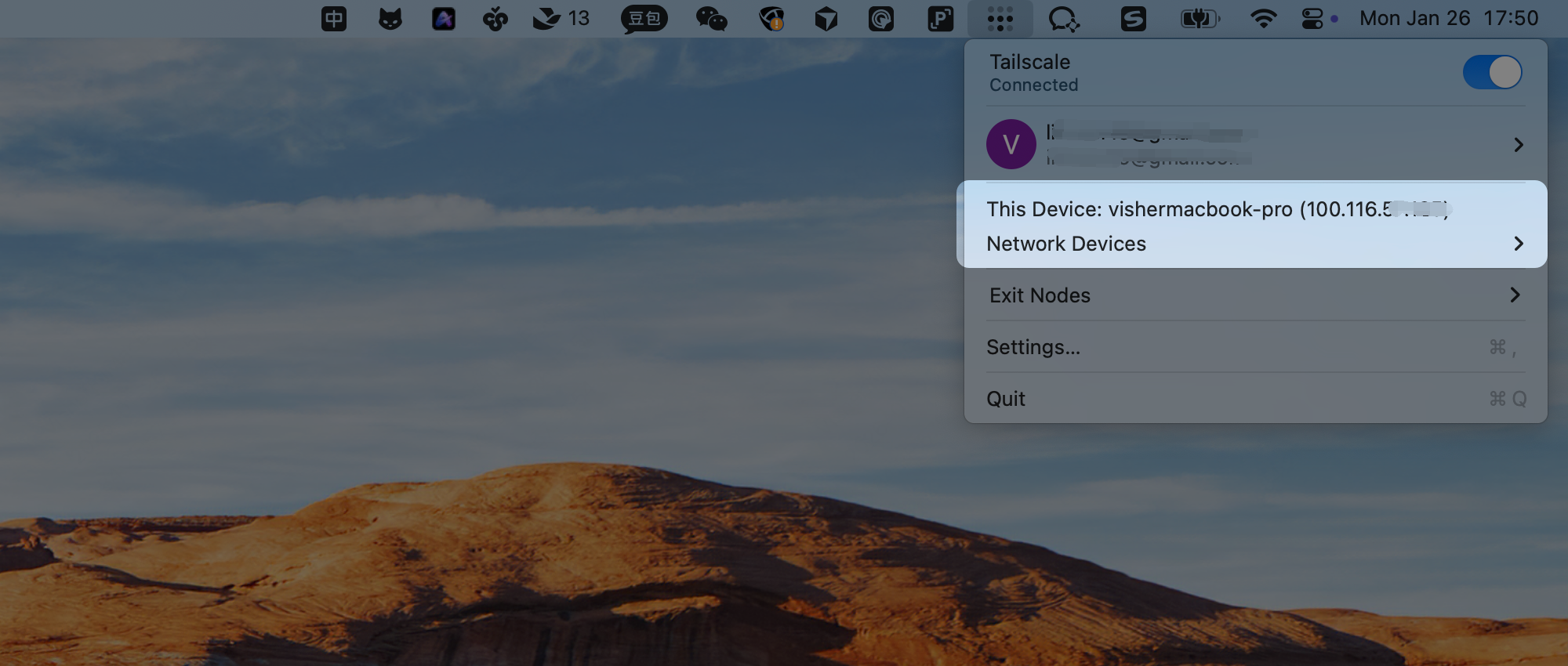
Combine Access URL:
- Copy the Tailscale IP address (e.g.,
100.XX.5.123) - Add port number
:25808after it - Complete access URL format:
http://100.XX.5.123:25808
⚠️ Important:
- Use the Tailscale IP address of the device where you want to run AionUi
- Access URL format:
http://Tailscale-IP-Address:25808- Example: If the Tailscale IP is
100.XX.5.123, then the access URL ishttp://100.XX.5.123:25808
💡 Tip: You can also run
tailscale ipin the command line to view the IP address.
On the device you want to access AionUi from (using mobile phone as example), you need to complete the following:
| Step | Instructions |
|---|---|
| 1. Install Tailscale | Search for "Tailscale" in your phone's app store and download Or visit https://tailscale.com/download to download mobile version |
| 2. Log in to Tailscale | Open Tailscale app Log in with the same account as in Step 2 Make sure it shows as "Connected" |

-
Open Browser: Open your phone browser (Safari, Chrome, etc.)
-
Enter Access URL: Enter the access URL you combined in Step 3:
http://100.XX.5.123:25808Replace
100.XX.5.123with the actual Tailscale IP address you got in Step 3. -
View Login Page: After entering the address, you'll see the AionUi login page

-
Login: There are two login methods
Method 1: QR Code Scan One-Click Login (Recommended) ⭐
- On the login page, scan the QR code with your phone to log in instantly without entering a password
- More convenient and faster, recommended to use this method

Method 2: Username and Password Login
- Username:
admin - Password: initial password shown in Step 1 WebUI settings

-
Enter Chat Interface: After successful login, you'll enter the AionUi chat interface. Now you can use AionUi on your phone

-
Start Conversation: After starting a conversation, you can begin chatting with AionUi

💡 Tips:
- If you can't access, check if Tailscale on both devices shows as "Connected"
- Make sure "Allow LAN Access" is enabled on the device running AionUi
- On first access, the browser may show a security warning, which is normal - click "Continue" to proceed
If you prefer using the command line to start WebUI, you can use the following commands on the computer running AionUi:
Windows:
AionUi.exe --webui --remoteMac:
/Applications/AionUi.app/Contents/MacOS/AionUi --webui --remoteLinux:
AionUi --webui --remoteAfter starting successfully, the terminal will display the access URL and initial password.
- Get IP:
tailscale ip - Check device status:
tailscale status
If you have a cloud server (e.g., AWS, Alibaba Cloud, Tencent Cloud, etc.), you can deploy AionUi directly on the server for public internet access.
- Need 24/7 operation
- Need stable public internet access
- Have cloud server resources
- Want to access from anywhere via public IP
⚠️ Note: WebUI currently supports single user (admin) only. Multiple people can access using the same admin account, but separate user accounts are not supported yet.
- Purchased cloud server (Linux system, Ubuntu recommended)
- Server has public IP
- AionUi installed
sudo nano /etc/systemd/system/aionui-webui.service[Unit]
Description=AionUi WebUI Service
After=network.target
[Service]
Type=simple
User=YOUR_USERNAME
WorkingDirectory=/home/YOUR_USERNAME
ExecStart=/usr/bin/AionUi --webui --remote
Restart=on-failure
RestartSec=10
[Install]
WantedBy=multi-user.target💡 Tip: Replace
YOUR_USERNAMEand/usr/bin/AionUiwith actual values. If AionUi is not in/usr/bin/, use the full path.
sudo systemctl daemon-reload
sudo systemctl enable aionui-webui.service
sudo systemctl start aionui-webui.service
sudo systemctl status aionui-webui.serviceOpen port 25808:
# Ubuntu/Debian (ufw)
sudo ufw allow 25808/tcp
sudo ufw reload

# CentOS/RHEL (firewalld)
sudo firewall-cmd --permanent --add-port=25808/tcp
sudo firewall-cmd --reloadCheck service logs for access address:
sudo journalctl -u aionui-webui.service | grep "WebUI"Or directly access using server public IP: http://Your-Server-IP:25808
Common Management Commands:
- View logs:
sudo journalctl -u aionui-webui.service -f - Restart service:
sudo systemctl restart aionui-webui.service - Stop service:
sudo systemctl stop aionui-webui.service - Check status:
sudo systemctl status aionui-webui.service
Create ~/Library/LaunchAgents/com.aionui.webui.plist:
<?xml version="1.0" encoding="UTF-8"?>
<!DOCTYPE plist PUBLIC "-//Apple//DTD PLIST 1.0//EN" "http://www.apple.com/DTDs/PropertyList-1.0.dtd">
<plist version="1.0">
<dict>
  <key>Label</key>
  <string>com.aionui.webui</string>
  <key>ProgramArguments</key>
  <array>
    <string>/Applications/AionUi.app/Contents/MacOS/AionUi</string>
    <string>--webui</string>
    <string>--remote</string>
  </array>
  <key>RunAtLoad</key>
  <true/>
  <key>KeepAlive</key>
  <true/>
</dict>
</plist>launchctl load ~/Library/LaunchAgents/com.aionui.webui.plist
launchctl start com.aionui.webuiOpen port 25808 in "System Settings" → "Network" → "Firewall".
- ✅ 24/7 Operation: Server auto-restarts, no manual maintenance needed
- ✅ Stable and Reliable: Cloud servers typically have better network and stability
- ✅ Public Network Access: Access your AionUi instance directly via public IP or domain
- ✅ Remote Access: Access your AionUi instance from anywhere
⚠️ Note: WebUI currently supports single user (admin) only. Multi-user functionality is under development.
- ✅ Public Internet Access: Direct access via public IP or domain
- Strong Passwords: Use complex admin passwords
- Firewall Configuration: Only open necessary ports (25808)
- Cloud Server Security Group: Configure security group rules to restrict access source IPs (if possible)
- Regular Updates: Keep AionUi and system updated
- Monitor Logs: Regularly check access logs and service status
- Tailscale Encryption: Using Tailscale provides built-in end-to-end encryption, no additional configuration needed
- Simple configuration, just install and log in
- Encrypted data transmission
- No need to configure router or server
Q: Cannot connect to Tailscale network?
- Check if all devices are logged in with the same account
- Confirm Tailscale client is running
- Check if firewall allows Tailscale traffic
- Try restarting Tailscale:
sudo tailscale restart
Q: Cannot access AionUi?
- Confirm AionUi is started with
--remoteflag - Check if Tailscale IP is correct:
tailscale ip - Confirm port 25808 is not occupied
- Try using device name instead of IP to access
Q: How to check Tailscale connection status?
tailscale statusThis will show all devices and their connection status.
Q: Service cannot start?
- Check if AionUi path is correct:
which AionUiorwhereis AionUi - Check user permissions: Ensure the user in service file has execution permissions
- View detailed errors:
sudo journalctl -u aionui-webui.service -n 50
Q: Cannot access server from internet?
- Check if firewall has opened port 25808
- Check if cloud server security group rules allow port 25808
- Confirm AionUi is started with
--remoteflag - Verify service is running:
sudo systemctl status aionui-webui.service
Q: How to check if port is open?
# Using telnet test
telnet Your-Server-IP 25808

# Or using nc (netcat)
nc -zv Your-Server-IP 25808

# Check local port listening
sudo netstat -tlnp | grep 25808
Q: Service auto-restart failed?
- Check logs for specific errors:
sudo journalctl -u aionui-webui.service - Confirm AionUi executable path is correct
- Check disk space:
df -h - Check memory usage:
free -h
- 🌐 WebUI Configuration Guide - WebUI basic configuration
- 🔐 Tailscale Cross-Network Access - Using Tailscale for access
- 🌍 LAN Remote Access - Remote access within same network
- 🖥️ Server Deployment - Server deployment guide
- Tailscale Official Documentation - Tailscale detailed documentation
Happy configuring remote internet access! 🚀