EN_EmuGUI installation guide for Windows
EmuGUI is a program released by Nicolas Lucien in 7th June, 2022. This program serves as a GUI frontend for QEMU. This is how to install it on Windows.
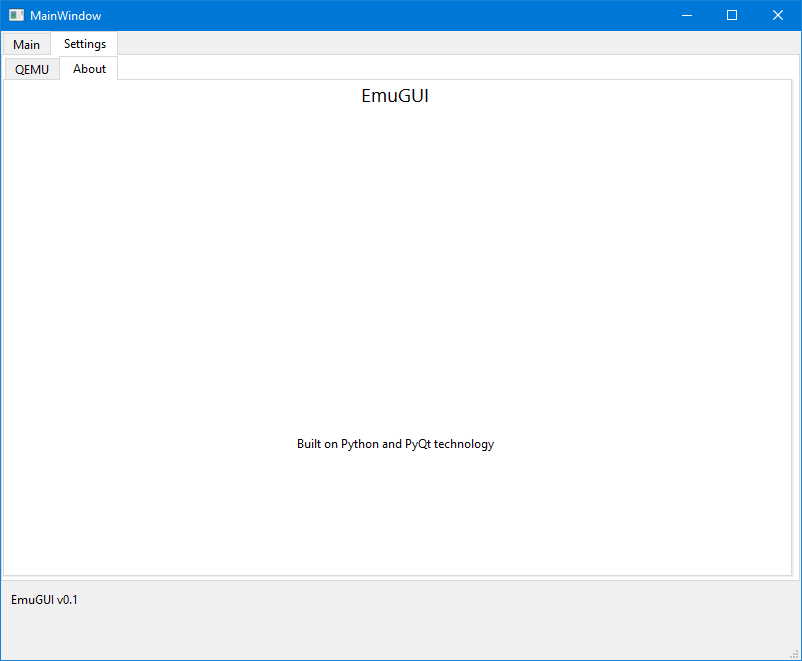
Hold on! Is your computer compatible with EmuGUI? Let's check!
| Requirement | Minimum | Recommended |
|---|---|---|
| OS | Windows 10 (64-bit) | Windows 10, Version 22H2 or Windows 11, Version 23H2 (64-bit) |
| Processor | Dual-core, @ 2.4 GHz | Quad-core, @ 3.2 GHz from 2011 or later |
| RAM | 6 GB | 16 GB |
| HDD | 2 GB at least | 20 GB |
| Graphics | DirectX 10 or OpenGL 2.1 | DirectX 12 or OpenGL 3.3 |
| Additional notes | QEMU must be installed seperately | QEMU must be installed seperately |
Important: These are only template requirements for getting any VM to run. The real requirements depend on what OS you want to run. Some operating systems won't work with these barebone specifications.
Please note that starting 11th November, 2025, the system requirements will be raised as follows.
| Requirement | Minimum | Recommended |
|---|---|---|
| OS | Windows 10, Version 1607 (64-bit) | Windows 11, Version 24H2 (64-bit) |
| Processor | Dual-Core with 4 threads @ 2.8 GHz or Quad-Core @ 2.5 GHz¹ | Hexa-core, @ 3.2 GHz from 2011 or later |
| RAM | 8 GB² DDR3 | 16 GB DDR4 |
| HDD | 4 GB at least | 30 GB at least on an SSD |
| Graphics | DirectX 11 or OpenGL 3.3 | DirectX 12 or OpenGL 4.3 |
| Additional notes | QEMU must be installed seperately | QEMU must be installed seperately |
¹ On Windows 11, you will need a CPU from 2011 or later.
² If you're using integrated graphics, you will need 12 GB of RAM.
Due to copyright, QEMU is not included in EmuGUI, meaning you have to install this first. But if your computer meets the minimum requirements of EmuGUI, it will also run QEMU.
- First, download the QEMU Windows executable from here.
- Then, download the latest version of EmuGUI from here.
- Install QEMU. Please make sure to remember the QEMU path as you will need it later.
- Extract EmuGUI. It's recommended to copy the EmuGUI folder onto the desktop.
- Run main.exe from the EmuGUI folder.
Now we have everything working but you must still check out settings.
- Go to the Settings tab.
- On the QEMU tab, browse for every single listed QEMU executable.
- Have fun - or wait for the documentation to be more complete.