streamdeck
This is a brief overview of how I make use of the Elgato StreamDeck in my workflows. I have configurations for both the regular size & XL StreamDecks. Below I show some of the interfaces for my XL config. Essentially, the upper lefthand 3x5 is what I use for the Regular StreamDeck setup.
A version of my StreamDeck profiles are saved as part of the buttonpusherKB repo here. I will update them from time to time.
For starters, this is definitely in development, I find that due thenature of the work I do - which is varied and not often the same kinds of tasks & steps - I want/need to be very careful about how many things I toss onto the StreamDeck.
At first, I loaded it up with all sorts of command shortcuts, but it quickly got unwieldy or became more of a drag to use. I have since settled on using it more as a trigger for some purpose-built scripts or as a way to access command that require more than a few keys to invoke.
Here is my Base Profile layer:

Starting at the top left, I'll break down some of the keys and how they fit into both this specific app's use & into my overall approach to using the StreamDeck.
Row 1/Col 1 - This Default Profile key shows up on most of my profiles. I always try to put it in the same location. It gives me a consistent way to get back to the profile I have set as my default profile. Due to the way the StreamDeck app works (and sometimes doesn't), I find that it can often get confused or stuck in a profile that it shouldn't or I want to do something that isn't on an app specific profile. This key, I think, is crucial to making the StreamDeck work fluidly into regular use. I only wish that there was a way to lock a profile on the device from time to time so that it doesn't change unless I let it. (NOTE-a way to sort of achieve this is open the StreamDeck Control Panel and set it on the panel you want to stay on. When the control panel is open, profile switching is disabled.)
Row 2/Col 1 - Project Management takes you to another profile - see below that I use to manage 4 flexible project shortcuts. Again, this is to maintain consistency across the projects I work on. I use Post-Haste to create project folder hierarchies from a template. Once those sub-folders are created, the Drake sub-system I've created allows you to jump to the individual folders within a project's hierachy quickly. Consistency is key to staying organized.
Rows 1 & 2/Col 2 through Col 8 - These keys tend to change based on the kinds of projects I'm doing. Some will stay the same for a while (Prev Marker, Marker, & Next Marker) and some will change depending on what I need to do for a given project. The 4 you see here have been the same for a while now as using Markers has become an important part of most jobs for me these days. That In Point & Marker key uses BarRaider's SuperMacro plugin to send a macro that will press the key to make a Marker, pause 500ms, and then press the key to mark an In point within Premiere. {{5}}{{pause:500}}{{i}}
Source Mon & Program Mon are leftovers from early days with the StreamDeck. TBH, I don't use them much and they can probably be removed.
Row 3/Col 1 - Just a quick and easy way to bring up the Keyboard Settings panel.
Row 3/Col 2 - Since Premiere doesn't have a way to link a saved effect preset to a keyboard shortcut, this gives me the ability to do that. This is the StreamDeck folder that gets loaded when you select PPRO Presets:
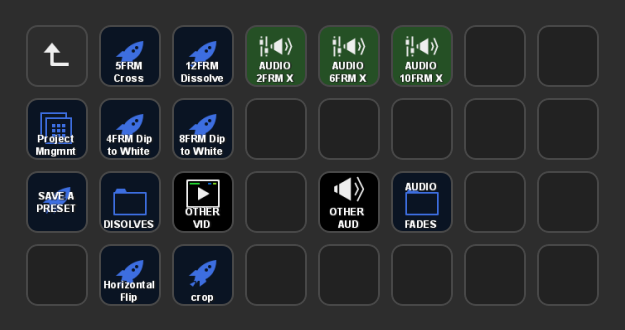
I pulled the Preset Saving Technique from TaranVH's scripts and integrated it into my scripts. It works pretty much the same way. Essentially, when you save a preset using the Save a Preset key, it runs an AHK script that creates another stand-alone script that will invoke the bit of AHK code that will find the preset by name in Premiere and then move the mouse to get it and apply it to the timeline location you wish. It is a little bit wonky and doesn't always work, but it works well enough to be serviceable for me. YMMV. Again, I often change the Preset sub-folder depending on the project I'm on & I definitely could make more consistent use of things here, but it gives me a framework to build on. The keys called 'Disolves', 'Other Vid', 'Other Aud', and 'Audio Fades' serve as holding spots for all the presets I've created and make it easier to pull them back into use on this front page when needed.
One big drawback is that I haven't coded a way to auto-create a StreamDeck profile button as part of the preset saving script. That is something I'd like to add or at least a way to make it more simple to get the info about the saved preset into StreamDeck. (sigh...another thing on the To Do list.)
As I said above, one of the pieces of my suite is the set of scripts I use for project management. DRAKE is a set of scripts that work as a method to create shortcuts to a number of project folder hierarchies.
To understand the concept here is the folder hierarchy I use for every project I create:
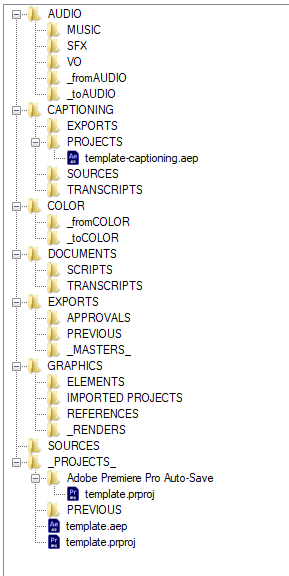
This project structure gets stored on my Media volumes in a ClientMedia main folder and then name something like CLIENT_projectname. This way all my projects have a consistent structure. This forces me to keep things organized, somewhat. I find that keeping a consistent structure across projects provides a path of least resistance to staying organized.
The DRAKE set of scripts can be called to open an Explorer of FreeCommander window to any directory of a given project. I currrently use numbered slots (1 to 4) to identify 4 unique projects that I can use and switch on the fly (the types of work I do varies throughout the week). Here is a peek at the DRAKE scripts themselves:
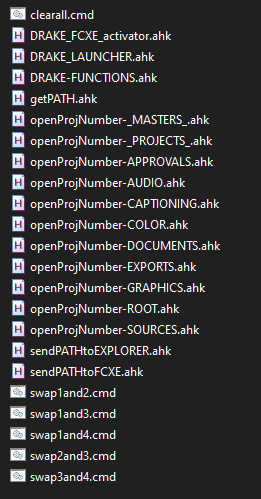
Each of the above scripts get called as one-time executions to change to the given project subfolder.
To make use of DRAKE via the StreamDeck, I have a few profiles. This first one is the main Project Management profile:

As you can see, Row 1/Col 1 is my shortcut back to my Default Profile on the StreamDeck.
On Row 1, in columns 2 to 5, Are shortcuts to each of the 4 projects DRAKE manages. Each project's subfolder looks something like this:

Each one of these buttons marked with "1" is a shortcut to open the associated folder for this project. The "2","3, & "4" on the top will jump you to that project's subfolder view (like this one for the given project number). A feature of DRAKE that can be helpful is that if any of those subfolders do not exist in the project's hierarchy, DRAKE will prompt you to create that subfolder or navigate to it's parent folder - just to give you flexibility.
Row 2/ Cols 2-5 are little dynamic displays that change as you save new projects into the 4 slots. The button itself doesn't do anything (currently) but it is very helpful in keeping track of what projects you have saved where.
Back to the main Project Management view, the buttons on Rows 3 & 4 in Columns 2-5 are shortcuts that open those specific folders for the given projects. They do the same thing as the matching buttons on the project's subfolder shown above.
Row 2/Col 1 opens a folder on StreamDeck where I manage the projects & save the shortcuts to the 4 project shortcuts.
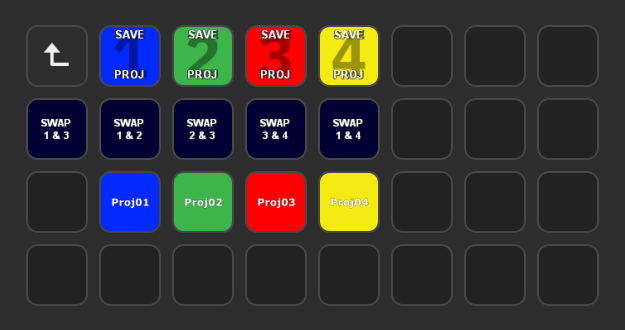
To use this to save project shortcuts, you would open the given project base or root folder of the project in Explorer of Free Commander and press the corresponding project number slot you wish to save. The script will ask you for a short name for the project and then it will store that info to be used later.
Row 2 has some direct scripts that can swap different projects between number slots.
Row 3/ Cols 2-5 will show that short name you gave the project so you know what's saved where. Just like on the main page, the button doesn't do anything currently - maybe that will change in the future.