How to run a private demo installation of OpenLabFramework on Windows or MacOS using docker
Download and install the docker toolbox. Afterwards, start Kitematic. You can think of it as an app store for docker containers.
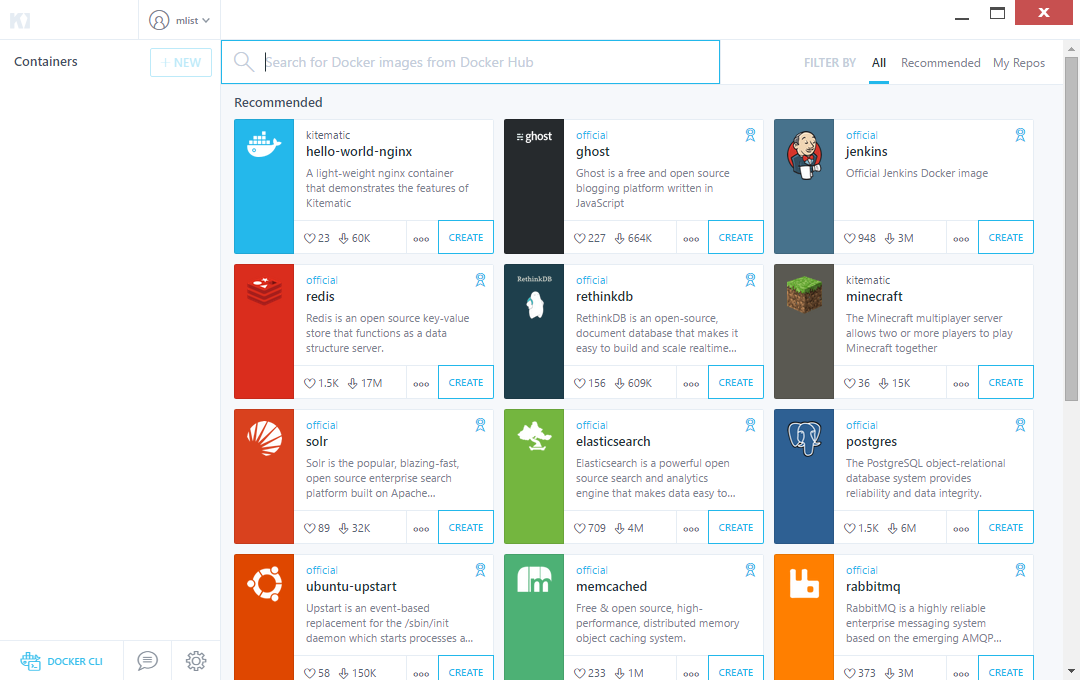
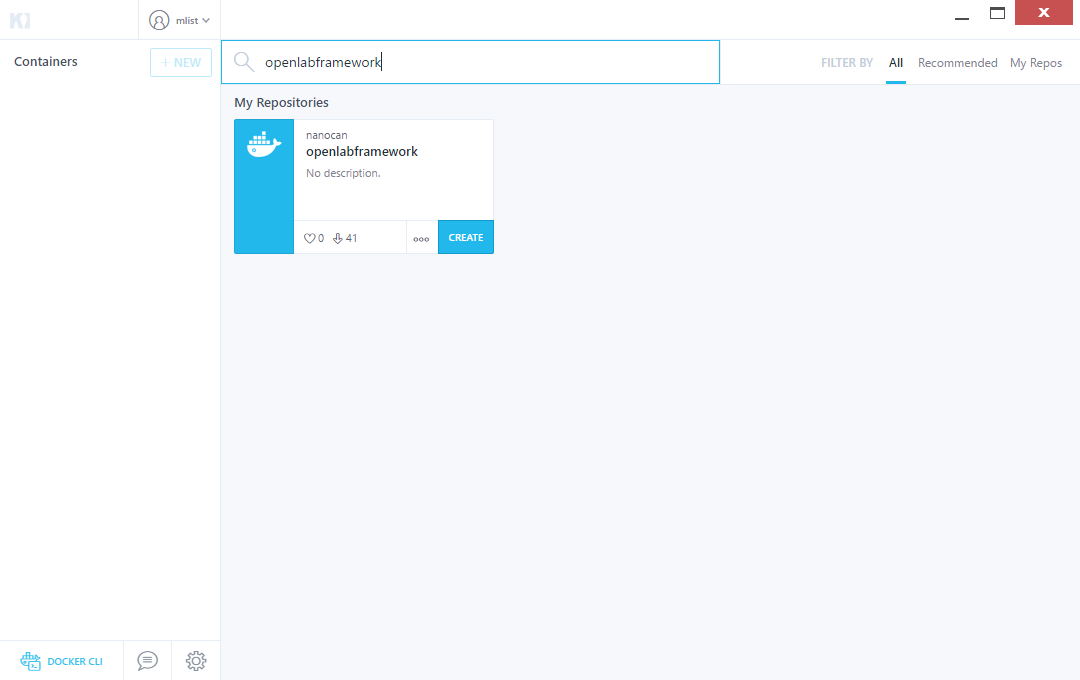
Next, search for openlabframework and add a containter from the image by clicking on CREATE
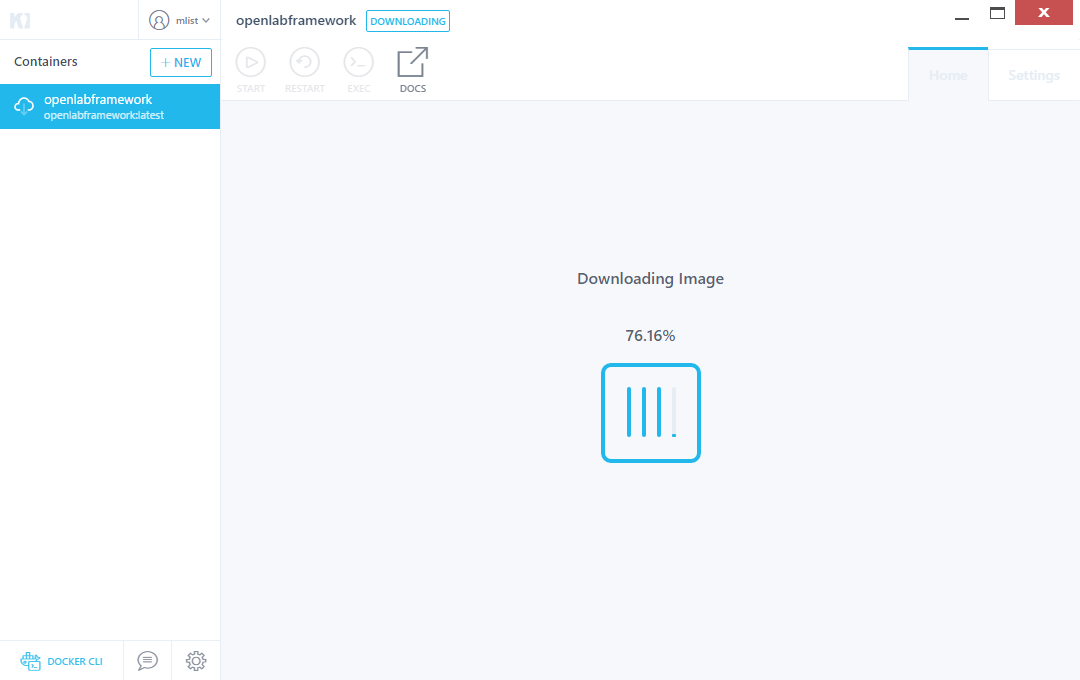
The necessary files will be downloaded automatically and at the end, an instance of openlabframework is started. You can follow the deployment live. Details will be shown in a text console.
When everything went fine, you should see something like the following picture. Click on the highlighted button (red arrow) to open your browser, which will then point at the OpenLabFramework URL.
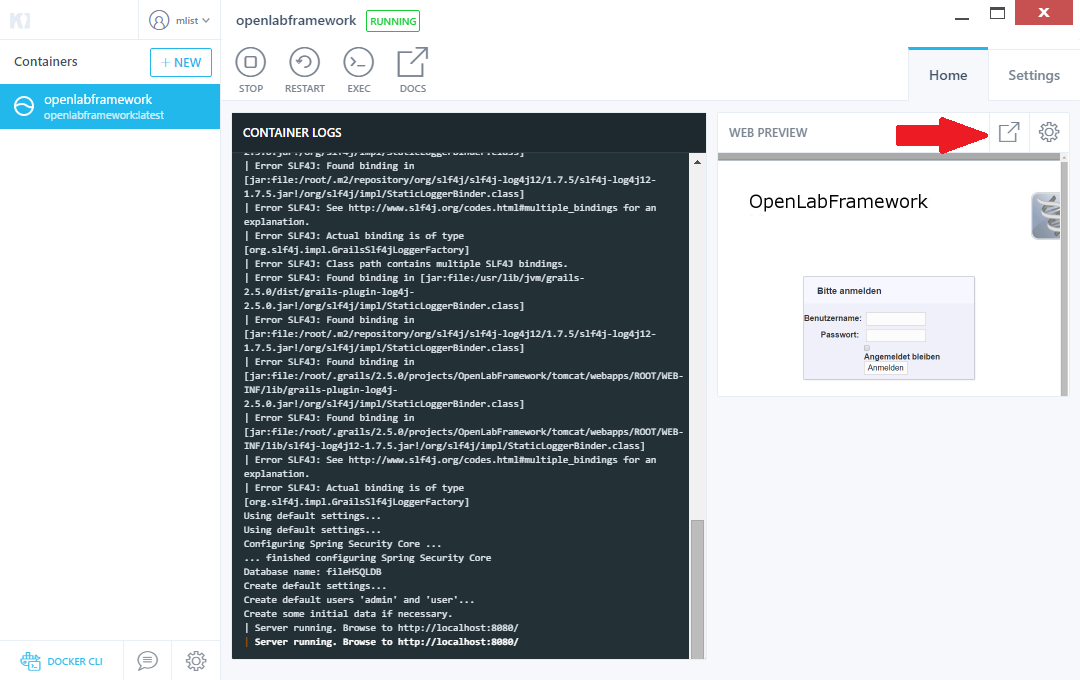
You succeeded in deploying your private copy of OpenLabFramework. Just remember, in this scenario the docker container contains all the data you enter into OpenLabFramework and no external database is used. In other words, should you delete the container, then all of your data will be lost. This is not supposed to be used for a production system, but merely for testing. For a real deployment scenario follow the instructions for a server deployment in the wiki.