Setting up
Welcome to the BrunnerDX wiki!
With your Arduino connected, when you open the app you'll see a screen similar to this:
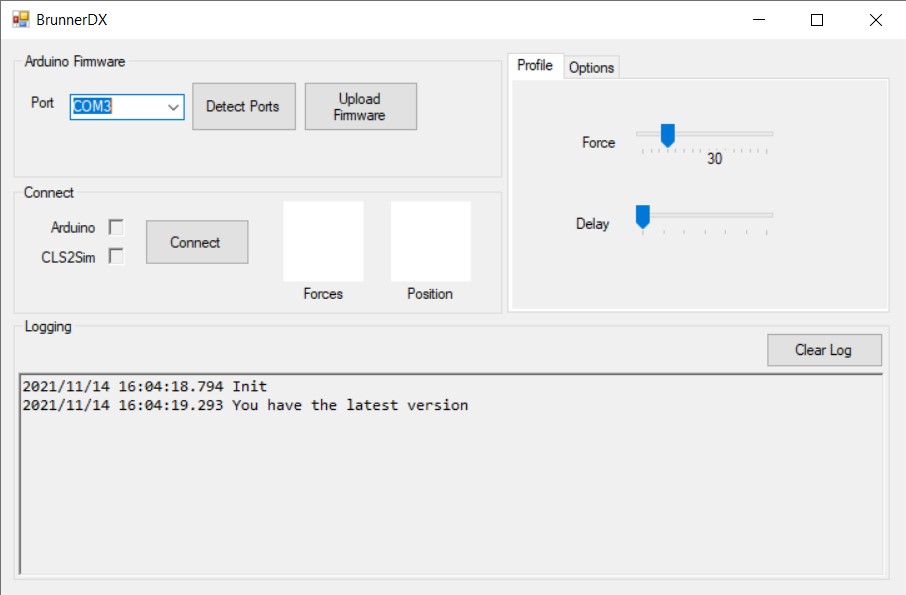
The first time you run this program (and also after certain updates) you need to click on "Upload Firmware". This will install the firmware to make your Arduino Micro look like a Force Feedback Joystick.
After it completes click on "Detect Ports" as the Arduino port might have changed because of the firmware changing.
The Arduino can be connected to any COM port in your computer but it should have been autodetected. If that's not the case you can choose a different port.
You need to go into settings of the Brunner CLS2Sim app and under the Remote control section, mark these options:
- Enabled
- External control
- Send UDP response back to sender

Under options, make sure the IP and UDP port are the same as in the CLS2Sim app.
You can see how the IP (127.0.0.1) and the UDP port (15090) match in CLS2Sim and the Options tab in BrunnerDX (by default you don't need to change anything).
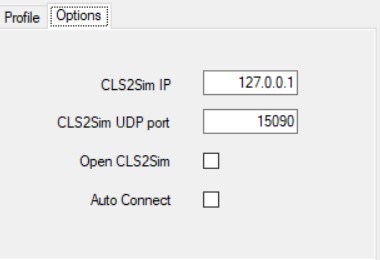
Your numbers might be different but the only thing that matters is that they are the same in both apps
Also you want to activate roll and pitch in the main screen of CLS2Sim:
