15. CypherFix Automated Remediation
CypherFix is RedAmon's automated remediation pipeline. It takes the vulnerabilities, CVEs, secrets, and attack chain findings stored in your Neo4j graph, triages and prioritizes them using an AI agent, then sends a second AI agent to clone your repository, implement code fixes, and open pull requests — all from within the RedAmon interface.
- Prerequisites
- Configuring CypherFix Settings
- Step 1: Starting Vulnerability Triage
- Step 2: Understanding the Triage Progress
- Step 3: Browsing the Remediation Dashboard
- Step 4: Viewing Remediation Details
- Step 5: Starting the CodeFix Agent
- Step 6: The Activity Log
- Step 7: Reviewing Diff Blocks
- Step 8: Pull Request Creation
- Remediation Lifecycle
- Remediation Types
- Re-running Triage
- Troubleshooting
Before using CypherFix you need:
- Reconnaissance data — run at least one reconnaissance scan so the graph contains vulnerabilities, CVEs, and other findings for the triage agent to analyze
- A GitHub repository with the source code of the target application (or the project you want fixes applied to)
-
A GitHub Personal Access Token with
reposcope — needed for cloning, pushing branches, and creating pull requests - An LLM API key configured in the Agent Behaviour settings tab (the triage and CodeFix agents both need an LLM to reason)
Navigate to Project Settings and open the CypherFix Settings tab (Tab 12).

| Setting | Example | Description |
|---|---|---|
| GitHub Token | ghp_xxxxxxxxxxxx |
Personal Access Token with repo scope for cloning and pushing |
| Default Repository | myorg/myapp |
Target repository in owner/repo format |
| Default Branch | main |
Base branch the agent creates fix branches from |
| Branch Prefix | cypherfix/ |
Prefix for auto-created fix branches (e.g., cypherfix/fix-sqli-42) |
| Setting | Default | Description |
|---|---|---|
| Require Approval | On | Pause before each code edit so you can review and accept or reject it. Recommended for production repositories |
| LLM Model Override | (Agent default) | Use a different model for CodeFix than the one configured in Agent Behaviour. Useful if you want a more capable model for code generation |
Important: If any required setting is missing, the CodeFix button on remediation details will be disabled with an alert listing exactly which fields need to be filled in.
- Go to GitHub → Settings → Developer settings → Personal access tokens → Tokens (classic)
- Click Generate new token (classic)
- Give it a descriptive name (e.g., "RedAmon CypherFix")
- Select the
reposcope (full control of private repositories) - Click Generate token and copy the
ghp_...value - Paste it into the GitHub Token field in CypherFix Settings
- Open the Graph Dashboard for your project
- Click the CypherFix tab in the view tabs at the top
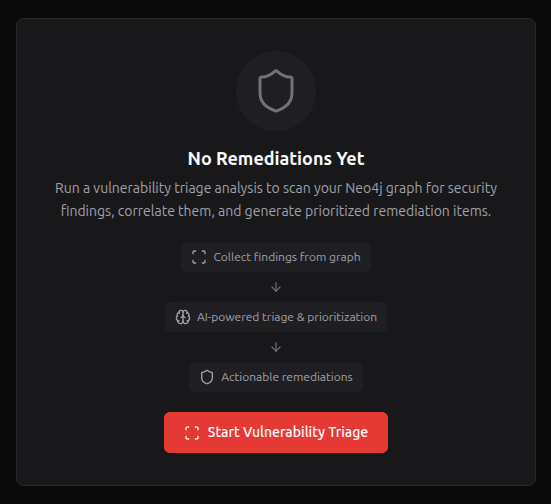
- If no remediations exist yet, you'll see the Empty State screen with:
- A Shield icon
- "No Remediations Yet" message
- A three-step visual explaining how the pipeline works: collect findings → AI triage → actionable remediations
- Click "Start Vulnerability Triage" to begin
You can also re-run triage later from the dashboard header using the Re-triage button.
A modal overlay appears showing real-time triage progress:

The triage agent works in two stages:
Stage 1 — Static Collection (9 Cypher queries against the Neo4j graph):
| # | Phase | What It Collects |
|---|---|---|
| 1 | Collecting Vulnerabilities | DAST findings, endpoints, parameters, GVM results |
| 2 | Collecting CVE Chains | Technology → CVE → CWE → CAPEC relationships |
| 3 | Collecting Secrets | GitHub secrets and sensitive files |
| 4 | Collecting Exploits | CVEs with confirmed exploit code |
| 5 | Collecting Assets | Subdomains, IPs, ports, services, base URLs |
| 6 | Collecting Chain Findings | Attack chain results (exploit successes, credentials found) |
| 7 | Collecting Attack Chains | Attack chain session summaries and outcomes |
| 8 | Collecting Certificates | TLS certificate findings (expired, weak, self-signed) |
| 9 | Collecting Security Checks | Missing headers, misconfigurations, exposed services |
Stage 2 — AI Analysis (LLM-powered ReAct reasoning):
| Phase | Description |
|---|---|
| Correlating | Cross-references findings across all data sources, deduplicates related issues |
| Prioritizing | Applies a weighted scoring algorithm (exploit evidence, CISA KEV, CVSS, severity) |
| Generating Remediations | Creates structured remediation entries with title, description, evidence, and solution |
| Saving | Persists remediations to the database |
- Progress bar — fills as phases complete (0-100%)
- Phase label — name of the current phase (e.g., "Collecting CVE Chains")
- Thinking section — shows the AI's reasoning in real-time (last 200 characters visible)
- Live findings — the last 6 findings appear with severity badges as they're generated
| Button | Action |
|---|---|
| Stop | Aborts the triage immediately |
| Close | Hides the modal (triage continues running in the background) |
| View Dashboard | Appears when triage completes; navigates to the remediation dashboard |
After triage completes, the dashboard shows all generated remediations sorted by priority:

- Total count badge next to the "Remediations" title
- Critical count badge (red) if any critical-severity items exist
- Refresh button to reload data from the server
- Re-triage button to run a new triage analysis
Two dropdown filters at the top of the table:
- Severity — All Severities, Critical, High, Medium, Low, Info
- Status — All Statuses, Pending, In Progress, No Fix, Code Review, PR Created, Resolved, Dismissed
A Clear button appears when any filter is active.
Sorted by priority (highest first), then by severity. Each row shows:
| Column | Description |
|---|---|
| # | Priority rank number |
| Severity | Color-coded badge: Critical (red), High (orange), Medium (yellow), Low (blue), Info (gray) |
| Title | Vulnerability title. May include "Exploit Available" or "CISA KEV" tags |
| Type | Remediation type icon (code fix, dependency update, config change, secret rotation, infrastructure) |
| Status | Status badge with icon: Pending (clock), In Progress (play), No Fix (alert), Code Review (eye), PR Created (git), Resolved (check), Dismissed (x) |
| CVEs | Associated CVE identifiers |
| Actions | Dismiss and Delete buttons |
- Click a row — opens the full remediation detail view
- Dismiss — marks the remediation as dismissed (only available for pending items)
- Delete — permanently removes the remediation from the database
Click any row in the dashboard to see the full remediation detail:

- Badges — severity, status, remediation type, CVSS score (if available)
- Title — full remediation title
- Description — detailed description of the vulnerability and its impact
- Affected Assets — collapsible list showing asset type (package, host, URL), name, and address
- Identifiers — clickable tags for CVE IDs (blue), CWE IDs (orange), and CAPEC IDs (purple)
- Raw Evidence — code block with terminal output, matched URLs, curl commands, or nuclei results
- Attack Chain Path — if the vulnerability was confirmed through an attack chain, shows the graph path
- Suggested Solution — markdown-rendered remediation guidance with specific, actionable steps
- Fix Complexity — estimated difficulty: low, medium, high, or critical
- Estimated Files — how many files the fix is expected to touch
At the bottom of the detail view, the CodeFix section shows one of these states:
| State | What You See |
|---|---|
| Ready | "Start CodeFix Agent" button enabled, with a note about what the agent will do |
| Missing settings | Yellow alert listing which CypherFix settings need to be configured. Button disabled |
| Manual only | Message explaining this remediation type (e.g., secret rotation) requires manual intervention |
| Already has PR | Link to view the existing pull request on GitHub |
| In progress | "CodeFix in Progress..." with disabled button |
| Failed previously | Agent error message with a "Retry CodeFix Agent" button |
- Back to Dashboard button (top-left) returns to the remediations list
- Dismiss and Delete buttons available in the top-right
- From the remediation detail view, click "Start CodeFix Agent"
- You'll be taken to the DiffViewer — a full-screen activity log view

The CodeFix agent performs these steps automatically:
- Clones your repository (the configured default repo and branch)
- Explores the codebase — reads files, searches for relevant code, maps the repository structure
- Plans the fix — generates a fix plan with the list of files to modify and the approach
- Implements changes file by file — each edit produces a diff block for your review
- Verifies the fix — runs basic checks to ensure the code compiles
- Commits, pushes, and opens a PR on GitHub
| Control | Description |
|---|---|
| Back (arrow) | Returns to the remediation detail view. Does not stop the agent |
| Stats | Shows "X accepted, Y rejected, Z pending" for diff blocks |
| Stop | Halts the agent immediately |
The activity log is a chronological stream of everything the CodeFix agent does — similar to watching a developer work in real-time:
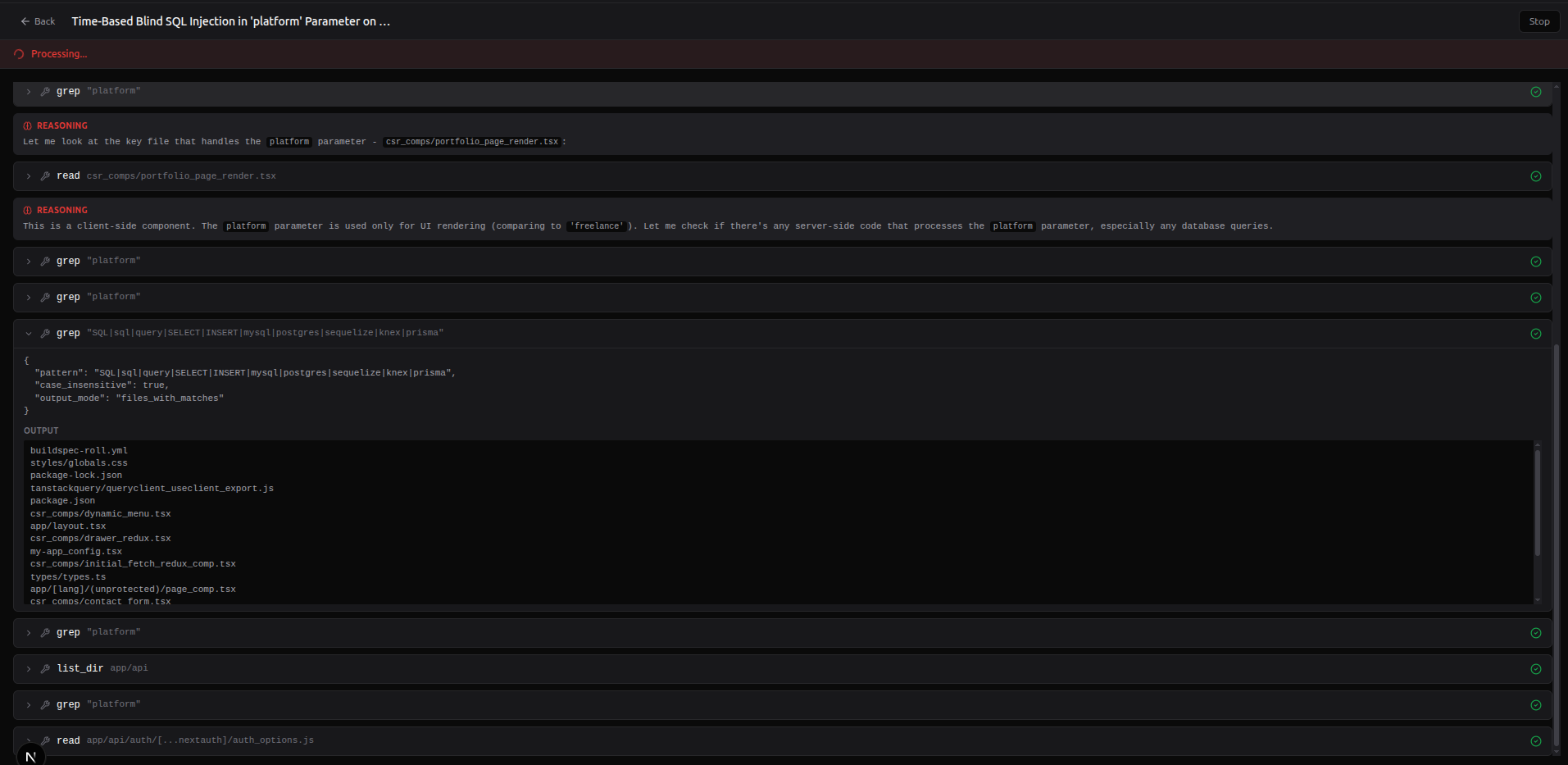
| Icon | Type | Description |
|---|---|---|
| — | Phase | Horizontal separator showing the current phase (e.g., "Cloning Repository", "Exploring Codebase", "Implementing Fix") |
| Brain | Thinking | The AI's reasoning text. Collapsible — click "Show more" for long reasoning blocks |
| Wrench | Tool Call | A tool execution (e.g., github_read src/auth.ts). Shows a spinner while running, then the output when done. Click to expand/collapse |
| Clipboard | Fix Plan | The agent's planned approach: a description of what will change and a list of files to modify or create. Expanded by default |
| File | Diff Block | A proposed code change requiring your review. See Step 7 |
| Git merge | PR Created | Link to the created pull request with title and file change stats |
| Alert | Error | Error message if something goes wrong |
| Checkmark | Complete | "CodeFix completed" confirmation |
- The log auto-scrolls to the bottom as new entries appear
- If you scroll up to review earlier entries, auto-scroll pauses
- Scrolling back to the bottom resumes auto-scroll
The agent has 11 tools for exploring and modifying the cloned repository:
| Tool | Purpose |
|---|---|
github_glob |
Find files by glob pattern (e.g., **/*.ts, src/**/*.py) |
github_grep |
Search file contents with regex |
github_read |
Read a file's full contents |
github_edit |
Edit a file — produces a diff block for approval |
github_write |
Create a new file — produces a diff block for approval |
github_bash |
Run shell commands in the cloned repo (e.g., npm install, go build) |
github_list_dir |
List directory contents |
github_symbols |
Search for code symbols (functions, classes, variables) |
github_find_definition |
Find where a symbol is defined |
github_find_references |
Find all references to a symbol across the codebase |
github_repo_map |
Get a high-level repository structure overview |
When the agent proposes a code change (via github_edit or github_write), a diff block appears inline in the activity log:
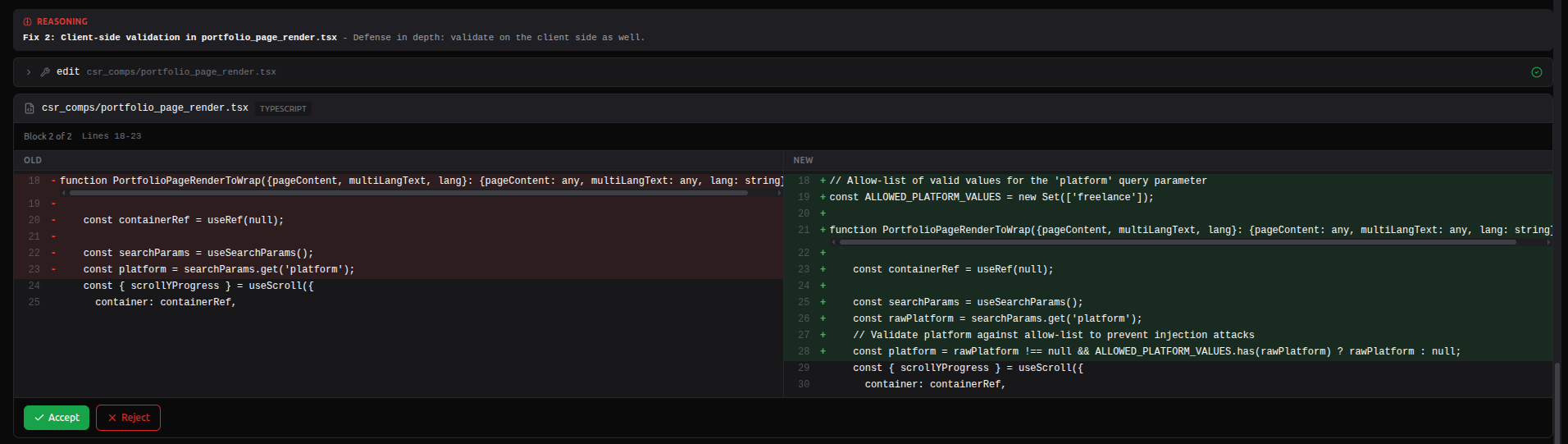
- File header — filename and detected programming language
- Block info — block number (e.g., "Block 1 of 5"), affected line range, description of the change
-
Split diff view — side-by-side comparison:
- Left pane (OLD) — original code with removed lines highlighted in red
- Right pane (NEW) — modified code with added lines highlighted in green
- Gray lines show unchanged context
- Action buttons — Accept or Reject
Click Accept (checkmark icon). The block is marked as accepted and the agent continues to the next step.
- Click Reject (X icon)
- An input field appears where you can type an optional rejection reason (e.g., "Use parameterized queries instead of string escaping")
- Click Reject again to confirm, or Cancel to go back
- The agent receives your rejection reason and adjusts its approach accordingly
Tip: If Require Approval is enabled in settings, the agent waits for your decision on each block before proceeding. If disabled, blocks auto-accept after a 5-minute timeout.
| Status | Meaning |
|---|---|
| Pending | Awaiting your decision |
| Accepted | You approved the change — it will be included in the commit |
| Rejected | You rejected the change — the agent may try an alternative approach |
After all diff blocks are processed, the agent:
- Commits all accepted changes with a descriptive commit message
-
Pushes to a new branch using the configured prefix (e.g.,
cypherfix/fix-sql-injection-42) - Opens a pull request on GitHub targeting the default branch

The PR entry in the activity log shows:
- PR title — descriptive title summarizing the fix
- File stats — number of files changed, lines added and removed
- View PR button — opens the pull request on GitHub in a new tab
The remediation status automatically updates to PR Created, and the remediation detail view will show a direct link to the PR on GitHub.
Each remediation follows this lifecycle:
pending
├── Start CodeFix → in_progress
├── Dismiss → dismissed
└── Delete → (removed)

in_progress
├── Agent succeeds → pr_created
├── Agent fails → no_fix
└── Stop agent → pending

no_fix
├── Retry CodeFix → in_progress
├── Dismiss → dismissed
└── Delete → (removed)

pr_created
├── View PR on GitHub
├── Mark as resolved → resolved
└── Delete → (removed)

code_review
├── Mark as resolved → resolved
└── Dismiss → dismissed

resolved (final state)

dismissed (final state)
Not all remediations can be handled by the CodeFix agent:
| Type | Agent Support | Description |
|---|---|---|
| Code Fix | Yes | Source code changes (e.g., fix SQL injection, add input validation, patch XSS) |
| Dependency Update | Yes | Update vulnerable packages in package.json, requirements.txt, go.mod, etc. |
| Config Change | Yes | Modify configuration files (nginx.conf, Apache configs, app settings) |
| Secret Rotation | No | Requires manual rotation of leaked credentials and API keys |
| Infrastructure | No | Requires infrastructure-level changes (firewall rules, network configuration, cloud settings) |
For remediation types that require manual intervention, the detail view displays an informational message instead of the CodeFix button.
You can re-run triage at any time to pick up new findings:
- From the dashboard header — click the Re-triage button
- From the empty state — click Start Vulnerability Triage
When to re-run triage:
- After running a new reconnaissance scan that discovered additional vulnerabilities
- After a GVM scan completes with new network-level findings
- After running attack chains that produced new exploit confirmations
- After updating the target application and wanting to verify fixes
The triage agent is smart enough to skip issues that already have existing remediations, avoiding duplicates.
Cause: Missing required CypherFix settings.
Fix: Go to Project Settings → CypherFix Settings tab. The alert below the button lists exactly which fields are missing (GitHub Token, Default Repository, Default Branch, or Branch Prefix).
Cause: The Neo4j graph has no vulnerability data.
Fix: Run at least one reconnaissance scan first. The triage agent queries the graph for vulnerabilities, CVEs, secrets, and security check results. If none exist, there's nothing to triage.
Cause: GitHub token is expired, revoked, or lacks the required repo scope.
Fix: Generate a new Personal Access Token at GitHub → Settings → Developer Settings → Personal Access Tokens → Tokens (classic). Make sure to select the repo scope.
Cause: Incorrect repository format or insufficient permissions.
Fix: Check that the Default Repository setting uses the exact owner/repo format (e.g., myorg/myapp, not just myapp). Verify your token has access to that repository (especially for private repos).
Cause: If "Require Approval" is enabled, the agent waits for your accept/reject decision on each block. Blocks auto-accept after 5 minutes if you don't respond.
Fix: Keep the DiffViewer tab active while the agent runs. If you need to step away, consider disabling "Require Approval" in settings for automated runs.
Cause: The AI may misunderstand the codebase structure or the correct fix approach.
Fix: Reject the diff block and provide a descriptive reason (e.g., "Use prepared statements instead of input escaping"). The agent reads your feedback and attempts an alternative approach. You can also stop the agent and retry with more specific guidance.