Manual_Estructura
 By using Ediphy you'll be able to create learning material online in an easy way and then export it for its publication in your preferred platform.
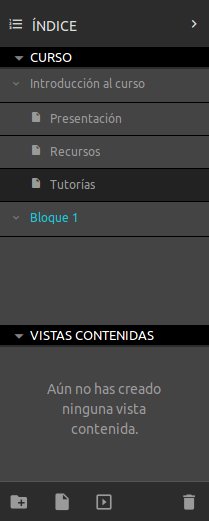
In the left side of the application you will find an area corresponding to the index of the document, where you will be able to see and edit the structure of the document.
By using Ediphy you'll be able to create learning material online in an easy way and then export it for its publication in your preferred platform.
In the left side of the application you will find an area corresponding to the index of the document, where you will be able to see and edit the structure of the document.
A document may have different types of views:
- Pages: They are similar to a conventional webpage with aligned content and a vertical scrollbar.
- Slides: They are based on traditinal slideshows. They keep the aspect ratio and their content floats and scales with the screen.
The sections are directories for grouping different views so as to better organize the content. They may have slides and/or pages, as well as subsections.
The element whose content you are viewing and editing will appear with a darker background. In order to change to a different view, click another element in the index. If said element is a section, it will collapse/expand in order to show or hide its content.
In order to edit the structure of the index you can use the icon bar in the bottom part. These are the actions you can perform:
- Create section: Creates a new section in the indx. It the element currently selected is also a section, the new section will be inside it. If the element selected is a view (page or slide), it will be created at the same level. If there is no element selected, the section will be created at the top level.
- Create page: Creates a new page in the index. If the selected element is a section, the new page will be created inside it. If the selected element is a view, the new page will be created at the same level. If there is no element selected, the page will be created at the top level.
- Create slide: Creates a new slide in the index. If the selected element is a section, the new slide will be inside it. If the selected element is a view, the new page will be created at the same level. If there is no element selected, the slide will be created at the top level. You can create a blank slide or use one of the provided templates; once created you can modify it however you want.
- Delete: Removes the selected element.
Do not worry if you create an element in the wrong area; you can always drag it and move it wherever you want.
In the bottom half of the index there is an area reserved to Contained views. These are special pages that are created from some plugins, as you will learn later. You can delete them just like any other view, but you cannot create them with the aforementioned buttons.
You can change the name of all the sections and views (and contained views) by double-clicking their name on the index.
Al hacer clic sobre una vista se puede ver y editar su contenido, que aparecerá en el canvas. By clicking a view you can see and edit its content, which will appear on the canvas.
The canvas is the central editing area, which occupies most of the screen. As you can see, at the top of the canvas there is a header with the view title. Before presenting the different classes of content that a page or slide may have, we can configure the view on the toolbar. The toolbar is placed at the right of the application. By clicking on the small icon we can spread it or hide it. The toolbar has different panels, each one of them with different options:
- Background: It makes it possible to change the background of the view. On pages you can only modify the background color. On slides, you may also pick a background image.
-
General: It makes it possible to change how the view will appear on the index.
- Incluir en el documento: If you turn off this option, the view will turn private. That is to say, you may edit it but it will not show when previewing the document or exporting it.
- Name of the page: Modifies the name of the view on the index (equivalent to double-clicking the name on the index).
-
Header: It makes it possible to configure the header of the view that is shown on the canvas.
- Document title: Hide or show the document title. Remember that you can modify the global title of the document in the top left corner by double-clicking it.
- Page/Slide title: Hide or show the view title on the header. By default, it will have the same title as on the index, but you can modify it on the toolbar or by double-clicking it on the canvas.
- Subtitle: Hide or show the subtitle under the view title on the header.
- Breadcrumb: Shows the section hierarchy.
- Page number: Shows the page/slide number (insert manually).
- Score: If you are creating educational content, you might be interested in assigning a score and a progress control for the students. In this panel you can configure the weight of the current view with respect to the whole document. By default all views have a weight of 10.
Once you have configured the view you are ready to create content in it. Continue in the next section in order to learn how Plugins work.