3.1. Hands On: Sensorization "Hello World!"

The sensorization example represents a typical industrial use case where it is needed to monitor a certain process. For that, in your computer, we simulate a sensor that produces values with a certain range and offset, these values are processed by a method (e.g. moving average) and then, both original value and his moving average are written to a CSV file. Based on that, the process that we want to develop is the following:
Sensor Simulator -> Moving Average -> Concatenate Reals -> Write CSV
For that, we build a mini Cyber-Physical System (CPS), where the Sensor Simulator, the Moving Average, the Concatenate Reals and the Write CSV function blocks are running in your PC.

To build this solution we need to use 4 different function blocks, each function is composed by 2 files (XML and Python), wherein the XML file is defined the interface (input/output events, input/output variables) and in the Python file are coded the function block functionalities.
| Function Block | Resources | Description |
|---|---|---|
| Sensor Simulator | [XML] [Python] | Simulates the sensor values according one offset |
| Moving Average | [XML] [Python] | Calculates the average of the last N values |
| Concatenate Reals | [XML] [Python] | Concatenates two variables of type real and returns a string |
| Write CSV | [XML] [Python] | Writes any string to a csv cell |
You can also download the 4DIAC configuration [ZIP], to import in the 4DIAC-IDE using the option File->Import->Existing Projects into Workspace, and selecting the root path to the 4DIAC configuration. This way, you acelerate the development process, skiping some of the steps of the following tutorial.
-
In case you want to transfer the Function Blocks from this wiki to DINASORE, please copy and paste the fbt and py files above to (...\dinasore\resources\function_blocks) and to a new 4DIAC-IDE function blocks folder (.../4diac-ide/typelibrary/(new_folder));
-
Alternatively, clone this repository that contains all function blocks in a new 4DIAC-IDE function blocks folder (.../4diac-ide/typelibrary/(new_folder)). Read the instructions on how to transfer these function blocks to any DINASORE instance (remote or local).
-
Execute the DINASORE project in your computer, commands here;
-
Run the 4DIAC-IDE executable (.../4diac-ide/4diac-ide);
-
Create a new system using File->New->New System, call the new system e.g. SensHandsOn and click Finish;
-
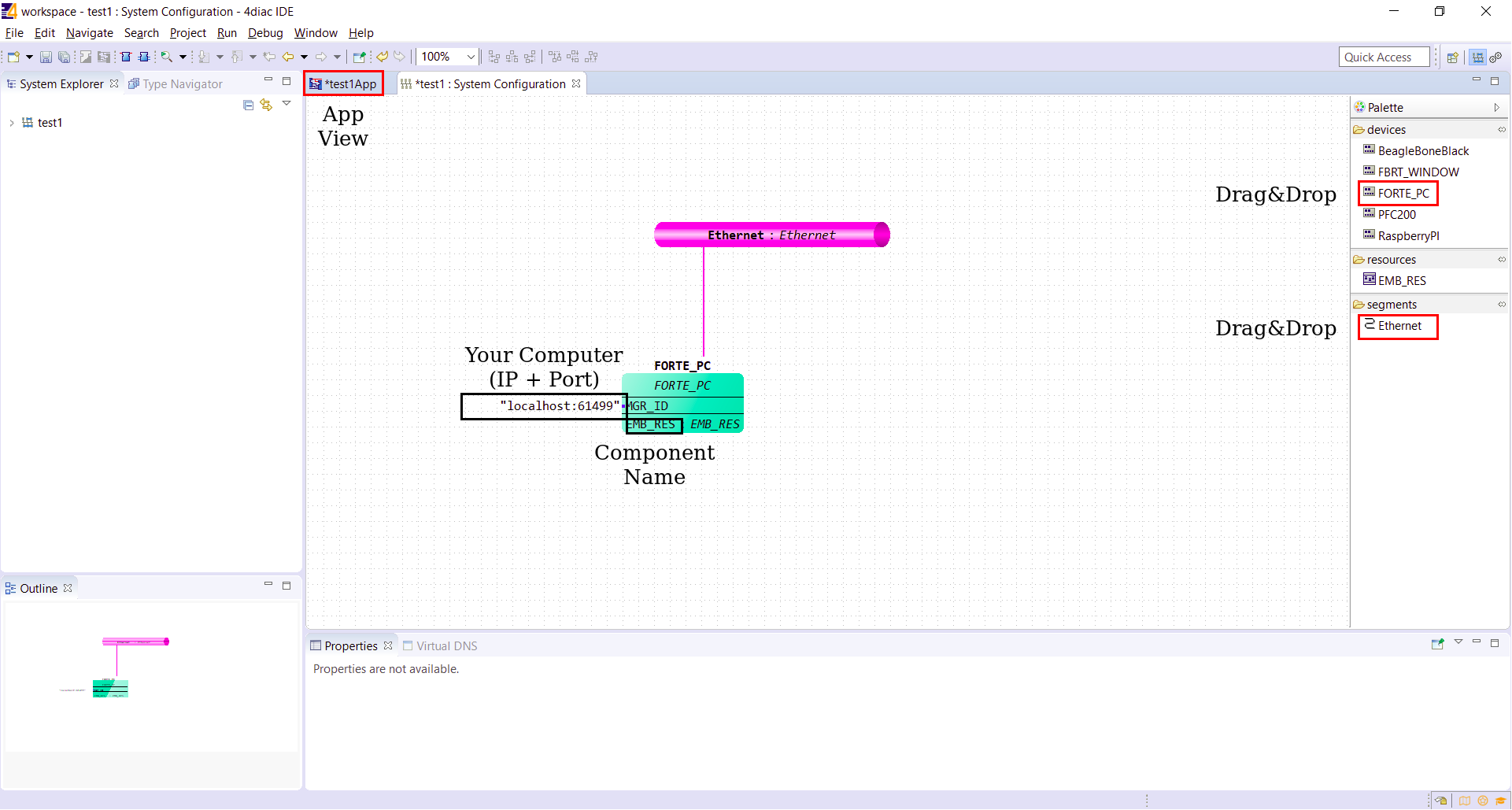
Open the System Configuration tab and drag and drop 1 FORTE_PC devices and 1 Ethernet segment, from the Palette;
-
Change the IP addresses and component names according to the machines that you have in the network;
-
Double click on the App View using the left bar;
-
Drag&Drop the function blocks from a new folder in the right Palette;

-
Connect each event and variable, and specify the hardcoded value for some variables (e.g. IP address, port, path, name);
-
Map each function block to a network component (e.g. right click on function block them select Map to...->FORTE_PC->EMB_RES);

-
Change to the Deploy View (right corner icon or Window->Perspective->Open Perspective->Deployment);
-
Select your configuration and click 'Deploy' to upload the configuration to the Smart Components;

- To monitor the system, change to the previous view, then right-click on the project folder, and select Monitor System. Now you can select which variables you want to monitor, for that right-click inside the variable and select Watch;

-
To stop the monitoring process, right-click in the project folder and select Remove Watches and unselect Monitor System;
-
If you want to reset each component, right-click in his name in the left bar and select Delete all Resources;
-
Finally, to check the data structure or monitor the process using OPC-UA, you can use the Prosys client, connecting to the component IP address at port 4840.
