Shopify Tag Integration Developer version 1.1
- Need Shopify Store Access – this will be provided by the Client.
- Mediajel Tag – this will be generated using the Mediajel Dashboard.
- Liquid M Tag – this will be provided by Ben Malone or Hannah Pruett
- Log in to mediajel.io
- Go to Display>”wrench” icon>Universal Tag
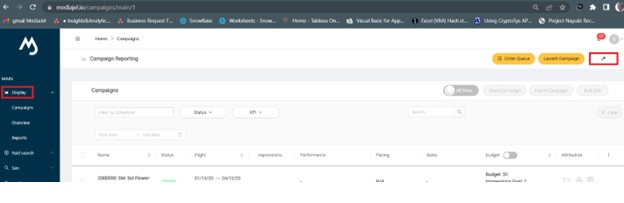
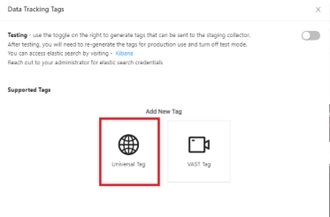
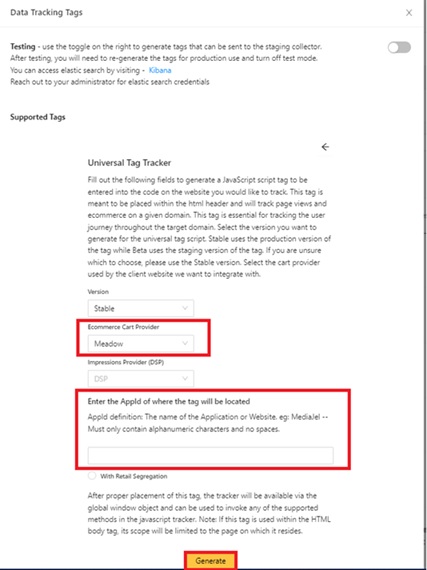
- Fill up Ecommerce Cart Provider and App Id. Ecommerce Cart Provider can be acquired by right clicking the app then View page source. Then search for Cart Provider on the app by choosing from the dropdown on the Ecommerce Cart Provider (dashboard). For App Id, copy the client URL without https:// and ".com". Click Generate and copy the tag.
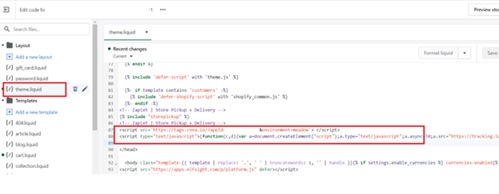
- Add the generated Mediajel Tag with the provided tag below. Sometimes there can be two Cart Providers for Shopify. In this case it is meadow for the "theme.liquid" and shopify for "additional tag".
<script type="text/javascript">(function(c,d){var a=document.createElement("script");a.type="text/javascript";a.async=!0;a.src="https://tracking.lqm.io/odin/handle_sync.js?seg=BEHCOD9f4o2asg6lBXKCUg&gdpr="+("1"===c?"1":"0")+"&gdpr_consent="+(d?encodeURIComponent(d):"")+"&cb="+(new Date).getTime();var b=document.getElementsByTagName("script")[0];b.parentNode.insertBefore(a,b)})();</script><script src='https://tags.cnna.io/?appId=[add App Id here]&environment=[add Cart Provider here]'> </script>- Log in to Shopify Store: https://www.shopify.com/
- Go to Order Store>Themes>Ellipsis (3 dots)>Edit code
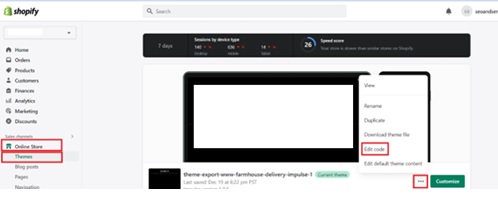
- On theme.liquid add the Mediajel (Dashboard) tag and Liquid M tag before . Then click Save on the upper right.
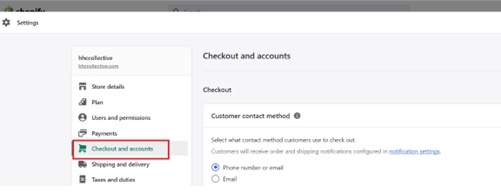
- For the Additional script, go back to the Shopify homepage and click Settings (bottom part of menu). From Settings, go to Checkout and Accounts>Scroll down to Order Status Page and add the second tag to Additional script text box. Then click Save on the bottom part of the page.
<script src='https://tags.cnna.io/?appId=[add App Id here]&environment=[add Cart Provider here]'> </script><script type="text/javascript">(function(c,d){var a=document.createElement("script");a.type="text/javascript";a.async=!0;a.src="https://tracking.lqm.io/odin/handle_sync.js?seg=BEHCOD9f4o2asg6lBXKCUg&gdpr="+("1"===c?"1":"0")+"&gdpr_consent="+(d?encodeURIComponent(d):"")+"&cb="+(new Date).getTime();var b=document.getElementsByTagName("script")[0];b.parentNode.insertBefore(a,b)})();</script>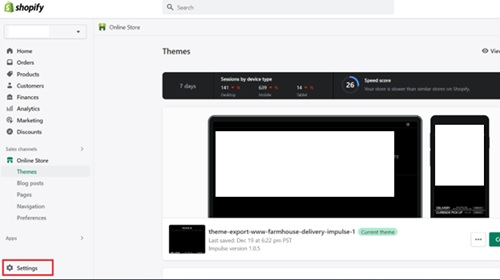
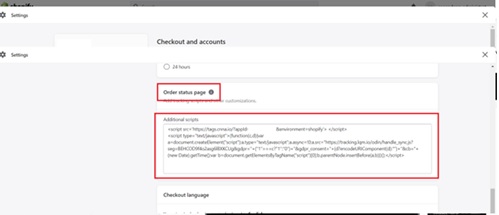
The script for Check out should be similar like this:
<!-- SM Services eCommerce Attribution START -->
  {% if first_time_accessed %}
  window.Shopify.checkout.liquid_order_name = {{ order.order_number }}
  <script src='https://tags.cnna.io/?appId=[APP_ID HERE]&environment=shopify'> </script>
{% endif %}
  <script type="text/javascript">(function(c,d){var a=document.createElement("script");a.type="text/javascript";a.async=!0;a.src="https://tracking.lqm.io/odin/handle_sync.js?seg=G9LaNcbHQ7aAy6uSrwv9SA&gdpr="+("1"===c?"1":"0")+"&gdpr_consent="+(d?encodeURIComponent(d):"")+"&cb="+(new Date).getTime();var b=document.getElementsByTagName("script")[0];b.parentNode.insertBefore(a,b)})();</script>
<!-- SM Services eCommerce Attribution END -->- To Test if the tag integration is working you need to do the following:
a. Create a query on Snowflake –
    select *
    from "DATA_COLLECTION_DB"."SNOWPLOW"."COMMERCE_TRANSACTIONS"
    where APP_ID like any ('%[add your App ID here]%')
    order by COLLECTOR_TSTAMP desc
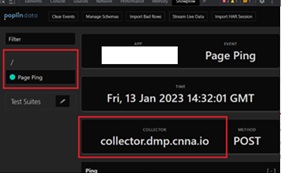
b. Install Snowplow addin to Chrome and test if page view is showing up. It must show “collector.dmp.cnna.io”, sometime there can be multiple providers.
c. If possible, create a test transaction by going to the page and fill up a test transaction.
NOTE: you need to specify on the Comment that it is a TEST transaction.
For Example: THIS IS A TEST TRANSACTION, DO NOT PROCESS.
d. It takes about 2-4 hours from the time you entered the tags to reflect on the snowflake database.