Woocommerce Tag Integration Developer ver1.1
- Need Woocommerce Store Access – this will be provided by the Client.
- Mediajel Tag – this will be generated using the Mediajel Dashboard.
- Log in to mediajel.io
- Go to Display>”wrench” icon>Universal Tag
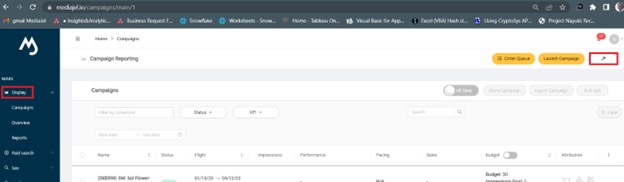
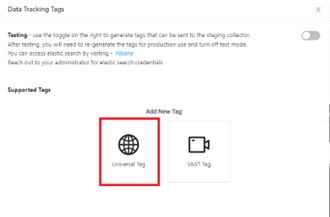
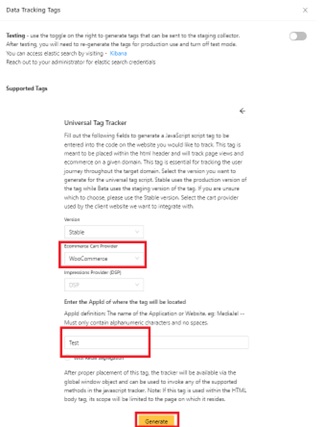
- Fill up Ecommerce Cart Provider and App Id. Ecommerce Cart Provider can be acquired by right clicking the app then View page source. Then search for Cart Provider on the app by choosing from the dropdown on the Ecommerce Cart Provider (dashboard). For App Id, copy the client URL without https:// and ".com". Click Generate and copy the tag.
- Add the generated Mediajel Tag below.
function woocommerce_tracker() { ?>

<!-- Header scripts go here -->
  <script src='https://tags.cnna.io/?appId=Test&environment=woocommerce'> </script>
<!-- Header scripts go here -->

<?php
  $product = array();
    global $wp_query;
    if( !empty( $wp_query->query_vars[ 'order-received' ] ) ) {
    $order = wc_get_order( $wp_query->query_vars[ 'order-received' ] );
    $items = $order->get_items();
    if(!empty($items)) {
      foreach($items as $item) {
        $product[] = $item->get_data();
      }
    }

    $check = get_post_meta( $order->get_id(), 'thank_you_page_check', true );
    if ( $check ) {
      return;
    }
    update_post_meta( $order->get_id(), 'thank_you_page_check', true );
?>
    <script>
      var transactionOrder = <?php echo $order; ?>;
      var transactionItems = <?php echo json_encode($product); ?>;
    </script>
<?php }
}
add_action( 'wp_head', 'woocommerce_tracker' );-
Log in to Client’s Woocommerce/Wordpress web page.
-
To add tag go to: Wordpress - Snippets - Add New.
Note: if Snippets is not visible or not yet installed, go to Plugins and search for Snippets and install it.
a. Log into your WordPress admin.
b. Click Plugins.
c. Click Add New.
d. Search for Code Snippets.
e. Click Install Now under "Code Snippets"
f. Activate the plugin.
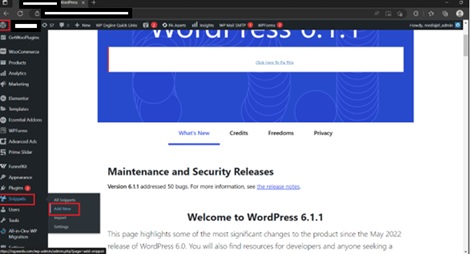
- Scroll down to “Code”. Rename the title to: Ecommerce Attribution. Paste the tag generated from Mediajel Dashboard on the “Code” text box. Then click Save Changes and Activate.
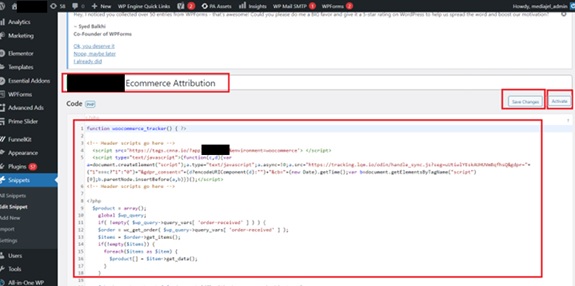
- To Edit the tag, go to Snippets>All Snippets and click on Ecommerce Attribution, edit the Code text box and click on Save Changes and Activate.
- To Test if the tag integration is working you need to do the following:
a. Create a query on Snowflake –
select *
from "DATA_COLLECTION_DB"."SNOWPLOW"."COMMERCE_TRANSACTIONS"
where APP_ID like any ('%[add your App ID here]%')
order by COLLECTOR_TSTAMP desc
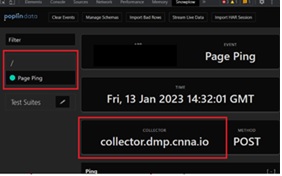
b. Install Snowplow addin to Chrome and test if page view is showing up on the Client’s web page by pressing F12. It must show "collector.dmp.cnna.io".
Sample:
c. If possible, create a test transaction by going to the page and fill up a test transaction form.
NOTE: you need to specify on the Comment that it is a TEST transaction.
For Example: THIS IS A TEST TRANSACTION, DO NOT PROCESS.
d. It takes about 2-4 hours from the time you entered the tags to reflect on the snowflake database.