Player Profile Window
This feature displays the player's profile for the current player of the game. The profile includes useful and perhaps interesting statistics about the player's performance in the game, including the average time they have taken to win the game, the average number of attempts taken to guess the traitor until they win, how many times they have lost the game, and how many times they have won the game.
The goal of the feature is to enhance the user's experience while they are playing the game. With the information displayed in the player profile that Team 4 builds, players will be able to look at their performance so far as a player of the game, for example, how many times they have won the game, how many times they have lost the game, and perhaps change their strategy or the way they play the game in response to their performance stats. This feature acts as a good indication of how they are performing as a player of the game, and if they wish to, improve their average values (e.g. winning the game with fewer attempts), which can become a motivation to player the game.
The player profile can be accessed from the main game screen, with a button for it alongside the eviction menu, exit button, and inventory button. Since players will be on the main game screen most of the time, we decided that the main game screen be the best location to have a button to access the player profile.
Several icons were designed to make the window more suitable for the game. These may be used to add visual guides to the headings of the information being displayed. A user test was conducted to determine the layout of the player profile page. More on this in: Player Profile User Test
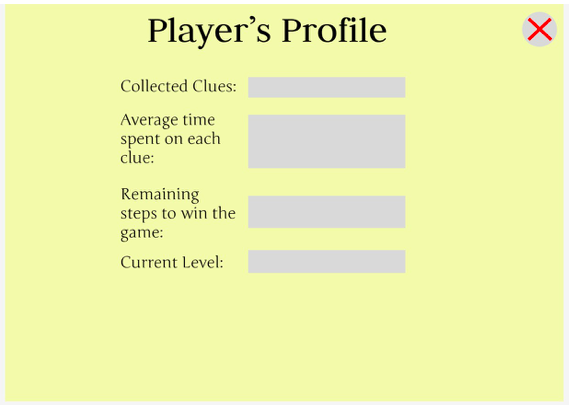
From the results of the user test, our team has decided to display a profile window with simple layout, displaying a summary of all information briefly, so that it is easy to understand for the users. Between Design 1 and 2, we found that the majority of the users preferred the way information was displayed in Design 1, therefore we decided to create the player profile window with Design 1 as the base.
Create a background for the player profile window. The colour scheme of the window is green and brown to match the game UI, adding a border to be able to clearly differentiate between the player profile window and the main game screen. The font is pixelated to match the game design as well, with some shadows and reflection added to make it look 3D.