


This package provides a tool for intuitively editing and saving waypoints used in robot navigation while referencing 2D/3D maps.
The edited waypoints can be saved in CSV or Nav2-compatible YAML format, and waypoints can also be auto-captured from a localization topic.
- Ubuntu 22.04 (Jammy Jellyfish)
- ROS 2 Humble Hawksbill
Run the following commands in your terminal:
mkdir -p ~/ros2_ws/src
cd ~/ros2_ws/src
git clone https://github.com/kzm784/waypoint_editor.git
cd ~/ros2_ws
rosdep update && rosdep install --from-paths src --ignore-src -y
colcon buildRun the following commands to launch the tool:
cd ~/ros2_ws
source install/setup.bashload_waypoints_demo
ros2 launch waypoint_editor waypoint_editor.launch.py- Use Nav2's
nav2_map_serverto load a 2D map in.yamlformat. - You can also load a 3D map in
.pcdformat. - In the RViz panel, use "Load 2D Map" for
.yamlor "Load 3D Map" for.pcd.

- From the toolbar at the top of RViz2, select "Add Waypoint".
- Click and drag on the map to add a new waypoint with the desired position and orientation.
- Once added, each waypoint can:
- Be moved or rotated via drag operations
- Be right-clicked to open a context menu for deletion or other actions

- Click "Save WPs" in the bottom-right panel of RViz2 and pick either CSV or YAML in the dialog.
- Select YAML when you need a Nav2-compatible file for waypoint follower demos.

- Click "Load WPs" button in the bottom-right panel of RViz2 and select the previously saved
.csvor.yamlfile. - The waypoints can then be edited again in the same interface.

- Use the panel's "Undo" and "Redo" buttons to step backward or forward through waypoint edits (moving, rotating, deleting, ID changes, or command edits).
- Use "Clear All" to remove all waypoints at once.
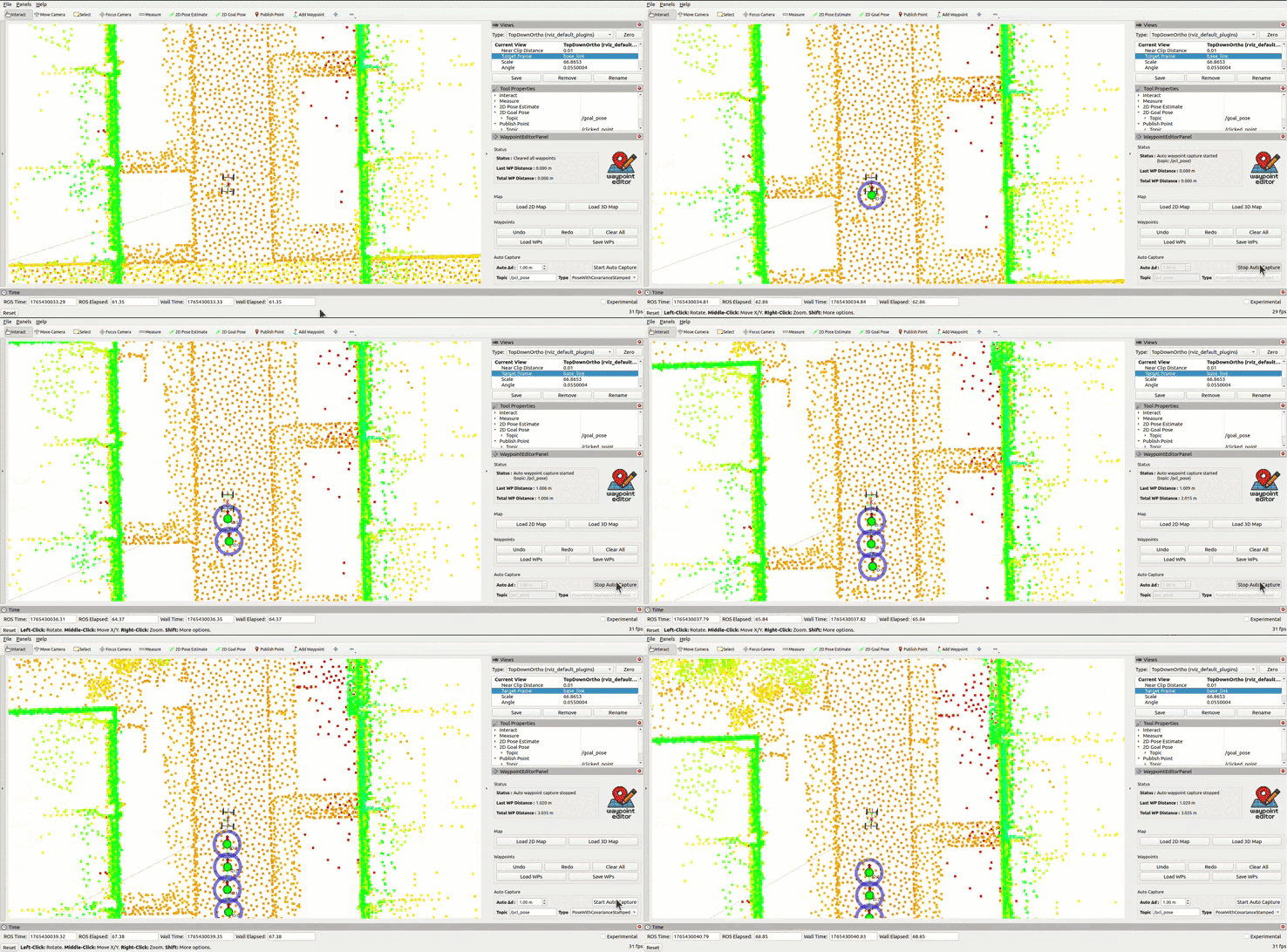
- In the panel's Auto Capture section, set:
Auto Δd: minimum distance between auto-added waypointsTopic: localization topic (e.g.,/amcl_pose)Type:PoseWithCovarianceStampedorPoseStamped
- Click "Start Auto Capture" to begin; waypoints will drop automatically as you move.
- Click again to stop.

This project is licensed under the Apache License, Version 2.0.
See the LICENSE file for details.