Airventure Edition
- Compatibility
- Airventure vs Handheld and Gizmo
- Screen pages
- Disclaimer
- Bill of materials
- Quick start
- Settings
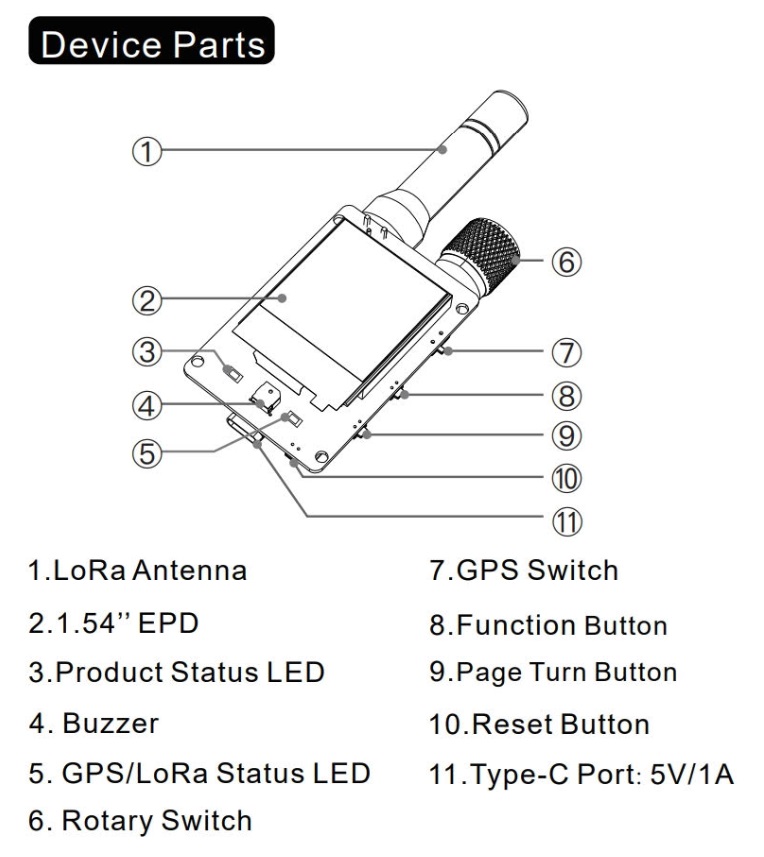
- Knob
- Buttons
- GNSS switch
- LEDs
- Buzzer
- Battery life
- Display care
- Optional equipment
- Links
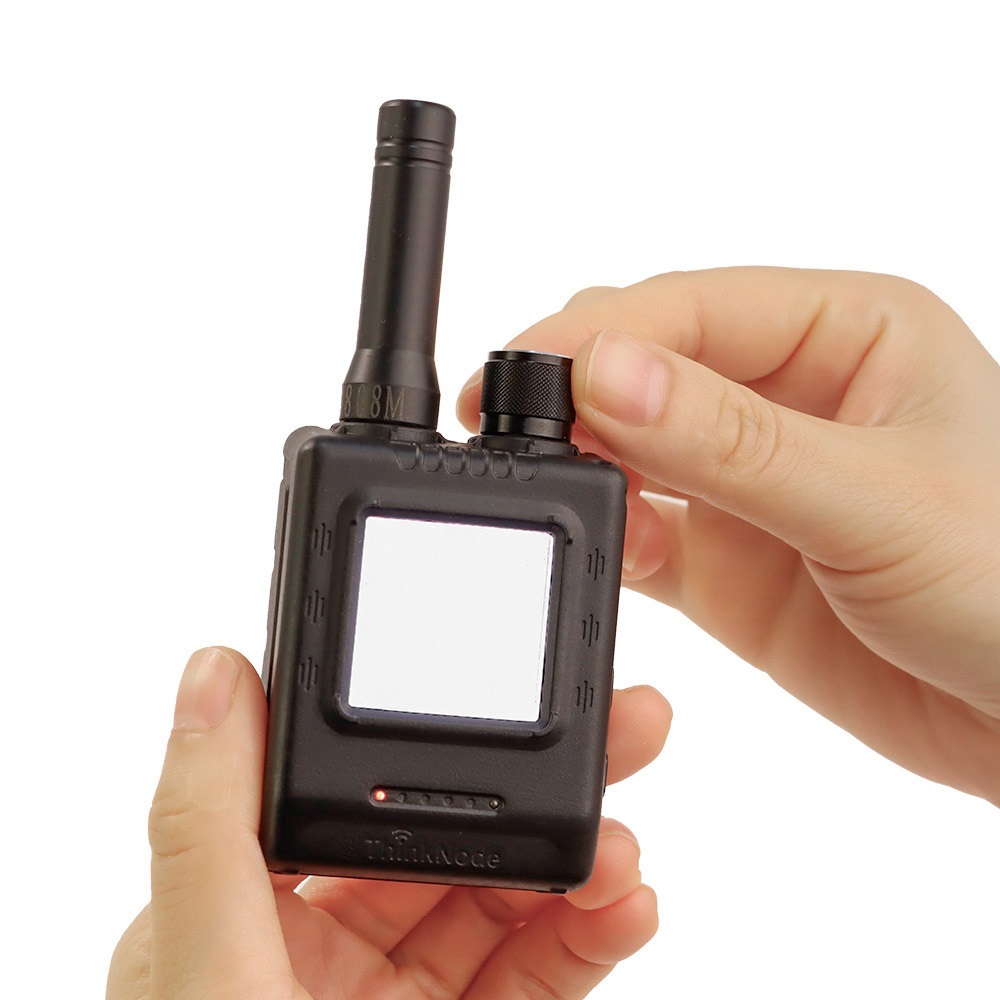
Airventure Edition is a variant of SoftRF DIY GA proximity awareness device been implemented in a small, lightweight product form factor.
The Airventure is a synergy of two leading edge technologies in one miniature unit:
- SoftRF advanced radio, GNSS and air traffic processing core with data stream output, and
- SkyView air traffic visualization engine for an e-Paper display.
It is supposed to require minimal skills from a user to begin with and gives an opportunity to evaluate if the SoftRF technology is appropriate for your needs.
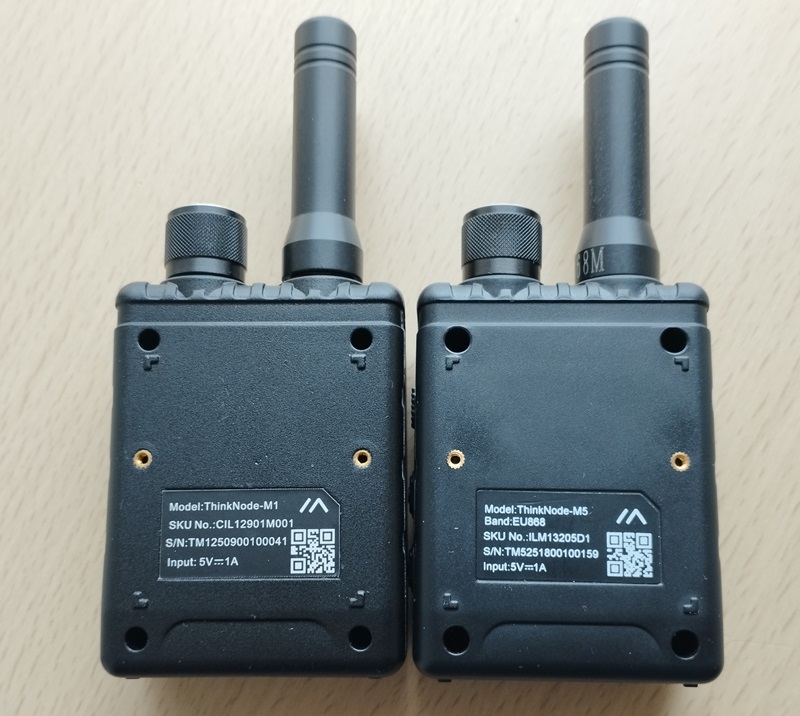
The Airventure is based on third-party's hardware - Elecrow® ThinkNode M5 product, which is available for direct purchase from manufacturer at more or less reasonable price (50+ USD).

ThinkNode M5 is:
- a multipurpose ,
- DIY-friendly ,
- low power ,
- lightweight
- LoRaWAN GNSS assets tracker product.
The ThinkNode M5 is an example of cutting edge technology. It contains:
- Espressif ESP32-S3FN8 SoC ;
- Semtech SX1262 Long Range Low Power RF Transceiver ;
- Quectel L76K Low Power GNSS (GPS/GLONASS/BD) Receiver module ;
- GooDisplay® 1.54" SPI e-Paper display with backlight.
| Type | Protocol | FLARM | OGN tracker | PilotAware | Skytraxx | SoftRF |
|---|---|---|---|---|---|---|
| Radio | FLARM AIR V7 |
|
|
|
||
OGNTP |
|
|
||||
P3I |
|
|
||||
FANET+ |
|
|
||||
SRD 860 |
|
|
||||
| Data | FLARM NMEA |
|
|
|
|
|
| Garmin GDL90 |
|
|
||||
Dump1090 |
|


1 - it is necessary for a reader to feel the difference between statement "compatible"
and statement "fully compatible".
SoftRF implements only a reasonable minimum of the protocols specs.
No "bells and whistles" so far.
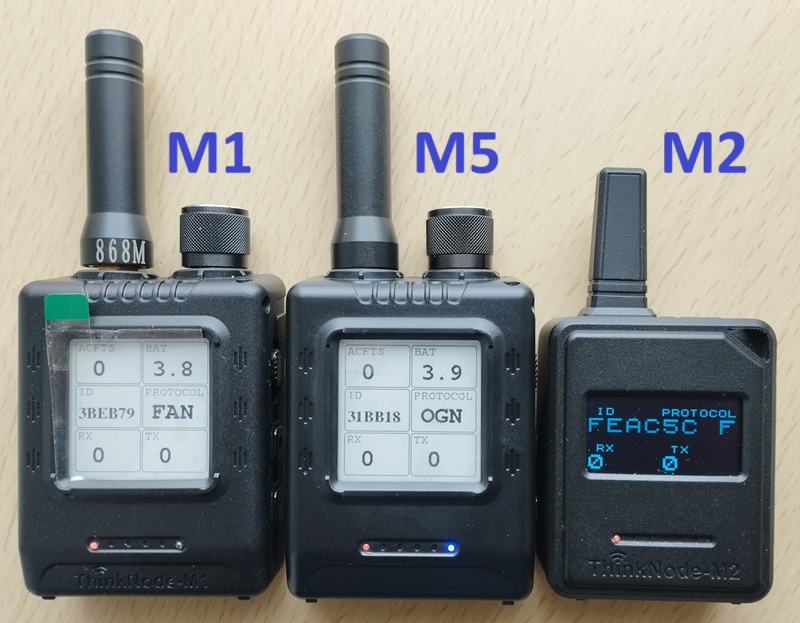
This is a picture of Handheld, Airventure and Gizmo Editions, side by side.
| Edition |
Handheld 
|
Airventure
|
Gizmo
|
|---|---|---|---|
| First appearance | 2025 | 2025 | 2025 |
| Manufacturer | Elecrow | Elecrow | Elecrow |
| SoC | Nordic nRF52840 | Espressif ESP32-S3 | Espressif ESP32-S3 |
| QSPI flash storage | 2 MB | ||
| sub-1GHz radio | Semtech SX1262 | Semtech SX1262 | Semtech SX1262 |
| sub-1GHz antenna | external, RP-SMA | external, RP-SMA | external, PCB |
| Wi-Fi | 2.4 GHz 802.11bgn |
2.4 GHz 802.11bgn |
|
| Bluetooth | 5 LE | 5 LE | 5 LE |
| Battery | Li-Ion 1200 mAh | Li-Ion 1200 mAh | Li-Ion 1000 mAh |
| GNSS receiver | HZM AT6558 | HZM AT6558 | |
| Display | 1.54" e-Paper with backlight |
1.54" e-Paper with backlight |
1.3" OLED |
| USB | 2.0 device | CH340K USB to UART |
CH340K USB to UART |
| LED | red, blue | red, blue | red |
| Buzzer | 1 pc | 1 pc | 1 pc |
| Certificates | FCC CE | pending |
Both Airventure and Gizmo use the same Espressif ESP32-S3 SoC.
Gizmo has a feature connector ( soldered separately ) with 2.54 mm spacing. Airventure does not have this option.
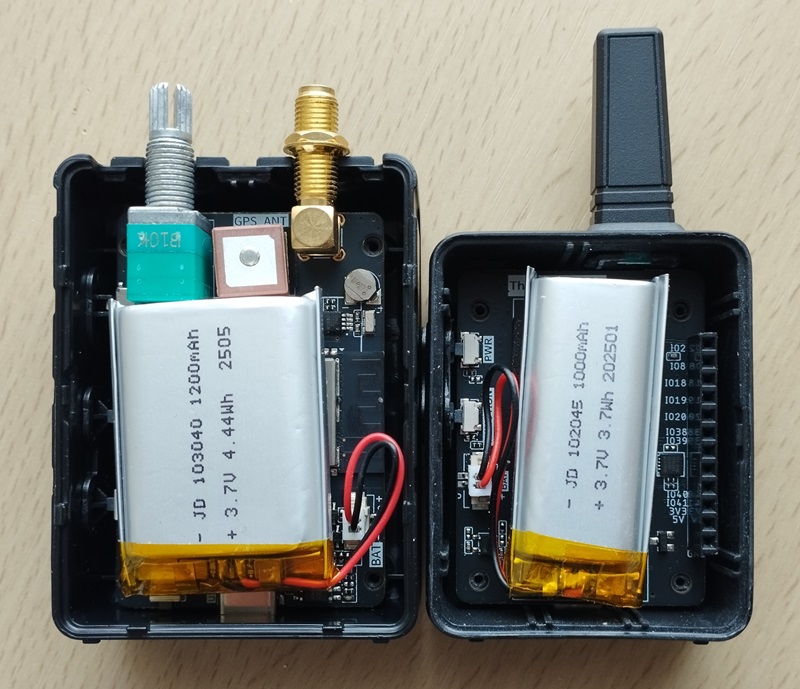
Airventure has the same "look and feel" as Handheld Edition does.
However, it gives Wi-Fi feature that the Handheld lacks of
at cost of reduced operating time from fully charged battery and no storage space for aircrafts database.
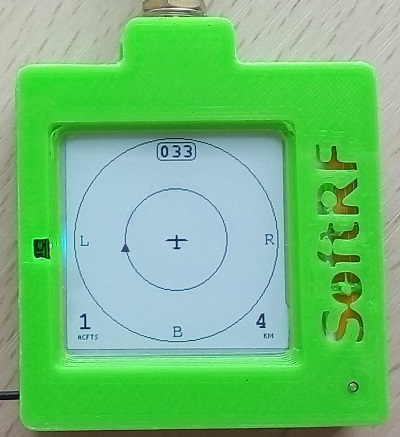
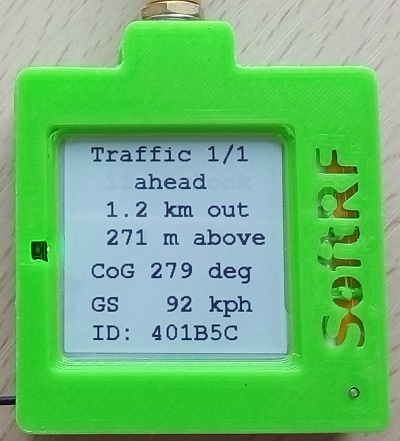
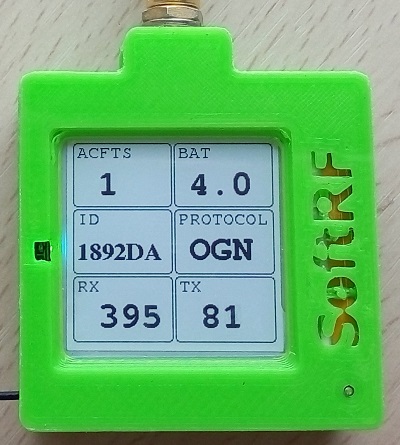
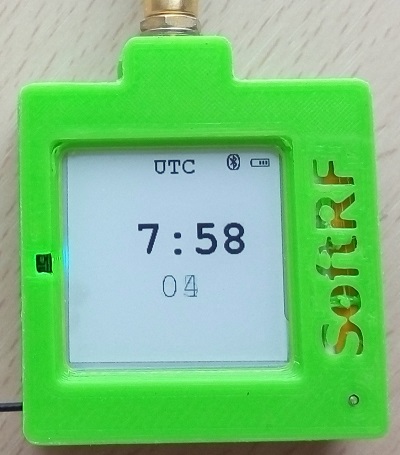
There are four different screens available:
You can use Function button to switch between these screens.
The screens are better explained on this page.
 |
 |
 |
 |
|---|
SoftRF firmware for Airventure Edition is distributed in the hope that it will be useful, but WITHOUT ANY WARRANTY; without even the implied warranty of MERCHANTABILITY or FITNESS FOR A PARTICULAR PURPOSE.
In general a lot of Chinese DIY electronics manufacturers are known to behave this way:
- sometimes they may not apply necessary Q.C. before releasing of a product from factory ;
- they may arbitrary change schematics and electronic components from one batch to the next one.
Author of SoftRF firmware:
- will reject any hardware related claims associated with Elecrow® ThinkNode M5 product. Ask for support from seller or manufacturer ;
- reserves the right to suspend or terminate support of Elecrow® ThinkNode M5 in the firmware at any time.
For the time being ( Aug'25 ) there were no critical hardware issues reported for current version of the ThinkNode M5 product. However things my change over the time...
If you have issues with bringing up your new Elecrow® ThinkNode M5 or just not happy with the product - be prepared to execute your Purchase Protection plan.
| Number | Part | Qty | Picture | Source |
|---|---|---|---|---|
| 1 | Elecrow® ThinkNode M5 2 |
1 | 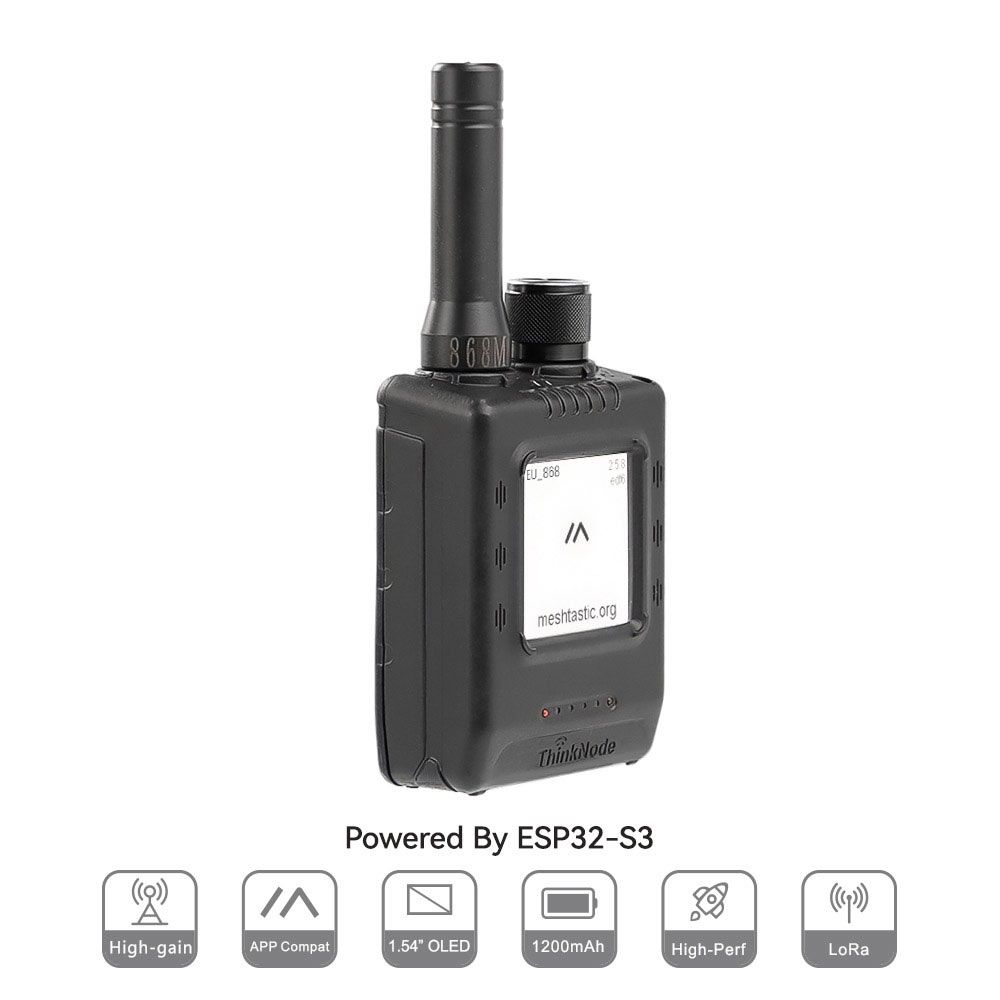 |
Elecrow Store AliExpress |
2 - 868 MHz variant is applicable for these world regions: EU, RU, NZ, SA, IN ;
915 MHz - US, CA, AU, KR, IL.
-
Connect the Airventure device to a PC with bundled Type-C USB cable. Power it up by button press ;
-
Open up Meshtastic Flasher website in either Chrome or Edge browser ;
Important
Once you install SoftRF over Meshtastic, please, be aware that further SoftRF WebUI OTA firmware update method may not work. Next time you'll decide to update the Airventure - you should use the Web Flasher method again.
- Download an appropriate version of SoftRF firmware from this location ;
Tip
Airventure Edition is currently supported by recent Release 1.8 only.
- Select
ThinkNode M5target and custom firmware file as follows :
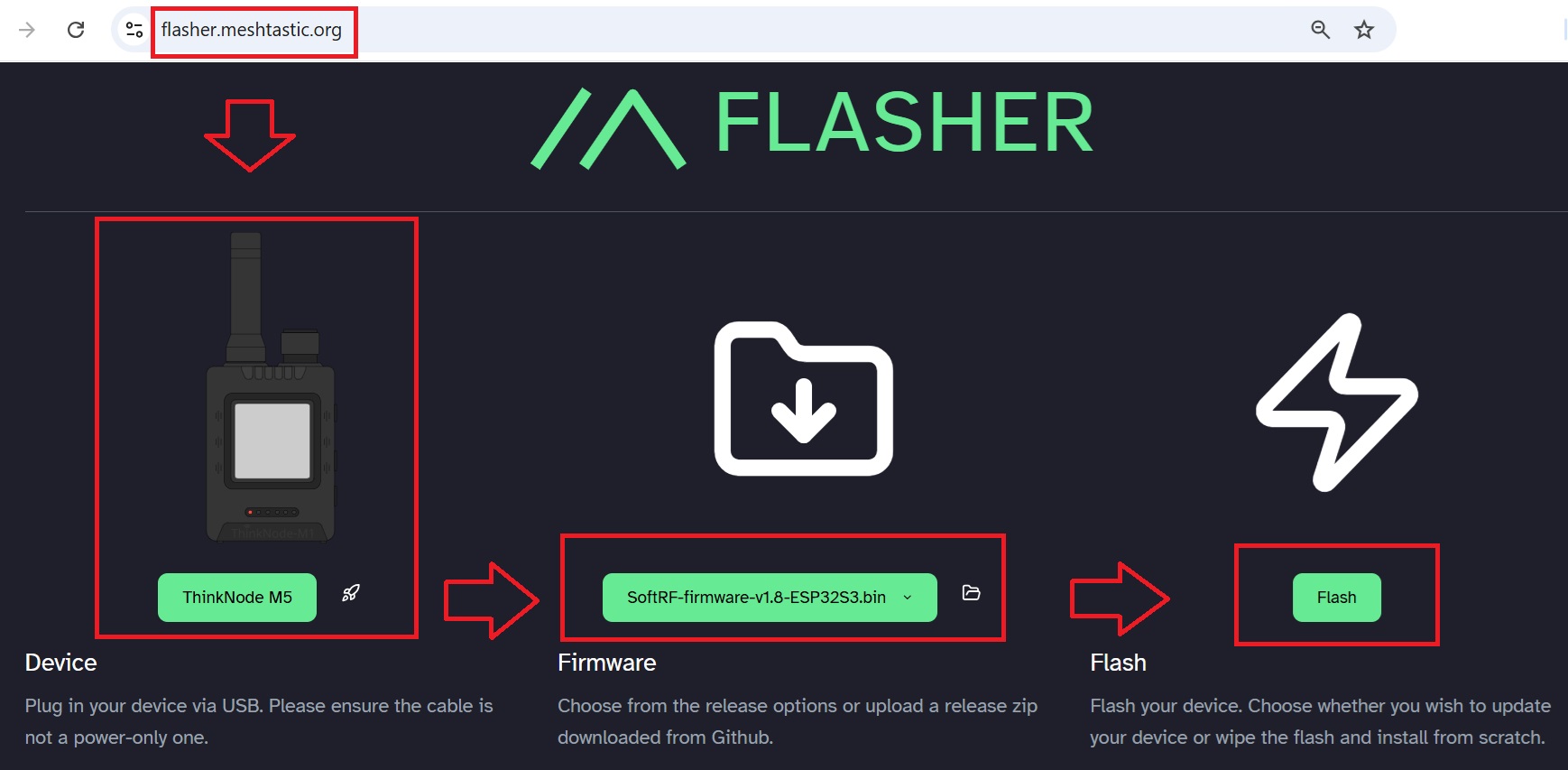
- Complete the firmware installation procedure ;
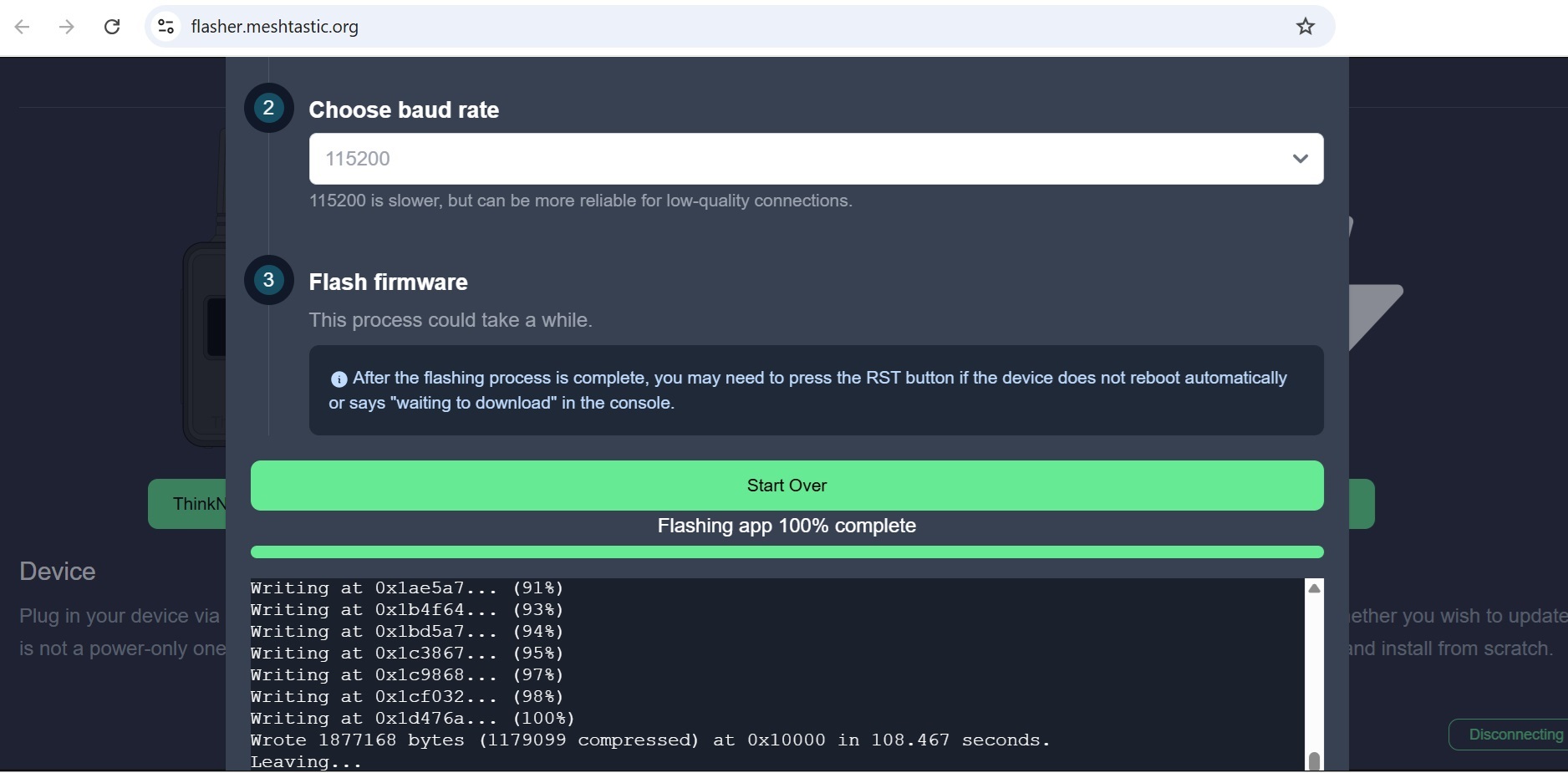
-
Move your Airventure into an area of good GPS/GLONASS/BeiDou/Galileo reception, turn on and leave nearby ;
-
Connect your Tablet/Cellphone to SoftRF Wi-Fi Access Point.
SSID: SoftRF-XXXXXX
Key: 12345678 -
Use a browser and proceed to this URL: http://192.168.1.1 ;
-
A page like this should come up:
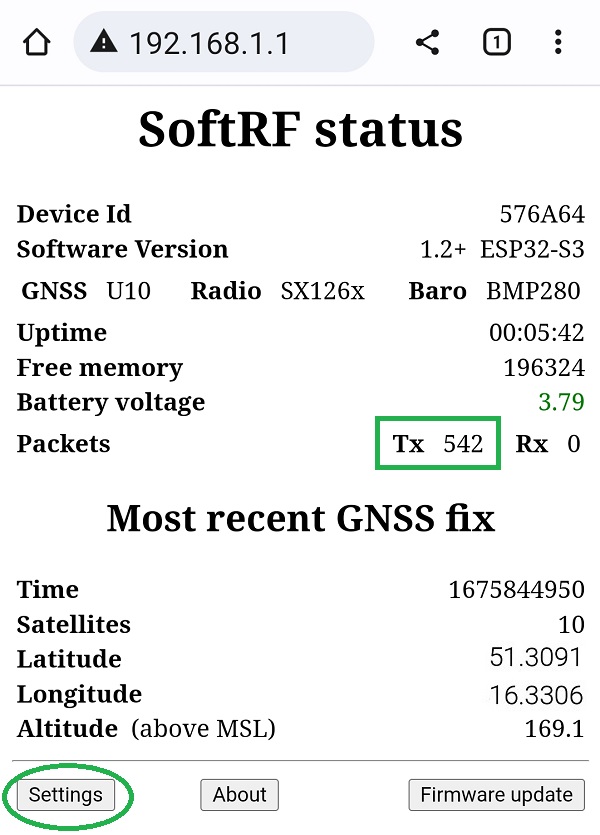
Access to Basic (radio) settings is provided over either Wi-Fi ( WebUI ) or Bluetooth.
Description of Web UI settings is located here.
Important
Access to Airventure e-Paper UI settings is currently provided over Bluetooth or Serial interfaces only.
Make sure that Bluetooth feature is enabled in your device settings.
Please, use SoftRF Tool  or SoftRF Configurator apps to alter the e-Paper UI settings.


e-Paper UI settings description is located there.
If you are an application developer and you think about to add the Airventure configuration menu into your software, please, use:
- C/C++ header file and
- example of usage (in SkyWatch)
The knob has two features:
- it connects or disconnects battery terminal(s) to turn the device
OnorOff - it helps to adjust brightness of e-Paper display backlight
Important
When you've turned the device Off by the knob and then turn it On afterwards, please, be aware that:
-
Real Time Clock(RTC) data will be cleared. UTC time will remain unset until very first positive GNSS fix
- expect to wait an extended time (also known as cold start time) to get very first GNSS fix

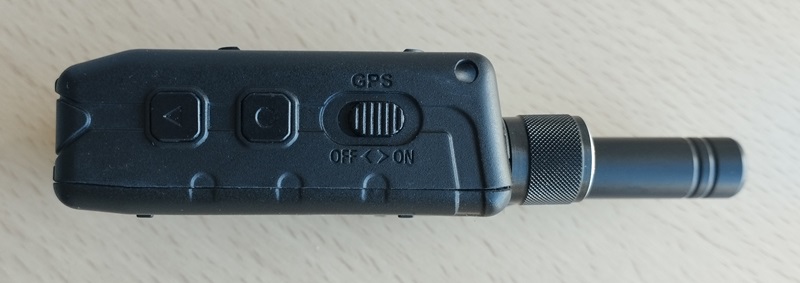
When unit is in Sleep:
- press and release Function button to turn the unit On.
When unit is On:
- press and release Function button to cycle between display view modes, or
- press and keep holding Function button for 2-3 seconds to put the unit into Sleep.
-
Radar view - cycle between zoom levels
-
Text view - cycle between aircraft info pages
Press and release reset button one time to restart the SoftRF unit
The switch controls power supply for built-in GNSS receiver component.
Warning
SoftRF firmware will not operate properly when the GNSS feature is turned OFF.
Please, make sure that the switch is in ON position all the time.
When unit is On:
- steady red LED indicates unit power on status ;
- flashing red LED indicates low battery charge level.
When unit is Off:
- red LED indicates charging status.
The buzzer makes a four-tone sound at boot time to indicate completion of initialization sequence.
It plays a short melody at very first GNSS fix. A positive GNSS fix is required to start transmitting of radio packets and to decode received ones properly.
When air traffic situation needs attention from a pilot - the Airventure makes one tone beep.
Current consumption from 3.7 Volt battery:
| Mode | Average current |
|---|---|
| Active Wi-Fi ON backlight OFF |
150 mA |
| Active Wi-Fi ON backlight FULL |
180 mA |
| Sleep | 0.5 mA |
| Off | 0 mA |
Operating time from a full charge depends on your actual battery capacity.
For e-Paper display care recommendations, please, read this page.
SkyView EZ is a DIY companion device for SoftRF Airventure Edition.


