Nano Edition
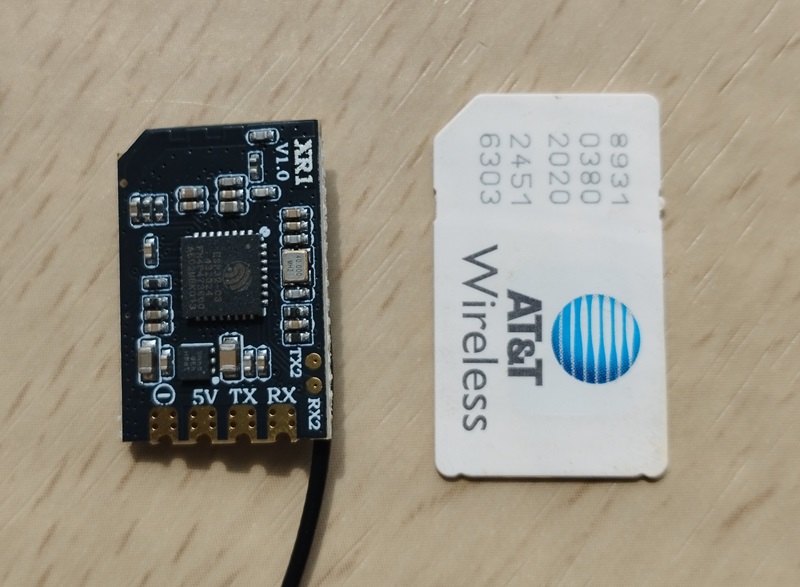
Nano Edition is a successor of SoftRF UAV Edition.
It is supposed to require minimal skills from a builder to begin with and gives an opportunity to evaluate if the SoftRF technology is appropriate for your needs.
The Nano is based upon third-party's hardware - RadioMaster® XR1 product, which is available for direct purchase from manufacturer at more or less reasonable price (10+ USD).


The RadioMaster® XR1 is an example of cutting edge technology. It contains:
- Espressif ESP32-C3 SoC ;
- 4 MBytes of internal flash memory ;
- Semtech LR1121
 Long Range Low Power RF Transceiver
| Type | Protocol | FLARM | OGN tracker | PilotAware | Skytraxx | SoftRF |
|---|---|---|---|---|---|---|
| Radio | FLARM AIR V7 |
|
|
|
||
OGNTP |
|
|
||||
P3I |
|
|
||||
FANET+ |
|
|
||||
SRD 860 |
|
|
||||
| Data | MAVLINK |
|
|
|


1 - it is necessary for a reader to feel the difference between statement "compatible"
and statement "fully compatible".
SoftRF implements only a reasonable minimum of the protocols specs.
No "bells and whistles" so far.
This is a picture of UAV and Nano Editions, side by side.
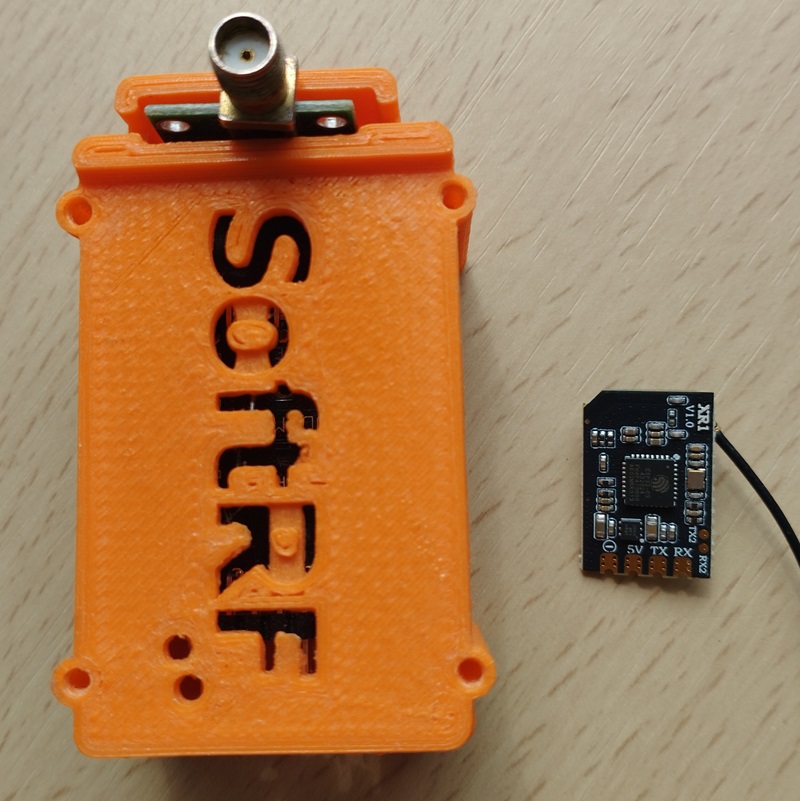
| Edition | UAV | Nano
|
|---|---|---|
| First appearance | 2017 | 2025 |
| Manufacturer | you | RadioMaster |
| SoC | Espressif ESP8266 or ESP32 |
Espressif ESP32-C3 |
| Flash memory | 2 MB (ESP8266) or 4 MB (ESP32) |
4 MB |
| sub-1GHz radio | Nordic nRF905 or Semtech SX1276 |
Semtech LR1121
|
| sub-1GHz antenna | external, SMA | external, IPEX-1 ( U.FL ) |
| LED | 1 pc. single color | 1 pc. RGB |
| Buttons | 2 pcs. (RST, USER) | 1 pc. (BOOT) |
SoftRF firmware for Nano Edition is distributed in the hope that it will be useful, but WITHOUT ANY WARRANTY; without even the implied warranty of MERCHANTABILITY or FITNESS FOR A PARTICULAR PURPOSE.
In general a lot of Chinese DIY electronics manufacturers are known to behave this way:
- sometimes they may not apply necessary Q.C. before releasing of a product from factory ;
- they may arbitrary change schematics and electronic components from one batch to the next one.
Author of SoftRF firmware:
- will reject any hardware related claims associated with RadioMaster® XR1 product. Ask for support from seller or manufacturer ;
- reserves the right to suspend or terminate support of RadioMaster® XR1 in the firmware at any time.
For the time being ( June'25 ) there were no critical hardware issues reported for current version of the XR1 product. However things my change over the time...
If you have issues with bringing up your new RadioMaster® XR1 or just not happy with the board - be prepared to execute your Purchase Protection plan.
| Number | Part | Qty | Picture | Source |
|---|---|---|---|---|
| 1 | RadioMaster® XR1 |
1 | 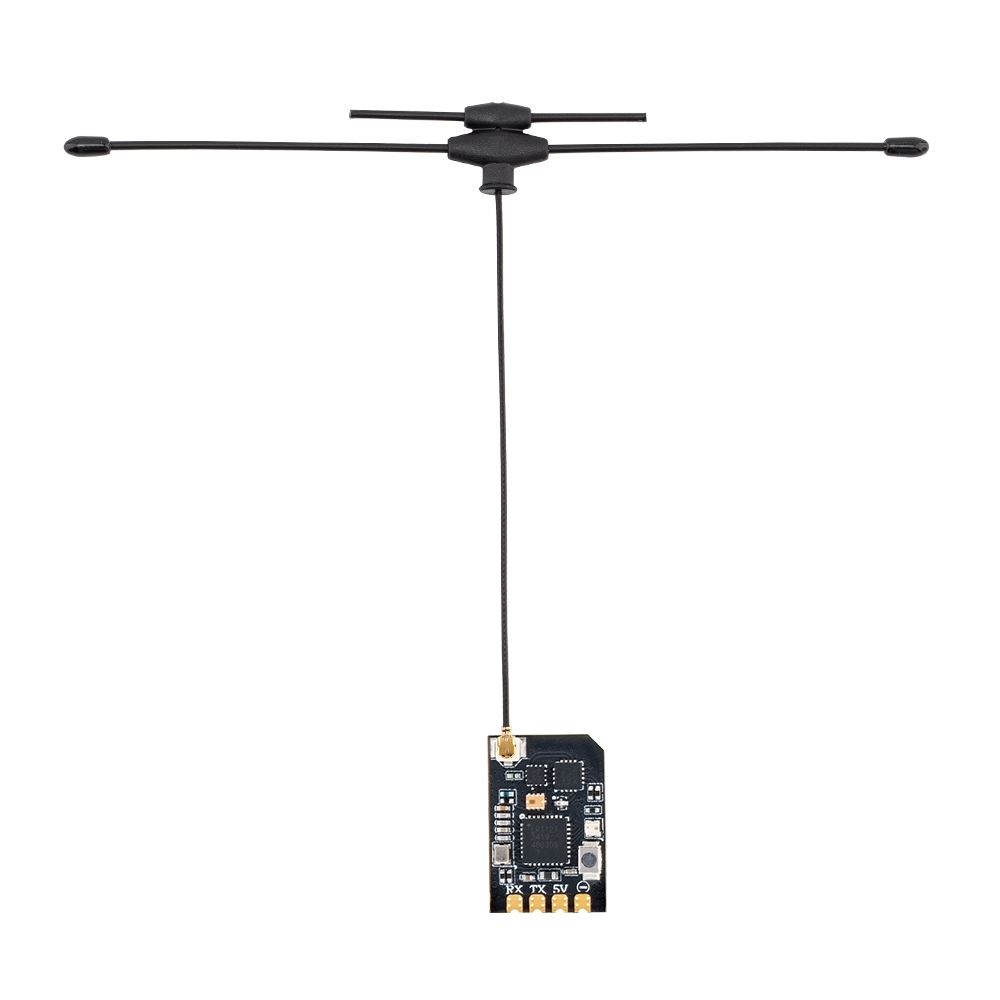 |
AliExpress 1 2 RadioMaster Store Banggood |
The clip and adapter are not required for daily use but can make sense for firmware recovery & troubleshooting.
| Number | Part | Qty | Picture | Source |
|---|---|---|---|---|
| 2 | Test Stand PCB Clip 2.54mm Spacing | 1 | 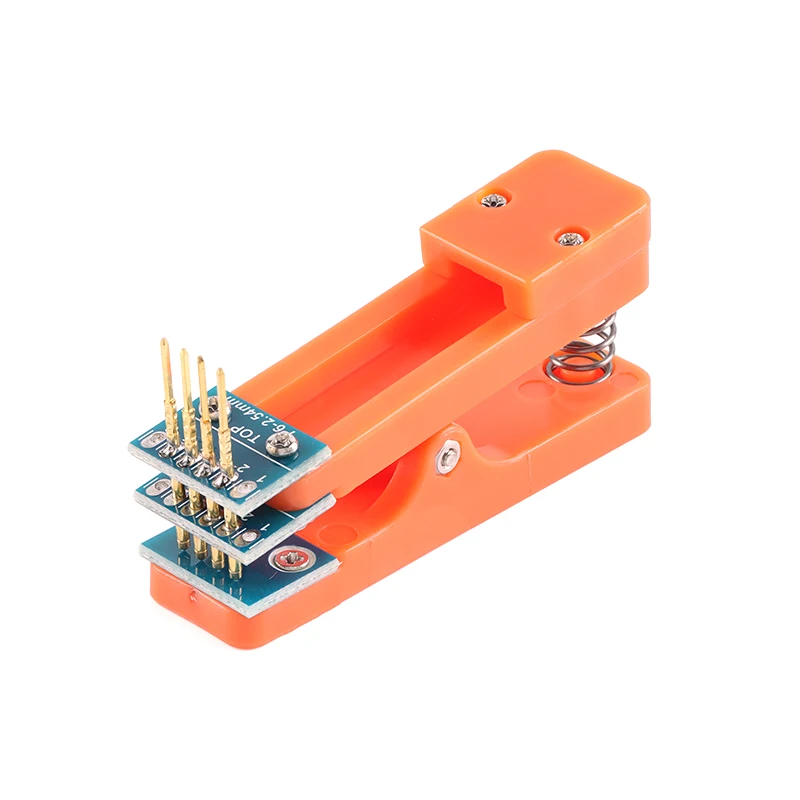 |
AliExpress |
| 3 | CP2102 USB 2.0 to TTL UART serial converter | 1 |  |
AliExpress |
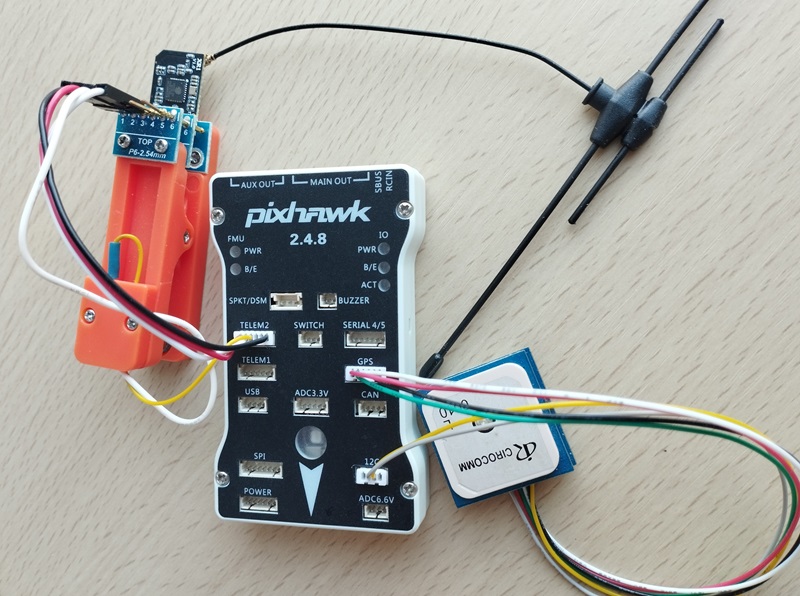
| Data protocol | Baud rate |
|---|---|
| MAVLink 1.0 | 57600 |
- Download an appropriate version of SoftRF firmware from this location and unzip the archive ;
-
RadioMaster® XR1 comes with pre-installed ExpressLRS firmware.
One can use ExpressLRS WebUI to make a backup and install SoftRF firmware afterwards.
Apply SoftRF.ino.bin firmware file taken from the ZIP above ;
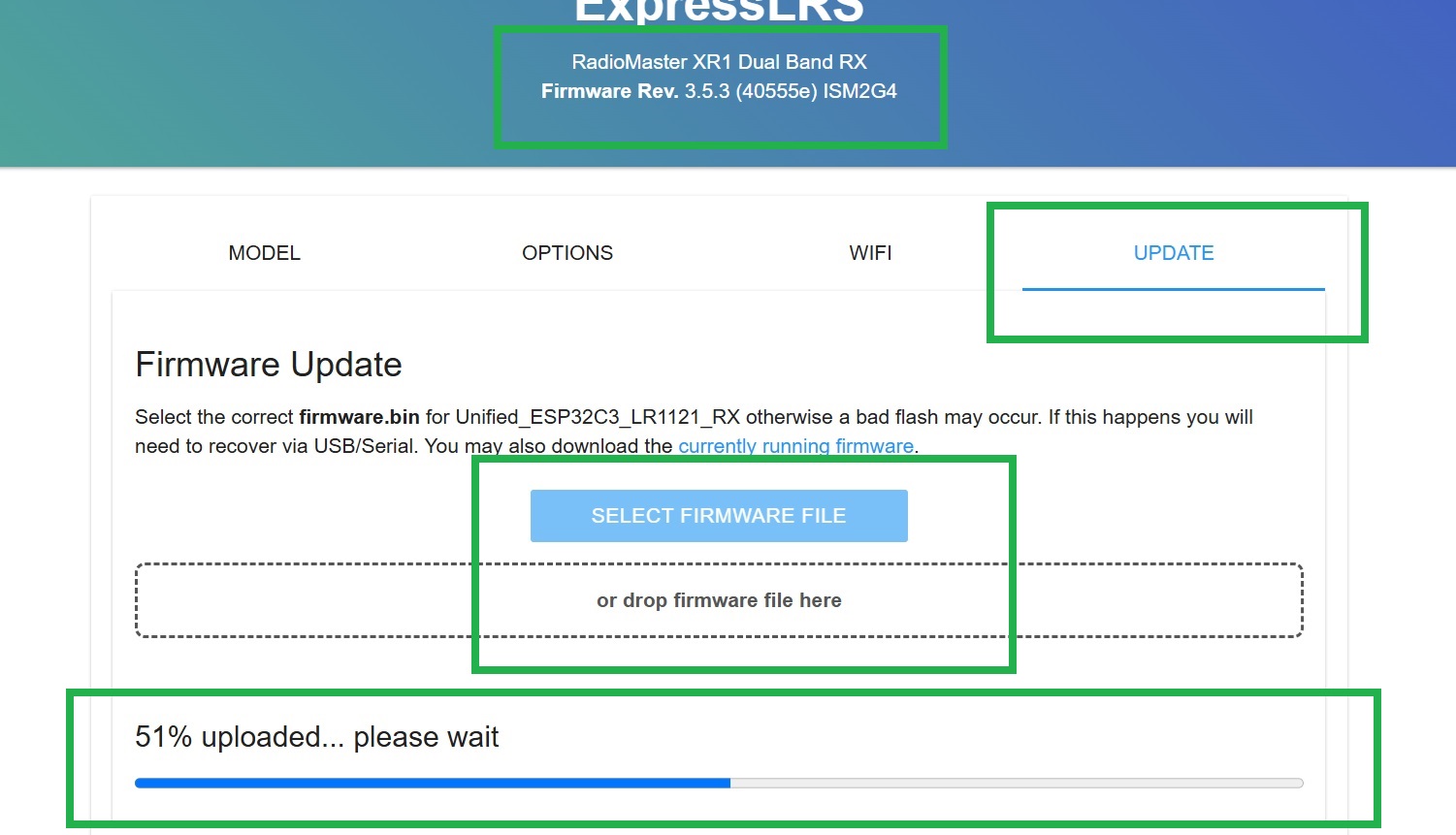
Warning
Recent releases of ExpressLRS firmware ( V3.6.0+ ) may silently install a specific "drone" code into internal firmware of LR1121 radio at first boot time.
In order to get the device working with SoftRF - one needs to install the V3.5.x ELRS firmware first then rollback the LR1121 internal firmware as explained in these Release Notes.

This is an example of a good looking LR1121 firmware in the factory default state

-
Move your Nano and autopilot into an area of good GPS/GLONASS/BeiDou/Galileo reception, turn on and leave nearby.
-
Connect your Tablet/Cellphone to SoftRF Wi-Fi Access Point.
SSID: SoftRF-XXXXXX
Key: 12345678 -
Open up a browser then proceed to this URL: http://192.168.1.1
This is an example of a good looking SoftRF Nano Edition WebUI status page:
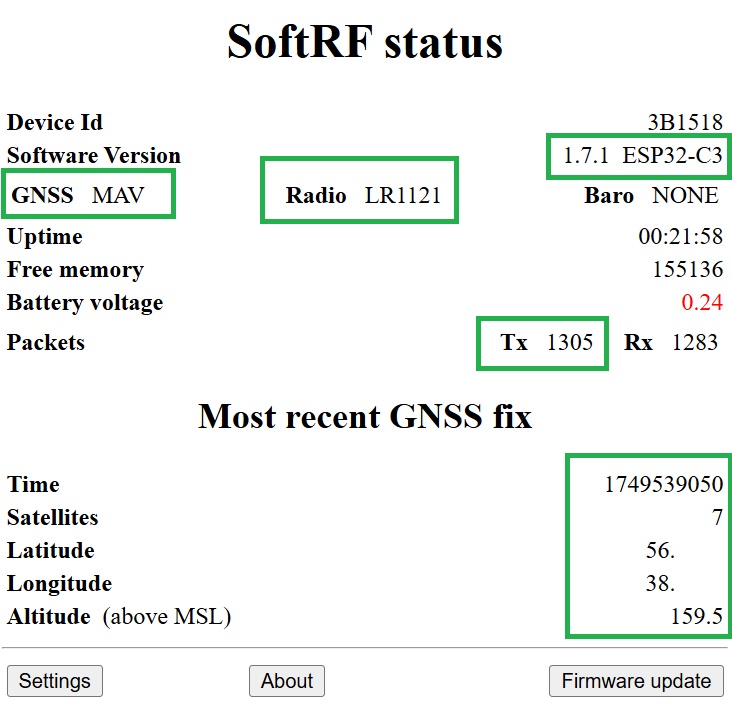
Important
In order to succeed, your autopilot (AP) has to be configured in Mission Planner as explained on this page:
http://ardupilot.org/copter/docs/common-ads-b-receiver.html#setup-through-the-ground-station
MAVLINK_MSG_ID_HEARTBEAT
MAVLINK_MSG_ID_SYSTEM_TIME - accurate GNSS time for Air V7 / ADS-L / OGNTP frequency hopping
MAVLINK_MSG_ID_GPS_RAW_INT - own aircraft position
MAVLINK_MSG_ID_SYS_STATUS - AP battery charge level
MAVLINK_MSG_ID_VFR_HUD - barometric altitude
MAVLINK_MSG_ID_ATTITUDE - pitch, roll, yaw
MAVLINK_MSG_ID_ADSB_VEHICLE - traffic from other connected ADS-B receivers (if any)
MAVLINK_MSG_ID_ADSB_VEHICLE - air traffic received by SoftRF sub-1GHz radio
request for MAV_DATA_STREAM_EXTENDED_STATUS
request for MAV_DATA_STREAM_EXTRA3
- When a signal is received from local air traffic, a corresponding icon is displayed in the Mission Planner:
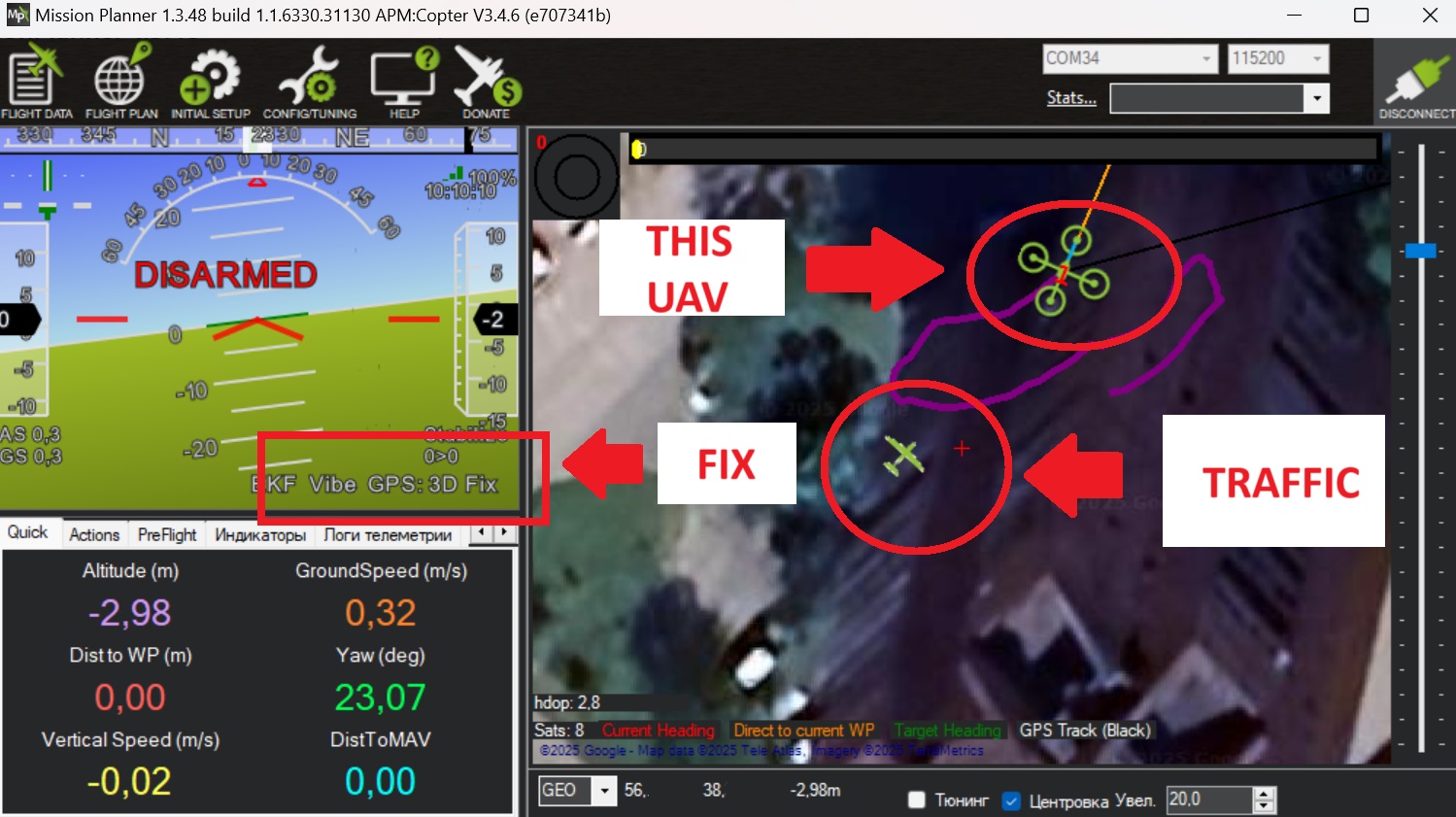
Description of Web UI settings is located here.
| Mode | Radio protocol | Aircraft type |
|---|---|---|
| UAV |
EASA ADS-L
|
UAV |
Important
Default radio protocol setting for the Nano Edition is ADS-L.
However, most of other SoftRF devices use OGNTP protocol as the default one.
Devices can "see" each other when they operate on the same radio protocol only !
RGB LED gets lit with steady green color to indicate device power on status.
When unit is Off:
- press, keep holding, supply power, then release the button to enter into
Espressif Service Mode.
When unit is On:
- any button press has no effect.

