RRduino: Backup and Restore a node
Like all good practices, you should always back up your work. The same can be done for the configuration on each node.
- If you have a node that has a hardware failure and need to replace it.
- Load a previous configuration that worked better.
Change to the config tool directory
cd RR-duino/jmri-RR-duino
python3 ./pico-rr-duino-setup.py
Before we back up, always remember to load any previous setup from the node into the tool.
- Enter your Serial connection details and Connect.
- Enter the Address for the node.
- Tab to 'Check device' and press Enter. The Status field should return OK.
- Tab to 'Load EEPROM' and press Enter to get the latest settings.
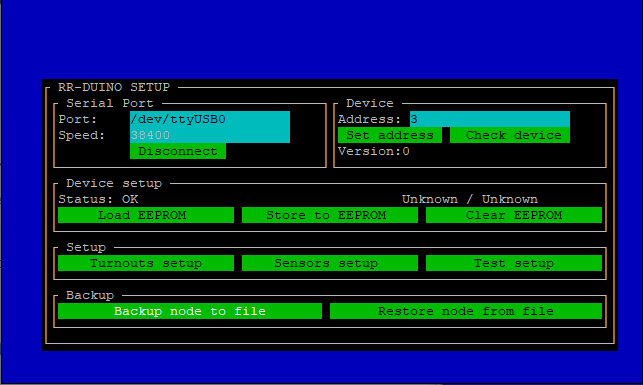
Tab down to the 'Backup node to file' button and press Enter to go to the backup screen.
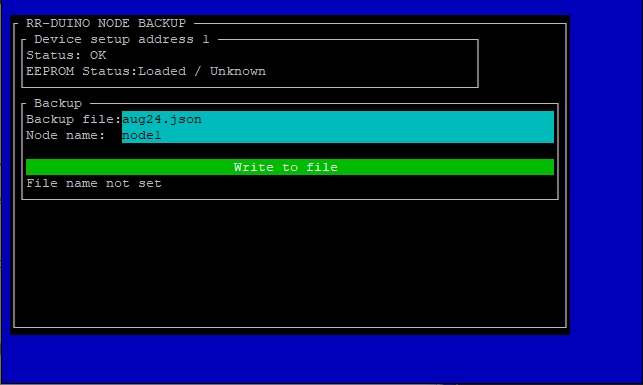
In the backup screen, enter the following information in the fields.
- 'Backup file': The name of the file to save the configuration into. NOTE: you can save multiple nodes into the same file, just choose the same file name when backing up each node. Just remember to load each new node from EEPROM before backup.
- 'Node name': A unique name for the node in this backup file.
Once entered, tab to the 'Write to File' and press Enter to save the node's configuration to that file.
Change to the config tool directory
cd RR-duino/jmri-RR-duino
python3 ./pico-rr-duino-setup.py
Before we restore, ensure you can connect to node.
- Enter your Serial connection details and Connect.
- Enter the Address of the node you will restore to.
- Tab to 'Check device' and press Enter. The Status field should return OK.
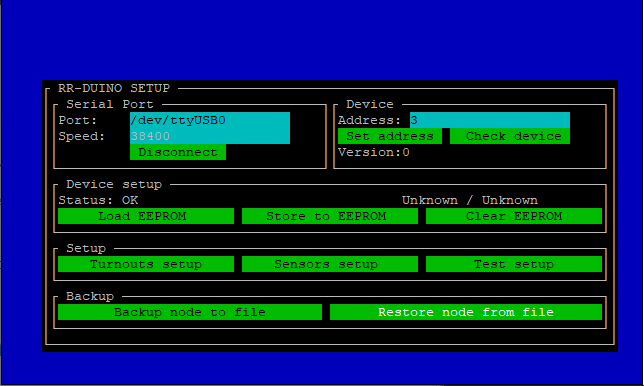
Tab down to the 'Restore node from file' button and press Enter to go to the restore screen.
In the restore screen, enter the following information in the fields.
- 'Restore file': The name of the file your backup is in.
Once entered, tab to the 'Load restore file' and press Enter to load the nodes.
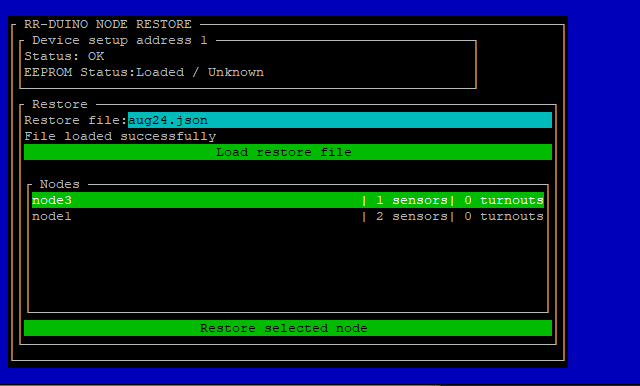
Once the nodes are loaded into the restore tool, a list of nodes should appear. Tab to the node list and hilite the node to restore, then tab to the 'Restore selected node' button and press Enter.
Now that the configuration of the node is loaded into the tool, return back to the main screen by pressing ESC key, tab to the 'Store to EEPROM' button and press the Enter key to save the configuration back into the node that you had selected.