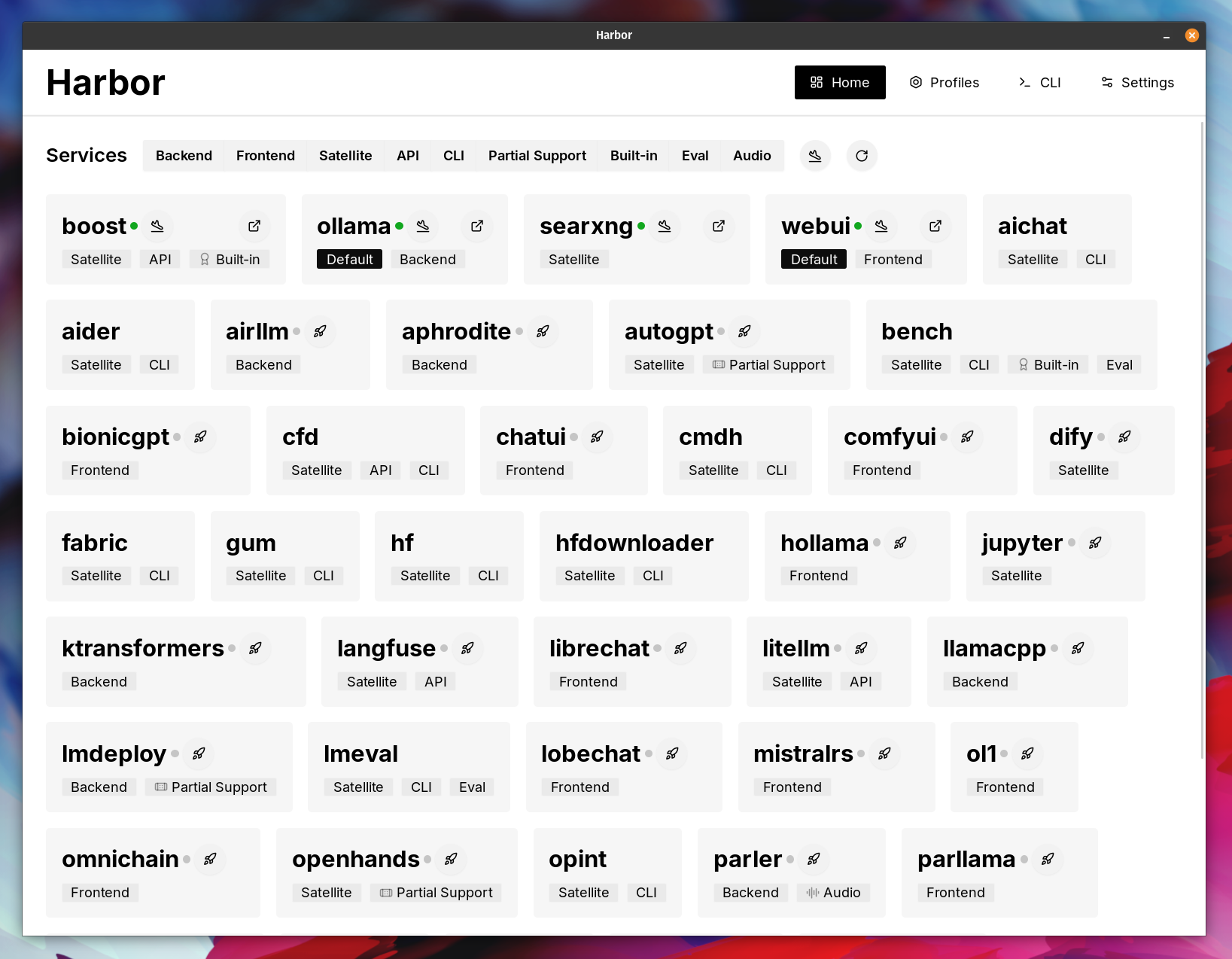
1.1 Harbor App
This is an overview and a manual for the Harbor companion application.

Harbor App is a companion application for Harbor - a toolkit for running AI locally. It's built on top of functionality provided by the harbor CLI and is intended to complement it.
The app provides clean and tasteful UI to aid with workflows associated with running a local AI stack.
- 🚀 Manage Harbor stack and individual services
- 🔗 Quickly access UI/API of a running service
- ⚙️ Manage and switch between different configurations
- 🎨 Aestetically pleasing UI with plenty of built-in themes
2024-09-29.17-22-06.mp4
In the demo, Harbor App is used to launch a default stack with Ollama and Open WebUI services. Later, SearXNG is also started, and WebUI can connect to it for the Web RAG right out of the box. After that, Harbor Boost is also started and connected to the WebUI automatically to induce more creative outputs. As a final step, Harbor config is adjusted in the App for the klmbr module in the Harbor Boost, which makes the output unparsable for the LLM (yet still undetstandable for humans).
Home Screen
See available services, start and stop Harbor stack or individual services. Find services matching specific tags.
Based on:
harbor ls
harbor ls -a
harbor defaults
harbor open <service handle>
harbor url <service handle>
Profiles screen
Create and manage configuration profiles, switch between them. Edit individual configuration entries, access underlying .env files and more.
Based on:
harbor profiles ls
harbor profiles add <name>
harbor profiles use <name>
harbor profiles rm <name>
harbor config update
Settings
Manage application theme and autostart.
CLI screen
Shows the detected Harbor CLI version, runs harbor doctor, and offers Reinstall to rerun the guided setup installer.
Harbor App blocks the main UI until the Harbor CLI is installed and reachable. On first launch (or when harbor is missing), you see a setup screen with live installer output, a Redetect action to re-run detection, and Install Harbor (or Retry after a failure or cancel).
The app does not reimplement Harbor's installers. It runs the same official entrypoints as the CLI install guide:
| Platform | Installer invoked by the app |
|---|---|
| Linux, macOS | install.sh |
| Windows |
install.ps1 (WSL2 + Docker Desktop, then install.sh inside the selected WSL2 distro) |
Linux and macOS
-
Prerequisites —
requirements.shinstalls or verifies Git, curl, Docker Engine, and Docker Compose v2 (2.23.1+). On macOS it may install Homebrew and start Docker Desktop when needed. On Linux it uses your distro package manager (apt, dnf, pacman, or apk). -
Harbor CLI — clones or updates Harbor under
~/.harbor, runs./harbor.sh ln, and linksharborinto~/.local/bin. -
Verification — runs
harbor --versionandharbor doctor --check(fails only on critical issues).
Windows
-
WSL2 — ensures WSL is available; may run
wsl --installorwsl --install -d Ubuntuwhen no suitable distro exists. Supported distros (auto-detected in preference order): Ubuntu, Debian, Fedora, openSUSE, Kali, Arch. WSL1 distros are rejected with guidance to upgrade. -
Docker Desktop — installs (winget or official installer) and starts Docker Desktop when missing; waits until
dockerworks inside the selected WSL2 distro with WSL integration enabled. When Docker Desktop is already providing Docker to WSL, the installer skips installing Docker packages to avoid conflicts. -
Harbor CLI in WSL — runs
install.shinside that distro (same prerequisites and CLI steps as Linux). -
Verification — runs
harbor --versionandharbor doctor --checkinside WSL (fails only on critical issues).
The app picks a WSL2 distro automatically (preferring a running instance, checking supported distros in order) and remembers it under %LOCALAPPDATA%\Harbor\setup\wsl-distro. Override with the HARBOR_WSL_DISTRO environment variable before launching the app if you use a non-default distro name.
Install scripts emit HARBOR_SETUP_STAGE=... lines; the app maps them to status labels in the setup UI. Typical progression:
| Stage | Meaning |
|---|---|
checking |
App is detecting platform, whether harbor is reachable, and whether harbor doctor --check passes |
not-installed |
Harbor CLI not found; Install Harbor is available |
checking-platform / installing-prerequisites / checking-prerequisites
|
requirements.sh or Windows host steps (WSL, Docker Desktop) |
installing-cli |
Cloning or updating Harbor and linking the CLI |
verifying-cli |
harbor --version and harbor doctor --check
|
ready |
CLI verified and essential checks pass; main app UI loads |
refresh-required |
CLI is installed but essential checks failed (run harbor doctor in a terminal), the app cannot see harbor yet (restart the app), or a platform step needs a reboot / WSL first-run / Docker Desktop first-run before retrying |
blocked |
Unsupported OS, missing Linux package manager, WSL/Docker not usable, or harbor doctor reports Docker unreachable |
failed / cancelled
|
Install error or user cancel; use Retry |
After setup reaches Ready, start services from the Home screen (for example harbor up / harbor defaults from the UI). The guided installer does not automatically start Open WebUI or download models; use the app or CLI for your stack once the CLI is ready.
-
Installer input — While setup is running, type passwords or other prompts into the installer input field and press Send. The app attaches a PTY so
sudo, package managers, and similar prompts work like a terminal. - Cancel — Stops the running install process. Partial installs may remain on disk; use Retry after fixing the blocker.
-
PATH not updated — If Harbor was just linked but the app still cannot find
harbor, quit and relaunch Harbor App (status Environment issue). -
Docker not running — Start Docker Desktop or the Docker daemon, then Retry setup or run
harbor doctorfrom the CLI screen after the app loads. - Manual install — You can still install Harbor outside the app (Installation Guide), then press Redetect on the setup screen.
Equivalent CLI-only install:
# Linux / macOS / WSL
curl -fsSL https://raw.githubusercontent.com/av/harbor/refs/heads/main/install.sh | bash
harbor doctor
# Windows host (installs into WSL)
iwr -UseBasicParsing https://raw.githubusercontent.com/av/harbor/refs/heads/main/install.ps1 | iexPlease refer to the Installation Guide.