Authentication Oracle Wallet
Note: This feature is available in Enterprise, AWS, and Team editions only.
CloudBeaver includes support for Oracle Wallet authentication, enabling secure connections to your databases.
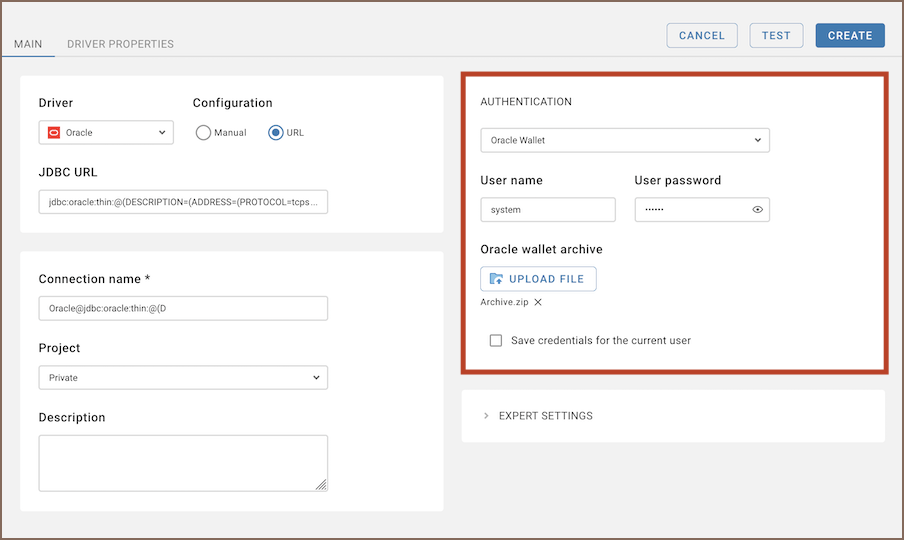
Here are the steps to configure Oracle Wallet authentication:
-
From the Authentication dropdown menu, select the Oracle Wallet method.
-
Create an Oracle wallet if you do not already have one. For more information, see the official Oracle documentation: Oracle Wallet Configuration Guide.
Tip: For CloudBeaver, the Oracle Wallet files must be provided as a zip archive.
-
Enter the username and password that are associated with your database in the User name and User password fields respectively.
Tip: If you check the Save credentials for the current user option, you will not be asked to input your credentials every time you connect. For more details on connection settings, see Create Connection.
-
Once you have input your credentials, click the Test button to verify your settings. If everything is configured correctly, CloudBeaver should now be able to connect to your database using the Oracle Wallet authentication method.
- Getting started
- Create connection
- Connection network options
- Supported databases
-
Drivers management

- Database authentication methods
- Database navigator
- Properties editor
- Data editor
- SQL editor
-
Entity relation diagrams
- Cloud services
-
AI Smart assistance
- Data transfer
- General user guide
- Administration
- Server configuration
-
Server security and access configuration
- Authentication methods
- Access management
- Proxy configuration
-
Secret management
- Logs
-
Query manager
- Workspace location
- Command line parameters
-
Session manager
- Deployment options
- CloudBeaver Editions
- FAQ
- Development