Cloud Explorer
Note: This feature is available in Enterprise, AWS, and Team editions only.
Cloud Explorer offers deep integration with popular cloud service providers. As of the latest version, it supports Amazon Web Services (AWS), Google Cloud Platform (GCP), and Microsoft Entra ID (Azure).
With Cloud Explorer, you can set up your cloud access once and then browse, connect, and manage your cloud databases. It saves you from manually configuring each database connection, as it reads all database endpoint information directly from the cloud provider.
Authentication is centralized. You can use your cloud account to access your cloud databases. Before you start using Cloud Explorer, you need to set up your identity provider access. This setup includes access credentials, availability zones for database search, and other cloud-specific settings.
Tip: Use Cloud Storage to manage files and work with
.sqlscripts in your cloud provider.
The Cloud Explorer allows you to connect with and manage various databases:
| Providers | Databases |
|---|---|
| Amazon Web Services | PostgreSQL |
| MySQL | |
| Oracle | |
| Amazon Redshift | |
| Amazon Athena | |
| Amazon DocumentDB | |
| Amazon DynamoDB | |
| Amazon Keyspaces | |
| Amazon ElastiCache (Redis) | |
| Amazon Timestream | |
| Amazon Neptune | |
| Google Cloud Platform | AlloyDB for PostgreSQL |
| Microsoft SQL Server | |
| PostgreSQL | |
| MySQL | |
| Spanner | |
| Firestore | |
| BigQuery | |
| Bigtable | |
| Microsoft Entra ID (Azure) | Microsoft SQL Server |
| PostgreSQL | |
| MySQL | |
| Azure Cosmos DB for MongoDB | |
| Azure Cosmos DB for Cassandra | |
| Azure Cosmos DB for NoSQL |
- As an administrator, go to Settings -> Administration -> Server Configuration.
- In the Configuration section, enable the relevant cloud service provider.
- Save the changes.
Each cloud service provider requires specific settings for the identity provider. Below is a table outlining the basic guides on configuring these settings.
| Provider | Additional article |
|---|---|
| AWS | AWS Settings. |
| GCP | Google setup. |
| Azure | Microsoft Entra ID setup |
Once you have configured your identity provider, open the Cloud Explorer window to add database connections to your Database Navigator.
-
Navigate to Connection -> Cloud Explorer.
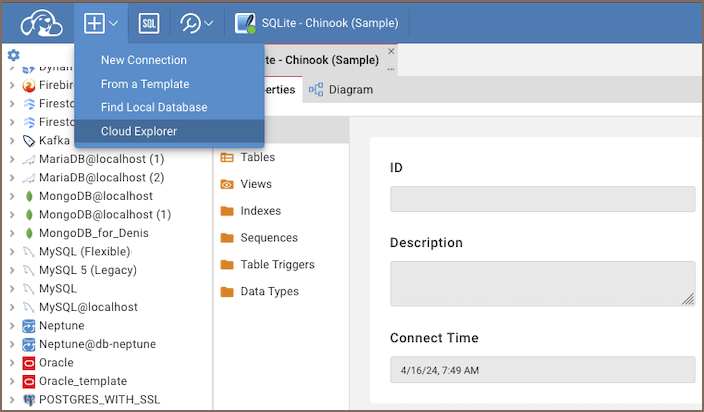
-
In the center of the dialog, you will see cloud databases displayed in a hierarchical view. All databases are grouped by database/service type. When you expand one of the top elements, CloudBeaver will search for cloud databases in the configured availability zones/regions.

-
Select the cloud service provider. Depending on the type of authentication configured, you may need to log in using the appropriate identity provider in the opened window.

-
After authentication, select the database you want to add.
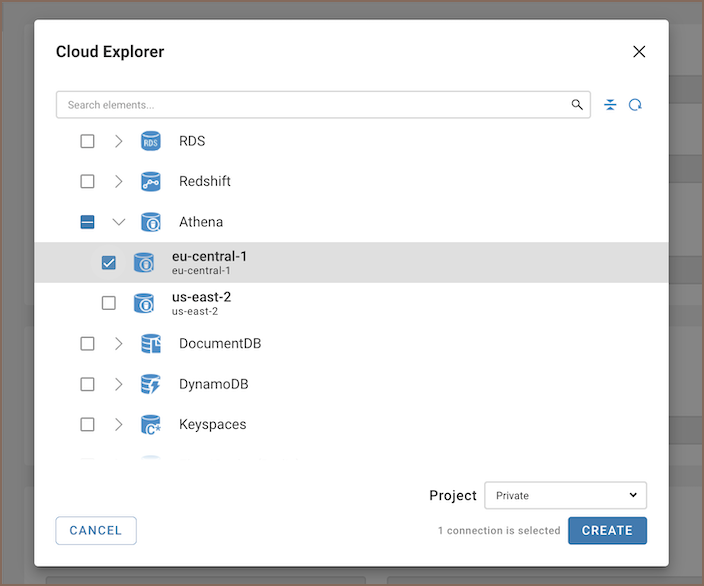
Tip: If you have a large number of databases in your cloud, you can search for them using the search bar located above the Cloud Explorer.
-
Click on the Create button located in the bottom right corner of the Cloud Explorer dialog. Your database will then appear in the Database Navigator.
You can access your cloud database configuration directly from the Database Navigator. To do this, click on the menu button next to the database you are interested in and select Edit Connection. This action opens a special tab in the connection settings dialog. The information displayed in this tab is specific to the cloud and database type of the selected database.
- Getting started
- Create connection
- Connection network options
- Supported databases
-
Drivers management

- Database authentication methods
- Database navigator
- Properties editor
- Data editor
- SQL editor
-
Entity relation diagrams
- Cloud services
-
AI Smart assistance
- Data transfer
- General user guide
- Administration
- Server configuration
-
Server security and access configuration
- Authentication methods
- Access management
- Proxy configuration
-
Secret management
- Logs
-
Query manager
- Workspace location
- Command line parameters
-
Session manager
- Deployment options
- CloudBeaver Editions
- FAQ
- Development