Create Connection
Follow the steps below to establish a new connection from the public part of the app:
-
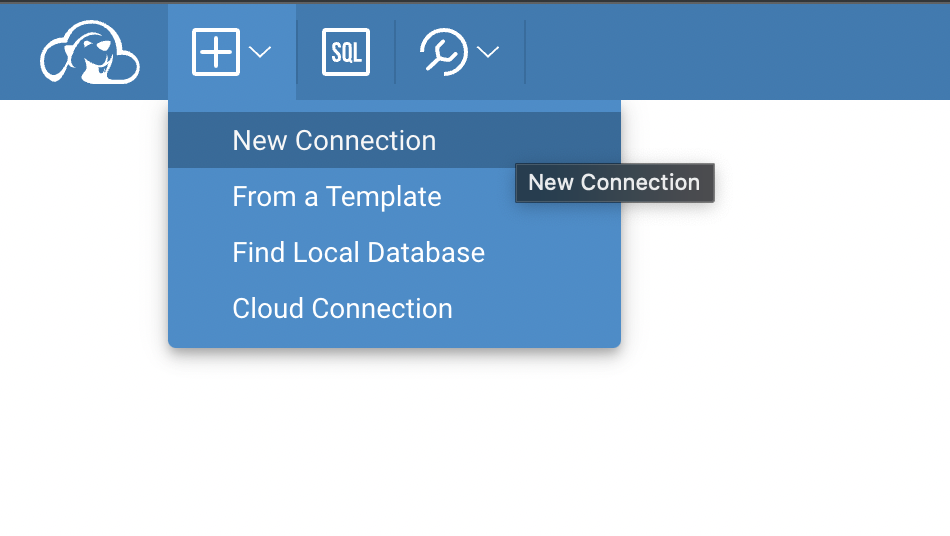
Initiate New Connection:
- Click on the
+button located in the top menu. - Select
New Connectionfrom the dropdown options.
- Click on the
-
Choose a Driver:
- From the available options, select the appropriate driver.
-
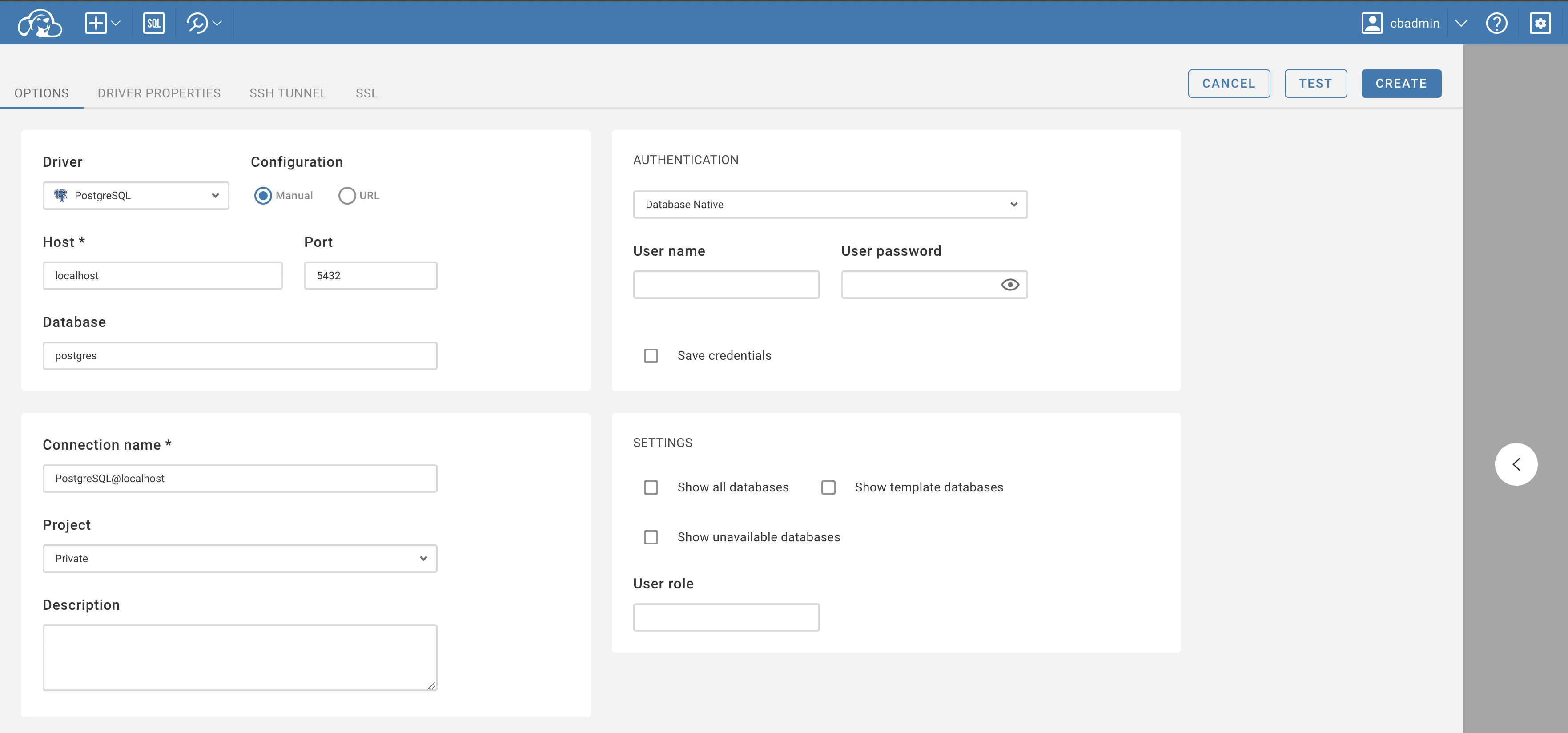
Fill in Connection Details:
- A connection form will be presented.
- Input all necessary details into the form fields.
-
Set Up Advanced Settings (Optional):
- Additional settings such as SSH, SSL, and others can be adjusted.
- Navigate to the relevant tabs located at the top of the connection form to access these settings.
-
Test the Connection (Optional):
- Before finalizing the connection, you have the option to test it.
- Click the
Testbutton to ensure the connection parameters are correct.
-
Finalize and Create the Connection:
- Once all details are in place, click the
Createbutton.
- Once all details are in place, click the
-
Access and Modify Connection:
- The newly created connection will be visible in the connection navigator menu.
- To edit the connection details:
- Click on the context button next to the connection name.
- Select
Edit Connectionfrom the dropdown menu.
By following these steps, users can successfully create and modify connections in the app.
Before proceeding with the creation of a template, ensure that you have the necessary administrative permissions.
- You must have admin permissions to access this feature.
The steps are similar to connection creation; the only difference is that it must be done in the administration part, under the "Connection Templates" tab. You can learn more about creating connection templates here.
- Getting started
- Create connection
- Connection network options
- Supported databases
-
Drivers management

- Database authentication methods
- Database navigator
- Properties editor
- Data editor
- SQL editor
-
Entity relation diagrams
- Cloud services
-
AI Smart assistance
- Data transfer
- General user guide
- Administration
- Server configuration
-
Server security and access configuration
- Authentication methods
- Access management
- Proxy configuration
-
Secret management
- Logs
-
Query manager
- Workspace location
- Command line parameters
-
Session manager
- Deployment options
- CloudBeaver Editions
- FAQ
- Development