SQL Editor
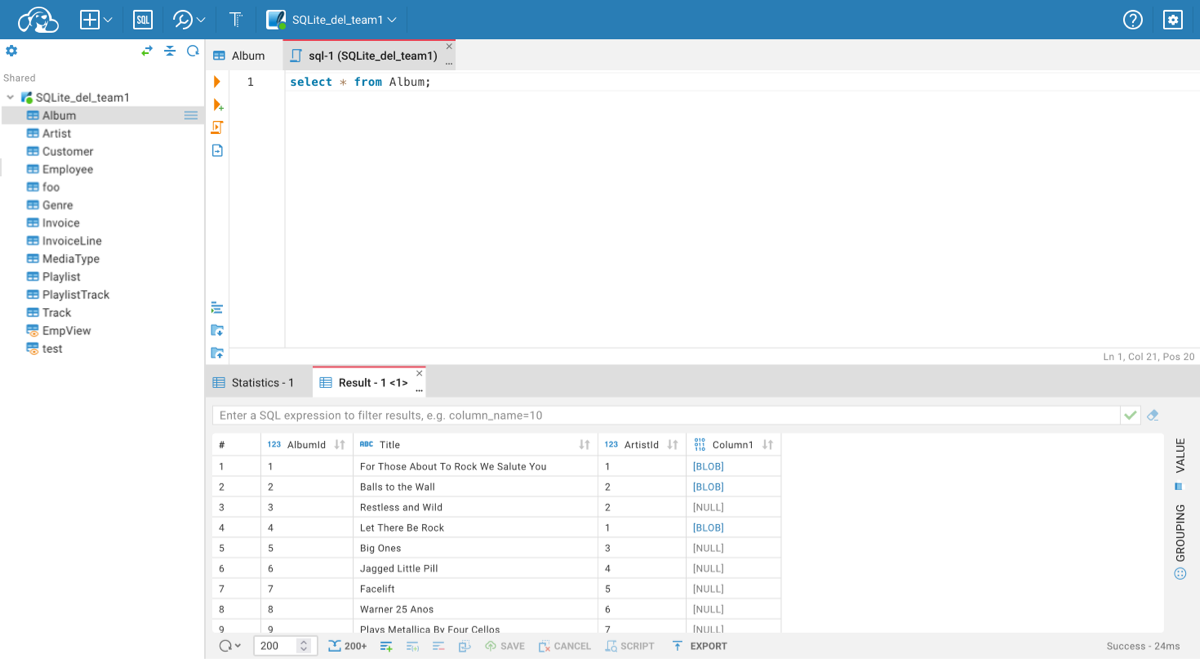
SQL Editor supports autocomplete, syntax highlight, statement execution, script execution and execution plan for some databases.
| Shortcut | Description |
|---|---|
| Ctrl+Enter | Execute SQL statement |
| Ctrl+\ or Ctrl+Shift+Enter | Execute SQL statement in new tab |
| Alt+X | Execute script |
| Shift+Ctrl+E | Show exectution plan |
| Alt+T | Open SQL Editor in separate browser tab |
To execute the statement place cursor on the line with the statement or select part of the script. Press the Run icon in the left toolbar or use the Ctrl+Enter shortcut. The result of the statement execution will be shown under the script editor area. Results will be grouped (Result - 1 (1), Result - 1 (2)) if statement execution is finished with more than one result.


- Getting started
- Create connection
- Connection network options
- Supported databases
-
Drivers management

- Database authentication methods
- Database navigator
- Properties editor
- Data editor
- SQL editor
-
Entity relation diagrams
- Cloud services
-
AI Smart assistance
- Data transfer
- General user guide
- Administration
- Server configuration
-
Server security and access configuration
- Authentication methods
- Access management
- Proxy configuration
-
Secret management
- Logs
-
Query manager
- Workspace location
- Command line parameters
-
Session manager
- Deployment options
- CloudBeaver Editions
- FAQ
- Development