SQL Editor
SQL Editor supports autocomplete, syntax highlight, statement execution, script execution, and execution plan for some databases.
| Shortcut | Description |
|---|---|
| Ctrl+Enter | Execute SQL statement |
| Ctrl+\ or Ctrl+Shift+Enter | Execute SQL statement in new tab |
| Alt+X | Execute script |
| Shift+Ctrl+E | Show exectution plan |
| Alt+T | Open SQL Editor in separate browser tab |
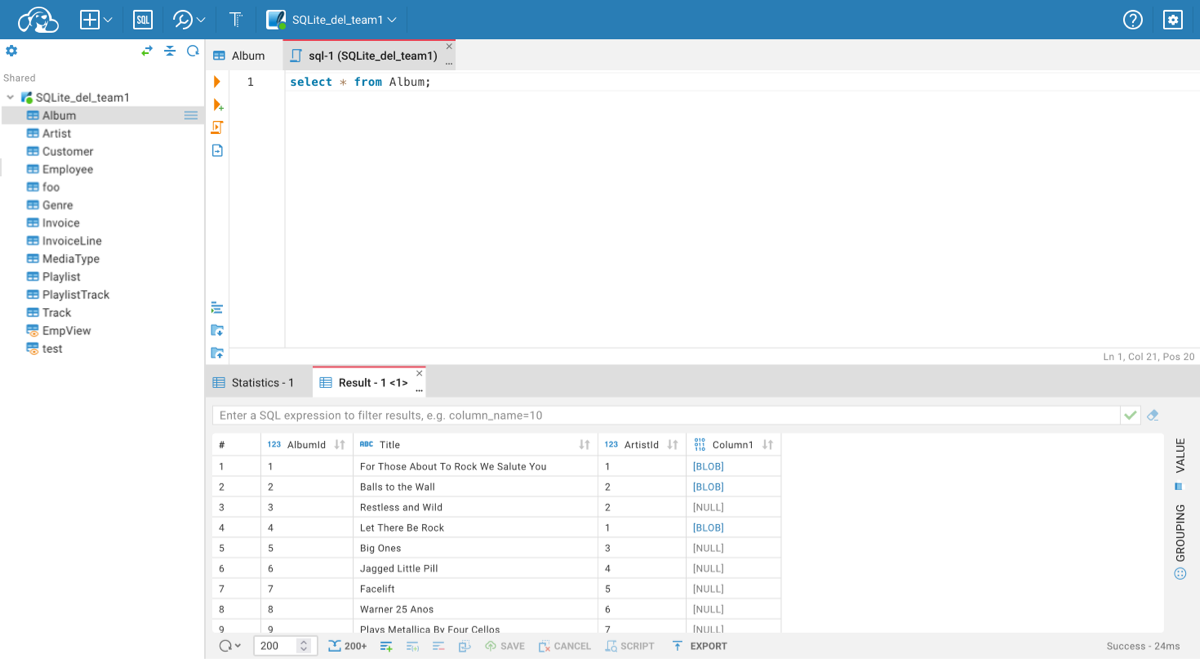
Place the cursor on the line with the statement or select part of the script to execute the statement. Click on the Run icon in the left toolbar or use the Ctrl+Enter shortcut. The result of the statement execution will be shown under the script editor area. Results will be grouped (Result - 1 (1), Result - 1 (2)) if statement execution is finished with more than one result.
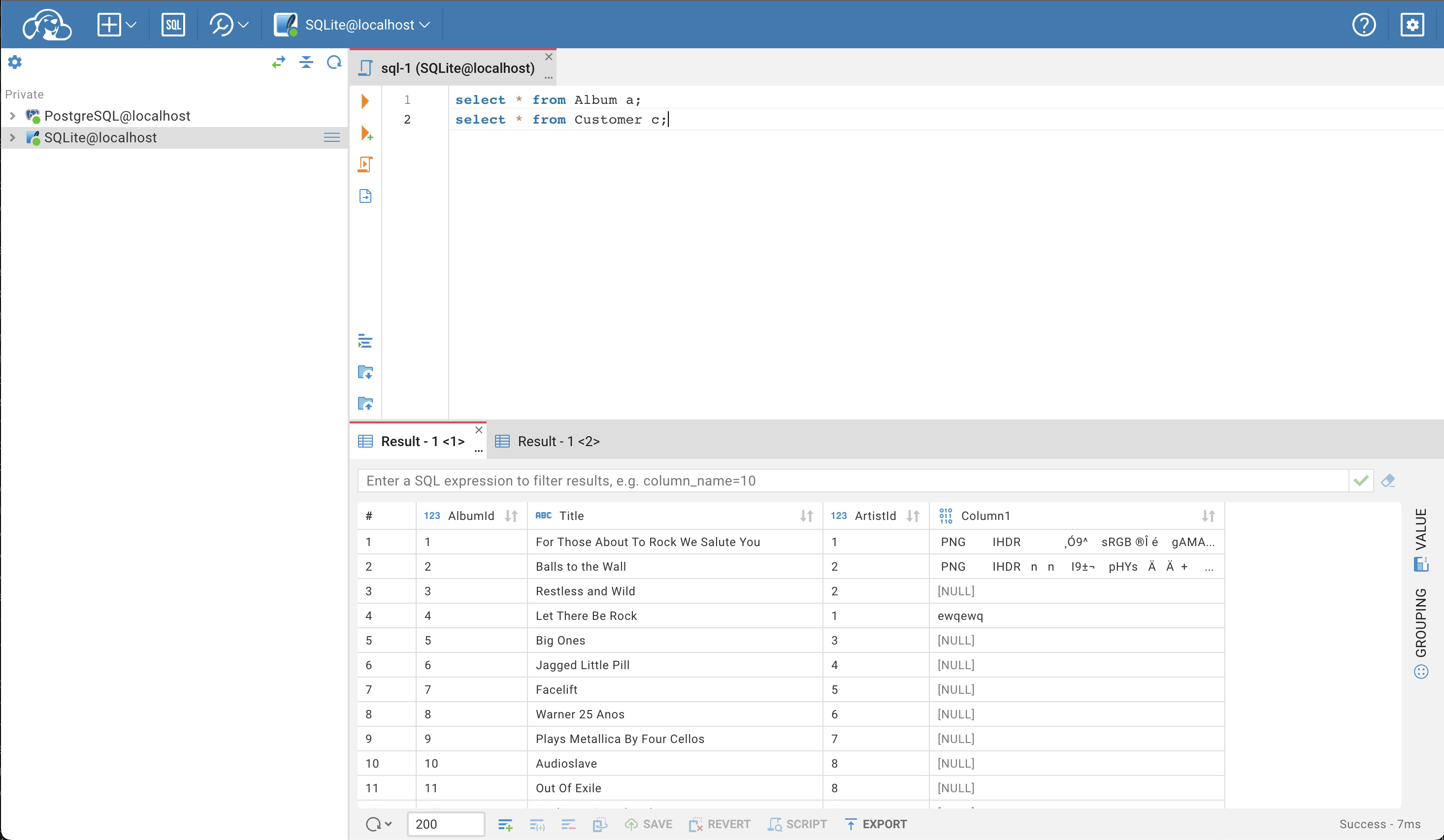
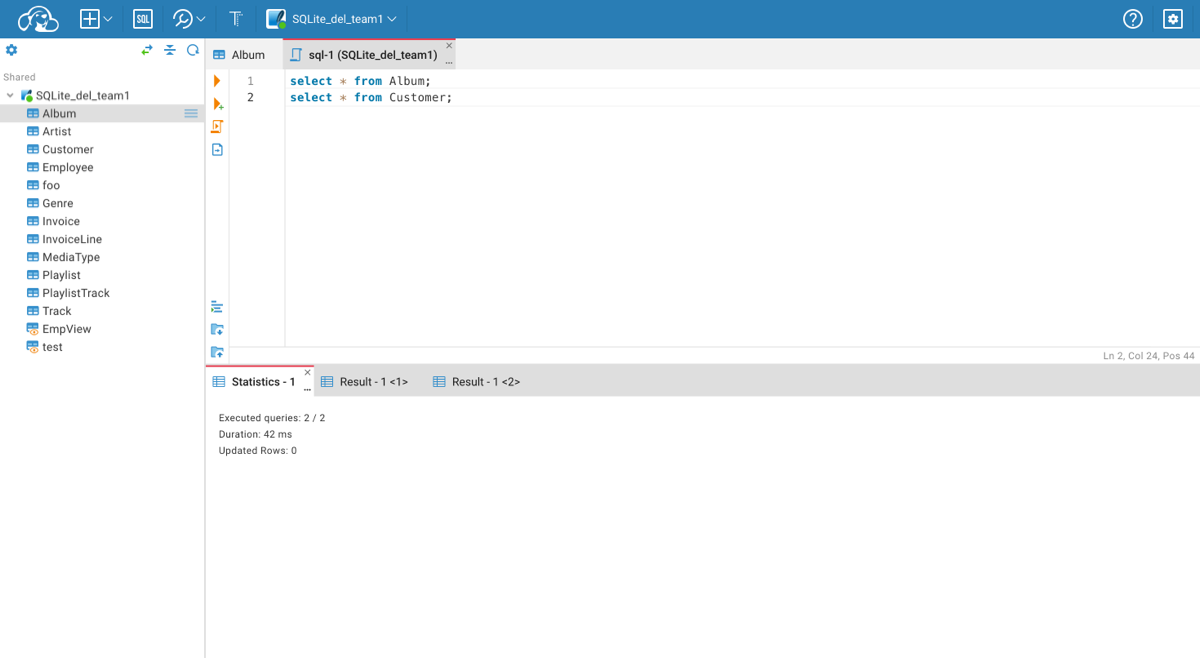
Click on the Script icon in the left toolbar or use the Alt+X shortcut to execute the script. The summary result will be shown in the Statistics tab, and results will be shown in separate Result tabs.
- Getting started
- Create connection
- Connection network options
- Supported databases
-
Drivers management

- Database authentication methods
- Database navigator
- Properties editor
- Data editor
- SQL editor
-
Entity relation diagrams
- Cloud services
-
AI Smart assistance
- Data transfer
- General user guide
- Administration
- Server configuration
-
Server security and access configuration
- Authentication methods
- Access management
- Proxy configuration
-
Secret management
- Logs
-
Query manager
- Workspace location
- Command line parameters
-
Session manager
- Deployment options
- CloudBeaver Editions
- FAQ
- Development