Single Sign On
CloudBeaver Enterprise supports Federated Authentication for SSO (Single Sign-On) access into the application. Your provider must support SAML to access the application.
Go to the Administration menu and enable SAML in the Server configuration tab.
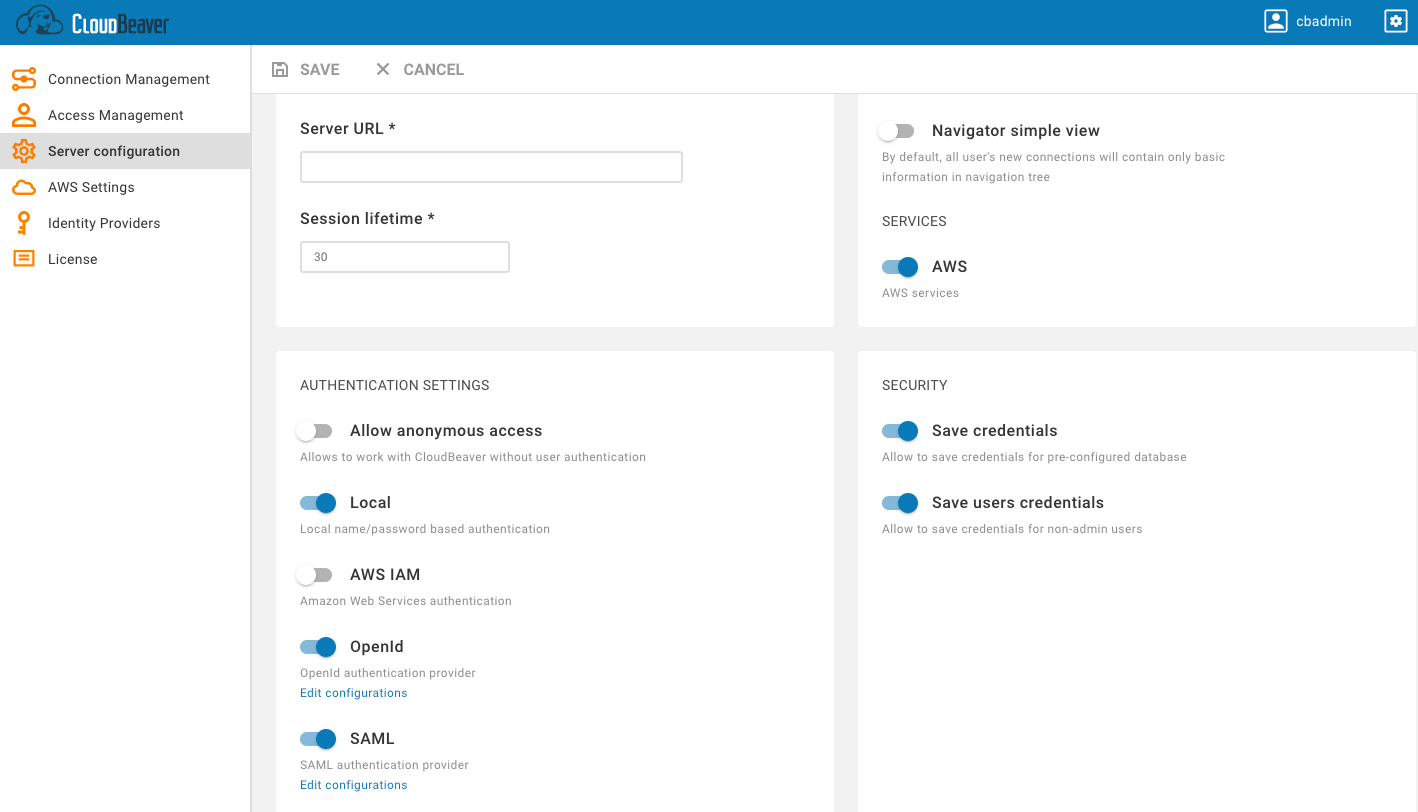
Go to the Identity Providers tab and create a new configuration using the SAML IdP (Identity Provider) details.
Add from your SAML IdP into new configuration in CloudBeaver
AWS SSO sign-in URL to IDP signon URL
AWS SSO sign-out URL to IDP logout URL
AWS SSO issuer URL to IDP Entity ID

Open the created configuration and download the metadata file.

Go to the SAML IdP website and add the metadata parameters from the file (entityID and Location) to the SSO access settings, assign users and add the attribute mappings according to the SAML IdP requirements.
Each identity provider has its own configuration procedure, we will show how to do it in AWS in the next chapter.

You can upload metadata file (which you downloaded in the previous chapter) to fill parameters automatically.
Or you can specify parameters manually:
| Parameter | Value |
|---|---|
| Application ACS URL | https://HOST_NAME/api/saml/CONFIG_ID/acs |
| Application SAML audience | https://HOST_NAME/api/saml/CONFIG_ID/metadata |
Where HOST_NAME is the host name of your CloudBeaver installation, CONFIG_ID is the identifier of your SAML configuration.

Attributes explanation:
| Attribute | Value | Meaning |
|---|---|---|
| Subject | ${user:email} |
User unique identifier (nameId). It is usually an email address. |
https://aws.amazon.com/SAML/Attributes/SessionDuration |
1800 |
Session duration in seconds. 1800 (30 minutes) is the default value |
https://aws.amazon.com/SAML/Attributes/Role |
roleARN,idpARN | IAM role identifier |
Role is the most important attribute, it defines which IAM role will be used for user federation session. Role format: roleARN,idpARN
You can get role ARN in AWS IAM section https://console.aws.amazon.com/iamv2/home#/roles
Role ARN looks like this: arn:aws:iam::123678087624:role/RoleForSAMLAccess
You can get IDP ARN in AWS identity providers page https://console.aws.amazon.com/iamv2/home#/identity_providers
IDP ARN looks like this: arn:aws:iam::123678087624:saml-provider/GSuiteSAML
In order to provide users permission to your AWS cloud resources (RDS, DynamoDB, etc) you need to configure AWS federated access proxy user.
You can more information find here: Configuring SAML assertions for the authentication response.
Go to the AWS Settings tab and enable the Federated authentication.

Add the Proxy User on the same page. You can set the current user or add a new one.
When an AWS user is logged into CloudBeaver using SSO, it has the Proxy User and the IAM user's identity-based permissions. Actual permission set and user role are configured in attribute mappings of SAML integration.
CloudBeaver does not keep your authentication information on the server-side and in configuration files. Once your session expires, you will need to authenticate again. When a user logs out from the application, CloudBeaver also performs a session logout from SAML IdP.
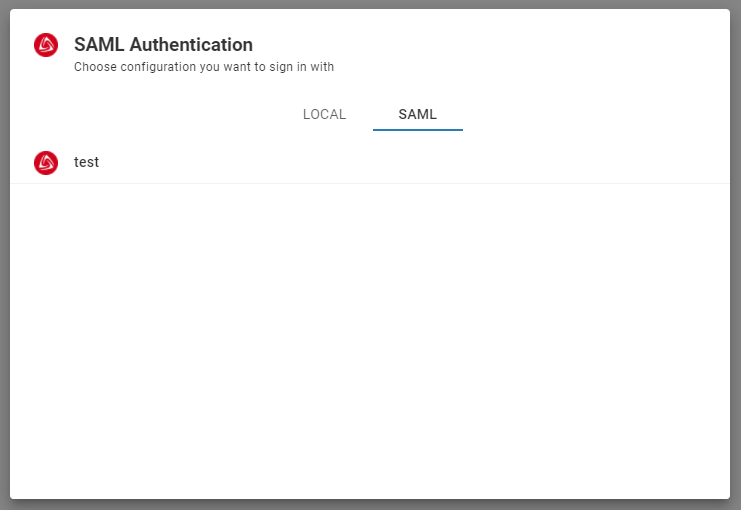
The new SAML tab becomes available after creating the configuration in the CloudBeaver authentication dialog. This is where the user can select the configuration and thereafter login into the application using SSO.
- Getting started
- Create connection
- Connection network options
- Supported databases
-
Drivers management

- Database authentication methods
- Database navigator
- Properties editor
- Data editor
- SQL editor
-
Entity relation diagrams
- Cloud services
-
AI Smart assistance
- Data transfer
- General user guide
- Administration
- Server configuration
-
Server security and access configuration
- Authentication methods
- Access management
- Proxy configuration
-
Secret management
- Logs
-
Query manager
- Workspace location
- Command line parameters
-
Session manager
- Deployment options
- CloudBeaver Editions
- FAQ
- Development