Main Page
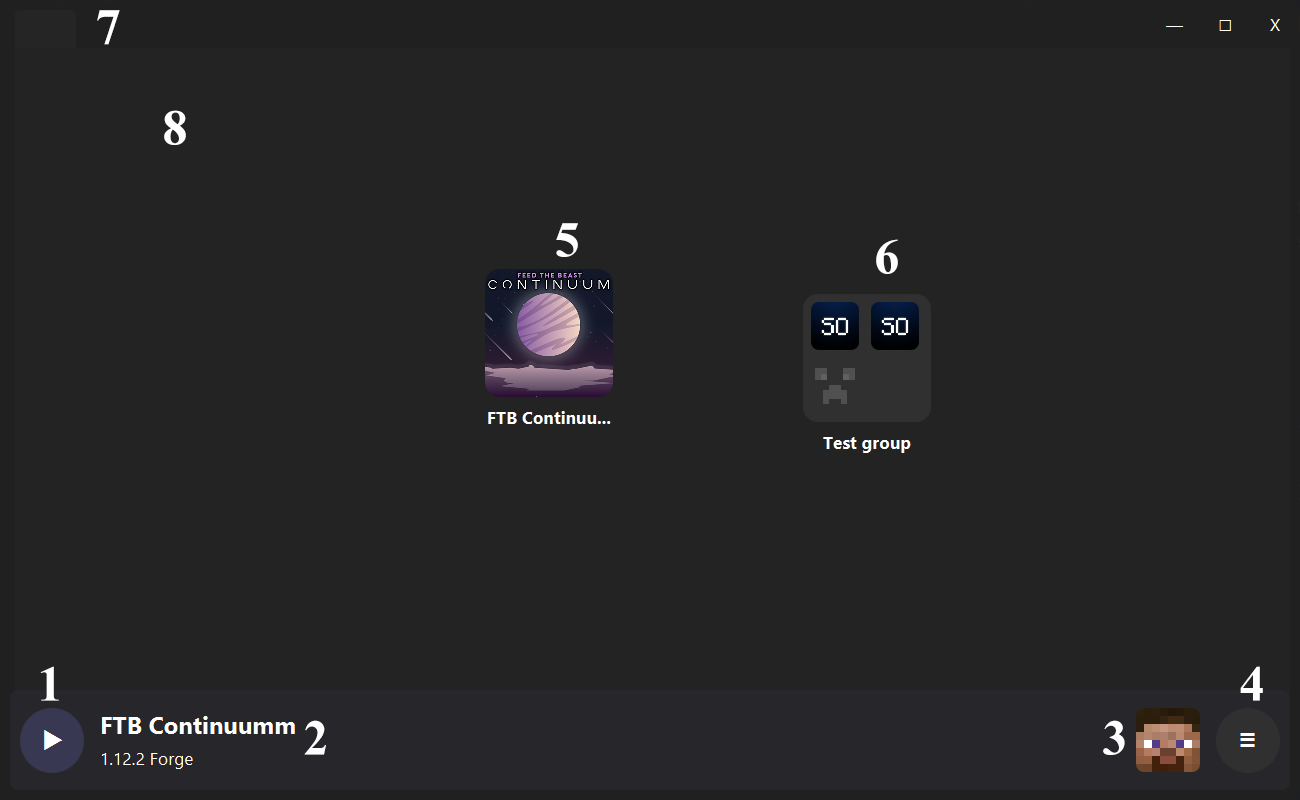
- You can start the launch process when the button has the play icon.
- You can stop the launch or download process when the button has the pause icon.
- If you click this button while holding the shift, all the game files will download again.
- Profile name.
- Game version.
If you don't set up a profile account, the default account in the config will be used.
- Settings button. Opens the settings page.
- About button. Opens the About popup as a message box.
- Feedback button. Opens the GitHub Issues page on the default browser.
You can move a dock object by pressing the object longer than 1 seconds, and dragging it.
Left Click selects the profile.
Right Click opens the profile dock menu.
You can export the profile by quickly drag-dropping it to anywhere. If you press long it will move, not export.
- Profile icon.
- Profile name.
-
Profile dock menu.
- Edit: Opens the profile page.
- Export: Exports the configuration of the profile. You can easily share this file with another.
- Delete: Deletes the profile.
- Open Folder Location: Opens the profile folder.
- Complete Backup: Creates a compressed backup (ZIP) of the profile.
- Create a Copy: Creates a copy of the profile.
- Remove: Removes the profile from the dock.
- Icons. Icons of the first 4 profiles.
- Group name.
-
Group dock menu.
- Delete: Deletes the group. (not profiles)
- Export: Exports the group configuration.
- Complete Backup: Creates a compressed backup (ZIP) of the group and profiles inside it.
You can browse between tabs from here.
Shift + Right Click moves the current tab to the right.
Shift + Left Click moves the current tab to the left.
Middle Click or the close button where the right of the tab title closes the tab directly.
The main page doesn't have a title, it is always in the left corner and not closeable.
The dock provides you a desktop place for your profiles and groups.
Right Click opens the dock menu.
CTRL + A selects all dock objects.
Delete deletes all selected dock objects. All data will be deleted.
Backspace removes all selected dock objects. Only affects the dock.
You can select the dock objects while holding CTRL or marking the selection area by clicking and moving the cursor.
When any objects are selected, the selection menu will appear.
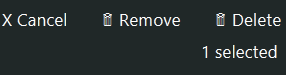
Remove: Removes the selected objects from the dock.
Delete: Deletes the selected groups and removes the selected profiles from the dock.
- All Profiles: Opens the profile dialog.
- New Group: Creates a new group.
- New Profile: Opens the edit profile page.