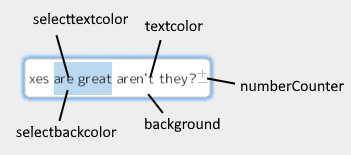
stringbox
A nice little input box for strings or numbers.
When typing there will be a vertical dash "|" on the place the user is typing at with a breathing effect defined by you.
This object has some custom background code, making all the _in variables activated when the user is typing inside the stringbox.
- textcolor[c_black]: What color the text inside the stringbox should have.
- selectbackcolor[$c8fffa]: What color the background surrounding selected text should be.
- selecttextcolor[c_black]: What color selected text should be.
- cursorcolor[c_black]: The color of the cursor shown when typing.
- font[-1]: What font the text inside the string box should have.
- typeanimationin[uiz_exponential_in]: The breathing animation the typing cursor should have when appearing.
- typeanimationout[uiz_exponential_in]: The breathing animation the typing cursor should have when disappearing.
- countspeed[1]: How many seconds a full breathing animation of the typing cursor should take.
- maxlength[0]: A maximum amount of characters that may be in the string box. Set to 0 for infinite characters.
- mouseSelectionMovementSpeed[0.05]: When the mouse selects text, and it moves beyond the sides of the stringbox, the text in the stringbox is going to move to the side of the mouse. Use this variable to define this scroll speed in seconds per character.
- keyHoldingTypingSpeed[0.05]: When the user holds a key for keyHoldingTypingTimer seconds, the stringbox will type the same character over and over again. Use this variable to set the rate of characters being spammed in seconds per character.
- keyHoldingTypingTimer[0.75]: When the user holds a key for keyHoldingTypingTimer seconds, the stringbox will type the same character over and over again. Set this variable to a value in seconds.
- messagetext["Enter a value"]: On mobile, where no keyboard is available, the user is prompted with a popup whenever the stringbox is pressed. Change the message text using this variable.
- cursorwidth[2]: Width in pixels of the typing cursor.
- acceptOnlyNumbers[false]: Set to true to only accept decimal numbers. If this is set to true, no non-number characters are added. Only one "." can be in the string box at any time when this is on. The number may have a "-" at the very beginning.
- acceptOnlyIntegers[false]: Set this to true to not accept floating numbers. This effectively bans the use of the "." character. acceptOnlyNumbers needs to be set to true for this work.
- acceptOnlyPositive[true]: Set this to true to not accept negative numbers. This effectively bans the use of the "-" character. acceptOnlyNumbers needs to be set to true for this work.
- minvalue[0]: Minimum numerical value enforced when both acceptOnlyNumbers and minvalue_enabled are set to true.
- minvalue_enabled[false]: Enable the minimum numerical value. acceptOnlyNumbers also needs to be set to true.
- maxvalue[0]: Maximum numerical value enforced when both acceptOnlyNumbers and minvalue_enabled are set to true.
- maxvalue_enabled[false]: Enable maximum numerical value. acceptOnlyNumbers also needs to be set to true.
- numberCounter_enable[false]: Enable numerical up and down buttons. These will be displayed on the right side of the string box. This feature only makes sense when acceptOnlyNumbers is set to true.
- numberCounter_interval[1]: How much the number in the stringbox should go up or down every time a numberCounter button is pressed.
- numberCounter_rapidTimer[0.75]: When the user holds a numberCounter button for numberCounter_rapidTimer seconds, the stringbox will increase the number in the stringbox over and over again given the numberCounter_interval. Set this variable to a value in seconds to change the time the user has to hold one of the buttons for rapid mode to active.
- numberCounter_rapidSpeed[0.05]: When the user holds a numberCounter button for numberCounter_rapidTimer seconds, the stringbox will increase the number in the stringbox over and over again given the numberCounter_interval. Set this variable to a value in seconds per increase to change the speed at which the number in the stringbox increases.
- numberCounter_width[0.1]: The width of the numberCounters. The height of the counters are always proportional to the width, if possible.
- numberCounter_widthType[dp]: The width type of the numberCounters.
-
numberCounter_minButtonSprite[spr_uiZ_min]: The sprite used for the bottom button (the button that makes the value in the string box decrease). numberCounter_enable needs to be set to true for this to be visible. This sprite should consist of 3 images:
- index 0: Mouse not over button.
- index 1: Mouse over button.
- index 2: Mouse clicking button.
- numberCounter_minButtonColor[c_white]: The color used for the decrease button when the mouse is not over the button.
- numberCounter_minButtonOnColor[c_white]: The color used for the decrease button when the mouse is over the button.
- numberCounter_minButtonOverColor[c_white]: The color used for the decrease button when the mouse clicks the button.
- numberCounter_minButtonAlpha[c_white]: The alpha used for the decrease button.
-
numberCounter_maxButtonSprite[spr_uiZ_plus]: The sprite used for the top button (the button that makes the value in the string box increase).
numberCounter_enable needs to be set to true for this to be visible. This sprite should consist of 3 images:
- index 0: Mouse not over button.
- index 1: Mouse over button.
- index 2: Mouse clicking button.
- numberCounter_maxButtonColor[c_white]: The color used for the increase button when the mouse is not over the button.
- numberCounter_maxButtonOnColor[c_white]: The color used for the increase button when the mouse is over the button.
- numberCounter_maxButtonOverColor[c_white]: The color used for the increase button when the mouse clicks the button.
- numberCounter_maxButtonAlpha[c_white]: The alpha used for the increase button.
This object has a background, and all its associated variables about which you can learn more here
-
uiz_stringbox_setvalue(instanceid,value): Sets the text in the stringbox and sets the update and updated variables to true.
- instanceid: the instance id of the instance you want to modify
- value: what text should be displayed in the stringbox.
-
uiz_stringbox_setvalue_noupdate(instanceid,value): Sets the text in the stringbox without sending out an update using the update and update variables.
- instanceid: the instance id of the instance you want to modify
- value: what text should be displayed in the stringbox.
-
uiz_stringbox_setcolor(instanceid,text[c_black],selected background[c_blue],selected text[c_white]):
- instanceid: the instance id of the instance you want to modify
- textcolor: What color the text inside the stringbox should have.
- selectbackcolor: What color the background surrounding selected text should be.
- selecttextcolor: What color selected text should be.
-
uiz_stringbox_setfont(instanceid,font[-1]):
- instanceid: the instance id of the instance you want to modify
- font: What font the text inside the string box should have.
-
uiz_stringbox_setKeyHoldingTyping(instanceid,time to activate[0.75],speed[0.05]):
- instanceid: the instance id of the instance you want to modify
- time to activate: When the user holds a key for keyHoldingTypingTimer seconds, the stringbox will type the same character over and over again. Set this variable to a value in seconds.
- keyHoldingTypingSpeed: When the user holds a key for keyHoldingTypingTimer seconds, the stringbox will type the same character over and over again. Use this variable to set the rate of characters being spammed in seconds per character.
-
uiz_stringbox_numberCounter_setRapidTimer(instanceid,time to activate[0.75],speed sec/char[0.05]):
- instanceid: the instance id of the instance you want to modify
- numberCounter_rapidTimer: When the user holds a numberCounter button for numberCounter_rapidTimer seconds, the stringbox will increase the number in the stringbox over and over again given the numberCounter_interval. Set this variable to a value in seconds to change the time the user has to hold one of the buttons for rapid mode to active.
- numberCounter_rapidSpeed: When the user holds a numberCounter button for numberCounter_rapidTimer seconds, the stringbox will increase the number in the stringbox over and over again given the numberCounter_interval. Set this variable to a value in seconds per increase to change the speed at which the number in the stringbox increases.
-
uiz_stringbox_setNumericalValueBounds(instanceId,minvalue,minvalue_enabled,maxvalue,maxvalue_enabled):
- instanceid: the instance id of the instance you want to modify
- minvalue[0]: Minimum numerical value enforced when both acceptOnlyNumbers and minvalue_enabled are set to true.
- minvalue_enabled[false]: Enable the minimum numerical value. acceptOnlyNumbers also needs to be set to true.
- maxvalue[0]: Maximum numerical value enforced when both acceptOnlyNumbers and minvalue_enabled are set to true.
- maxvalue_enabled[false]: Enable maximum numerical value. acceptOnlyNumbers also needs to be set to true.
-
uiz_stringbox_numberCounter_numberCounter_enable(instanceid,enabled[false]):
- instanceid: the instance id of the instance you want to modify
- enable: Enable numerical up and down buttons. These will be displayed on the right side of the string box. This feature only makes sense when acceptOnlyNumbers is set to true.
-
uiz_stringbox_numberCounter_setWidth(instanceid,width[0.1],widthtype[dp]):
- instanceid: the instance id of the instance you want to modify
- numberCounter_width[0.1]: The width of the numberCounters. The height of the counters are always proportional to the width, if possible.
- numberCounter_widthType[dp]: The width type of the numberCounters.
-
uiz_stringbox_numberCounter_setButtonStyle(instanceid,minButtonColor[c_white],minButtonOnColor[c_white],minButtonOverColor[c_white],minButtonAlpha[c_white],maxButtonSprite[spr_uiZ_plus],maxButtonColor[c_white],maxButtonOnColor[c_white],maxButtonOverColor[c_white],maxButtonAlpha[c_white]):
- instanceid: the instance id of the instance you want to modify
-
minButtonSprite: The sprite used for the bottom button (the button that makes the value in the string box decrease). numberCounter_enable needs to be set to true for this to be visible. This sprite should consist of 3 images:
- index 0: Mouse not over button.
- index 1: Mouse over button.
- index 2: Mouse clicking button.
- minButtonColor: The color used for the decrease button when the mouse is not over the button.
- minButtonOnColor: The color used for the decrease button when the mouse is over the button.
- minButtonOverColor: The color used for the decrease button when the mouse clicks the button.
- minButtonAlpha: The alpha used for the decrease button.
-
maxButtonSprite: The sprite used for the top button (the button that makes the value in the string box increase).
numberCounter_enable needs to be set to true for this to be visible. This sprite should consist of 3 images:
- index 0: Mouse not over button.
- index 1: Mouse over button.
- index 2: Mouse clicking button.
- numberCounter_maxButtonColor: The color used for the increase button when the mouse is not over the button.
- numberCounter_maxButtonOnColor: The color used for the increase button when the mouse is over the button.
- numberCounter_maxButtonOverColor: The color used for the increase button when the mouse clicks the button.
- numberCounter_maxButtonAlpha: The alpha used for the increase button.
-
uiz_stringbox_setAcceptNumbersOnly(instanceid,acceptOnlyNumbers[false],acceptOnlyIntegers[false],acceptOnlyPositive[true]):
- instanceid: the instance id of the instance you want to modify
- acceptOnlyNumbers: Set to true to only accept decimal numbers. If this is set to true, no non-number characters are added. Only one "." can be in the string box at any time when this is on. The number may have a "-" at the very beginning.
- acceptOnlyIntegers: Set this to true to not accept floating numbers. This effectively bans the use of the "." character. acceptOnlyNumbers needs to be set to true for this work.
- acceptOnlyPositive: Set this to true to not accept negative numbers. This effectively bans the use of the "-" character. acceptOnlyNumbers needs to be set to true for this work.
-
uiz_stringbox_setMouseSelectionSpeed(instanceid,speed sec/char[0.05]):
- instanceid: the instance id of the instance you want to modify
- speed[0.05]: When the mouse selects text, and it moves beyond the sides of the stringbox, the text in the stringbox is going to move to the side of the mouse. Use this variable to define this scroll speed in seconds per character.
-
uiz_stringbox_setcursoranimation(instanceid,animation in[uiz_exponential_in],animation out[uiz_exponential_in],time[1]):
- instanceid: the instance id of the instance you want to modify
- animation in[uiz_exponential_in]: The breathing animation the typing cursor should have when appearing.
- animation out[uiz_exponential_in]: The breathing animation the typing cursor should have when disappearing.
- time[1]: How many seconds a full breathing animation of the typing cursor should take.
-
uiz_stringbox_setmaxlength(instanceid,maximum length[0]):
- instanceid: the instance id of the instance you want to modify
- maximum length[0]: A maximum amount of characters that may be in the string box. Set to 0 for infinite characters.
-
uiz_stringbox_setmessage(instanceid,messagetext["Enter a value"]):
- instanceid: the instance id of the instance you want to modify
- messagetext["Enter a value"]: On mobile, where no keyboard is available, the user is prompted with a popup whenever the stringbox is pressed. Change the message text using this variable.
-
value = uiz_stringbox_getvalue(stringbox):
- instanceid: the instance id of the instance you want to modify
- value: The string that has been typed inside the box.
- **value
- update: Whenever the user in typing in the box and adds a character.
- updated: Whenever the user is done typing. (The user either presses enter or clicks outside of the box.)
- value: The string that has been typed inside the box.