Instantly Transfer Face By Using IP Adapter FaceID Full Tutorial and GUI For Windows RunPod and Kaggle
Instantly Transfer Face By Using IP-Adapter-FaceID: Full Tutorial & GUI For Windows, RunPod & Kaggle
Full tutorial link > https://www.youtube.com/watch?v=rjXsJ24kQQg
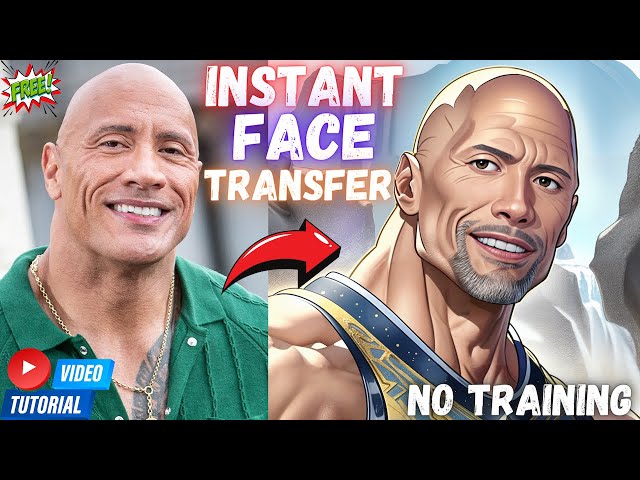











🌟 Welcome to the comprehensive tutorial on IP Adapter Face ID! 🌟 In this detailed video, I unveil the secrets of installing and utilizing the experimental IP Adapter Face ID model. This model uniquely integrates ID embedding from face recognition, replacing the conventional CLIP image embedding. Whether you're a beginner or a pro, this guide is tailored to help you navigate through the exciting features of this model with ease.
Key Highlights:
-
One-Click Installation & Usage: Discover the simplicity of using the IP Adapter Face ID with my custom-coded Gradio application.
-
Cross-Platform Compatibility: Learn how to operate this tool on Linux, Windows, RunPod, and Kaggle.
-
Advanced Features & Customizations: Dive into the versatility of the model, exploring batch size, image generation, and much more.
-
Model Conversion: Step-by-step guide on converting models into diffusers format for enhanced usability.
Tutorial Source Patreon Post - Installers
https://www.patreon.com/posts/ip-adapter-0-app-95759342
C++ Tools, Python & FFmpeg Tutorial
Stable Diffusion GitHub repository
https://github.com/FurkanGozukara/Stable-Diffusion
SECourses Discord To Get Full Support
https://discord.com/servers/software-engineering-courses-secourses-772774097734074388
Official Repo
https://huggingface.co/h94/IP-Adapter-FaceID
00:00:00 Introduction to IP-Adapter-FaceID full tutorial
00:02:19 Requirements to use IP-Adapter-FaceID gradio Web APP
00:02:45 Where the Hugging Face models are downloaded by default on Windows
00:03:12 How to change folder path where the Hugging Face models are downloaded and cached
00:03:39 How to install IP-Adapter-FaceID Gradio Web APP and use on Windows
00:05:35 How to start the IP-Adapter-FaceID Web UI after the installation
00:05:46 How to use Stable Diffusion XL (SDXL) models with IP-Adapter-FaceID
00:05:56 How to select your input face and start generating 0-shot face transferred new amazing images
00:06:06 What does each option on the Web UI do explanations
00:06:44 What are those dropdown menu models and their meaning
00:07:50 How to use custom and local models with custom model path
00:08:09 How to add custom models and local models into your Web UI dropdown menu permanently
00:08:52 How to use a CivitAI model in IP-Adapter-FaceID web APP
00:09:17 How to convert CKPT or Safetensors model files into diffusers format
00:10:05 How to use diffusers exported model in custom model path input
00:10:24 How to download generated images and also where the generated images are saved
00:10:40 How to use an SDXL mode
00:11:37 How to permanently add your custom local models into your Web APP models dropdown list
00:13:28 How to install and use IP-Adapter-FaceID gradio Web APP on RunPod
00:15:39 How to start IP-Adapter-FaceID gradio Web APP on RunPod after the installation
00:16:02 What you need to be careful when using on RunPod or on Kaggle
00:16:43 How to use a network storage on RunPod to permanently keep storage between pods
00:17:17 How to edit web app on RunPod and add any model to UI permanently
00:17:46 How to kill started Web UI instance on RunPod
00:18:08 How to install fuser command on RunPod on Linux
00:19:01 How to use custom CivitAI model on RunPod with IP-Adapter-FaceID
00:20:00 If wget method from CivitAI fails how to make it work on RunPod or on Kaggle
00:20:34 How to delete files on RunPod properly
00:20:58 How to convert CKPT or Safetensors checkpoints into diffusers on RunPod
00:22:58 Showing example of SD 1.5 model conversion on RunPod
00:24:18 How to install and use IP-Adapter-FaceID gradio Web APP on a Free Kaggle notebook
00:26:10 How to download custom models into the temp directory of Kaggle to use on the Web APP
00:26:47 How to get your token and activate it to use Gradio app on Kaggle
00:27:05 After auth token set how to start Web UI on Kaggle
00:28:26 How to convert a custom CivitAI or any model into Diffusers on Kaggle to use
00:29:23 How to download all the generated images on a Kaggle notebook with 1 click
00:30:12 Where to find our Discord channel link
-
00:00:00 Greetings, everyone.
-
00:00:01 Welcome to the IP Adapter Face ID Full Tutorial.
-
00:00:05 In this tutorial, I will show you how to install and use IP Adapter Face ID model.
-
00:00:11 This is an experimental version of IP Adapter Face ID with ID embedding from face recognition
-
00:00:18 model instead of CLIP image embedding.
-
00:00:21 I have coded an amazing Gradio application and one-click installer for this model.
-
00:00:27 You will be able to quickly select with the any base model, upload image, and generate
-
00:00:33 images as easy as Automatic1111 Web UI.
-
00:00:36 You will be able to transfer faces with one click.
-
00:00:40 This doesn't require any training.
-
00:00:42 You can directly transfer faces and generate amazing images.
-
00:00:47 So the Gradio application I developed works on Linux, on Windows, on RunPod, on Kaggle.
-
00:00:53 Moreover, it supports SDXL models as well.
-
00:00:57 It supports a number of images to generate, batch size, number of inference steps, width,
-
00:01:02 height, CFG, randomized seed, negative prompt, positive prompt.
-
00:01:06 It also has a feature to convert models into the diffusers format.
-
00:01:11 So you will be able to use any CivitAI models as well, not only the models hosted on Hugging
-
00:01:18 Face.
-
00:01:19 I will show how to install and use this web UI on RunPod with including how to extract
-
00:01:26 and use custom models.
-
00:01:27 Moreover, with a specially developed Kaggle notebook, I will show you how to install and
-
00:01:33 use this on Kaggle, even exporting diffusers format on Kaggle and using that.
-
00:01:39 Also, download all the generated images with one click.
-
00:01:42 If you don't have a strong GPU and if you don't have a budget, then you can use the
-
00:01:47 Kaggle notebook.
-
00:01:48 If you have a budget, then you can use RunPod, which is even better and easier than Kaggle
-
00:01:52 to use.
-
00:01:53 Or if you have a medium quality GPU, you can use this on your machine.
-
00:01:59 Because the Gradio application I developed is using a minimal amount of VRAM and with
-
00:02:05 all of the optimizers, including even the Triton package.
-
00:02:10 So everything we need to follow this tutorial is shared in this Patreon post with detailed
-
00:02:16 explanations and also links.
-
00:02:19 To follow this tutorial on Windows, you need to have C++ tools installed and Python 3.10
-
00:02:26 installed.
-
00:02:27 If you don't know how to install them, please watch this amazing tutorial.
-
00:02:32 This tutorial is fully chaptered.
-
00:02:34 Just check out the description and look at the parts that you don't know.
-
00:02:39 Once you have installed C++ tools and Python 3.10, then you are ready to follow this tutorial.
-
00:02:45 Automatically, the web UI will download models into your Hugging Face hub, which is by default
-
00:02:54 set into your user's environment.
-
00:02:55 Let me show you.
-
00:02:57 Enter inside your user's folder, enter inside your username, enter inside cache, enter inside
-
00:03:04 Hugging Face and enter inside hub.
-
00:03:07 This is where the models will be downloaded automatically from Hugging Face.
-
00:03:12 By using this command, you can change the default download folder into any drive that
-
00:03:18 you want.
-
00:03:19 But don't worry, I also have a local model installation feature in the web UI.
-
00:03:25 Moreover, I will show RunPod installation and Kaggle installation as well on a free
-
00:03:30 Kaggle notebook.
-
00:03:31 So if you don't have a strong GPU, you can use Kaggle or if you are willing to spend
-
00:03:36 money, you can use RunPod, which is even better than Kaggle.
-
00:03:39 So for starting, go to the very bottom and you will see the attachments here.
-
00:03:44 Download plus IP version 10.
-
00:03:46 When you are watching this tutorial, the file could have been updated.
-
00:03:50 Always read the latest updates in the very top.
-
00:03:54 So let's go to the downloads folder.
-
00:03:56 Let's go to the installation folder.
-
00:03:58 I will install inside my G drive.
-
00:04:00 Let's say video face enter inside it, paste the file, extract here.
-
00:04:06 This is a zip file so you can extract.
-
00:04:09 By the way, do not use any space character or non-English character in your folder path
-
00:04:15 because it may not work.
-
00:04:16 Then all you need to do is double-click install that bat file it will download and install
-
00:04:21 everything fully automatically for you.
-
00:04:23 The IP adapter face ID recently also added SDXL model and I also implemented it.
-
00:04:29 Actually, I am recording this video the second time since this was recently added.
-
00:04:34 So I wanted to cover it as well.
-
00:04:35 And if there will be any new changes, I will update the web UI further for you.
-
00:04:41 So it started installing.
-
00:04:43 Everything is fully automatic.
-
00:04:44 You don't need to do anything else.
-
00:04:45 The installer will generate its own virtual environment folder.
-
00:04:49 Therefore, this installation will not conflict or affect any other of your AI application
-
00:04:55 or application.
-
00:04:57 Everything will be installed inside this virtual environment folder.
-
00:05:00 The special installer script I have coded with installed even Triton package for windows.
-
00:05:07 So it will work with the most up-to-date libraries and also with the most possible speed.
-
00:05:13 Right now it is downloading the models that you need.
-
00:05:16 The installation of the libraries has been completed.
-
00:05:20 Always verify whether there are any errors or not after the installation has been completed.
-
00:05:26 From which sources models are downloaded will be displayed on the CMD as you are seeing
-
00:05:30 right now.
-
00:05:31 So the installation has been completed.
-
00:05:33 Then press any key to continue.
-
00:05:35 To start the web UI, just double click run web app that bat file and the interface will
-
00:05:41 automatically start in your web browser.
-
00:05:44 So there are several key things here.
-
00:05:46 You see there is activate SDXL when this option is selected.
-
00:05:51 You need to use SDXL models.
-
00:05:53 You need to load your face including image first.
-
00:05:58 So let's click here.
-
00:05:59 Let's go to downloads and let's use this image.
-
00:06:03 Wait until image appears here.
-
00:06:05 Set the output resolution 512 to 768.
-
00:06:09 Set the CFG value, number of inference steps, the seed randomized seed, number of images
-
00:06:15 to generate.
-
00:06:16 This will do a loop of generation and batch size.
-
00:06:19 Batch size means that it will generate multiple images at the same time.
-
00:06:23 Therefore, it will use more VRAM.
-
00:06:26 Enable shortcut.
-
00:06:27 I don't know what this is doing.
-
00:06:28 I added it as an option because the official repository has it.
-
00:06:32 There is also scale factor.
-
00:06:33 I haven't tested it yet too.
-
00:06:35 Then type your prompt here.
-
00:06:37 A man wearing an expensive suit.
-
00:06:40 Type your negative prompt if you wish.
-
00:06:42 Select the base model here.
-
00:06:44 These models are the paths of Hugging Face repositories.
-
00:06:49 You can also give your local computer path which I will explain.
-
00:06:53 So let's select our models.
-
00:06:55 The first ones, the top ones are Stable Diffusion SD 1.5 based models.
-
00:07:01 From here anime illustration diffusion XL.
-
00:07:04 The bottom ones are SDXL models.
-
00:07:07 So I will pick the flat 2D animerge.
-
00:07:11 You can also copy this and paste it into your browser and you will get the Hugging Face
-
00:07:16 repository.
-
00:07:17 So when you copy this, this is the repository path.
-
00:07:20 This will automatically download the files into your Hugging Face cache folder which
-
00:07:25 I have shown in the beginning of the video.
-
00:07:27 Then hit generate.
-
00:07:29 Then follow the progress.
-
00:07:30 Here it will load the model.
-
00:07:32 You will also get the same messages as me.
-
00:07:35 It will first use insightface to get the face.
-
00:07:39 Then it will generate the image with the number of steps that we have.
-
00:07:42 And the image is generated as you are seeing right now.
-
00:07:45 It is pretty cool, pretty decent quality.
-
00:07:48 Actually looking pretty amazing.
-
00:07:50 So what does this custom model path do?
-
00:07:53 Let's say you want to use Inkpunk diffusion.
-
00:07:56 Let's verify it is SD 1.5 when we check out the file.
-
00:07:59 Yes, this is SD 1.5.
-
00:08:02 I know it from the size of it.
-
00:08:05 Then copy this path and paste the custom model path here.
-
00:08:09 Alternatively, you can also add it to the select model.
-
00:08:12 How can you do that?
-
00:08:13 Go to your download web UI.py file, edit it.
-
00:08:17 I will use Notepad++ to edit.
-
00:08:20 And in here, you see static model names.
-
00:08:22 You just need to paste it here like this and restart the web UI.
-
00:08:28 Alternatively, copy paste it here.
-
00:08:29 When you use something here, the web UI will read this model path instead of select model.
-
00:08:36 So let's hit generate.
-
00:08:37 Now it will download the model from Hugging Face into our cache folder automatically for
-
00:08:42 us.
-
00:08:43 Once the model is downloaded, it will start generating and we got the image with this
-
00:08:47 model, which one Inkpunk diffusion as you are seeing right now.
-
00:08:52 So let's say you have a model from CivitAI.
-
00:08:54 How to use it?
-
00:08:55 For example, let's try this model.
-
00:08:58 The latest version is selected.
-
00:08:59 Go to downloads options, download the model safetensors file.
-
00:09:03 It has a trigger word, so I will also use this trigger word.
-
00:09:06 Okay, the model has been downloaded.
-
00:09:08 Let's open the folder while pressing your left shift key, right click, copy as path,
-
00:09:16 go to the very bottom.
-
00:09:17 In the very bottom, we have checkpoint file path and output folder to convert model.
-
00:09:23 If you're converting SD 1.5, do not check this.
-
00:09:27 If you're converting SDXL model, check this checkbox.
-
00:09:30 So then go to the here, remove the quotation marks.
-
00:09:33 This is the path of the file then enter output folder.
-
00:09:37 So I will convert it into my G drive.
-
00:09:41 Let's type as like this and that's it and hit convert model.
-
00:09:45 Just wait a little bit.
-
00:09:46 It will load the model into the VRAM and then it will export it as diffusers files.
-
00:09:53 Okay, the conversion has been completed.
-
00:09:56 It says conversion status.
-
00:09:58 Let's go to the G drive and inside here.
-
00:10:00 Now we have the model extracted as a diffusers model.
-
00:10:05 Copy this path, go to custom model path and paste it here then hit generate and it will
-
00:10:10 load this model and generate the image for you.
-
00:10:14 Follow the CMD window to see what's happening.
-
00:10:17 It is first loading model then generating the image and the image is generated looking
-
00:10:22 pretty decent.
-
00:10:24 You can click this arrow icon to download images.
-
00:10:28 Moreover, all of the images generated are saved inside output folder.
-
00:10:32 You see all the images we generated here.
-
00:10:35 So this is how you can use custom models.
-
00:10:37 Now let's use an SDXL model.
-
00:10:40 For SDXL model, I click activate SDXL.
-
00:10:43 I change the width and height of the image because this is the native resolution of SDXL.
-
00:10:50 Then I will use the Juggernaut XL model.
-
00:10:53 I already have downloaded from CivitAI here.
-
00:10:56 So right-click with shift key, copy as path, copy paste it here, then I will extract it
-
00:11:03 into my G drive again.
-
00:11:05 So let's type the model folder path like this and convert model.
-
00:11:10 This will extract the model as diffusers.
-
00:11:13 You may be wondering why we have to extract as diffusers.
-
00:11:16 I don't know because when you load it from the single pre-trained model pipeline, it
-
00:11:23 doesn't work.
-
00:11:24 I told this to the developer and he doesn't know either.
-
00:11:27 So we have to use diffusers files and the model has been converted and saved.
-
00:11:31 So copy this, paste into custom model path and generate.
-
00:11:35 And let's see what we will get.
-
00:11:37 Again, if you want these models to appear here, go back to your web UI.py file, paste
-
00:11:44 the path like this, put an R letter into the beginning and restart the web UI and then
-
00:11:51 you will have them in the drop-down menu.
-
00:11:54 Okay, it is generating.
-
00:11:56 Of course, SDXL is a little bit slower and we got the image.
-
00:12:00 So this is the image that Juggernaut XL run diffusion generated.
-
00:12:05 You can test any SDXL model as well.
-
00:12:08 You can use them directly from Hugging Face or use the convert model option.
-
00:12:13 I have coded this entire Gradio application from scratch for you.
-
00:12:18 Also, if anything new is added here, I will also implement them to the Gradio application
-
00:12:24 hopefully.
-
00:12:25 This is a very lightweight Gradio application.
-
00:12:28 This will not break anything else.
-
00:12:30 This will work standalone.
-
00:12:32 So this is really, really cool when you consider it.
-
00:12:34 And I have added most of the features that you will need to use such as number of images
-
00:12:39 to generate, batch size.
-
00:12:41 For example, let's generate three images and let's make it red expensive suit and generate.
-
00:12:47 Then you can follow the output folder.
-
00:12:49 Each of the image will be saved here.
-
00:12:52 Once they are generated, you can also see the progress here.
-
00:12:56 So this is the first image we got.
-
00:12:58 By the way, I find that this is working better for stylized images like anime, like 3D; for
-
00:13:05 realism, this is still not as good as training the images with DreamBooth training.
-
00:13:11 So therefore, if you are looking for stylized images, this is really cool.
-
00:13:15 Okay, the three images are generated.
-
00:13:17 You can see them as like this.
-
00:13:19 By the way, I think SD 1.5 is still better than SDXL.
-
00:13:23 I believe the developer is still working to improve the model's quality.
-
00:13:28 OK, now I will show how to install on RunPod.
-
00:13:32 To install on RunPod, we have all the instructions here.
-
00:13:35 First, register your account on RunPod or login.
-
00:13:39 So click this link, login.
-
00:13:42 If you don't know how to use RunPod, on our channel, in our videos, type here RunPod and
-
00:13:47 you will see all of our RunPod tutorials.
-
00:13:49 I have so many tutorials.
-
00:13:51 This is the master tutorial.
-
00:13:53 Watching every one of the RunPod stories will help you significantly.
-
00:13:55 Then, on this interface, let's go to the Community Cloud.
-
00:13:59 You can also use Secure Cloud.
-
00:14:01 You can also use storage if you want.
-
00:14:03 Select Extreme Speed.
-
00:14:04 I will do the testing with RTX 3090, deploy.
-
00:14:09 The instructions are here.
-
00:14:10 You can use any template.
-
00:14:12 I will use the RunPod PyTorch template for this, but you can use any template.
-
00:14:17 So type here PyTorch and select the PyTorch template, customize deployment, select the
-
00:14:23 volume disk like 50 gigabytes.
-
00:14:26 Decide how many models that you are going to use, how many models you are going to download,
-
00:14:30 set overrides, click continue, click deploy, then click my pods.
-
00:14:35 On this screen, wait until the connect button appears.
-
00:14:38 This template is pretty lightweight, so loading it is not taking too much time.
-
00:14:43 So it is already completed.
-
00:14:45 Pod uptime is 15 seconds.
-
00:14:46 Click connect, connect to JupyterLab, wait until Jupyter interface loads.
-
00:14:52 Then as the instruction says, we will upload all the files into the workspace.
-
00:14:57 So in the workspace, click this arrow icon, go to your download, which is here, select
-
00:15:03 the files like this.
-
00:15:05 You don't need to upload Kaggle file, but you can upload, it doesn't matter.
-
00:15:09 Click a terminal, then copy this command.
-
00:15:12 This will install, paste it, hit enter.
-
00:15:15 It will install everything automatically for us, and it will also download the necessary
-
00:15:19 models.
-
00:15:20 This will generate its own virtual environment folder.
-
00:15:23 So if you use Stable Diffusion template, make sure that you have uploaded these files inside
-
00:15:29 another folder so that you will not have a conflict with Automatic1111 Web UI virtual
-
00:15:35 environment folder.
-
00:15:36 So pay attention to that.
-
00:15:37 So the installation has been completed.
-
00:15:39 Then open a new terminal.
-
00:15:41 To start it, copy this command.
-
00:15:43 This command will also set the default folder of HuggingFace cache folder as workspace,
-
00:15:49 paste it, hit enter.
-
00:15:51 It will activate the virtual environment and start the web UI automatically for us with
-
00:15:56 Gradio Live.
-
00:15:57 And the Gradio Live started, click it.
-
00:15:59 Then the same interface and same features.
-
00:16:02 One thing that you need to be careful on RunPod, when you select the image, it will take longer
-
00:16:08 to load.
-
00:16:09 You see it is uploading, wait until the image appears here.
-
00:16:13 This is really important.
-
00:16:14 Then set your prompt.
-
00:16:16 For example, this time, let's try anything version three, a CGI man image like this and
-
00:16:26 hit generate.
-
00:16:28 And then it will download the model into the cache folder like in your computer.
-
00:16:33 This will be permanently saved in the workspace.
-
00:16:37 So you will not have to download it again unless you delete your pod and start again.
-
00:16:43 Alternatively, you can also generate a storage with plus network volume, select your data
-
00:16:49 center, and that storage will remain permanently until you delete it.
-
00:16:54 After you made your network volume, for example, let's select this one.
-
00:16:56 And let's give a name like this, create and deploy, then select the machine and repeat
-
00:17:05 the steps.
-
00:17:06 Each time after that you will do the same and it will be permanently remaining, but
-
00:17:10 I will delete it for now.
-
00:17:12 Okay, let's type the name.
-
00:17:13 All right, the model is getting downloaded.
-
00:17:15 Let's just wait.
-
00:17:17 On RunPod, you can also edit the web UI file, just double-click the web UI.py file and add
-
00:17:24 the models here, then restart the web UI.
-
00:17:27 How you can restart the web UI.
-
00:17:29 First, you need to kill the instance, but the killing command is not installed on every
-
00:17:35 pod.
-
00:17:36 So you can alternatively also go to your pods and from here, click here and restart the
-
00:17:42 pod and it will kill the web UI automatically, of course, then start again.
-
00:17:46 For killing command that you need to use F user -k and the port like this.
-
00:17:54 But since it is started on 7860, this is the port that it started.
-
00:18:00 However, this command is not installed on this template.
-
00:18:03 So you need to install this with apt command.
-
00:18:06 It is downloading the model.
-
00:18:08 So as an extra info, I will also show you how to install that command.
-
00:18:12 Give me Linux command to install fuser and ask to Bard.
-
00:18:18 Bard is for free.
-
00:18:19 Then in here it will give you this command.
-
00:18:22 On RunPod, we don't have sudo.
-
00:18:24 So just copy this part like this, open a new terminal, paste it, but you will get this
-
00:18:30 error.
-
00:18:31 So first you need to do apt update.
-
00:18:34 It will update the libraries list and run the command again and you will have the fuser
-
00:18:39 command.
-
00:18:40 It is installed, but this will be temporary until you turn off your pod and open it again.
-
00:18:45 Okay, model has been downloaded.
-
00:18:47 Now it is going to load the pipeline.
-
00:18:49 It's also downloading the insightface model from deepinsight repository as you're seeing
-
00:18:55 right now.
-
00:18:56 And we got the image as you are seeing.
-
00:18:58 It is looking pretty decent.
-
00:19:00 Okay.
-
00:19:01 Now let's say you want to use a custom CivitAI model on RunPod.
-
00:19:05 So open your model page.
-
00:19:07 I will test with this SDXL model, right-click here and copy link address.
-
00:19:12 In some models, there is also a download button here.
-
00:19:15 In that case, you click that and right-click and download.
-
00:19:18 So I copy link address, open a new terminal on your RunPod.
-
00:19:22 By the way, the interface has been frozen.
-
00:19:24 So let's refresh it.
-
00:19:26 Okay.
-
00:19:27 Interface, refresh it, open a new terminal, type like me: wget quotation mark, paste it
-
00:19:32 in quotation mark then -O then the output file name.
-
00:19:37 Let's give the file name as Samaritan.
-
00:19:40 Okay.
-
00:19:41 Samaritan.
-
00:19:42 the extension safetensors.
-
00:19:45 This will download this model into the workspace because I am running this command inside the
-
00:19:50 workspace folder.
-
00:19:51 You see it started downloading, the file will appear here, you see Samaritan safetensors.
-
00:19:57 Sometimes these may fail because it happened to me.
-
00:20:00 If that happens, click this download, wait it start downloading then on here go to full
-
00:20:06 download history, copy this link address instead of copying link address from here and repeat
-
00:20:13 the same step.
-
00:20:14 Then it will work like this.
-
00:20:16 Let me show: terminal, wget idea, we click it, cancel, so it may not work -o test.safetensors
-
00:20:23 like this, hit enter.
-
00:20:27 And yes, it also started very nice.
-
00:20:29 So I will cancel it with Ctrl + C. Okay, this file did it get downloaded.
-
00:20:34 So to delete the files on RunPod: new terminal, rm -r like this -r the file path test.safetensors.
-
00:20:44 This is the way to delete, do not use interface to delete files because they will be sent
-
00:20:49 into your trashcan and they will still keep your storage full.
-
00:20:54 So the model has been downloaded.
-
00:20:55 Now we will convert it into diffusers.
-
00:20:58 So, right-click here, copy the path, go to your web UI interface, enter it like this,
-
00:21:05 and do not forget to put a backslash at the beginning.
-
00:21:09 Then, type the output; let's say, Samaritan, like this.
-
00:21:14 Make sure that you have selected SDXL from here.
-
00:21:17 Click convert model.
-
00:21:18 It will export the model into the workspace with our folder name.
-
00:21:25 Just patiently wait.
-
00:21:27 You can also follow the progress here.
-
00:21:29 And, is it done?
-
00:21:31 Almost.
-
00:21:32 Okay, it says a connection errored out, but it is not important because it has been exported.
-
00:21:38 Oh, wait, it didn't work.
-
00:21:40 You see, it was killed for a reason.
-
00:21:43 Okay, it says that we were out of memory.
-
00:21:46 I see we have 20 gigabytes of RAM.
-
00:21:50 It should work, actually, but it was killed for some reason.
-
00:21:54 So, let's restart the pod and try again.
-
00:21:57 So, when you are selecting your pod, make sure that it has more RAM, not 20 gigabytes,
-
00:22:03 because 20 gigabytes looks like not enough for exporting SDXL.
-
00:22:07 So, let's connect back to the Jupyter lab, open terminal, let's start the web UI.
-
00:22:13 I will try again and let's see if it will crash this time, too.
-
00:22:17 Also, okay, open the Gradio.
-
00:22:18 Let's copy the path again.
-
00:22:21 Currently, how much RAM?
-
00:22:22 Okay, we are using nothing.
-
00:22:24 Okay, activate SDXL.
-
00:22:26 Put the checkpoint like this.
-
00:22:28 I will use the same folder.
-
00:22:30 Convert model.
-
00:22:31 Let's see, this time, will we get a crash or not?
-
00:22:35 When you get out of RAM, the pod will crash.
-
00:22:38 Okay, let's see what is happening.
-
00:22:40 Yes, killed again.
-
00:22:41 So, we were out of RAM one more time.
-
00:22:45 Therefore, remember to get more RAM when you are selecting your pod.
-
00:22:49 But this is the way to do it.
-
00:22:52 So, let me demonstrate it with a 1.5 based model.
-
00:22:56 For example, let's try this model.
-
00:22:59 So, right-click, copy link address.
-
00:23:01 I will do everything the same like this: -o, and what is the name?
-
00:23:06 ToonYou.
-
00:23:07 So, let's say, toon.safetensors.
-
00:23:09 And let's wait for it to download.
-
00:23:12 Okay, it is downloading the model.
-
00:23:14 Okay, the model has been downloaded.
-
00:23:16 Let's refresh.
-
00:23:17 Right-click, copy path.
-
00:23:18 By the way, we need to start the Gradio one more time.
-
00:23:21 So, let's wait, start.
-
00:23:23 Okay, let's open the Gradio.
-
00:23:25 Right-click, copy path, put the checkpoint path, and the output folder.
-
00:23:31 Convert model.
-
00:23:32 This time I didn't activate SDXL, so I think it should have sufficient RAM.
-
00:23:37 Okay, it is downloading the necessary model binary file, and it is done.
-
00:23:43 You see, model converted and saved.
-
00:23:45 Now, let's give this as a custom model path, a man, nothing else.
-
00:23:50 Let's load our image like this.
-
00:23:53 Wait until the image is loaded.
-
00:23:55 This is the SD 1.5 model.
-
00:23:57 Okay, image loaded, generate, and just wait.
-
00:24:01 It's loading everything, generating the image, and we got the image like this.
-
00:24:06 You see.
-
00:24:07 Toonified the rock, as you are seeing right now.
-
00:24:10 So, this is how you use the face transfer application that I have developed on RunPod.
-
00:24:17 Now, it is time to use this on a Kaggle notebook, on a free Kaggle notebook.
-
00:24:21 Let's return back to our instructions.
-
00:24:24 First, you need to register a Kaggle account and verify your phone number to be able to
-
00:24:28 use GPUs there.
-
00:24:30 So, let's create a notebook.
-
00:24:31 New notebook.
-
00:24:32 Make sure that you have selected an accelerator.
-
00:24:34 Select the GPU.
-
00:24:36 I will use this GPU.
-
00:24:37 This one is faster than the GPU P100.
-
00:24:40 P100 has more VRAM.
-
00:24:42 Okay, make sure that the internet is on.
-
00:24:44 You can also set persistence, which I don't use because it is making it load slower.
-
00:24:50 Then, click file and import notebook.
-
00:24:53 Click browse files.
-
00:24:54 Go back to our downloads inside here.
-
00:24:58 Upload the Kaggle notebook file.
-
00:25:01 Click import.
-
00:25:02 Then, click this x because it is imported.
-
00:25:05 Then, click here and start the session.
-
00:25:08 Wait until you see green here.
-
00:25:10 Click ok when you see this.
-
00:25:12 Still waiting.
-
00:25:13 Okay, now it is green, and we can see which Kaggle device we got.
-
00:25:18 We got this device.
-
00:25:19 We got the GPU, RAM, everything.
-
00:25:22 Then, click this cell and click this play icon and wait until cancel run is gone.
-
00:25:29 So, when you are seeing this cancel run, it is executing the cell.
-
00:25:34 You need to wait until the cell execution has been totally completed, and this cancel
-
00:25:39 run icon has disappeared, or this animated circle has disappeared.
-
00:25:44 While installing, you will also get such messages as like this.
-
00:25:49 Just ignore them.
-
00:25:50 If the notebook gets broken, just message me on Patreon, and hopefully, I will fix it
-
00:25:55 as soon as possible.
-
00:25:56 Okay, the installation has been completed.
-
00:25:58 You see, there is no more cancel run.
-
00:26:01 So, now execute this cell.
-
00:26:03 This cell will download the necessary adapter files into the accurate folders.
-
00:26:08 Okay, the files have been downloaded.
-
00:26:10 On Kaggle, you have to download models onto the Kaggle temporary directory before starting
-
00:26:18 the web UI because when the web UI is running, you won't be able to download new models.
-
00:26:22 So, let's download Toon on Kaggle as well.
-
00:26:26 Right-click, copy link address.
-
00:26:28 So, first, execute this, then copy-paste the link of the model that you want to download,
-
00:26:35 and type its download name like this, and the model has been saved inside here.
-
00:26:41 This is the path that we will give to our web UI to convert the model into diffusers.
-
00:26:45 Now, at this part, first, get your token.
-
00:26:49 If you have not registered your account, click the link here that you will see on your screen.
-
00:26:55 Get your authentication token.
-
00:26:57 After you have copied your authentication token, replace your token here, string, and
-
00:27:03 execute the cell.
-
00:27:06 After cell execution, you will get a link.
-
00:27:08 Click that link.
-
00:27:10 That link will open a page, and it will have a 'visit site' button, but do not click the
-
00:27:16 'visit site' button yet.
-
00:27:17 Then, what you need to do is run this cell.
-
00:27:21 This cell will start the web UI and wait for the web UI to start.
-
00:27:26 After you see 'running on local URL,' that means the web UI has been started.
-
00:27:30 Now, return back to the 'visit site' and click it.
-
00:27:33 Once you click the 'visit site,' you will get the web UI interface.
-
00:27:37 Then, click the upload face like this, wait for upload, then type the prompt 'A man wearing
-
00:27:45 a costume.'
-
00:27:46 Select the model, any model that you wish, like this one.
-
00:27:51 Generate.
-
00:27:52 Then, the model will be downloaded into the cache folder, into the temporary disk, and
-
00:27:58 Kaggle provides 70 gigabytes of disk space, so we got 50 gigabytes of temporary disk.
-
00:28:04 Also, Kaggle is very fast; it has been downloaded, and we will see the image generation.
-
00:28:09 So now, it is downloading the insightface model.
-
00:28:13 The speed of Kaggle's GPU is also amazing.
-
00:28:17 You see, everything is getting executed, the image is getting generated right now, and
-
00:28:22 we got the image as you are seeing right now.
-
00:28:25 Everything is working okay.
-
00:28:26 Now, let's export that model we downloaded as a diffuser and use it.
-
00:28:32 So, it must be saved in here.
-
00:28:34 I will select it and Ctrl + C and copy.
-
00:28:36 Go back to the Gradio interface enter as a checkpoint file path.
-
00:28:41 Then inside temporary folder I will just type toon like this and click convert.
-
00:28:47 Then, let's follow what is happening here.
-
00:28:49 So, it is downloading the necessary binary file first time.
-
00:28:53 The Kaggle upgraded the RAM they provide for free accounts, and it is amazing, 29 gigabytes,
-
00:28:59 and it is working.
-
00:29:00 It should be almost completed, and it is done.
-
00:29:03 Now, we can use this as a custom model path.
-
00:29:07 Paste it, hit generate, it will load this model this time, as you are seeing right now.
-
00:29:12 And when I click here, you see now we are using 32 gigabytes of disk space, but it is
-
00:29:16 being used on temporary storage.
-
00:29:18 Okay, the image has been generated with this Toonify model, and it is looking pretty good.
-
00:29:23 The images, by default, will be saved inside the working directory inside outputs.
-
00:29:29 But to download all of the generated images, click cancel run, then execute this cell.
-
00:29:36 This cell will zip all the generated images into generated_images.zip file.
-
00:29:40 So, click this cell; you will also get this error, it is fine when the first time you
-
00:29:44 run it, and the generated zip file is here.
-
00:29:48 Click these three dots and click download.
-
00:29:50 This way, you will be able to download all of the generated images.
-
00:29:55 When you open it, you will see the generated images here.
-
00:29:57 This is all about the Kaggle notebook.
-
00:29:59 When you are using this notebook, you will see exactly as here, so you will not have
-
00:30:04 any hard time to execute the cells.
-
00:30:06 If you can't make anything work, just join our Discord channel and ask me any questions
-
00:30:11 that you have.
-
00:30:12 Our Discord channel link is shared here, also it will be shared in the description of the
-
00:30:18 video.
-
00:30:19 I hope you have enjoyed.
-
00:30:20 Please go to our Stable Diffusion repository here, star our repository, fork it, watch
-
00:30:27 it, and if you sponsor me on here, I would appreciate that very much.
-
00:30:30 I also added a quick link here, so you can search this and go to all of our RunPod tutorials.
-
00:30:37 We also have Kaggle tutorials, so just change here as Kaggle, and you will get all of the
-
00:30:42 Kaggle tutorials.
-
00:30:43 We have also, you will see at the very bottom, we have collections of notebooks that we have.
-
00:30:48 You see, Generative AI Kaggle Notebooks, you see we have RunPod auto-installers for Generative
-
00:30:54 AI, we also have more, more resources.
-
00:30:57 All you need to do is going this Patreon exclusive posts index, in here just use Ctrl + F and
-
00:31:06 search for anything that you want.
-
00:31:07 You see it is very clearly written and organized like this.
-
00:31:08 Thank you so much.
-
00:31:09 Hopefully, see you in another amazing tutorial video.