V Express 1 Click AI Talking Avatar Generator Like D ID Massed Compute RunPod and Kaggle Guide
Full tutorial link > https://www.youtube.com/watch?v=GXBiqJOc9FE
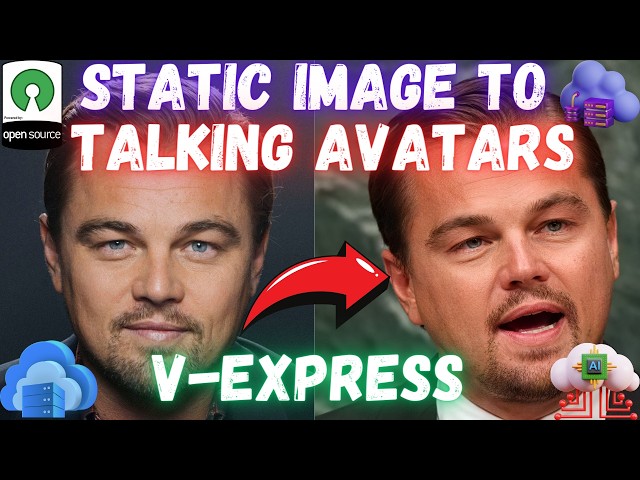











V-Express tutorial for cloud (Massed Compute, RunPod & free Kaggle). Ever wished your static images could talk like magic? Meet V-Express, the groundbreaking open-source and free tool that breathes life into your photos! Whether you have an audio clip or a video, V-Express animates your images to create stunning talking avatars. Just like the acclaimed D-ID Avatar, Wav2Lip, and Avatarify, V-Express turns your still photos into dynamic, speaking personas, but with a twist—it's completely open-source and free to use! With seamless audio integration and the ability to mimic video expressions, V-Express offers an unparalleled experience without any cost or restrictions. Experience the future of digital avatars today—let's dive into how you can get started with V-Express and watch your images come alive!
1-Click V-Express Installers Scripts
https://www.patreon.com/posts/105251204
Windows Tutorial
Hugging Face Uploading & Downloading Tutorial
Massed Compute Register and Login
https://vm.massedcompute.com/signup?linkId=lp_034338&sourceId=secourses&tenantId=massed-compute
Official Rope GitHub Repository
https://github.com/tencent-ailab/V-Express
SECourses Discord Channel to Get Full Support
https://discord.com/servers/software-engineering-courses-secourses-772774097734074388
00:00:00 Introduction to the V-Express with demo showcase
00:02:35 How to download installer scripts
00:02:54 How to install V-Express on Massed Compute with an extremely cheap price for 48GB RTX A6000 cloud machine
00:04:25 How to install and setup ThinLinc client to control Massed Compute virtual cloud machine
00:05:05 How to setup synchronization folder on ThinLinc client to transfer files between your PC and remote cloud machine
00:06:05 How to connect Massed Compute initialized virtual machine (VM) and start installing V-Express on Massed Compute
00:06:32 Amazing special features of Massed Compute SECourses image / machine
00:07:05 How to transfer installer files to start installation on Massed Compute
00:09:05 How to start / re-start V-Express on Massed Compute after installed and use it to animate images into talking avatars
00:13:11 Where are the generated video files are saved and how to download them to our computer from remote cloud machine
00:14:11 Generating a 1-minute long animated video and how much VRAM it uses
00:15:36 How to install V-Express image to talking avatars APP on a RunPod cloud virtual machine
00:16:10 Which Pod selection settings and configuration you should do
00:16:44 Which RunPod template you have to use for V-Express APP
00:17:46 How to upload installer files to the RunPod machine and start installation process
00:18:23 How to start / re-start V-Express on RunPod after installed and use it to animate images into talking avatars
00:20:06 How to download all of the generated videos on RunPod to your computer
00:20:48 How to install and use V-Express on a Free Kaggle account with our Kaggle notebook2
00:24:18 How to download generated videos on Kaggle to your computer at once
🚨 You Won't BELIEVE What This A.I. Can Do! 🤖 Introducing the MIND-BLOWING Talking Avatar Generator That Will Leave You SPEECHLESS! 😱
Prepare to have your mind absolutely BLOWN by the most incredible A.I. technology you've ever seen! 🤯 We're talking about a revolutionary Talking Avatar Generator that creates stunningly realistic video avatars with fully synced audio - and the results are nothing short of JAW-DROPPING! 😲
But the BEST part? You can use this cutting-edge tool for SUPER CHEAP on INSANELY POWERFUL cloud GPUs like the RTX A6000 🚀 - we're talking just 31 CENTS per hour! 💸 Or if you're feeling EXTRA THRIFTY, you can even use it FOR FREE with our exclusive Kaggle Notebook! 🎉
Don't waste THOUSANDS on expensive CGI when you can create STUNNING, PROFESSIONAL-GRADE talking avatars in MINUTES with our one-click installation on Windows, Massed Compute, RunPod, and Kaggle! 💻 Our STEP-BY-STEP tutorials make it FOOLPROOF, even if you're a total beginner! 🙌
Seriously, the quality of these A.I. avatars will leave you ASTOUNDED 🤩 - it's like something straight out of a Hollywood blockbuster! 🎥 You won't be able to tell the difference between our virtual humans and REAL actors! 😎
But don't just take our word for it - we've got TONS of mind-melting demo videos and test configurations for you to try out yourself! 🎬 Trust us, once you see the UNBELIEVABLE results this Talking Avatar Generator can achieve, you'll be HOOKED! 🎣
So what are you waiting for? 🏃♂️💨 Smash that link in the description and prepare to have your world ROCKED by the FUTURE of A.I.! 🔮 And don't forget to obliterate that like button and SLAM subscribe for more MIND-BOGGLING A.I. content! 🔥
-
00:00:00 The interesting question is, just because something thinks differently from you,
-
00:00:04 does that mean it's not thinking? Only audio input and a fully talking video avatar. We
-
00:00:11 allow for humans to have such divergences from one another. You like strawberries, I hate ice
-
00:00:17 skating, you cry at sad films, I am allergic to pollen. What is the point of different tastes,
-
00:00:25 different preferences if not to say that our brains work differently, that we think
-
00:00:32 differently? And you can also provide a driving video and generate even better talking avatars.
-
00:00:38 So today I am going to show you how to use this amazing newest V-Express open source application
-
00:00:46 on cloud services if you don't have a powerful GPU. If you are following me, I already have
-
00:00:52 published the Windows tutorial that is running on your local computer. So if you have a powerful
-
00:00:58 GPU, you can already use this application on Windows with one-click installers; moreover,
-
00:01:04 you still should watch the Windows tutorial because I explain in more details how to use this
-
00:01:09 application on Windows tutorial. So today I am going to show you how to one-click install and use
-
00:01:15 this application on Massed Compute with an amazing price: 31 cents per hour on a very powerful GPU
-
00:01:22 RTX A6000. You see it is running on the Massed Compute. And it is even able to generate 1-minute
-
00:01:29 long videos. Moreover, I am also going to show you how to install and use on RunPod machines.
-
00:01:36 You see I am running on three instances on RunPod to generate multiple videos at once. Furthermore,
-
00:01:43 if you don't want to pay to the cloud services, I also prepared a free Kaggle account notebook.
-
00:01:50 So I will show you how to use this application on a free Kaggle account as well. Also, I have done
-
00:01:56 more tests on the cloud services, and I am sharing the test results and their configuration. So you
-
00:02:03 can download the test file and look at each one of the results and their configuration and decide
-
00:02:08 which one is working best for you. Moreover, I have prepared more demo input images and
-
00:02:14 input videos so you can easily test the different configuration on these files as well. And finally,
-
00:02:22 I have updated this Patreon post, added some new information and the new links. So everything we
-
00:02:29 need is shared in this post. The link of this post will be in the description of the video.
-
00:02:35 Please read this post then go to the very bottom of the post and you will see the installer's zip
-
00:02:40 file which is V-Express installer's version 4. Let's just download it. Then let's extract it
-
00:02:46 into our downloads folder. Enter inside the extraction folder and you will see all of
-
00:02:53 the files here. I will begin with installing on Massed Compute which is my newest favorite cloud
-
00:03:00 service provider. To install on Massed Compute just double-click the Massed Compute instructions
-
00:03:05 read txt file. And all of the instructions are here. First of all, please register your Massed
-
00:03:11 Compute account or log in by double-clicking this link. After you did that, go to the billing and
-
00:03:17 set your credits from here. Then we will deploy a machine. So in this interface, we are going to
-
00:03:24 select A6000 GPU. You see RTX A6000. Why? Because we have a special coupon for this GPU and this GPU
-
00:03:32 is very powerful. It has 48 gigabytes VRAM. Then from the category select creator and from image
-
00:03:37 select SECourses. This is our virtual machine. This is mandatory to select and to get half price
-
00:03:43 you see currently it is 62 cents per hour. Type here SECourses like this and click verify and
-
00:03:49 you see now the price is 31 cents per hour. This deal is amazing for this GPU. Moreover, we get 48
-
00:03:57 gigabytes RAM. And 256 gigabytes hard drive. For this machine, click deploy. Once you click deploy,
-
00:04:05 just wait for the machine to be initialized. You see this is the new one that we have initialized.
-
00:04:10 I also have another running instance right now. And let's delete the previously running instance.
-
00:04:16 You see there is a delete button. Once you delete the instance, all of the data will be lost. Pay
-
00:04:20 attention to that. Let's terminate. And meanwhile, this virtual machine is getting initialized. Let's
-
00:04:26 also install the ThinLinc client if you haven't yet. You see there is a ThinLinc client here
-
00:04:31 link. I click it this arrow to open here. And when you go to the ThinLinc client downloads, download
-
00:04:37 according to your computer. If you are using Mac, download the Mac version. If you are using Linux,
-
00:04:43 download the Linux version. I am on Windows, so I am going to download Windows. Open the downloaded
-
00:04:49 .exe file. It will ask you permission. Click yes. Installation is so easy. Just click yes. Next,
-
00:04:56 install. And then run ThinLinc client. Finish. So we are ready to use. However, before using it,
-
00:05:02 set up your synchronization driver. You see there are options and advanced. If you don't
-
00:05:08 see options, click the advanced button here. Click options. Go to the local devices. Uncheck
-
00:05:15 all of the checkboxes and just check the drives. And click details. You should add a new folder
-
00:05:21 for synchronization. I am going to add my folder. So I will remove and add again. Click this three
-
00:05:28 dots icon. Select the folder where you want files to be synchronized with the cloud machine or with
-
00:05:36 your computer. So I am going to select this Mass Compute folder on my hard drive. Click OK. If you
-
00:05:43 want it read-only, you can make it read-only. So you will be able to read these files, your local
-
00:05:48 files from the cloud machine. But if you also want to synchronize, I suggest you read and write
-
00:05:55 and click OK and click. OK. Then just wait for initialization to be completed. And the machine
-
00:06:01 is initialized within like two minutes, maybe less. Then copy this login IP. Go back to ThinLinc
-
00:06:07 client and paste it. You see I just copy-paste the IP. Then the username is Ubuntu and Ubuntu these
-
00:06:13 usernames have to match. Then click this copy. It will copy the password and paste it and connect.
-
00:06:19 Then it will ask you this screen. Click continue. Then you will get to this screen. Click start.
-
00:06:26 Just wait. This part, it is very quick and we will in a minute access the computer and yes. So our
-
00:06:33 virtual machine has started. This virtual machine is extremely special. It comes with Automatic1111
-
00:06:40 web UI. It comes with SD Forge. It comes with one trainer, Kohya. There is also one click updater
-
00:06:47 scripts for them. Moreover, this machine comes with Python 3.10.12 and git and CUDA 11.8. So you
-
00:06:56 can use this virtual machine for any AI task. It should work on this machine. So how are we going
-
00:07:03 to install the V-Express on this machine? To install it, copy these extracted files. Go to
-
00:07:10 your synchronization folder, which was my Mass Compute folder. Here. I am going to make a new
-
00:07:17 folder here and let's say V-Express version 4 like this. You can also extract into this folder and
-
00:07:24 just copy paste it. Then go back to ThinLinc.com. When you get this software updater message, just
-
00:07:30 click cancel and where these files are copied. Go to the home button here. Inside this home button,
-
00:07:37 scroll down and you will see thindrives. Enter inside it. So this is where our files will be
-
00:07:44 synchronized. So you see this is my local folder name. Enter inside it. Using it is very easy. Just
-
00:07:51 after using one time, you will know how to use. So you see this was my folder. Just drag and drop
-
00:07:57 it for copying into desktop. You shouldn't install into this synchronization folder.
-
00:08:02 It will not work. So it is copied to the right bottom of the screen. So I just drag it and drop
-
00:08:08 it to the here so you can see. Enter inside the folder. So this is where we are going to install:
-
00:08:14 home > desktop > V-Express version 4. And inside this folder, double click and open the Massed
-
00:08:21 Compute instructions and copy this command. This is the installation command. All of my scripts
-
00:08:27 have the same logic. Then click this three dots icon and click open terminal. So we have started
-
00:08:34 the terminal inside this folder. Then copy paste the command. So let's copy the command one more
-
00:08:40 time. Sometimes copy paste may not work. With Ctrl-c I copy. Then right click and paste. Okay,
-
00:08:45 we didn't copy it accurately. Let's copy one more time. So copy Ctrl-c. Right click and paste. And
-
00:08:53 then it will start installation. You don't need to do anything else. It will install everything
-
00:08:57 all of the models and then we will run it with one-click. Okay, so the installation has been
-
00:09:02 completed. How are we going to start it? Let's return back to instructions txt file and just
-
00:09:09 copy this command with Ctrl-c. You see I write everything for you. Then click this three dots
-
00:09:15 icon one more time and open another terminal. You can also use this terminal. It should work and
-
00:09:21 paste it and hit enter. So I am showing this way. So you can also restart it if you want to restart
-
00:09:28 just close this terminal and open again and execute the command and it will work. So we got
-
00:09:33 both local URL and also Gradio live share. So you can use both of them. If you open this link with
-
00:09:40 right click and open link you can use it locally or you can use it from the Gradio live as well.
-
00:09:45 So I am going to show you how to use Gradio live. I will copy this link and I will return back to
-
00:09:50 my own computer and paste it and I will be using this link from my computer. You can use it from
-
00:09:56 your phone, mobile phone, your tablet wherever you want and I will be able to use this application
-
00:10:03 that is running on Massed Compute. I have prepared two demo images and videos. You can download both
-
00:10:10 of them and extract them to use. You can put them into your synchronization folder. However,
-
00:10:16 I will be using them from this Gradio. So just click here to upload the image. So these are the
-
00:10:22 demo images and videos part two. Select this one. I will make a quick demo because you should watch
-
00:10:28 the Windows tutorial of this application. In the Windows tutorial, I have explained everything.
-
00:10:34 You see this is the Windows tutorial. It is on our channel. I will also put the link of this
-
00:10:39 video into the description of the video so you can quickly find it and learn how to use this
-
00:10:44 application. Then let's select the video file. You can also use audios. You don't need video.
-
00:10:49 Both of them work. So let's select this one. So this is a two second clip. I prepared all times
-
00:10:56 of clips so you can use them, try them. Just click play. So this is our driving clip and this is our
-
00:11:03 driving image. I am going to use offset retarget. This is the best working one. If you get too
-
00:11:09 much problem with the mouth movements, you can reduce the audio attention weight. For example,
-
00:11:14 let's make this two and this will increase the likeliness of the output image. I am still testing
-
00:11:21 them and they will be included in the tests file that I have shown you and auto crop is enabled so
-
00:11:27 it will automatically crop this. The target video width and height are set. You should watch the
-
00:11:31 Windows tutorial. Then just click the generate talking video. To see the entire process you
-
00:11:36 should return back to the CMD window command line interface where you have started the application.
-
00:11:42 We started it on Massed Compute. You see it is super fast to detect the faces because I have
-
00:11:48 prepared everything accurately with the accurate libraries. This is running on a cloud machine not
-
00:11:53 on my machine. This machine has a huge amount of VRAM, an amazing configuration let me show
-
00:12:00 you. So I opened another window and nvitop is the command. You see we have 48 GB VRAM memory here.
-
00:12:08 We will see how much it will use for this video. Another advantage of Massed Compute is that you
-
00:12:14 can generate even very long duration videos because it has 48 GB VRAM. So it is starting
-
00:12:20 inference on our CMD window. We can watch the status here. Okay, the inference video generation
-
00:12:27 started so it is taking around 4.5 seconds per IT and it will be completed in 30 iterations.
-
00:12:35 Why? Because our step count is set as 30 so it will take 30 iterations to be completed. As you
-
00:12:41 increase the number of frames of your target video or the duration of your target audio,
-
00:12:47 it will use more VRAM memory. It is not exactly as linear but it is getting more used. Actually after
-
00:12:54 this video I will put a one minute video here to show you. Okay, the result video
-
00:12:59 is generated. Let's play. Machine is different. Machine is different. Machine is different.
-
00:13:04 Machine is different. Machine is different. Machine is different. Okay, so we see the input
-
00:13:09 and output. And where is this file saved and how you are going to download it? Let's return back to
-
00:13:15 the Massed Compute. On Massed Compute since this is a desktop interface you can click open outputs
-
00:13:21 folder and it will open the outputs folder. So it is saved inside our installation folder
-
00:13:26 inside outputs. So how can you download all of the generated videos into your computer? Go back to
-
00:13:32 the parent folder. Right click outputs and copy. Then return back to the home. In the thindrives
-
00:13:39 this is where our synchronization mass compute. You can also upload your Google drive, OneDrive
-
00:13:44 wherever you want and paste it there. After I do that when I return back to my synchronization
-
00:13:50 folder on my computer it will be there. Let's return back to our synchronization folder. And you
-
00:13:56 see output has arrived here and now this is on my computer. So it is synchronized. Just open it and
-
00:14:03 you will see it there. So one more thing before I end the tutorial for the Massed Compute. Then
-
00:14:09 we will move to the RunPod. Let's try 1-minute length video. So this is our current VRAM usage
-
00:14:16 only 33 megabytes. And let's go to here and just upload a one minute video. It is also inside this
-
00:14:23 example benedict 60 seconds. So let's upload it into our Gradio live interface. Then hit generate
-
00:14:31 talking video. By the way, you can also generate higher resolution videos from here. Target video
-
00:14:36 width and target video height. If you change them make sure that to change the crop width and crop
-
00:14:42 height as well if you are using auto crop image and let's see how much VRAM we will use with 1
-
00:14:49 minute video. So it is extracting faces in all of the frames and you see there are so many frames
-
00:14:55 in this video. So the inference has started. It is using 40 GB VRAM for 1819 frames video. So it
-
00:15:05 is a one minute video and it is using 40 GB and it is not a problem because we are renting this
-
00:15:11 machine with only 31 cents per hour as you are seeing. Let's say you need even longer videos or
-
00:15:18 bigger resolution than in the deployment menu you can rent A100 GPU. You see it is 80 gigabyte and
-
00:15:26 if you rent that one you will be able to generate even longer and bigger resolution videos. So it is
-
00:15:33 time to install on RunPod. To install on RunPod we have RunPod instructions read txt file inside the
-
00:15:41 downloaded zip file. So just open it. Then first register or login your RunPod account. I have a
-
00:15:47 link here. Please use that. So let's login. If you don't have an account. Just register
-
00:15:52 and in here click pods. You see I already have two running pods which I am running the tests
-
00:15:59 for you so you will be able to see which each configuration makes then click deploy and in
-
00:16:06 this screen the selections are super important. I'm going to use community cloud because it is
-
00:16:11 cheaper and I am going to set the extreme speed so it will download faster. Now minimum use 3090 24
-
00:16:20 gigabyte. You can also use RTX A6000, A40, or RTX A5000. These are all usable graphic cards or the
-
00:16:30 above ones from here. For this tutorial, I will use RTX 4090, which is the fastest GPU. However,
-
00:16:37 if you are going to generate longer videos, you may get an out of VRAM error. Now, this template
-
00:16:41 selection is super important. You see, after I selected GPU, I need to select my template here.
-
00:16:47 Click change template and type PyTorch. Now I am going to change it. I am going to change it. After
-
00:16:51 you typed PyTorch, you will get all of these official templates. From these PyTorch templates,
-
00:16:56 you need to select this PyTorch 2.1. Why? Because this template has CUDA 11.8, which is mandatory
-
00:17:04 to run it faster. So select PyTorch 2.1. This is already written in the instructions, so you should
-
00:17:11 always read my instructions for my scripts and then click back again the edit template. Set the
-
00:17:17 volume disk like 50 gigabytes; it is sufficient. Also, if you want to use RunPod proxy connection,
-
00:17:23 set a HTTP port here, 7861, and Set Overrides. Then go to the bottom and deploy on demand.
-
00:17:31 Let's go to my pods. So this is the new pod that I am starting, let's say tutorial from here, and
-
00:17:37 submit. And the pod connect button appeared; click connect. Connect to the Jupyter lab. This screen
-
00:17:43 may not appear or start immediately; it depends on your pod. Now from here, click this icon. We will
-
00:17:49 upload the downloaded zip files. So select the extracted zip file and upload everything there.
-
00:17:56 You see, I have uploaded everything. Double click RunPod instructions read txt file. And this is
-
00:18:02 the installation command. Copy it. Click this plus icon. A new terminal here. Paste it. This is all.
-
00:18:08 It will install everything automatically for us. All of my scripts are working with the same logic.
-
00:18:13 So once you learn how to run one of them, you can run all of them. Just follow the instructions. So
-
00:18:19 the installation has been completed. Let's return back to the instructions file.
-
00:18:23 Select this part. And open a new terminal. Just copy-paste it. This will start the application.
-
00:18:29 It will also give us a Gradio live share because we use the share command. You see,
-
00:18:34 we can connect from Gradio live. And also, you can connect from the HTTP service port 7861
-
00:18:42 because it starts on that port by default. So you can use either way. For this one,
-
00:18:47 I will do a quick test. So let's select the example files. So let's pick this one,
-
00:18:53 for example. And let's use a 7-second video file. I am going to use offset retarget. And let's make
-
00:19:00 the audio attention weight 2. And let's make the reference attention weight 1. Just wait for files
-
00:19:06 to be completely uploaded. Once it is done, click generate talking video. I will also update
-
00:19:13 this application and add a windows tutorial link. And let's see the speed on 4090. So,
-
00:19:19 it is first processing the frames. We have 233 frames for this video. So the inference has
-
00:19:26 started. It is taking 11 seconds per it for 233 frames video. It is about a 7-second video. This
-
00:19:36 is the speed of RTX 4090. So it is taking around 5 minutes to generate a 7-second video on RTX
-
00:19:44 4090. It is not very fast but it is not very slow either. So the video on RunPod has been generated.
-
00:19:51 Let's play it. The interesting question is just because something thinks differently from you,
-
00:19:57 does that mean it's not thinking? Okay, it is decent. So how you can download all of the
-
00:20:03 generated videos on RunPod. Go to the V-Express folder. It is inside the workspace. In here,
-
00:20:10 you will see outputs. Right-click and download as an archive. This is the easiest way. And you see,
-
00:20:15 it is downloaded. Alternatively, you can use RunPodctl to download all of them. Watch this
-
00:20:22 amazing tutorial to learn how to use RunPodctl on your computer. It is also an alternative way of
-
00:20:28 downloading. One another thing is that you can use Hugging Face uploading. In this amazing tutorial
-
00:20:35 video, I have shown how to download and upload files and folders to the Hugging Face. So you
-
00:20:41 can watch this amazing tutorial to learn that as well. Now, the final thing is that using Kaggle.
-
00:20:48 To use Kaggle, go to Kaggle.com. This is the slowest way, but it is completely free. Login
-
00:20:55 with your account and activate your phone number. Then click this create button. Click new notebook.
-
00:21:02 In this interface, select the accelerator from here as GPU P100. GPU P100 has more VRAM than the
-
00:21:12 GPU T4. That is why we are using it. Then go to the file. Click import notebook. Drag and drop or
-
00:21:19 select the notebook file. Click browse files. Go to the inside of your downloaded folder, you see,
-
00:21:26 and select the free Kaggle notebook. Then once you have selected the notebook, click import. And you
-
00:21:31 will get to this screen. On this screen, you will get settings updated. Click OK. It is fine. If
-
00:21:37 you don't get it, it is also fine. Then click this start session. Wait for the session to be started.
-
00:21:43 If you are not able to select the accelerator, that means your account is not phone. Then make
-
00:21:48 sure that the internet on is selected here. Wait for the kernel to be started. Once you get this
-
00:21:55 green icon, click here, and you will see your session with GPU 100 and the RAM and the memory
-
00:22:02 used. Then click this play icon; it will install everything automatically for you. You don't need
-
00:22:08 to do anything else. Just wait patiently. If you scroll down, you will see the installation logs
-
00:22:14 like this. If it gets broken. Just message me from Patreon, and hopefully, I will fix it immediately.
-
00:22:20 Once the Kaggle installation has been completed, you will see that this cancel button disappeared.
-
00:22:26 So the installation has been completed. You see there is no more cancel button. In the below,
-
00:22:32 there are several steps that you have to follow to use the web UI on Kaggle. Unfortunately, it is not
-
00:22:39 as just Gradio share. It is blocked. So read the instructions and apply them. And as a next step,
-
00:22:47 we are going to execute this cell; let me show you. So once you have applied the above steps,
-
00:22:52 there is also a tutorial that is showing you how to do that. A video tutorial. All you need to do
-
00:22:58 is just click this cell. So I click this cell. Just wait for the local URL to be started. Okay,
-
00:23:05 running on the local URL started. Now visit the link that you got in the above after following the
-
00:23:11 instructions. And there you will see visit site. After you click it, visit the site;
-
00:23:16 you will get our interface. On Kaggle, we have limited VRAM, so I am going to test
-
00:23:22 with a smaller video. Let's select our image. I am going to use this one. And I am going to
-
00:23:28 select a smaller video, Benedict 2 seconds like this. Let's select the offset retarget, and let's
-
00:23:35 make both attentions 1. I think this is working best. And click generate talking video. Then when
-
00:23:41 you return back to your Kaggle. You will see how it is working. It will process everything. So this
-
00:23:47 video is 61 frames. So the inference has started, and it is using 12.3 gigabytes of VRAM for 61
-
00:23:55 frames video. You probably can go to 2-3 minutes, maybe 4-5 minutes video input. But after that,
-
00:24:03 you may get out of VRAM error. So you should use the Massed Compute instructions, and you
-
00:24:09 can then generate even 1-minute videos or even longer. So our video is generated is generated on
-
00:24:16 Kaggle as well. How you can download all of the generated images on Kaggle. Return back to the
-
00:24:22 Kaggle notebook, and to download all of them, we are going to hit the cancel run button because we
-
00:24:28 are going to execute this cell. So let's hit the cancel run button. Then click this cell.
-
00:24:34 This cell is going to zip all of the video files into the working directory. So on the right panel,
-
00:24:42 click here. And you see now we have a videos.zip file. Whenever you click this cell, it will re-zip
-
00:24:49 all of the videos. Then from this three dots icon here, click and click download. And this way,
-
00:24:56 you can zip and download all of the videos that you have generated on a Kaggle account. And also,
-
00:25:04 you can of course click this download icon here and download videos directly to your computer.
-
00:25:10 And right-click videos and you can also save video as. And download videos and save them
-
00:25:16 into any location you want. Thank you very much for watching. Please subscribe to our channel.
-
00:25:21 Leave a comment. Like. Also, when you click here. More links. You will find our Discord
-
00:25:28 channel. Please join our Discord channel. You don't have to be my Patreon member.
-
00:25:33 You see we have over seven point five thousand members. Currently, about nine hundred members
-
00:25:39 are online. Click join server. Ask me any questions. You can reply to this video and
-
00:25:45 also message me from Patreon. Hopefully, see you in another amazing tutorial video.