MagicAnimate Temporally Consistent Human Image Animation using Diffusion Model Full Tutorial
Full tutorial link > https://www.youtube.com/watch?v=HeXknItbMM8
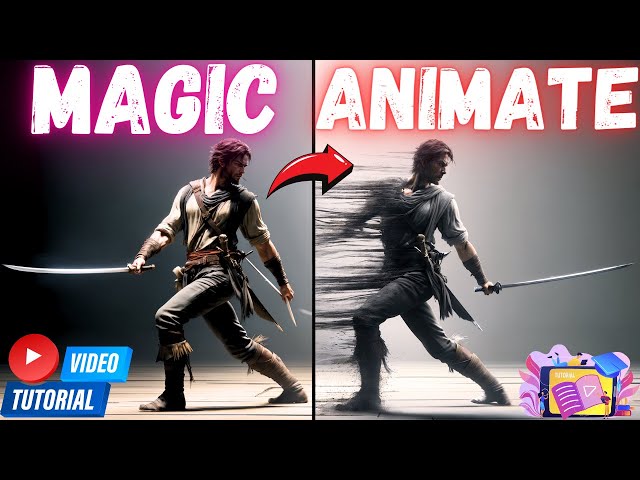











🌟 Welcome to this comprehensive tutorial video where I guide you through the process of installing and using Magic Animate for Temporarily Consistent Human Image Animation using a Diffusion Model, along with other exciting tools like DensePose generator and CodeFormer face restore! 🌟
Tutorial Source Patreon Post - Installers
https://www.patreon.com/posts/94098751
C++ Tools, Python & FFmpeg Tutorial
Stable Diffusion GitHub repository
https://github.com/FurkanGozukara/Stable-Diffusion
SECourses Discord To Get Full Support
https://discord.com/servers/software-engineering-courses-secourses-772774097734074388
🔹 In this detailed walkthrough, I cover:
The one-click installation process for Magic Animate, ensuring you can easily run the demo and generate incredible animations.
Steps to generate DensePose videos from any footage, turning standard videos into DensePose format with ease.
Utilization of DaVinci Resolve for video cropping, zooming, and exporting, preparing your footage for transformation into DensePose format.
Introduction to the Gradio application for CodeFormer face restoration, capable of video upscaling and face improvement.
🔸 Key Highlights:
Detailed instructions for installing necessary tools like Python, Visual C++ tools, and FFmpeg, complete with a link to a helpful installation tutorial video.
Advice on handling Magic Animate's folder structure and file extraction for optimal performance.
Step-by-step guide on installing and using various features within Magic Animate, including the creation of DensePose videos and the use of CodeFormer for face restoration and video upscaling.
Demonstrations of the application's capabilities, including the process of generating DensePose videos and the notable improvements in video quality and face restoration.
🔹 Special Features:
Tips for Linux users and those without strong GPUs on using RunPod for the installation and use of Magic Animate, CodeFormer, and DensePose Video Maker.
Insights into the best Python and FFmpeg versions for a seamless experience.
Troubleshooting tips, including how to check for errors during installation and ensuring compatibility with other AI applications.
🔸 Additional Resources:
Access to all instructions, scripts, and necessary files through a dedicated Patreon post.
Direct download links for the latest Magic Animate version and other essential software.
Invitation to join our Discord channel for support and community interaction.
💡 Pro Tips:
Pay attention to the detailed instructions for installing each tool and application to ensure a smooth experience.
Explore the video chapters to jump directly to specific sections of interest, especially if you're focused on particular aspects like RunPod installation or CodeFormer use.
🙏 Support & Community:
If you find this tutorial helpful, consider supporting my work on Patreon and joining our growing community.
Follow me on LinkedIn for updates on new tutorials and projects.
🎥 Don't forget to like, subscribe, and share this video if it helped you! Stay tuned for more amazing tutorials and tips.
#MagicAnimate #DensePose #CodeFormer #AIAnimation #VideoEditing #Tutorial #TechGuide #RunPod #Python #DaVinciResolve #FFmpeg #GradioApp #TechTutorial #Linux
00:00:00 Introduction to Magic Animate, DensePose Maker and CodeFormer full tutorial
00:03:18 How to 1-click install Magic Animate on Windows
00:04:31 How to check and verify your installed Python and FFmpeg
00:05:43 How to run Magic Animate web app and start using it
00:06:21 How to see progress of making animation
00:06:46 How much VRAM Magic Animate uses
00:07:12 First output of Magic Animate with paper authors shared demo
00:07:22 How to use our pre-shared DensePose videos to animate images
00:07:33 Magic Animate supported resolution
00:07:44 How to install DensePose video generator
00:08:50 How to generate DensePose video from any video example
00:09:04 How to properly crop and extract 512x512 video from any video via Davinci Resolve free edition
00:11:10 How to run DensePose video maker once your input video is ready
00:12:07 How to fix noise having frames of DensePose video generator output
00:13:20 Testing new DensePose video we made ourselves
00:15:18 Testing a custom image with paper authors pre-shared DensePose video
00:15:26 How to install and use CodeFormer Gradio web APP to improve your videos face quality and upscale them
00:16:08 How to start and use CodeFormer app
00:16:41 Where the Magic Animate generated videos are saved by default
00:17:01 Options of CodeFormer face enhance and video upscale
00:17:53 CodeFormer results comparison
00:18:46 How to install and use Magic Animate on RunPod or Linux
00:22:17 How to install and use DensePose maker on RunPod or Linux
00:26:06 How to install and use CodeFormer Gradio App on RunPod or Linux
-
00:00:00 Greetings, everyone. In this video, I am going to show you how to one-click install Magic Animate,
-
00:00:06 Temporarily Consistent Human Image Animation using Diffusion Model.
-
00:00:10 You might have seen their demos online and couldn't make it install, so in this video,
-
00:00:16 I will show you how to install and use it with plus features. So, with one-click installation,
-
00:00:22 you will be able to run the demo. Moreover, with unchecking "Merge input image, video,
-
00:00:28 and output into single video," you will be able to generate single videos like this. I am also
-
00:00:34 going to provide you DensePose generator from any video. What I mean is, turn your any video into
-
00:00:40 DensePose video as you are seeing right now with one-click installer and very easy process. I will
-
00:00:47 explain all of that. Moreover, by using DaVinci Resolve, I will show you how to crop properly,
-
00:00:54 zoom in, and export any real video footage so that you can convert that real video footage
-
00:01:01 into DensePose video footage. Moreover, I am going to share with you one-click installer and a Gradio
-
00:01:07 application for CodeFormer face restore. This Gradio application is taking a video as input,
-
00:01:14 and it is going to restore face as you are seeing right now with 2x video upscaling. Actually,
-
00:01:20 it supports more upscaling as well, so both the video and the face will get improved by using
-
00:01:27 this amazing Gradio application. So, if you wanted to learn and test and see yourself Magic Animate,
-
00:01:34 this is the video you are looking for. I will also show how to install on RunPod, both the
-
00:01:40 Magic Animate, the CodeFormer, and DensePose Video Maker. So, if you are a Linux user or if you don't
-
00:01:47 have a strong GPU, strong computer, by following this tutorial, you will be able to use everything
-
00:01:54 and do everything on RunPod. If you are only interested in RunPod installation, you can look
-
00:02:00 at the video chapters and jump to that part, but I do not suggest it because I will be explaining
-
00:02:05 a lot of stuff in the first chapter as well. So, all of the instructions and scripts that you are
-
00:02:11 going to need to follow this tutorial is shared in this Patreon post. To follow this tutorial,
-
00:02:17 you need to have Python installed, you need to have Visual C++ tools installed, and you
-
00:02:22 need to have FFmpeg installed. Just for showing how to install these, I have recorded an amazing
-
00:02:30 tutorial video. The link is here; you can also find this in the description of the video. So,
-
00:02:35 in this tutorial video, I have shown how to install all of the necessary libraries
-
00:02:41 and the programs that you need. This is a very detailed tutorial. In the details of the video,
-
00:02:47 you can see all of the chapters. So, if you need anything, just look at the chapter, find it,
-
00:02:52 and install it. Once you have installed all of these, then all you need to do is download the
-
00:02:58 latest Magic Animate version 4 zip file. This could get updated when you are watching this
-
00:03:03 video because whenever something gets broken, I update it. All of the instructions are also shared
-
00:03:10 in this post as text, so you don't need to watch this video entirely. Moreover, in the very bottom,
-
00:03:16 you will see the attachment. I prefer download from attachments. Let's download it, move the
-
00:03:21 attachment into a folder that you want to install. Let's install it into our G drive. So, let's make
-
00:03:28 Magic Video. When you are making folders, do not have any special characters or do not have
-
00:03:34 any space characters because some of the libraries are not working when you have space character. So,
-
00:03:39 I will extract here. Everything is extracted. Let's delete this zip folder. So, you see, these
-
00:03:46 are the folder names. Let's begin with installing the Magic Animate. So, enter inside, compose Magic
-
00:03:52 Animate, click Install MagicAnimate.bat file. It will install everything fully automatically for
-
00:03:59 you. It will also download the necessary models into the accurate folders. And you see there is
-
00:04:04 also Install.sh file which is made for Linux users. We will use it to install automatically
-
00:04:11 on a RunPod machine. The RunPod tutorial will be in the second section of this video, so you can
-
00:04:17 look at the chapters and jump into that section if you are interested in, but watching the entire
-
00:04:22 tutorial is better because I will show many stuff here as well. Meanwhile installing, let me show
-
00:04:28 you my Python and my FFmpeg. So, I typed Python, and you see, this is my Python version. This
-
00:04:35 is the default Python in my system. Please use 3.10.6 or 8 or 9 or 11, but do not use 3.9 or do
-
00:04:45 not use 3.11 or do not use 3.12 because you will likely encounter problems. And when I type FFmpeg,
-
00:04:53 you see FFmpeg is set on my system and ready to be used by any application, any library, or from the
-
00:04:59 Python applications. So, the installation has been completed. It also downloaded all of the models,
-
00:05:06 as you are seeing right now, into the accurate folders. Before proceeding,
-
00:05:11 scroll to the up and check out whether there are any errors or any warnings or anything else. Be
-
00:05:18 sure that there are no errors so that you will be sure that everything is installed accurately. This
-
00:05:25 is also a very important part, as you are seeing right now; there are no errors in my installation.
-
00:05:31 It is installing so many stuff, so I have worked a lot to make this installer for you. Then,
-
00:05:37 press any key to close. Let's return back into our folder. Now we are ready to use the application.
-
00:05:43 To use it, double-click Run GradioApp.bat file. It will automatically start the Compose Magic Animate
-
00:05:51 web UI for you, and this web UI is improved compared to the official released repository. The
-
00:05:59 web UI has started, as you are seeing right now. This is an improved version. Why? Because you see,
-
00:06:04 we have "Merge input image, video, and plus output into a single video" option. So, let's use the
-
00:06:12 demo example they put. You see motion sequence and the reference image. So, let's animate. When
-
00:06:18 you click animate, you will see it will start processing. Watch here. This duration, the
-
00:06:25 processing speed totally depends on your duration of the input sequence video, the DensePose video,
-
00:06:34 and also depends on your GPU. The longer your input DensePose video, it will take longer,
-
00:06:40 even though it will display 25 steps here, so each step will become much longer. Moreover, how much
-
00:06:48 VRAM it is going to use totally depends on the duration of the DensePose video input. There is no
-
00:06:55 limit; you can even process 30 seconds video, one minute video. However, as you use longer video,
-
00:07:00 it will use more VRAM and it will take more time. So, currently, while I am recording, it is
-
00:07:05 processing this short video this fast, as you are seeing right now. Okay, all merged into one video,
-
00:07:11 and we got the output. Let's play it. So, this is the output of the video. So, what happens if
-
00:07:17 you uncheck this option? It will only give you the output video, nothing else. Moreover, you can use
-
00:07:23 our pre-shared DensePose videos. There are several DensePose videos here, as you are seeing. You can
-
00:07:28 use any of them, and you can use any image. The application requires 512 to 512, both image and
-
00:07:36 video input. So, as a next step, let's generate our own DensePose video from another video. This
-
00:07:44 is a frequently asked question. So, to be able to generate our own DensePose video,
-
00:07:50 enter inside Compose DensePose, and in here, you need to double-click Install Detectron.bat
-
00:07:57 file. To be able to install Detectron, you need to have installed C++ tools. This is really,
-
00:08:04 really important because it is going to compile some wheels. Also, this DensePose will make its
-
00:08:10 own virtual environment. All the scripts that I make and share on Patreon make their own virtual
-
00:08:17 environment, so they will not conflict with any other of your installations, such as Comfy UI,
-
00:08:22 such as Automatic1111 Web UI. So, whichever the other AI applications that you use, they will
-
00:08:28 not get conflicted. So, the installation has been completed. Verify that you do not have any errors,
-
00:08:35 and the most important part of this installation is where it builds the wheel of the Detectron.
-
00:08:44 You see, it has built the Detectron wheel, and we have no errors. Everything is set up. Now, I will
-
00:08:51 find a demo video from Pexels to show you how to generate DensePose video. Let's say "man walking,"
-
00:08:59 and let's try this video, whether it will be good or not. Okay, let's free download. First,
-
00:09:05 you should extract it with 512 to 512 resolution. So, for editing this video into 512 and 512 with
-
00:09:14 cropping, I will use DaVinci Resolve free-edition. Open it. If you don't know how to use DaVinci
-
00:09:19 Resolve edition, you can watch my amazing tutorial on our channel. Just type DaVinci Resolve. Okay,
-
00:09:26 let's open a new project. Let's say create. It doesn't matter. Before importing video into
-
00:09:32 the timeline, go to settings here, and set it as 512, 512. Also, set the frame rate to 25 because
-
00:09:39 the Magic Animate works with 25. So, these are mandatory, and very importantly, in the image
-
00:09:46 scaling, change this mismatched resolution files to center crop with no resizing. Then, save. Then,
-
00:09:53 go to the Edit tab. Go back to your downloads. So, I will import again. Don't change the frame
-
00:09:58 rate. Okay, this is important. Okay, now we are going to crop it as we want, so we will have the
-
00:10:04 maximum quality of our video. Okay, let's make like this, maybe zoom out a little bit more,
-
00:10:11 like this center. Okay, looking decent. You can zoom out and change the position as you wish
-
00:10:18 from these options. So how you made the video will affect your output. Let's make it like six
-
00:10:26 seconds. So for cutting it, you can use this icon and cut, then let's delete the selected part. Let
-
00:10:32 me show you. So, when you click this, it will cut where your cursor is set. Then let's right-click
-
00:10:38 and delete the selected. Then go to the export tab and let's export as example. Let's select
-
00:10:44 the format, MP4 H265. Resolution is 512, 512, frame rate is set. Okay, everything is looking
-
00:10:53 good. So select where you want to save. Let's save it inside Magic Video, Compose DensePose,
-
00:11:00 Example.mp4. Okay, and render all. Since this is a small file, it will get rendered. Okay,
-
00:11:06 now we are ready. We have done the installation of Compose DensePose. To run this, you need to
-
00:11:12 edit MakeDensePoseVideo.py file. Open it. So what you need to change is the video path. So,
-
00:11:19 the video path is right now Example.mp4. Let's change it as Example.mp4. Then change your output,
-
00:11:27 currently, it is like this. Let's make it as Magic Test. Okay, and you are ready. Then all you need
-
00:11:33 to do is double-click GenerateDenseVideo.bat file. It will extract the frames and process them. For
-
00:11:40 extracting, it is using FFmpeg, so FFmpeg is really mandatory for this tutorial or in many
-
00:11:48 other AI applications that you are going to use. And it is done. So you see, it has generated Dense
-
00:11:54 frames, and our Dense video is generated. Let's look at the Dense video, which is Magic Test.mp4.
-
00:12:02 When I open it, you see this is a DensePose video of the input video. It also has some
-
00:12:09 minor noise unfortunately. When we enter inside the Dense frames, you see the noise are here. You
-
00:12:16 can manually edit them and fix them, like this. Save it, and it is fixed. Also, in here, I see,
-
00:12:23 unfortunately, this is happening even though we are using the very best Detectron model available.
-
00:12:29 This is a limitation of DensePose video. So you can fix all of the errors manually like this and
-
00:12:35 reconstruct the video. For reconstructing the video, you can use FFmpeg, or I made another
-
00:12:42 Reconstructor alone file. Now, I will show in a moment. Okay, I don't see any other erroneous
-
00:12:49 output. You see there is ReCompileDenseVideo.py file. Just fix the output name. So it will use
-
00:12:57 the DensePose input frames which we fixed. Double click ReCompileDenseVideo.bat file. It will ask
-
00:13:06 you to override. Click yes, and it will fix the Magic Test output, which is our output,
-
00:13:12 and no more such noise here. Of course, there are still some other noises, but we can't do anything
-
00:13:18 with DensePose. This is what we got. Okay, now we can test the new video from here. So let's
-
00:13:24 go to Compose DensePose. Magic Test video is uploaded. This is the new one. And this time,
-
00:13:31 I won't merge input image, video, output. Let's animate. Okay, we got an error, because. Because,
-
00:13:37 I have to pick another image. We were using the reference image, so it wants me to upload again.
-
00:13:44 So let's try this image, for example. Okay, let's animate, and now it started. The error
-
00:13:51 you just seen was because in the beginning, we had clicked here, therefore when we changed the video,
-
00:13:58 it didn't see the image uploaded, so we had to re-upload the image. Now it is processing.
-
00:14:04 You see, this time it is much slower because the DensePose motion sequence we uploaded is longer
-
00:14:11 than the previous one, so it will take longer. By the way, it will not try to replicate your input
-
00:14:17 image. It is recognizing it with Stable Diffusion terms, and it is generating the output based on
-
00:14:25 that recognition. Unfortunately, it will not try to match the face exactly, or the demos you've
-
00:14:32 seen, they will not be as good as those demos. All right, we got the output. Let's see. So,
-
00:14:39 this is the output. You see, it is not looking very good. It's looking terrible, actually. So,
-
00:14:45 it is totally depending on your input sequence. You need to find a good sequence input to get good
-
00:14:53 results. Unfortunately, there is no other way. It will not work good with every input. Now, I will
-
00:14:59 run this with one of the pre-shared demo sequences because they are working best, probably because of
-
00:15:05 the training dataset, they are over-trained. Okay, here, their pre-shared DensePose, I will try with
-
00:15:12 Running Two. It is also a five-second. You see, this is the running, they shared. Let's see the
-
00:15:18 results. Okay, so we got the results. Let's check it out. It is much better, much better than our
-
00:15:24 used DensePose. Now, I will show you how to use CodeFormer to improve the face and upscale the
-
00:15:32 video. You can use this CodeFormer on any video. If you need CodeFormer alone to use on videos,
-
00:15:40 you can just use this part of the scripts. So, to use it, first, we will install. Double-click the
-
00:15:48 Install CodeFormer.bat file. It will generate its own virtual environment and install the necessary
-
00:15:54 packages. The installation has been completed. Make sure that there are no errors, and right now,
-
00:16:00 I am checking, and there are no errors. Okay, everything looks like installed. This is also
-
00:16:06 requiring a lot of libraries, unfortunately. All right, then we will run the app by double-clicking
-
00:16:13 this, and the app has started. Okay, I don't want to input my camera. This is weird; it shouldn't
-
00:16:21 ask for my camera, or because the camera option was selected. Wow, okay, let's say awllow. No,
-
00:16:27 okay, let's go to here. I don't know why default it is trying to use this. It shouldn't,
-
00:16:32 but it is trying. All right, then we will give our input video. So, let's download this video
-
00:16:40 from here. The videos are also saved in a default folder where you might wonder, inside Compose
-
00:16:47 Magic Animate, inside Demo, inside Outputs. You see all the videos are saved by default. Okay,
-
00:16:55 we downloaded the video. Let's upload it from here. So, this is our video. Now, there is
-
00:17:01 one option that you can play with, balance the quality and fidelity. So, which side you want,
-
00:17:08 quality or fidelity. Let's go with the quality. Let's upscale into 2x. You can also upscale to
-
00:17:16 more. I will just go with 2x and submit. So, what will this application do? It will download the
-
00:17:23 Real-ESRGAN upscaler, then it will download the CodeFormer. I have coded this myself, this Gradio,
-
00:17:30 and of course, all of the installation scripts. Then it is going to extract every frame of the
-
00:17:36 input video. It will do upscale and face restore, then it will recombine the final video output for
-
00:17:43 us. It's also pretty fast, as you are seeing right now. So, if you need this, then you can
-
00:17:48 use this script alone. Okay, the output is ready. Now, I will run both of them at the
-
00:17:54 same time so you can see the quality improvement. The face improvement is significant. For example,
-
00:18:00 let's go to the same scene, almost the same scene, and let's see the difference. You see,
-
00:18:07 the face improvement is significant. However, since the input video is not that great,
-
00:18:12 we will not get a very consistent face, but still, we will get a much better face than before when
-
00:18:19 you consider the face in the input video. So, CodeFormer face improvement will significantly
-
00:18:26 improve depending on the input video you have. And the best part is, you can use this for any video
-
00:18:34 that you have, not just for Magic Animate. If you have a low-resolution video, you can use this to
-
00:18:39 upscale the video and improve the face because this is also doing a video upscale automatically
-
00:18:45 for you. Okay, now I will show you how to install everything on RunPod. If you are a Linux user,
-
00:18:51 this is also how you are going to install. On our Patreon post, everything is step by step written.
-
00:18:58 So, let's go to our RunPod from this link. If you're another RunPod user, you can register from
-
00:19:03 there. Let's go to the community cloud. Select extreme speed from here. I will use RTX 3090.
-
00:19:11 However, you can also go with higher VRAM having GPUs. With that way, you will be able to process
-
00:19:17 longer videos with longer DensePose input. Let's deploy. You really need to follow the instructions
-
00:19:24 here. Select the PyTorch template. So, let's type PyTorch, and let's select any of them,
-
00:19:29 for example, this one. Then customize and set the volume disk to 50 gigabytes. So, customize volume
-
00:19:36 disk to 50 gigabytes. Override, continue, deploy. This should get deployed very quickly. Okay,
-
00:19:44 the pod is ready. Click connect. Click Jupyter Lab. Connect to Jupyter Lab. Then, following
-
00:19:50 instructions here are really important. We need to upload install.sh file and downloader.py file
-
00:19:56 because it will use both of them. So, you can use this upload icon, click here, go to the folder
-
00:20:03 where the files are located, select both files like this, and upload. You can also upload all
-
00:20:09 of them; it is fine. Let's click terminal, then let's copy this entire command lines from here,
-
00:20:17 paste it, hit enter. It will set the Hugging Face default download repository into the workspace,
-
00:20:25 so all the models will be permanently saved in your pod in your workspace, and it will
-
00:20:30 install everything automatically for you. The installation has been completed. The model files
-
00:20:36 are downloaded. Also, verify that there are no errors in the installation. If you are a Linux
-
00:20:41 user and if you are installing manually, make sure that all the paths are accurate in the files that
-
00:20:49 we are installing. So, open a new terminal from here. Then we are going to follow the
-
00:20:54 instructions here. After the installation has been completed, each time when you are going to run it,
-
00:20:59 copy this command, paste it, hit enter. It will start the Gradio application with Gradio sharing
-
00:21:06 for us. Unfortunately, last time when I was using the proxy feature of RunPod, it wasn't working
-
00:21:14 because of a bug or something in the Gradio. I reported it, and hopefully, it will get fixed in
-
00:21:19 future versions of the Gradio. Okay, it is loading everything, downloading the missing models, when
-
00:21:26 you run it the first time. You will also get such warnings and other messages when you are running
-
00:21:32 it. The local app started. Now we are waiting Gradio live, share. Okay, here the Gradio live,
-
00:21:38 let's open it. And now we are running on RunPod. So, let's try the demo. Okay, the demo loaded.
-
00:21:45 Let's animate. You can watch the progress here. It should be pretty fast. Yes, under 1.5 minutes. You
-
00:21:53 can also see the memory usage. Let's see the GPU utilization. Okay, GPU utilization is 100%, memory
-
00:22:00 usage is 40%. If you use a longer DensePose, then it will use more VRAM, as I said many times in
-
00:22:09 this tutorial. So, be careful with that. And we got the video output, as you are seeing right now.
-
00:22:15 We can click here and download the video. So, now let's install the second part, which is DensePose
-
00:22:22 Maker. To install it, we need to upload the sh file again. So, let's click here. Let's go to the
-
00:22:29 DensePose, Compose. So, what we need to upload is install_detectron.sh file. Then, do we need
-
00:22:38 anything else? Okay, we need to upload everything. So, let's make it like this. Let's make a new
-
00:22:44 folder here, and say DensePose, like this. Let's enter inside it. Let's return, make the DensePose.
-
00:22:52 Except this folder, we upload everything. So, let's upload everything to be sure. Alright,
-
00:22:57 let's open a new terminal. Let's copy, paste this command. This will install everything inside this
-
00:23:04 folder. So, when we are going to run it, we will enter inside this folder and run it. Alright,
-
00:23:10 the installation has been completed. So, let's upload our example video, which we shared inside
-
00:23:17 Compose DensePose, and Example. Then, to run it again, we will edit the MakeDenseVideo.py file.
-
00:23:26 We have the Example.mp4, so let's change this to Example. Actually, the input will be Example,
-
00:23:35 and the output will be DensePoseExample, any name you wish. Save it. After we saved, the file name,
-
00:23:43 start a new terminal, go back, the instructions, and in here, you need to run these two commands
-
00:23:50 one time after you start your pod. This is necessary, and just copy-paste everything.
-
00:23:57 Once you made it, you don't need to copy these two again and again. So, let's just execute these two
-
00:24:03 first. Why these two are necessary only one time? Because apt commands are system-wide commands and
-
00:24:10 they need to be executed once after you start your pod for the first time. Okay, it is done. Then,
-
00:24:17 let's open a terminal and copy-paste the entire command here. And then, it will start processing
-
00:24:23 the file for us. The output will be inside this DensePose folder where we have uploaded and
-
00:24:30 installed. Make sure that the paths are matching when you are running on RunPod, wherever you have
-
00:24:37 uploaded files. I updated these instructions: upload into the DensePose folder like this, then
-
00:24:44 run the command. So, follow the instructions here. Okay, now we are inside DensePose folder, the
-
00:24:49 virtual environment of which one, the Detectron 2 is activated, and the files are generated. Let's
-
00:24:58 see the generated DensePose video, which is here, DensePoseExample.mp4. Let's download it. Okay, it
-
00:25:05 is downloaded. Then, let's give it as an input, so I will give the new downloaded as an input here,
-
00:25:12 and we already seen that in the beginning of the video. Then, we need to give a new image,
-
00:25:18 any image you can give. It will try to match it, so let's try something wild. Okay, everything
-
00:25:24 is uploaded, and animate. So, this is how you can generate DensePose. You can also watch the
-
00:25:31 progress of your generation in the web UI. Compose Magic Animate web UI started, terminal in here,
-
00:25:40 in this case. The processing speed of the RTX 3090 is really good. This is how many seconds
-
00:25:47 file. This is a six seconds file, and you see the speed of six seconds Magic Animate composition is
-
00:25:55 13.91 seconds per iteration, and it is going to take 25 iterations to generate the output
-
00:26:05 video. All right, now let's install CodeFormer on RunPod. So instructions are clearly written.
-
00:26:14 Let's generate a CodeFormer folder to upload and install files. Let's go back to the workspace,
-
00:26:19 new folder, CodeFormer. Enter inside it, click the upload icon. Let's go to our files,
-
00:26:26 which are here, CodeFormer, and upload everything like this. If you use different path folder paths,
-
00:26:34 you need to change the commands. So, let's copy the command, open a terminal, copy-paste it. It
-
00:26:40 will install everything into here with a virtual environment. Meanwhile, let's also upload one of
-
00:26:46 the videos we have had previously. For example, let's fix the face of this video. Let's upload
-
00:26:52 it into this directory. It is uploaded pretty fast. The installation has been completed. Again,
-
00:26:59 verify any errors or not. Now let's start the CodeFormer Gradio application. So,
-
00:27:05 let's copy the entire message here. By the way, again, be careful with the folder paths. If you
-
00:27:11 upload into a different folder, then you need to change this path, or in your Linux machine. So,
-
00:27:17 let's start a new terminal, or paste the entire thing. You should also join our Discord channel,
-
00:27:23 so if you encounter any problem, you can message us there from our Discord channel, and when I look
-
00:27:30 at your error, I can see your error reason. Okay, the Gradio app has started. Let's open it. Okay,
-
00:27:36 it's still wanting this. I don't know why. This is probably since I am recording a video. So,
-
00:27:41 let's upload our video. Okay, it is uploaded, I think. Yes, I can see it. So, this time,
-
00:27:48 let's try 50 percent instead of zero percent, and let's upscale 2x. Okay, there are also other,
-
00:27:57 you see, face detection models. I will go with RetinaFace. I think this is the best one. You
-
00:28:03 can see the progress here. First time, it will download the necessary models. Okay,
-
00:28:07 the processing has been completed. It was pretty fast. You can also see the results in
-
00:28:12 this folder. It is automatically saved, as you are seeing. And the Gradio result is also here. So,
-
00:28:18 let's look at it. Okay, this time the face quality is lower than before, but it is more similar. So,
-
00:28:25 if you want the best quality, make this zero. If you want the best resemblance,
-
00:28:29 make this one. This is how it works. This is its logic. I hope you have enjoyed. Please like,
-
00:28:36 subscribe, share our video. I am working on the very best, the newest stuff, and each of my videos
-
00:28:44 is taking a huge time. Hopefully, more amazing videos are coming, and thank you so much if you
-
00:28:50 support me on Patreon. As I said, you should join our Discord channel, and these are our statistics.
-
00:28:58 You can follow me also on LinkedIn. I would appreciate that very much. This is my LinkedIn
-
00:29:04 profile. All the instructions are written on this post with a lot of details. Join our Discord and
-
00:29:11 ask me if you encounter any problem. Hopefully, see you in another amazing tutorial video.