LivePortrait No GPU Cloud Tutorial RunPod MassedCompute and Free Kaggle Account Animate Images
Full tutorial link > https://www.youtube.com/watch?v=wG7oPp01COg
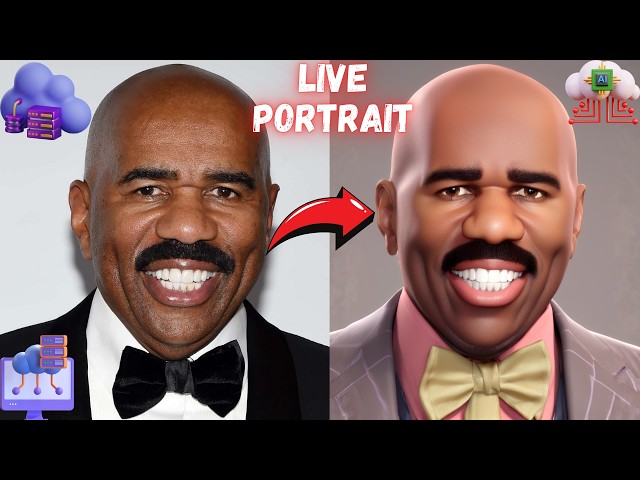











With V3 update video to video added. Are you interested in using LivePortrait, the open-source zero-shot image-to-animation application, but lack a powerful GPU, you are Mac user or prefer to use it in the cloud? If so, this tutorial is exactly what you need. I will guide you through the process of installing and using the LivePortrait application with just one click on #MassedCompute, #RunPod, and even on a free #Kaggle account. After following this tutorial, you'll find running LivePortrait on cloud services as straightforward as running it on your own computer. LivePortrait is the latest state-of-the-art static image to talking animation generator, outperforming even paid services in both speed and quality.
🔗 LivePortrait Installers Scripts
🔗 Windows Tutorial - Watch To Learn How To Use
🔗 Official LivePortrait GitHub Repository
🔗 SECourses Discord Channel to Get Full Support
🔗 Paper of LivePortrait: Efficient Portrait Animation with Stitching and Retargeting Control
🔗 Upload / download big files / models on cloud via Hugging Face tutorial
🔗 How to use permanent storage system of RunPod (storage network volume)
🔗 Massive RunPod tutorial (shows runpodctl)
00:00:00 Introduction to the state-of-the-art image to animation open source application LivePortrait cloud tutorial
00:02:26 How to install and use LivePortrait on MassedCompute with amazing discount coupon code
00:04:28 How to enter our special Massed Compute coupon to get 50% discount
00:04:50 How to setup ThinLinc client to connect and use Massed Compute virtual machine
00:05:33 How to setup synchronization folder of ThinLinc client to transfer files between your computer and MassedCompute
00:06:20 How to transfer installer files into Massed Compute sync folder
00:06:39 How to connect initialized Massed Compute virtual machine and install LivePortrait app
00:09:22 How to start and use LivePortrait application on MassedCompute after installation has been completed
00:10:20 How to start second instance of LivePortrait on the second GPU on Massed Compute
00:12:20 Where the generated animation videos are saved and how we can download all of them to our computer
00:13:23 How to install LivePortrait on RunPod cloud service
00:14:54 Which template of RunPod you need to use
00:15:20 How to setup RunPod proxy access ports
00:16:21 How to upload installer files into JupyterLab interface of RunPod and start installation process
00:17:07 How to start LivePortrait app on RunPod after installation has been completed
00:17:17 How to start LivePortrait on the second GPU as second instance
00:17:31 How to connect LivePortrait from proxy connection of RunPod
00:17:55 Animating first image on the RunPod instance with 73 seconds driving video
00:18:27 How much time animating 73 seconds video takes (speed of the app is mind blowing)
00:18:41 How to understand input upload error and example case
00:19:17 How to 1-click download all the generated animations on RunPod
00:20:28 How to see and follow progress of the generating animations
00:21:07 How to install and start using LivePortrait for free on a free Kaggle account and speed is amazing
00:24:10 Generating first animation on the Kaggle after installed and started the LivePortrait app
00:24:22 Wait input images and videos to be uploaded fully or you will get error shown here
00:24:35 How to watch the status of the animation and follow the progress on Kaggle
00:24:45 How much GPU, CPU, Ram and VRAM is being used and the speed of animation process of LivePortrait app on Kaggle
00:25:05 How to download all of the generated animations on Kaggle with 1-click
00:26:12 How to restart LivePortrait app on Kaggle without reinstalling
00:26:36 How to join SECourses Discord channel to chat with us and get help
LivePortrait paper presents LivePortrait, an innovative framework for animating static portrait images into realistic and expressive videos. The authors focus on achieving high inference efficiency and precise controllability while maintaining high-quality results.
The proposed method builds upon and extends the implicit-keypoint-based framework, balancing computational efficiency and controllability.
Key improvements include:
Enhanced generation quality and generalization:
Scaled up training data to 69 million high-quality frames
Adopted a mixed image-video training strategy
Upgraded network architecture
Designed better motion transformation and optimization objectives
Improved controllability:
Introduced stitching and retargeting modules using small MLPs
Enabled precise control over eyes and lip movements
Allowed seamless animation of multi-person portraits
The model consists of two training stages:
Stage I: Base Model Training
-
00:00:00 Hello everyone. In this video, I am going to introduce you to the state-of-the-art
-
00:00:05 image to animation video generator open-source application, LivePortrait. LivePortrait is remarkably capable of transferring
-
00:00:14 expressions from input driving video into animation with blazing speed.
-
00:00:20 It can nearly mimic all of the expressions like this from your input video into your
-
00:00:26 animation video with extreme efficiency and accuracy. It is just mind-blowing
-
00:00:31 you will see it. Generating 30 second video takes as low as 1 minute on RTX 3090 GPU
-
00:00:40 as low as only 4 GB VRAM GPU. Just mind-blowing. I have already prepared one-click installers for
-
00:00:50 Windows, for MassedCompute, for RunPod, and even for a free Kaggle account.
-
00:00:57 So don't worry if you don't have a powerful GPU, you will be able to use this amazing
-
00:01:04 application on a free Kaggle account as well, and I am making some expressions for you to demonstrate
-
00:01:11 the capability of this model right now. So in this tutorial, I am going to show you how to use
-
00:01:15 this amazing LivePortrait application on cloud services. I will begin with showing on
-
00:01:21 MassedCompute virtual machine. MassedCompute is just amazing, so if you want to use this amazing
-
00:01:26 application on MassedCompute, watch this tutorial. Then I will show how to install and use it on a
-
00:01:32 RunPod machine. It is working blazingly fast on RunPod as well. You will see how to install and
-
00:01:37 use it on RunPod. Moreover, I will show how you can use this amazing application on a free
-
00:01:43 Kaggle account as well. So if you don't want to pay any money to cloud services, you will be able to
-
00:01:49 use LivePortrait application on a free Kaggle account as well. It works great on Kaggle as well.
-
00:01:56 So you will be amazed by its speed. This tutorial will cover how to install and use on cloud
-
00:02:03 services. If you want to learn how to use this application in details or on your local computer,
-
00:02:10 you need to watch the Windows tutorial. It is published on our YouTube channel, and the link
-
00:02:15 of the tutorial will be in the description of the video. So don't worry about that. This tutorial is
-
00:02:20 for cloud services, for who doesn't have a GPU or want to use cloud services for any reason.
-
00:02:26 So all the installer scripts for cloud services are shared in this post. The link of this post
-
00:02:32 will be in the description of the video. You still need to watch the Windows tutorial to learn how
-
00:02:37 to use this amazing application. The link of Windows tutorial will be in the description of
-
00:02:42 the video and also in this post when you are watching the tutorial video. So go to the very
-
00:02:48 bottom and download the attachment. Currently LivePortrait version 2. It may be higher version when
-
00:02:53 you are following this tutorial. This zip file includes Kaggle notebook, MassedCompute installers,
-
00:03:00 and also RunPod installers. I will begin with MassedCompute installation because it is my
-
00:03:05 favorite right now. So copy this and extract into any folder wherever you want. Let's extract into
-
00:03:12 Downloads. When you enter inside your extracted folder, you will get all of the script files like this.
-
00:03:19 So open the MassedCompute instructions read.txt file. Please register by using this link. It helps
-
00:03:26 me significantly. Let's log in to our MassedCompute. After registering and logging in, set up your
-
00:03:33 billing account, add some balance, then go to the deploy, and in here we have a special coupon for
-
00:03:40 RTX A6000 GPU. This GPU is extremely powerful. You see this machine has 48 gigabyte RAM, 256 gigabyte
-
00:03:49 storage, and this GPU has 48 gigabyte VRAM. If no GPU is available, you can also use RTX A6000
-
00:03:58 alt config, but currently, we have plenty of GPU. I am going to rent two GPUs so I can show you how
-
00:04:04 to start two instances on two GPUs, but one GPU is very sufficient for using this application. Then
-
00:04:13 from the category select creator. From the image select SECourses. This is our special image. And
-
00:04:20 in the coupon code, I am going to enter our coupon. You see currently two GPUs is 1.25 dollars per hour.
-
00:04:28 So when I type our coupon SECourses and click verify, it will become half price. You see 63 cents
-
00:04:37 per hour. Click deploy and our instance started. Just wait initialization process to be completed,
-
00:04:45 and meanwhile, I will show you how we are going to connect and use this instance. We are going to use
-
00:04:51 ThinLinc clients. So you see the link is here. Click this link. In this web page, download the
-
00:04:57 installer file according to your operating system. I am on Windows, therefore I will download Windows.
-
00:05:03 On Mac, download the Mac. On Linux, download the Linux versions. If you are not a Windows user,
-
00:05:09 you see the install instructions are available here. So for other platforms, follow the instructions here.
-
00:05:16 After the download has been completed, open it. It will ask you permission. Click yes, then click
-
00:05:22 next, click I accept terms, click next, install. Nothing else, just next, next, next, and run the
-
00:05:28 ThinLinc client. Now this is the interface of ThinLinc client. Before we log in into our
-
00:05:35 MassedCompute virtual machine, click options here and go to the local devices. Uncheck all
-
00:05:41 options and just check drives and click details. From here, you need to add a folder for synchronization
-
00:05:47 if you want to upload or download files. So I will add mine again to show you. Just remove,
-
00:05:54 add. You see there is Exported path. Click this three dots icon, select where you want your
-
00:06:00 synchronization folder to be. So my folder is here. I am just selecting. You see like this. There is also
-
00:06:06 permission. You can make it read-only, read and write, or not exported. I am going to make read
-
00:06:12 and write so I can upload and download. Click OK, click OK. Then just wait for status to be
-
00:06:19 initialized. Okay, then I am going to move my downloaded files into my ThinLinc client
-
00:06:26 MassedCompute synchronization folder. Let's give a folder name like LivePortrait AI, then paste
-
00:06:33 all the files here. So it will be synchronized with the cloud and my PC when I connect. Okay, now
-
00:06:39 the status of the virtual machine is now running. That means our virtual machine is ready. Click here
-
00:06:45 to copy the IP address. Paste here. Make sure that username is Ubuntu and also Ubuntu here.
-
00:06:52 Then copy password and click here and click connect. Then you will get this screen. Click
-
00:06:57 continue. Then just wait for connection to start and you will get to this screen. Click start. Do
-
00:07:03 not wait. After you click start, you will see that it is starting the ThinLinc client session. It
-
00:07:09 will synchronize your folders as well. When you are using synchronization, do not use synchronization
-
00:07:15 for very big files. So what you can use for very big files, you can use Hugging Face upload or
-
00:07:21 upload into cloud services like OneDrive, Google Drive, and such. Okay, so this is our interface. This
-
00:07:28 is running on a remote machine. So whatever we do here will be on a remote machine, not on our
-
00:07:36 computer. Go to the home, then in here when you scroll down, you will see Thin Drives. Enter inside it.
-
00:07:42 This is my synchronization folder. Enter inside it and this is our folder LivePortrait AI. I will
-
00:07:49 just drag and drop it into desktop because you cannot install anything on synchronization folder.
-
00:07:54 This applies all of the AI applications. Do not install them into synchronization drives
-
00:07:59 like OneDrive. Then enter inside the folder. So this is the content of the folder. Open the
-
00:08:06 MassedCompute instructions read.txt file. Then for installation, we have to run this
-
00:08:11 one-time. So select it, Ctrl+C copy, then return back to the folder. This is the folder.
-
00:08:18 Click this three dots icon, click open terminal, right-click and paste, and it will start the
-
00:08:24 installation process. It will install everything automatically. Then we will be able to start and
-
00:08:28 right away using it. This synchronization folder will work very well for small files. However, if
-
00:08:34 you ever had big amount of files, you can use Hugging Face upload or download features like
-
00:08:41 OneDrive, like Google Drive. I have an excellent tutorial for that. The link is here. You see upload
-
00:08:46 download big files models on cloud. When you go to this link, you will get to this amazing tutorial.
-
00:08:52 Click the description and you will see all of the video chapters. You can look for any chapter, but I
-
00:08:57 suggest you to watch this amazing tutorial entirely and you will be able to upload or download
-
00:09:04 files or models from Hugging Face to Hugging Face very fast and you can access your files
-
00:09:10 anywhere anytime as you wish. And the installation has been completed. The installation speed on
-
00:09:15 MassedCompute is just amazing because it has amazing virtual machines. It has amazing servers.
-
00:09:22 So how we are going to start it? Hit enter on the screen that you have started or else you can open
-
00:09:29 a new command line interface as well. Return back to MassedCompute instructions.txt file. Copy this
-
00:09:35 command. So this command is going to start on the GPU zero on the first GPU. I will start two instances
-
00:09:43 as I said. Right-click and paste. You have to be inside LivePortrait AI or whatever the folder
-
00:09:48 name that you have installed. This is mandatory to start it properly. It will also start with
-
00:09:55 --share Gradio Live. So you can use this Gradio Live on your computer or inside
-
00:10:01 MassedCompute as well. Alternatively, you can also use the local URL. You see here it started on this
-
00:10:08 local URL on MassedCompute. You can also use inside local URL as well. So if you don't want
-
00:10:15 a Gradio Live share, what you need to do is just remove this share option from here
-
00:10:20 and let's make it GPU 1. So it is going to start on the second GPU. Let's copy this and I need to
-
00:10:27 start another command line interface where inside this folder. Click this three dots icon again, open
-
00:10:34 in terminal and paste it. So this will run on the second GPU that we have on our cloud machine. How
-
00:10:41 it is doing that? With CUDA_VISIBLE_DEVICES argument it is limiting the program visible
-
00:10:48 CUDA. Okay, so 2 applications started on both GPUs. So let's make a demo. Okay, go to the desktop,
-
00:10:55 enter inside the folder. So I have some demo material. Let's use Biden photo here and let's
-
00:11:02 use demo driving video 1 from here. I also have better videos shared on the Patreon. You can just
-
00:11:08 read it and watch the Windows tutorial and click animate and it will start animation. Watch the
-
00:11:14 Windows tutorial to learn it. Let's also use the second GPU. So let's use this image as a second one
-
00:11:20 and let's use the demo driving video as well and click animate. So we can start a new terminal
-
00:11:27 window and type nvitop command like this and we can watch the status of the GPUs. You see both of
-
00:11:34 the GPUs are being used and it is using around 3 gigabytes VRAM right now. So if you have a
-
00:11:40 decent GPU you can use this on your computer as well but it is already super fast and super cheap on MassedCompute
-
00:11:48 So it should be done in a moment. You can also see the progress on the
-
00:11:54 started terminals. You see 88%. Let's open the other terminal too. So this is 75%. They are almost done.
-
00:12:02 This application is just mind-blowingly fast and simultaneously you can process multiple
-
00:12:07 videos with renting multiple GPUs, but watch the Windows tutorial to learn everything. Okay, the
-
00:12:14 output is ready and now I can play it. You see it is playing. So where are they saved and how you
-
00:12:20 can download them onto your computer? Click open outputs folder. This will work on MassedCompute
-
00:12:26 if you are inside MassedCompute. If you are on RunPod or Kaggle, it will not work. And all of the
-
00:12:31 files are generated here. You see LivePortrait animations. Let's copy this folder and return back
-
00:12:37 to MassedCompute folder inside Thin Drives. Why? This is our synchronization folder. Paste it there. Once
-
00:12:43 you paste it there, it will synchronize the folder. Do not put very big files here because it will not
-
00:12:49 work. So how you can do? You can upload to the Hugging Face or other cloud services and return
-
00:12:54 back to our synchronization folder, MassedCompute and it will appear here. And animations, you see
-
00:13:00 the generated animations are here and now I can use them on my computer as I wish. All right, so
-
00:13:06 this was the MassedCompute. Before terminating your session, you really need to save everything
-
00:13:14 because it will delete everything. There is no turn-off feature. Until you terminate your
-
00:13:19 virtual machine, it will keep using your balance, your credits. Okay, now time to install on RunPod.
-
00:13:26 To install on RunPod, open RunPod instructions read.txt file. Please register by using this link. I
-
00:13:33 appreciate that. After registering and logging in into your RunPod, set up some credits from the
-
00:13:40 billing. Click pods and click deploy. I am going to use Community Cloud. However, you can also use
-
00:13:46 Secure Cloud or you can use the permanent network storage system of RunPod. If you don't know how to
-
00:13:54 use this or what does this do, I have an excellent tutorial for that. You see the link is here. Inside
-
00:13:59 cloud requirements, click this video link and you will get to this amazing video. When you click the
-
00:14:04 description, you can look all of the chapters and learn everything about the permanent cloud
-
00:14:11 network storage system of the RunPod. So let's return back to our RunPod. Click deploy and from
-
00:14:18 here I am going to select Community Cloud because it is cheaper. From here I will select Extreme.
-
00:14:22 Click filters. I am going to use 48 gigabyte RAM. This is not mandatory, but this will give me
-
00:14:28 a faster virtual machine and I am going to use NVMe disk. Now I am going to use 4090 GPU. This is
-
00:14:35 very fast, but you can use RTX 3090 or even RTX A4000 because this uses very minimal amount of VRAM.
-
00:14:46 You can even use 3080, 3070. This is up to you. And in the template, we need to select a template. Click
-
00:14:54 change template and type here PyTorch like this and you will get all these templates. Which template
-
00:15:00 you need to select? You need to select RunPod PyTorch 2.1 because this template uses CUDA 11.8 which is
-
00:15:08 mandatory for InsightFace and GPU ONNX runtime to work properly. Then you can rent multiple GPUs.
-
00:15:17 I'm going to use two GPUs to show you two GPUs and click edit template. You can also use proxy access
-
00:15:23 like 7861, 7862, but we will also use Gradio Live share and edit your volume disk with whichever
-
00:15:32 space you need. Let's use 50 gigabytes. It should be sufficient. Set overrides, then click Deploy on
-
00:15:39 demand and click my pods. It should start very fast because this template is very lightweight
-
00:15:45 and installation will be very fast. So you don't need to use ready templates. My installers on
-
00:15:52 RunPod are the best because they install latest version and you don't wait template to be downloaded
-
00:15:58 and they work flawlessly. If they get ever broken, just message me from Patreon or from the YouTube
-
00:16:04 video and hopefully I will fix them as soon as possible. And the pod became ready in less than
-
00:16:09 one minute. You see pod uptime is here. Once you get this connect button, click connect and click
-
00:16:16 connect to the JupyterLab. Wait JupyterLab interface to be loaded and it is loaded.
-
00:16:21 So in this interface, click this arrow icon. Enter inside the folder where you have downloaded all
-
00:16:26 the scripts. Click open. So everything will be uploaded here. Once uploaded, click RunPod
-
00:16:33 instructions read.txt file and just copy this and click this plus icon, new terminal, paste with
-
00:16:40 Ctrl+V and hit enter and it will install everything automatically for us including downloading the
-
00:16:47 models. The download will be pretty fast based on the machine you got and this machine has a decent
-
00:16:54 hardware, so it should be really fast. Okay, let's see and the internet speed is also very good. Okay,
-
00:17:00 so the installation has been completed. It was pretty fast. And return back to RunPod instructions
-
00:17:05 .txt file. This will start with the first GPU. Just copy this. It is also going to start with share
-
00:17:10 option, so we will have a Gradio Live share. Paste it and it will start. And return back here.
-
00:17:16 Let's make the device 1. You don't need two GPUs. I'm just going to demonstrate it. Copy it and
-
00:17:22 terminal and paste. You can also disable share and you can use the proxy connection. So we have
-
00:17:28 both Gradio Live shared and we have proxy connection. Let's connect the first GPU from the proxy
-
00:17:34 7861 port. So this is the first GPU. Then let's connect the second GPU on the Gradio Live
-
00:17:42 share which will be here. You see Gradio live. By the way, you need to have enabled these
-
00:17:48 ports exactly to be able to connect them. Okay, so this is running on the RunPod proxy and this is
-
00:17:54 running on the Gradio Live. I'm going to use some of the portrait images that I have shown on the
-
00:17:58 Windows tutorial. So let's animate this one and let's use a long video because this is a very
-
00:18:04 fast GPU. I'm going to use my demo driving video. I have shared this on Patreon as well and wait for
-
00:18:11 this upload to be completed. So the upload completed. Just hit animate. Let's animate another
-
00:18:17 image on the second GPU. So let's use this one. Let's use our driving video from here. 73 seconds
-
00:18:26 and animate. Then we can watch the status here. So it already started and for 73 seconds it is going
-
00:18:34 to take less than 2 minutes to animate it. This is just mind-blowingly fast. It is like one second
-
00:18:40 to one second. So I just noticed that the second GPU gave error. The error reason was shown here.
-
00:18:47 You see the input source portrait or driving video hasn't been prepared yet, which means that I clicked
-
00:18:53 this animate button before these uploads were completed. So make sure that both of your image and
-
00:19:01 driving video input has been uploaded. The first GPU already completed the generation. We can already
-
00:19:08 see that here and play it here. You can click these download icons to download them. You see
-
00:19:14 they are getting downloaded. Alternatively, when you generate too many animations, how you can download
-
00:19:21 all of them at once? So the faster way would be using the RunPodCTL. If you don't know RunPod
-
00:19:27 CTL, I have a massive RunPod tutorial here. Click this link and this massive RunPod tutorial is
-
00:19:33 around two hours. When you click the description, you will see all of the chapters of the video
-
00:19:38 here. It is just an amazing tutorial. Watch it to learn it. Alternatively, a more easier way: enter
-
00:19:45 inside LivePortrait and in here you will see animations folder. Right-click and download as
-
00:19:50 an archive. So it will zip entire folder and you will be able to download the entire folder.
-
00:19:56 Alternatively, you can upload everything inside here into Hugging Face by following this amazing
-
00:20:02 tutorial. This would be the fastest way. Then the second fast way is download as an archive,
-
00:20:08 and you can also use RunPod CTL as well. So this is how you can use this amazing application on
-
00:20:14 RunPod. Rent any GPU you want. The second video is also about to get completed. Rent as many
-
00:20:21 GPUs you want and generate as many animations at the same time as you wish. Always pay attention
-
00:20:29 to the terminal to see the errors if there are any errors. And the second video generation is
-
00:20:34 also about to be completed. It is now merging the generated videos into the one big video
-
00:20:40 like here, like this one. You see our driving video, source image, and the generated video.
-
00:20:47 And the second GPU is also completed. Wait Gradio to be updated to be shown here. It is not very
-
00:20:53 fast sometimes. So you have to wait it or you can enter inside animations and right-click and
-
00:20:59 download the individual files as well from here like this. And you see the video appeared on the
-
00:21:05 Gradio as well. So now I will show you how to use Kaggle notebook. To be able to use Kaggle notebook,
-
00:21:11 let's go to the kaggle.com. Register a free Kaggle account, verify your number, then click create
-
00:21:18 and click new notebook. If you don't verify your phone number, you won't see the GPU options here.
-
00:21:25 So after you get to this screen, select GPU T4 x2 from here. Make sure that language is Python.
-
00:21:32 Persistence, you can select it but I don't select it. It will slow you down. Internet on is mandatory.
-
00:21:38 Don't forget it. Then click file and click import notebook. Click browse files. Enter inside the
-
00:21:44 downloads folder and select your Kaggle notebook. Then click import and click X. After you did
-
00:21:51 import your notebook, you will get to this screen. First of all, start your session from here. Then
-
00:21:57 wait for session to be started. Once your session started, you will get a green icon here and when
-
00:22:03 you click here, you will see the assigned machine features like GPU, CPU, session. So it is started.
-
00:22:11 Then execute Step 1 cell. When you click this icon, it will execute the cell and wait for this
-
00:22:18 cancel run button disappear. That means that once this is disappeared, the cell execution has been
-
00:22:24 completed. So the Kaggle will provide you 30 hours T4 GPU for free. This is just amazing and it provides
-
00:22:33 you double. So you are going to get 2x T4 GPU for free, 30 hours every week. This is just amazing. This
-
00:22:42 will cost a lot of money on cloud services, on Google Colab, on RunPod. So this is just amazing
-
00:22:48 if you don't have money to pay for cloud services. So just wait for this cancel run button to
-
00:22:54 disappear and while this cell is being executed, you will see this icon here. All right, so the
-
00:23:01 installation has been completed. This cell execution has been completed. There is no cancel
-
00:23:05 button anymore and when you scroll down, you will also see the installation logs like this.
-
00:23:10 You will also get this warning or error messages. They are not important because it is working. If
-
00:23:16 it gets broken, just message me on Patreon or from this video. Okay, then you need to execute the Step 2
-
00:23:22 cell and you will get a link there. I am not able to show that on the video for particular
-
00:23:28 reasons. So once you get that link, click it but don't click the visit site yet. So follow the steps
-
00:23:35 in the Step 2. Execute it and get the link and then we will move to the Step 3 cell. So once
-
00:23:41 you have followed the instructions at the Step 2, Step 3 is where we start our application.
-
00:23:48 Click this cell. This cell will run permanently as long as you are using the LivePortrait application
-
00:23:55 on a free Kaggle account. Just wait. Okay, now the application started. Now you can click the visit
-
00:24:02 site button on the link that you got from the Step 2 and you see after I clicked the visit site
-
00:24:10 is loaded on Kaggle. This is running on Kaggle. Let's upload a demo image and a demo video
-
00:24:18 and click animate. It is exactly same as using on your computer. You see I didn't wait for upload
-
00:24:24 to be completed so it didn't work yet. Okay, upload completed. Now click animate. So it will start
-
00:24:30 the animation. Make sure that you have waited properly for uploads to be completed. You can
-
00:24:35 also watch the status on the Kaggle. You see even on Kaggle this application is running super fast.
-
00:24:41 We can see how much GPU it is using. It is using only 2.3 gigabytes VRAM, 5 gigabytes RAM. So it is
-
00:24:48 just mind-blowingly fast and amazing and optimized. This application is just next level. You can also
-
00:24:55 see the processing here. Just wait for videos to appear here. This is running on Kaggle.
-
00:25:00 Okay, so the processing has been completed. Now I can play the video. I can download them by clicking
-
00:25:06 this icon like here. Let's say you have generated many videos and you want to download all of them
-
00:25:12 at once. So return back to the Kaggle screen. Click cancel run. You can also run it again without
-
00:25:19 reinstalling. Just execute Step 2 and Step 3 again. So go to the very bottom and you will
-
00:25:26 have this cell. This cell will zip all of the generated animations into a zip file. Click here
-
00:25:34 and we will be able to download that zip file directly. You can also upload all of the zip files
-
00:25:39 or all of the generated files into Hugging Face repository. All you need to do is just follow this
-
00:25:45 tutorial and after you watch this tutorial, you will be able to upload all the generated files
-
00:25:50 to the Hugging Face repository from your Kaggle notebook. Okay, so the zip file has been generated.
-
00:25:56 Where it is generated? It is generated inside Kaggle working directory. So click here, click
-
00:26:01 refresh and you see animations.zip file. Click these three dots icon and download. And this way,
-
00:26:07 you can download all of the generated animations at once. Right-click and clear all outputs. Execute
-
00:26:14 Cell 2 and execute Cell 3 to restart it. This is the way of using the LivePortrait on a free Kaggle
-
00:26:22 account. And wait for local URL appear here. Then click the visit site button on the Step 2 generated
-
00:26:30 link. So this is all for today. I hope you have enjoyed. The Windows tutorial link will be here.
-
00:26:36 Please also join our Discord channel. When you click this link, you will get to our Discord page.
-
00:26:41 This is for everyone. You don't need to be my Patreon supporter. Just type SECourses Discord
-
00:26:47 and you will find this on Google. Join it. Also if you open this link and this link, I appreciate that.
-
00:26:55 In here, this is our main GitHub repository. Star it, Fork it, Watch it. Also if you Sponsor me, I
-
00:27:00 appreciate that. And this is our new subreddit. You can join this subreddit and chat with me.
-
00:27:08 Hopefully see you in future amazing tutorials. I am working on Instant ID. Its scripts are ready,
-
00:27:14 but tutorial will be made hopefully later. It is just mind-blowing. You will like it. Hopefully see you later.