Optimizing Your HyperX QuadCast or Any Microphone for Improved Audio Quality Best Settings
Full tutorial link > https://www.youtube.com/watch?v=kmI5amfgydA











Please consider supporting us on Patreon to gain access to more high-quality and frequent new videos: https://www.patreon.com/SECourses.
Our playlist page offers free access to our C# Programming, .NET Core Programming, ASP.NET Core MVC programming, Machine Learning, Software Engineering, Information Security, and technology-related courses and videos: https://www.youtube.com/@SECourses/playlists
00:00:00 Introduction
00:00:16 Current Mic settings
00:01:17 Setting audio input as NVIDIA Broadcast
00:01:48 Stereo Polar Pattern Testing
00:02:10 Stereo Mode: Noise and Room Echo Removal are off testing
00:02:26 Omnidirectional Polar Pattern Testing
00:02:44 Omnidirectional Mode: Noise and Room Echo Removal are off testing
00:02:55 Cardioid Polar Pattern Testing
00:03:43 Reverse-positioned microphone testing when in Cardioid mode
00:03:54 Cardioid Mode: Noise and Room Echo Removal are off testing
00:04:09 Bidirectional Polar Pattern Testing
00:04:22 Bidirectional Mode: Noise and Room Echo Removal are off testing
00:04:34 Best settings
00:04:44 How to install NVIDIA Broadcast
00:05:27 Noise Suppression test of OBS Studio
00:05:50 Ending
The HyperX QuadCast is a versatile and high-quality microphone that offers a variety of polar patterns and settings to help you achieve the best audio quality for your recordings. In this video, we will guide you through the process of configuring and testing the sound settings on your QuadCast mic, as well as exploring the different polar patterns and how they can be used to optimize your recordings.
We will also show you how to use the Nvidia Broadcast Room Echo Removal and Noise Removal features to improve the clarity and clarity of your audio, giving you professional-sounding recordings every time. Whether you're a streamer, content creator, or just looking to improve the quality of your recordings, this video has something for you.
#HyperX #QuadCast #Microphone #SoundConfiguration #Settings #PolarPatterns #NvidiaBroadcast #RoomEchoRemoval #NoiseRemoval
In this video, we'll cover:
Setting up your HyperX QuadCast microphone
Testing and optimizing the sound settings on your QuadCast mic
Exploring the different polar patterns and how to use them
Using Nvidia Broadcast to remove room echo and noise from your recordings
Tips and tricks for getting the best audio quality from your QuadCast mic
So if you want to learn how to get the most out of your HyperX QuadCast microphone, be sure to watch this video from start to finish. With the right configuration and settings, you can take your audio quality to the next level and impress your audience with crystal-clear recordings.
In addition to configuring and testing your HyperX QuadCast microphone, this video will also provide an in-depth look at the different polar patterns and how they can be used to optimize your recordings.
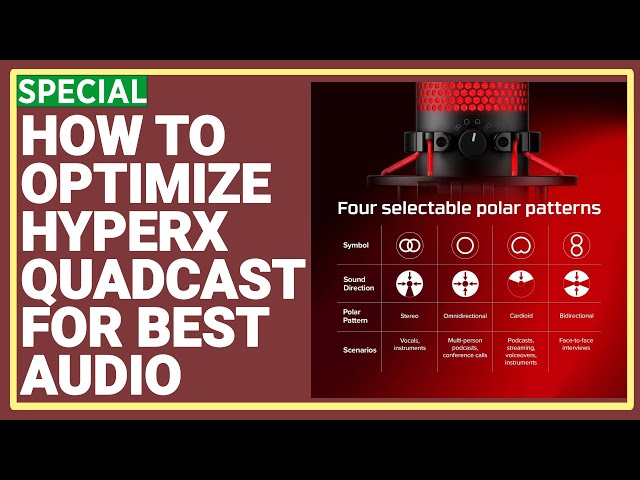
The HyperX QuadCast offers four polar patterns - cardioid, omnidirectional, bidirectional, and stereo - each of which has its own unique strengths and applications. For example, the cardioid polar pattern is ideal for recording a single source of audio, such as a podcast or voiceover, while the omnidirectional pattern is great for capturing sound from all directions, such as a roundtable discussion or interview.
We will demonstrate how to switch between the different polar patterns on the HyperX QuadCast, as well as how to adjust the settings to get the best audio quality for each pattern. We will also provide tips and techniques for using the polar patterns in a variety of recording situations, so you can get the most out of your QuadCast microphone.
In addition to configuring and testing the sound settings on your HyperX QuadCast, this video will also show you how to use the Nvidia Broadcast Room Echo Removal and Noise Removal features to improve the clarity and intelligibility of your recordings. These powerful tools can help eliminate unwanted background noise and echoes, giving you clean and professional-sounding audio every time.
We will provide step-by-step instructions for setting up and using the Nvidia Broadcast Room Echo Removal and Noise Removal features, as well as tips and tricks for getting the best results. Whether you're a streamer, content creator, or just looking to improve the quality of your recordings, these features can be a valuable addition to your audio setup.
Overall, this video provides a comprehensive guide to configuring, testing, and using the HyperX QuadCast microphone, as well as exploring the different polar patterns and using Nvidia Broadcast to enhance your audio recordings. Whether you're a beginner or an experienced recording enthusiast, this video has something for you. So be sure to watch it from start to finish to learn everything you need to know about the HyperX QuadCast microphone and how to get the best audio quality from it.
-
00:00:01 Greetings, everyone. My name is Dr. Furkan Gözükara. This video is a follow-up to my
-
00:00:06 review and unboxing of the HyperX QuadCast HX-MICQC-BK microphone. In this video,
-
00:00:12 I will demonstrate how to achieve the best sound quality with this microphone by using
-
00:00:17 the optimal settings and configuration. Currently, my microphone is set to Cardioid
-
00:00:22 mode with the sensitivity set to medium as shown in this image. Okay, as you can see right now,
-
00:00:29 I do not have any audio input filters enabled in OBS Studio. However, NVIDIA Broadcast AI Assisted
-
00:00:36 Room Echo Removal and Noise Removal filters are turned on. As shown, as can be seen here.
-
00:00:43 Let me quickly show you the settings of OBS Studio. Currently, I am recording.
-
00:00:49 Okay, this is the settings of audio input. As you can see, sample rate is 48 kHz, channels are
-
00:00:58 stereo, and other settings are as default. Decay rate is fast, peak meter type is true, peak higher
-
00:01:04 CPU usage. The output mode is video bit rate. It is not important for the voice. Audio bit
-
00:01:11 rate is 192, as you can see, and I am using the other settings. For the properties audio input,
-
00:01:19 you see the device is selected as microphone NVIDIA Broadcast. This is important. When you want
-
00:01:24 to use NVIDIA Broadcast, which I will explain, you need to set output for OBS Studio as like this,
-
00:01:31 otherwise it won't work. And finally, I have no filters for audio input capture. Okay.
-
00:01:41 So now I will test each one of the polar patterns and let's see how they are behaving.
-
00:01:49 Okay, right now my microphone is set to stereo polar pattern, which is the first one,
-
00:01:54 as can be seen here. Its sound direction is like this, and this is how it sounds.
-
00:02:02 Okay, let's do some tests. 1, 2, 3, 4, 5, 6, 7, 8, 9, 10. Okay.
-
00:02:11 Okay, now I have turned off room echo removal and noise removal. So let's do
-
00:02:16 another test and we are currently still in the stereo mode. 1, 2, 3, 4, 5, 6, 7, 8, 9, 10.
-
00:02:26 Okay, now our polar pattern is omnidirectional and the room echo removal and the noise removal are
-
00:02:35 activated. So let's do a test. 1, 2, 3, 4, 5, 6, 7, 8, 9, 10. Okay, I have the same with the room
-
00:02:45 echo removal and noise removal. We are still in the omnidirectional. Let's do another test. 1, 2,
-
00:02:51 3, 4, 5, 6, 7, 8, 9, 10. Okay, now we are in the cardioid mode. In the cardioid mode. There is one
-
00:03:01 very important thing that you have to consider. The position of the microphone has to be like
-
00:03:08 this. Okay. This is the side that cardioid mode will work best. You see the cardioid mode gets
-
00:03:19 voice from the front and this is the front side of the microphone. Okay, if you turn it upside down,
-
00:03:27 then your sound will be much worse. Let me do that. Okay, before doing that,
-
00:03:32 let's make a test first. Okay, and 1, 2, 3, 4, 5, 6, 7, 8, 9, 10. Now I will reverse the microphone.
-
00:03:43 Okay, the microphone is now positioned like this to me. Let's do another test. 1, 2, 3,
-
00:03:50 4, 5, 6, 7, 8, 9, 10. Okay, now the microphone is positioned like this and I have turned off
-
00:04:00 the room echo removal and the noise removal. So let's do a test. 1, 2, 3, 4, 5, 6, 7, 8, 9, 10.
-
00:04:10 Okay, now we are at the bi-directional mode and we have enabled the room echo removal and the noise
-
00:04:15 removal. Let's do a test. 1, 2, 3, 4, 5, 6, 7, 8, 9, 10. Okay, now I have turned off the room echo
-
00:04:24 removal and the noise removal. Let's do another test. We are still in the bi-directional mode. 1,
-
00:04:30 2, 3, 4, 5, 6, 7, 8, 9, 10. Okay, we are back to our best settings. So our best settings are
-
00:04:38 cardioid mode and room echo removal and noise removal are enabled. So how do you
-
00:04:44 install NVIDIA Broadcast? Just type to Google NVIDIA Broadcast like this and there is download
-
00:04:54 link as you can see here. You can download it and after you have opened it, just like this,
-
00:05:02 set your microphone here and enable them. And don't forget to set your output to microphone
-
00:05:11 NVIDIA Broadcast from properties of OBS Studio. And for one final test, I will turn off the
-
00:05:21 NVIDIA Broadcast and enable the noise filter of the OBS Studio. And so you can compare it.
-
00:05:28 Okay, now the room echo removal and noise removal of the NVIDIA Broadcast is disabled. However,
-
00:05:35 as can be seen in this image, noise suppression of the OBS Studio is enabled. And let's do a test. 1,
-
00:05:44 2, 3, 4, 5, 6, 7, 8, 9, 10. Alright, I hope you have enjoyed our video. Please subscribe
-
00:05:56 and like our video if you like it. Also, please consider supporting us on Patreon. This will
-
00:06:03 enable us to generate better videos, hopefully in future. Hopefully see you later in our next video.